Video editing is often the slowest part of making content, even though filming may feel like the main production task. A 2026 creator survey summary reports that 78% of creators consider editing the most time-consuming part of content production (Kapwing's creator statistics summary). Another workflow guide places post-production at 35% to 45% of the total timeline, while filming accounts for 10% to 15% of the process (the same industry summary).
The reason is broader than cutting clips. Video editing challenges usually come from repetitive manual work, mismatched media, inconsistent quality, difficult file handling, accessibility requirements, and platform-specific delivery demands. A short promotional video can require asset organization, audio cleanup, color correction, captions, revisions, exports, and several versions before it reaches an audience.
The sections below diagnose 10 recurring video editing challenges in production order. Each one includes a practical workflow, a creator scenario, a team scenario, useful tool directions, and restrained guidance on where automation or AI can save time without replacing editorial judgment.
1. Time-Consuming Manual Editing and Post-Production
Manual editing becomes expensive because small tasks repeat across every project. An editor may need to review all footage, remove pauses, select usable takes, correct color, balance audio, add transitions, create captions, and export multiple versions. None of these tasks is difficult in isolation, but together they can consume the time needed for planning, publishing, and audience engagement.
This pressure affects both individuals and teams. A social media manager may spend most of a workday shaping one short promotional video. An agency may have strong creative demand but limited editing capacity, leaving client projects in a queue. Marketing teams can also miss publishing windows because revisions take longer than expected.
Practical rule: Reduce repeated decisions before you try to edit faster.
Start with a repeatable system:
- Batch similar tasks: Review footage in one pass, then handle audio, captions, and color in their own passes.
- Build templates: Save recurring intros, lower thirds, end screens, brand colors, and export presets.
- Use keyboard shortcuts: Shortcuts for trimming, ripple edits, markers, and playback reduce unnecessary mouse movement.
- Create a revision checklist: Confirm framing, audio, spelling, captions, branding, and export settings before review.
- Automate technical work carefully: Transcription, silence detection, rough scene assembly, and format resizing are suitable starting points.
A creator producing weekly tutorials might use a fixed project template with labeled tracks for dialogue, music, effects, captions, and graphics. A marketing team can route every project through the same folder structure and approval stages. Tools such as LunaBloom AI's video creation app can assist with script-led production and automated assembly, but a person should still decide whether the pacing, message, and visual emphasis fit the audience.
2. Audio and Voiceover Synchronization Issues
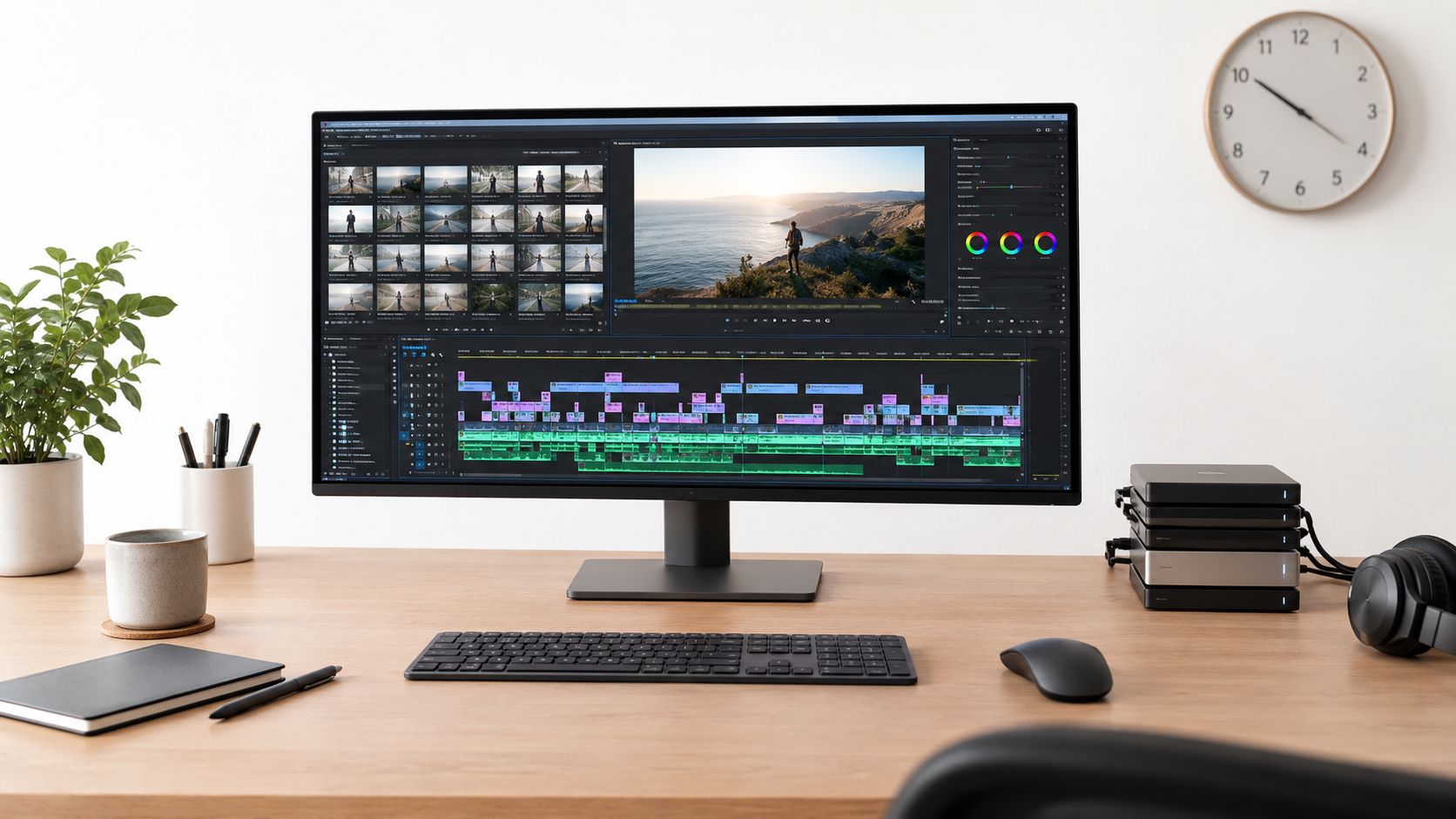
A video can look polished and still feel unprofessional when speech arrives before the speaker's mouth moves, or when a voiceover describes an action too early. Synchronization becomes harder when a timeline contains dialogue, narration, music, sound effects, multiple speakers, and translated versions.
A YouTube educator may record narration separately from a screen demonstration. The voiceover then needs to match cursor movement, on-screen steps, and visual changes. An international brand faces a different problem. Translated voiceovers often have different lengths, so one edit may not fit every language without changes to pauses, shots, and scene timing.
Diagnose the source before moving clips
First, determine whether the problem comes from recording, file interpretation, or editing. If the entire track is consistently early or late, check the source settings and shift the track as a unit. If sync drifts over time, inspect frame rate, sample rate, and variable-speed footage before making manual corrections.
Keep the timeline organized:
- Separate dialogue: Put voice and spoken audio on dedicated tracks.
- Use waveform landmarks: Match a clear consonant, clap, gesture, or scene change to the corresponding visual moment.
- Keep music and effects independent: You'll be able to adjust energy without disturbing speech.
- Review on more than one device: Headphones, laptop speakers, and mobile playback can reveal different timing and balance problems.
AI can transcribe speech, identify speaker changes, and create a first timing pass. It shouldn't decide whether a pause feels natural or whether a cut weakens the explanation. For teams exploring automated voice and video workflows, LunaBloom AI's overview describes a production approach that combines generated narration with edited scenes, captions, and visual elements. The final lip-sync and listening experience still need human review.
3. High Software Costs and Technical Learning Curve
Software costs are only part of the decision. The full price also includes hardware, training, setup time, support, and the work required to keep projects moving. Adobe Premiere Pro, Final Cut Pro, and DaVinci Resolve provide capable editing environments, but each demands different skills and system resources.
A small e-commerce business producing a few product ads may not need a full professional suite. A startup might have a script and footage ready, yet delay its launch video because nobody can finish the edit. A freelance educator may find a recurring license difficult to justify while video income changes from month to month.
Choose the tool around the repeated task. Talking-head lessons usually require dependable trimming, audio cleanup, captions, and simple graphics. Complex compositing calls for a more advanced suite and an editor who can operate it efficiently. A long feature list does not automatically reduce production effort.
Price the workflow, not just the license
Use these questions to compare options:
- What do you produce repeatedly? Match the software to your formats and content types.
- Who will operate it? A lower-cost tool may require more training and slow the first projects.
- What help is available? Tutorials, documentation, community guidance, and technical assistance affect turnaround.
- How will people collaborate? Review project exchange, versioning, and shared asset access.
- Can the process grow? Check whether higher content volume or complexity would force a rebuild.
Run one real project before replacing the team's entire process. Test import, editing, review, export, and handoff, then record where time or errors appear.
Open-source and lower-cost tools can reduce licensing pressure, while reliability and interoperability still require attention. Global Growth Insights reports that 46% of users lack dedicated technical assistance, 33% report software instability, and 30% cite a steep learning curve. These figures point to workflow risks as well as software costs. A guided option such as LunaBloom AI's starter app may fit teams that prefer prompt- or script-led creation instead of building every project on a traditional timeline. Use automation for a first draft, then have an editor check pacing, brand details, and deliverables.
4. Video File Format and Codec Compatibility Problems
A video file can fail at several points before it reaches the viewer. The container, such as MOV or MP4, packages the media. The codec, including H.264, H.265, ProRes, or DNxHD, controls compression and decoding. Frame rate, resolution, color settings, and audio format also affect import, playback, and export.
Mixed-camera projects expose these differences quickly. Smartphone, DSLR, action-camera, and drone footage may share a timeline while behaving differently. One clip might lose audio, display incorrect colors, or play poorly. ProRes media may also behave differently on a collaborator's system. A technically valid export can still look soft or cropped after a social platform processes it.
The practical fix is to establish a media standard before editing. Start with a quick intake check:
- Record each source's resolution, frame rate, codec, audio format, and color profile.
- Decide whether the edit will use original media, optimized files, or proxies.
- Transcode only incompatible or unstable footage, rather than repeatedly converting it during the project.
- Save platform presets and delivery requirements beside the project files.
- Export a short representative sample and preview or upload it before rendering the full timeline.
This approach works like checking every plug before assembling the equipment. It catches incompatibilities while changes are still cheap.
Proxy files can make an unresponsive timeline easier to edit without changing the quality of the final source. For YouTube delivery, SupaBird's YouTube format advice offers a reference for planning format and export settings. AI tools can identify aspect ratios, flag unusual media properties, and suggest alternate exports. Treat those suggestions as a first check. An editor still needs to verify the final file, audio, color, and framing on the intended platform.
5. Color Grading and Consistency Across Multiple Clips
Color inconsistency can distract viewers before they identify the cause. A warm, bright shot followed by a cool, underexposed one makes the edit feel careless. Differences in cameras, filming days, rooms, and lighting usually create the mismatch.
Start by diagnosing the source. Check exposure, white balance, contrast, skin tones, and background brightness across neighboring shots. An interview filmed in several locations may need careful skin-tone matching. A YouTube creator can face the same issue after changing cameras or relying on automatic exposure. Corporate footage must also sit comfortably beside brand graphics and established visual guidelines.
Color correction and color grading solve different problems. Correction brings footage to a neutral, consistent baseline by adjusting exposure, white balance, contrast, and skin tones. Grading then adds the intended creative look. Applying a dramatic look first can exaggerate differences that should have been corrected earlier.
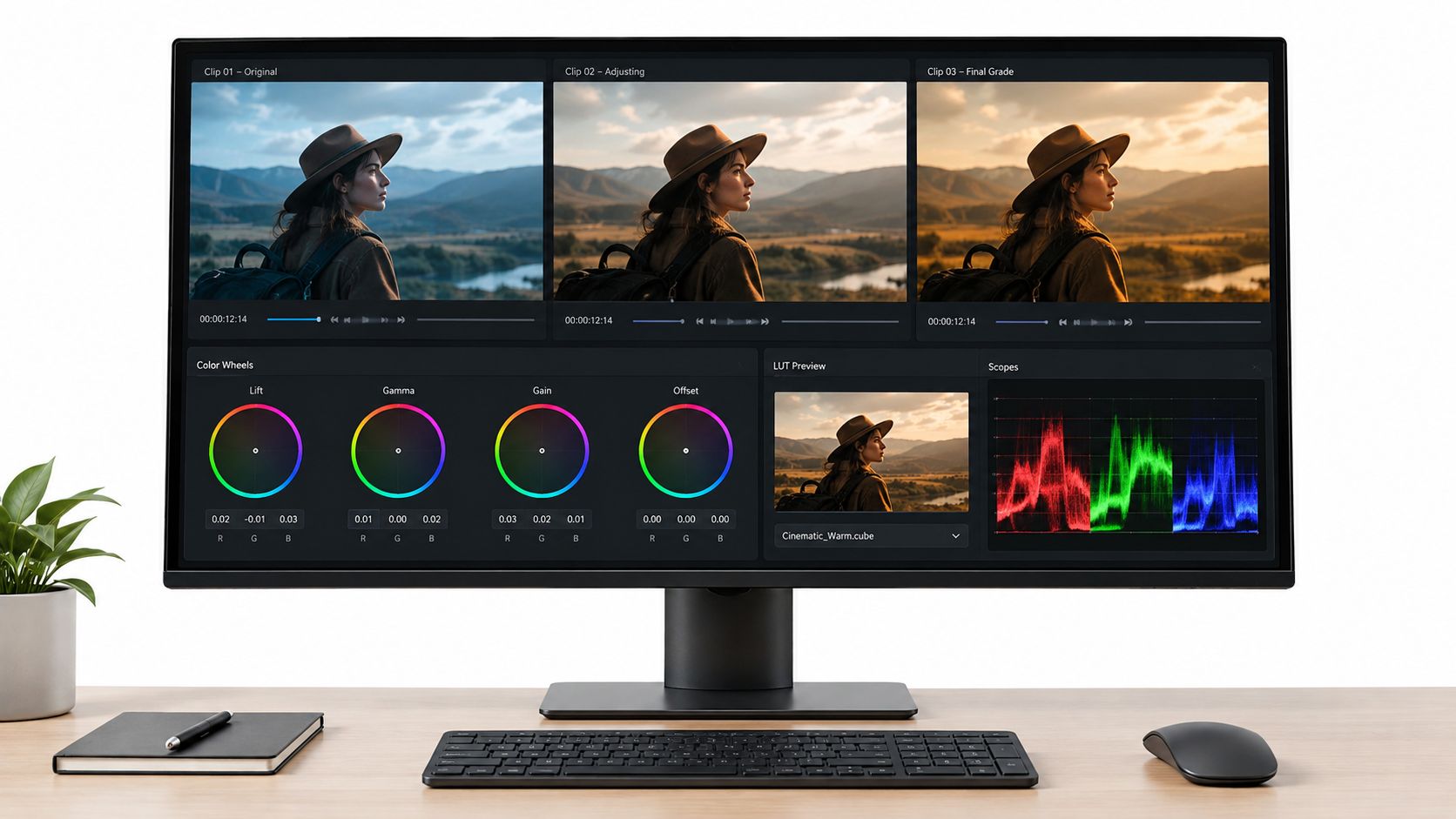
Use a reference rather than memory. Capture a color chart or other color reference during filming when possible, then work through the sequence in a consistent order:
- Normalize the footage: Apply the correct camera transform or technical correction.
- Match adjacent shots: Compare exposure, white balance, skin tones, and contrast.
- Add the creative look: Use a LUT as a starting point, then adjust it to fit the footage.
- Check the display: A calibrated monitor provides a more dependable reference than an unverified screen.
- Review the scene: Watch the full sequence because still frames can hide distracting shifts.
AI can group shots with similar lighting and suggest a base correction. It cannot decide whether a brand should feel warm, restrained, energetic, or documentary-like without clear creative direction. Editors should verify every suggested adjustment against the reference, the brand guidelines, and the full scene.
A short demonstration can show how scopes and color wheels support consistent decisions.
6. Managing Large Video Files and Rendering Bottlenecks
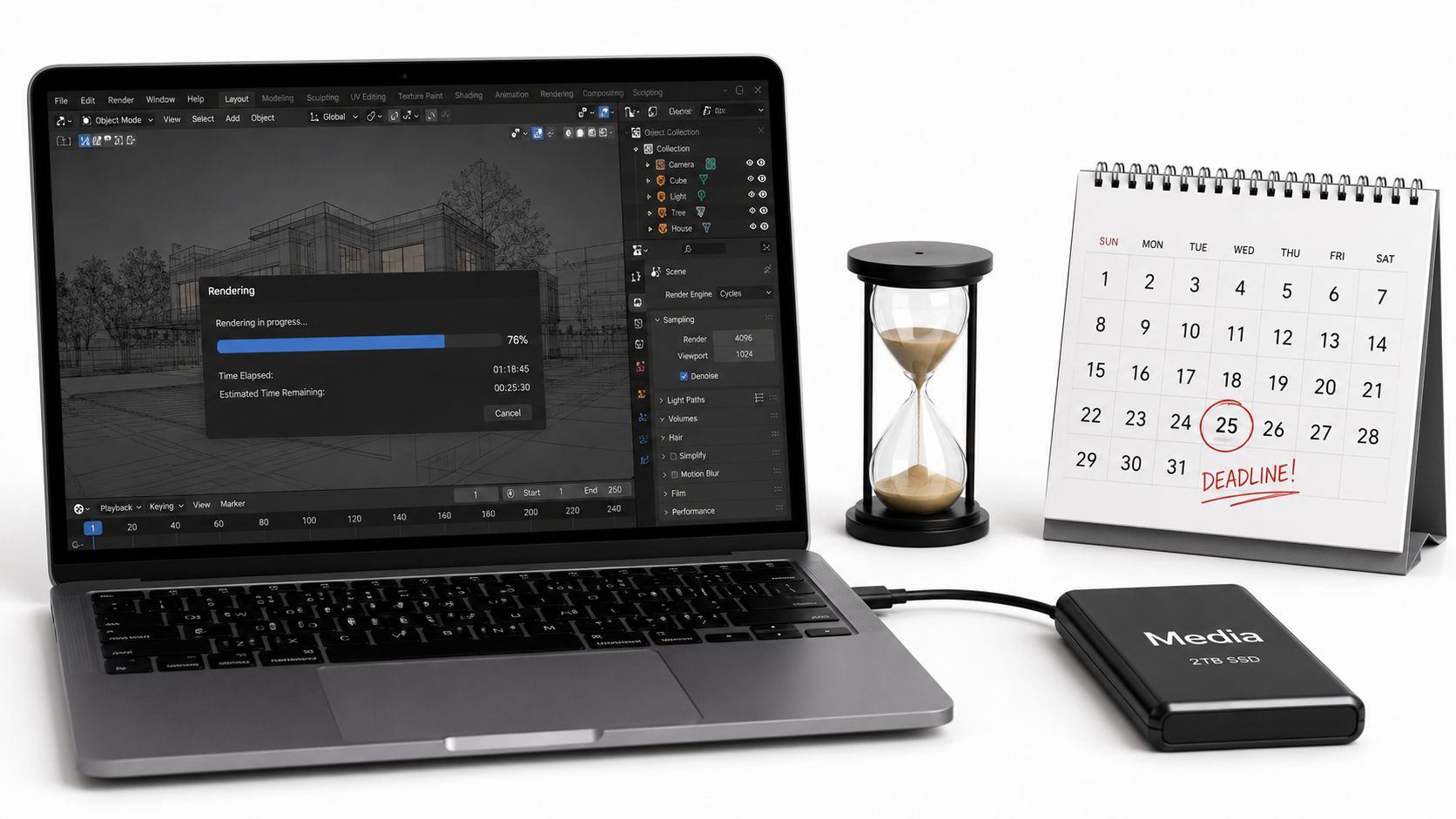
Large video files slow production in two places: the edit can stutter, and the final render can delay review. High-resolution footage, layered graphics, noise reduction, color corrections, effects, and several audio tracks all increase the processing load.
Start with a quick diagnosis. Dropped frames usually point to limited processing power, storage speed, or unsupported media. A long export may reflect complex effects or oversized project settings. Remote teams also need to store, back up, transfer, and synchronize the same media without creating conflicting versions.
A simple folder system prevents many avoidable delays. Separate source footage, project files, cache media, proxies, graphics, audio, and exports. Name versions clearly, so nobody reviews an outdated render or overwrites the master.
Keep editing responsive, then render at full quality
Proxies provide the most direct fix. They are lower-resolution copies used during editing, while the original files remain available for the final export. Most video editors, including Premiere Pro and DaVinci Resolve, can create and relink proxies within the project.
Use this workflow:
- Put active media and cache files on suitable SSD storage.
- Set the timeline to the intended delivery format instead of processing unnecessary resolution.
- Pause background synchronization and other demanding applications during editing.
- Render complex sections before a review meeting.
- Schedule full exports outside active collaboration hours.
- Keep a clear naming convention for drafts, review files, and masters.
A freelancer may regain smooth playback with proxies and faster storage. An agency can shorten client review waits by preparing previews before the review window. These changes separate editing speed from final image quality.
AI tools can create previews, flag failed renders, and produce alternate versions. They do not replace storage planning or project housekeeping. VoxBooster's editing statistics reports storage constraints among 33% of users and hardware limitations among 29%. Proxies and disciplined media management therefore address practical production limits.
7. Subtitle and Caption Creation and Localization
Subtitle work can become a second editing project. Captions support viewers who watch without sound, people who are deaf or hard of hearing, and audiences in noisy or quiet settings. They also make spoken content easier to search, review, translate, and repurpose.
The root problem is usually a rough first transcript. Automatic speech recognition may mishear names, technical terms, punctuation, or speaker changes. A creator then spends time correcting timestamps and wording. A global marketing team faces added work from translated text, different line lengths, and separate subtitle files. Burned-in captions require a new export after each correction, while separate files must be checked with the final video.
Accessibility depends on accurate information, not text that merely appears on screen. Under FCC and DOJ guidance, captions must be at least 99% accurate and should include correct spelling, punctuation, speaker identification, and relevant non-speech sounds (University of Maryland caption guidance).
Build the caption workflow around review:
- Generate a transcript with speech recognition.
- Compare it with the audio and correct names, terms, punctuation, speaker labels, and meaningful sounds.
- Give translators a clean transcript and timing reference.
- Review each language version over the video, since a translation that reads well on paper may not fit the available screen time.
- Test the final files on the intended device and platform.
Keep lines readable by breaking them at natural speech boundaries. Match appearance to spoken words rather than letting captions arrive several beats late. Use approved product, feature, and brand terminology across every version.
AI can handle transcription, translation, timing suggestions, and formatting. Human review still matters for accessibility, regulated subjects, humor, names, and specialist vocabulary. Teams defining a captioning workflow can contact LunaBloom AI about a production use case.
8. Voiceover Recording Quality and Performance Consistency
The same script can produce two very different edits. One take sounds close and steady, with clear emphasis. The next has room echo, background noise, a changed microphone distance, or a different pace. Editors then spend time hiding gaps, matching levels, or asking for retakes.
Check the recording first: does the voice sound consistent from beginning to end, and can each line fit the visuals? A home-office recording may change acoustically between takes. An educator may pronounce every word correctly but vary speed and emphasis, making screen recordings harder to match. Multilingual production adds script, pronunciation, talent, approval, and retake coordination for each language.
Improve the recording before adding processing
Control the room and repeat the same setup. Keep the microphone in one position, record at consistent levels, and mark script changes before the session. For important lines, capture several takes, including a natural delivery and a slightly slower version.
Write the script for the ear, then prepare the session. Mark names, acronyms, emphasis, and pauses so the speaker does not have to guess. Record a short sample of room tone, which helps editors smooth cuts and avoid abrupt changes. Label each file by scene, version, speaker, and language. After recording, review performance and sound separately. A clean file may still need a more convincing delivery.
Voice talent platforms and basic home-recording equipment can reduce setup friction, but the room and process affect quality as much as the microphone. AI voices can suit routine narration, drafts, internal explainers, or content that does not rely on a distinctive human performance. For sensitive brand messaging, assign a person to verify pronunciation, tone, consent, and final approval. This keeps automation useful without allowing a generated voice to make unchecked creative or brand decisions.
9. Scaling Content Production While Maintaining Quality Standards
A reliable video library needs a production system, not just skilled editors. As output grows, inconsistent pacing, typography, transitions, color, or brand voice can make related videos feel unrelated. Contributors also lose time when they must ask for the same instructions on every project.
Start by finding the bottleneck. An agency may have more demand than editing capacity. A social team may produce recurring videos while managing campaigns and reporting. An enterprise creating localized versions may face another editing and approval cycle for every language. These problems often come from unclear ownership, repeated setup, and reviews that happen too late.
Set rules at the points where decisions repeat:
- Opening: Define approved hooks, logos, and first-frame treatments.
- Captions: Record the font, placement, contrast, line length, and safe areas.
- Visual identity: List approved colors, transitions, graphics, and music use.
- Review: Assign separate owners for creative, factual, accessibility, and final delivery checks.
- File handling: Use consistent names for projects, versions, languages, and exports.
A template works like a prebuilt workstation. It removes setup work while leaving the editor responsible for the creative choices. Store approved timelines, graphic elements, caption styles, and export presets where every contributor can find them. A project management system should show the owner, current status, blockers, and approval history.
Quality also needs a sampling plan. Review every new template and contributor closely, then sample recurring output against the guide. Track recurring errors, update the rules, and train the team on the change.
AI can prepare rough scenes, captions, alternate formats, and localized drafts. Keep a named person responsible for checking facts, brand treatment, accessibility, language, and final delivery. LunaBloom AI supports script-led creation, editing, voiceovers, captions, avatars, localization, and collaboration. Assess it against your style guide and approval process, rather than allowing automation to set those standards.
10. Distribution Optimization and Platform-Specific Formatting
Distribution problems often begin before export. Each platform may require a different aspect ratio, crop, duration, thumbnail, caption treatment, title, description, or metadata. A horizontal tutorial may need a vertical cut that keeps the speaker visible, protects text from interface elements, and reaches its main point quickly.
Start with the audience and purpose for each destination. A short-form channel may need a tighter opening, while a professional or educational channel may preserve more context. Reusing one master everywhere saves export time, but careless cropping can remove a product, speaker, hand gesture, or on-screen claim.
Use a simple adaptation workflow:
- Build the master with subjects and important text inside safe areas.
- Mark the moments that can stand alone as short clips.
- Create platform templates for aspect ratios, captions, thumbnails, and export settings.
- Reframe each version manually after automatic cropping.
- Check the title, description, metadata, and thumbnail promise for the intended audience.
- Test the final files on the target platforms before scheduling them.
A clean master timeline with dialogue and graphics separated makes each version easier to adjust. Keep a requirements sheet beside the project. A video format guide for teams can help organize platform specifications and reduce missed delivery details.
AI tools can resize footage, reframe subjects, draft metadata, and create alternate captions. Treat those outputs as starting points. A named reviewer should approve the hook, factual claims, thumbnail promise, caption accuracy, and audience angle. Distribution is editorial work expressed through technical formats, so batch export alone cannot guarantee a useful final video.
10 Video Editing Challenges Compared
| Issue | 🔄 Implementation Complexity | ⚡ Resource Requirements | ⭐ Outcomes & Advantages | 📊 Results / Impact | 💡 Ideal Use Cases & Tips |
|---|---|---|---|---|---|
| Time-Consuming Manual Editing and Post-Production | Very high, many repetitive frame-level tasks | High labor hours; skilled editors; storage | Full creative control; studio-grade customization ⭐⭐⭐ | Long timelines; bottlenecks; reduced throughput 📊 | Bespoke cinematic work; tip: batch tasks, use templates |
| Audio and Voiceover Synchronization Issues | High, frame-by-frame precision required 🔄 | Audio engineers/time; multi-track management | Professional sync improves engagement and credibility ⭐⭐ | Small errors are distracting; localization multiplies complexity 📊 | Dialogue-heavy or multilingual videos; tip: script-to-timing, zoom waveforms |
| High Software Costs and Technical Learning Curve | High, steep interface and workflow learning 🔄 | Paid subscriptions; powerful hardware; training time | Industry-grade flexibility and output quality ⭐⭐⭐ | Budget and time barriers; delays to productivity 📊 | Pro studios or long-term users; tip: try free tutorials, consider pay-as-you-go |
| Video File Format and Codec Compatibility Problems | Moderate, technical codec/container knowledge needed 🔄 | Transcoding tools, time for conversions, proxy workflows | Broad source flexibility when managed properly ⭐⭐ | Workflow friction; quality loss risk from multiple conversions 📊 | Multi-camera shoots; tip: standardize formats, use proxies |
| Color Grading and Consistency Across Multiple Clips | High, artistic + technical adjustments per clip 🔄 | Skilled colorist or LUTs; calibrated monitors; time | Dramatically elevated visual quality and brand consistency ⭐⭐⭐ | Inconsistent footage reduces perceived production value 📊 | Branded series, films; tip: build LUT library, use reference frames |
| Managing Large Video Files and Rendering Bottlenecks | Moderate-high, depends on project complexity 🔄 | Powerful CPU/GPU, fast SSDs or cloud rendering, lots of storage | Enables high-resolution delivery when resources available ⭐⭐ | Long render times; crashes and file management bottlenecks 📊 | 4K/complex VFX projects; tip: use proxies, schedule renders off-hours |
| Subtitle and Caption Creation and Localization | High, timing + translation rework for each language 🔄 | Transcription/translation resources; QA time | Improves accessibility, engagement, and SEO significantly ⭐⭐⭐ | Time-consuming but boosts reach; localization adds overhead 📊 | Global audiences & accessibility needs; tip: use ASR first-pass, auto-retime |
| Voiceover Recording Quality and Performance Consistency | Moderate-high, talent logistics and acoustic control 🔄 | Voice talent, studio or quality DIY gear; editing time | Human performance boosts authenticity and brand tone ⭐⭐⭐ | Scheduling, cost, and retakes can delay delivery 📊 | Narration-heavy content; tip: detailed scripts, consider AI voice for speed |
| Scaling Content Production While Maintaining Quality Standards | Very high, coordination, templates, QA workflows 🔄 | Team hires, onboarding, tools, automation for scale | Consistent, high-volume output when processes exist ⭐⭐ | Labor costs rise; quality control and onboarding become bottlenecks 📊 | Agencies and enterprises; tip: enforce style guides and automation |
| Distribution Optimization and Platform-Specific Formatting | Moderate, many platform specs to manage 🔄 | Time for multiple exports, thumbnails, metadata | Better reach and algorithm performance when optimized ⭐⭐ | Multiplies post-production work; missed optimization lowers reach 📊 | Multi-platform campaigns; tip: create templates, automate platform exports |
Turn Editing Friction Into a Repeatable Workflow
The most useful response to video editing challenges is a production system that prevents avoidable work. Start before the first cut. Standardize asset names, folder locations, project settings, frame rates, color handling, and delivery targets. When footage arrives from several cameras or contributors, document the media properties and decide whether the project needs native files, optimized media, or proxies.
Next, separate the timeline into clear functional layers. Keep dialogue, voiceover, music, effects, captions, graphics, and reference media distinct. That structure makes revisions safer because a music change doesn't disturb narration, and a caption correction doesn't require rebuilding the visual edit. It also gives automation tools cleaner inputs and makes handoffs easier for another editor.
Templates should handle repeated setup, not creative judgment. Save branded openers, lower thirds, caption styles, end screens, color references, and export presets. Use proxies when large files slow the edit. Schedule heavy renders outside active work, and store source files, project files, cache media, and exports with clear version names.
Automation is most valuable when the task is mechanical. AI can help with:
- Transcription and caption timing
- Silence detection and rough assembly
- Voiceover drafts and localization
- Speaker identification
- Aspect-ratio adaptation
- Scene organization
- Thumbnail and metadata drafts
- Preview generation and repetitive exports
It can't reliably decide whether a joke lands, whether a pause creates trust, whether a claim needs qualification, or whether a brand sounds authentic. Editors and marketing teams should retain control over messaging, pacing, tone, visual hierarchy, accessibility review, factual accuracy, and final approval.
Cost, trust, and workflow fit deserve attention before feature quality. One 2026 user survey lists cost as the top adoption barrier at 35.4%, followed by privacy and trust concerns at 17.1%, complexity and learning curve at 16.3%, and workflow mismatch at 15.8% (Vidio.ai's adoption survey). Those findings support a practical buying question: does the tool remove a real bottleneck in your workflow, and can your team review its output responsibly?
Choose one improvement for your next video. Create a reusable project template, generate a first-pass transcript, switch to proxies, or prepare platform exports from a single organized master. Measure the time saved, the corrections required, and the effect on review quality. Expand the process only after it works on a real project, then document it for the rest of your production library.
LunaBloom AI helps creators and marketing teams turn scripts, prompts, and images into edited videos with voiceovers, captions, avatars, localization, branding, and social publishing support. Visit LunaBloom AI to explore whether automated creation and post-production can reduce the specific video editing challenges in your workflow.