Creating one video for TikTok, Instagram, YouTube, and other social channels is no longer the difficult part. The difficult part is creating the right version for each channel without rebuilding the edit every time. Short-form video is now a core marketing format: HubSpot's 2025 video marketing research found that 29.18% of marketers actively use short-form video, 21% say it delivers the highest ROI, and 66% to 85% consider it the most engaging or effective social format. The best video maker for social media depends on your production model, not just your editing skill. You might need AI prompt-to-publish generation, trend-driven templates, strict brand governance, captioning and localization, Microsoft 365 collaboration, or browser-based repurposing. This comparison evaluates format support, resizing, export quality, captions, publishing, collaboration, pricing transparency, and creative control. Start with vertical 9:16 for short-form content, then create square or horizontal versions when the channel and viewing context call for them. For music licensing guidance, review this copyright guide for royalty-free music.
1. LunaBloom AI
Best for end-to-end AI production
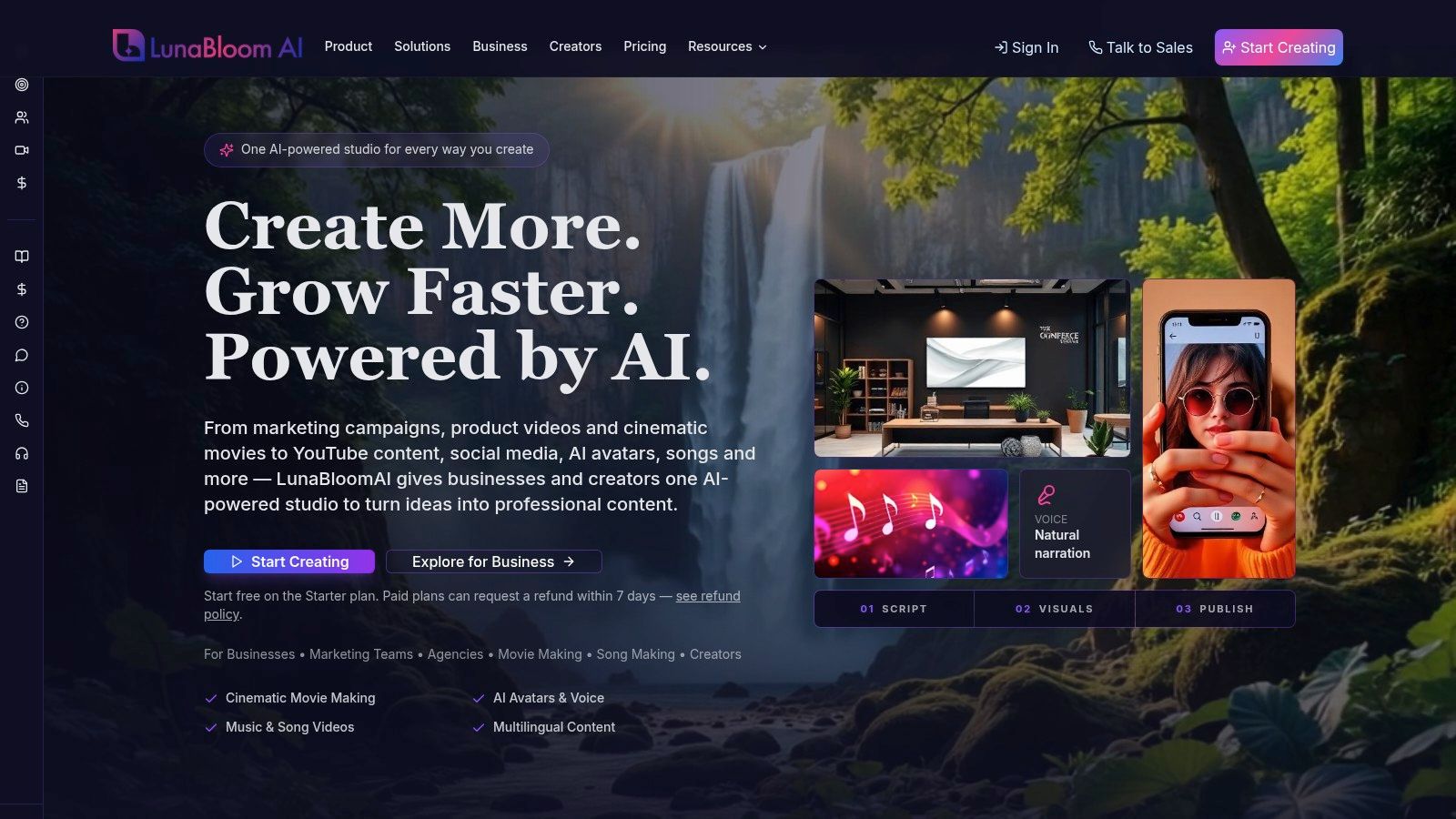
LunaBloom AI is the strongest choice when you want to move from an idea, script, or image to a finished social video in one workflow. It creates scenes, adds natural voiceovers, generates captions, translates content, and prepares titles, thumbnails, and metadata for discovery. You can also publish directly to social channels, which removes several manual steps after editing.
The platform goes beyond basic stock-footage assembly. It supports photo-realistic, animated, and 3D avatars, multi-character dialogue, voice cloning, AI-generated songs, and lip-synced music videos. Localization covers 50+ languages and regional accents, making it useful for agencies, international brands, educators, and businesses adapting one campaign for multiple markets.
Best use: Give LunaBloom one focused script, generate a primary vertical version, then create localized or channel-specific variants from the same source.
LunaBloom also supports storyboard and timeline editing, collaboration, version control, analytics, and API integrations. That combination matters when social video is a repeatable production process rather than an occasional post. A small marketing team can produce product demos, social ads, tutorials, training videos, onboarding content, and internal communications without managing separate avatar, caption, voice, and editing tools.
The main trade-off is usage-based access. Higher-value capabilities, longer videos, advanced voice cloning, HD or Full HD output, and priority generation depend on the selected plan and available credits. LunaBloom shows the credit cost before rendering, so teams can review the expected usage before committing to a generation. Paid plans include commercial-use rights, while the free pay-as-you-go Starter tier includes two free short videos for testing the workflow. Creator plans begin at $29.99 per month, Growth is $79.99 per month, Professional is $119.99 per month, and business plans begin at $999 per month, with enterprise pricing available from $5,000 or more per month. Confirm current limits and pricing before purchase because plan details can change.
Pros
- Fast production: Turn text, scripts, and images into edited videos with voiceovers, captions, thumbnails, and publishing support.
- Advanced creative control: Use avatars, multi-character dialogue, voice cloning, generated music, and lip-synced visuals.
- Global distribution: Translate and subtitle content across 50+ languages and regional accents.
- Transparent usage: Review credit costs before rendering, then scale from free testing to creator, professional, or enterprise workflows.
Cons
- Plan-based limits: Advanced generation, export quality, and voice features require higher plans or additional credits.
- Enterprise diligence: LunaBloom doesn't list third-party certifications or awards on its site, so larger organizations should confirm security, data handling, and contractual safeguards with sales.
For a team that wants a complete AI video maker for social media, LunaBloom is the clear featured recommendation. It prioritizes throughput while preserving enough control for brand, language, and publishing requirements.
2. CapCut
Best for trend-driven short-form editing
CapCut is built for creators who already have footage and need a fast route to a publishable social post. Its mobile, desktop, and web apps combine templates, effects, transitions, stickers, music, text styles, captions, and format changes for vertical content. The workflow fits TikTok-style edits, Reels, and Shorts, where quick pacing and visual momentum matter more than detailed timeline control.
Start with your clips, choose a template or editing style, replace the text and music, add captions, then export. You do not need to build every transition manually. Cloud project syncing lets you move between phone and desktop, while direct publishing helps shorten the path from edit to post.
CapCut's strongest use case is trend-led production. Its social-first assets make Fast vertical editing practical, and Flexible access across iOS, Android, desktop, and the web suits creators who switch devices. Social-first assets, including current music, text treatments, stickers, and transitions, help content match familiar platform conventions. Simple resizing lets you adapt a project for different social formats without starting again.
The trade-off is consistency. Templates and effects can make a video feel current, but they can also make several creators' work look alike. Brand controls, approval workflows, and asset-licensing oversight are lighter than in enterprise-oriented suites. Pro and Teams pricing can vary by region and device, so check the current offer inside the app before setting a production budget.
Limited governance makes CapCut a weaker fit for teams that require strict brand rules or formal approval chains. Variable pricing calls for an in-app check before purchase. Less automation also means someone must provide, sort, and prepare the source clips. CapCut handles editing and packaging well, but it does not replace a prompt-to-publish system that generates scenes, narration, translations, and metadata from a script.
Choose CapCut when the raw material is ready and the main tasks are trimming, styling, captioning, resizing, exporting, and publishing. For a complete AI-generated workflow, compare it with LunaBloom's video creation app.
CapCut is the right video maker for social media for creators who film first and need polished vertical content quickly. It is less suitable when brand governance, localization, or automated production carries more weight than trend speed.
3. Canva
Best for brand consistency and scheduling
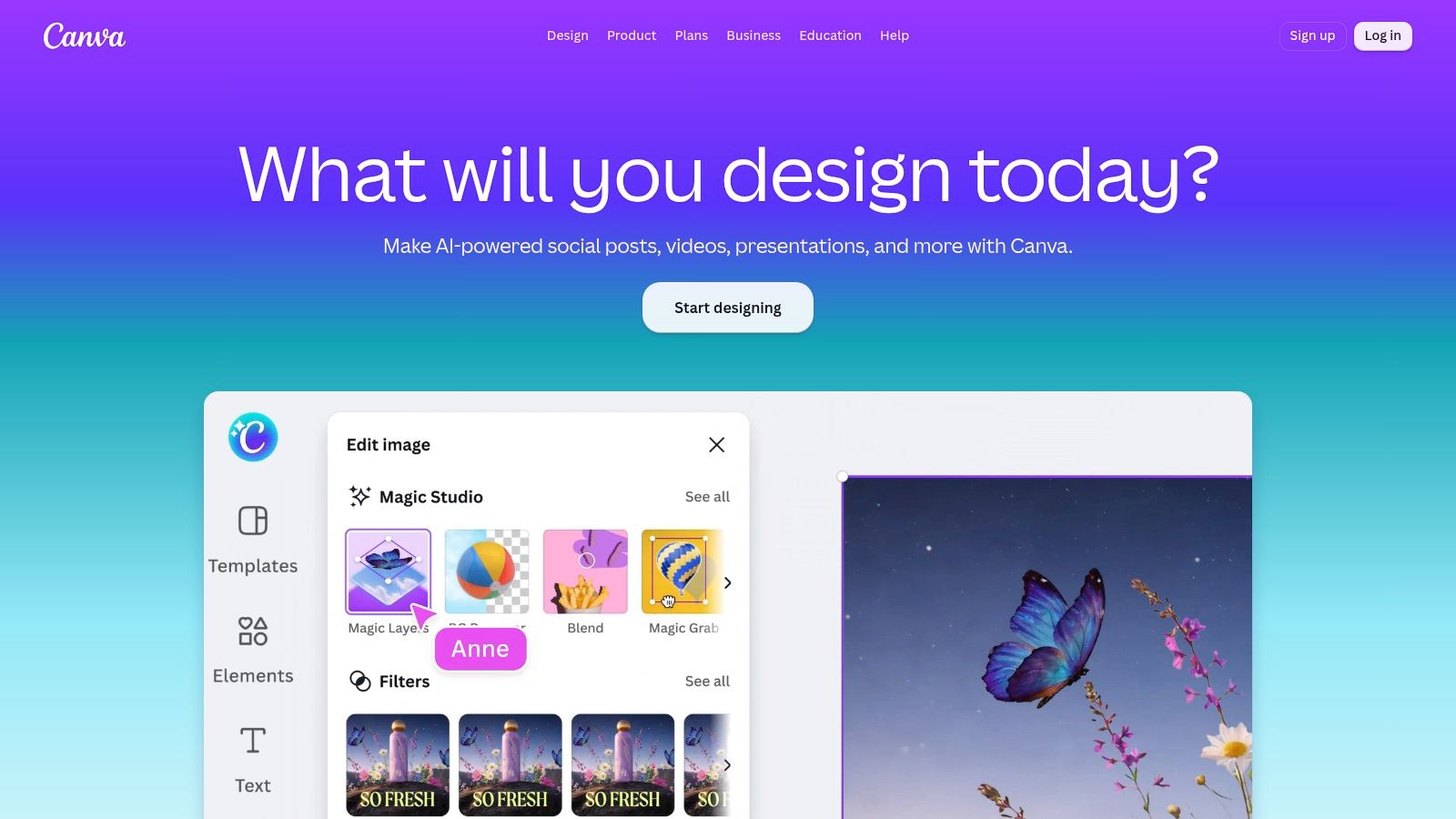
Canva works best when social video sits alongside graphics, presentations, ads, and other branded content. Its drag-and-drop editor gives non-editors a familiar way to assemble Reels, Stories, feed videos, and short promotional clips. Brand Kits keep fonts, colors, logos, and visual rules close to the editing workflow, so different contributors can produce consistent output.
The platform also connects creation with distribution. Teams can resize content, add graphics and captions, access stock assets, and schedule social posts from the same environment. That reduces the handoffs between a designer, a social manager, and the person responsible for publishing.
Canva's AI tools support resizing, translation, background removal, and other rapid production tasks. Monthly AI allowances apply by plan, so high-volume teams should review the current usage limits before standardizing the workflow. Paid tiers also include a large premium template library, while storage varies by plan.
Where Canva stops short
Canva is not a replacement for a professional non-linear editor. Its timeline and audio tools are easier to use, but they provide less precision for complex sound mixing, layered compositing, or highly customized motion design. That trade-off is worthwhile for branded social posts where speed, layout, and approval matter more than cinematic control.
Use Canva when a team needs repeatable templates and a shared visual language. For AI-generated scenes, avatars, voice cloning, or a workflow that starts with a prompt rather than existing footage, compare it with LunaBloom's current pricing options.
Pros
- Fast brand production: Create consistent videos without requiring advanced editing skills.
- Integrated scheduling: Move from creation to resizing to planned publishing.
- Broad asset access: Combine video, graphics, templates, stock content, and brand elements.
- Useful AI assistance: Translate, resize, remove backgrounds, and accelerate routine tasks.
Cons
- Monthly AI limits: Generative features depend on plan allowances or added usage.
- Simpler editing: Advanced timeline and audio control are lighter than professional editors.
- Template dependence: Highly distinctive campaigns may need more original design work.
Canva is the strongest option for marketing teams that want brand-friendly social video production, particularly when the same team already uses Canva for its broader content system.
4. Adobe Express
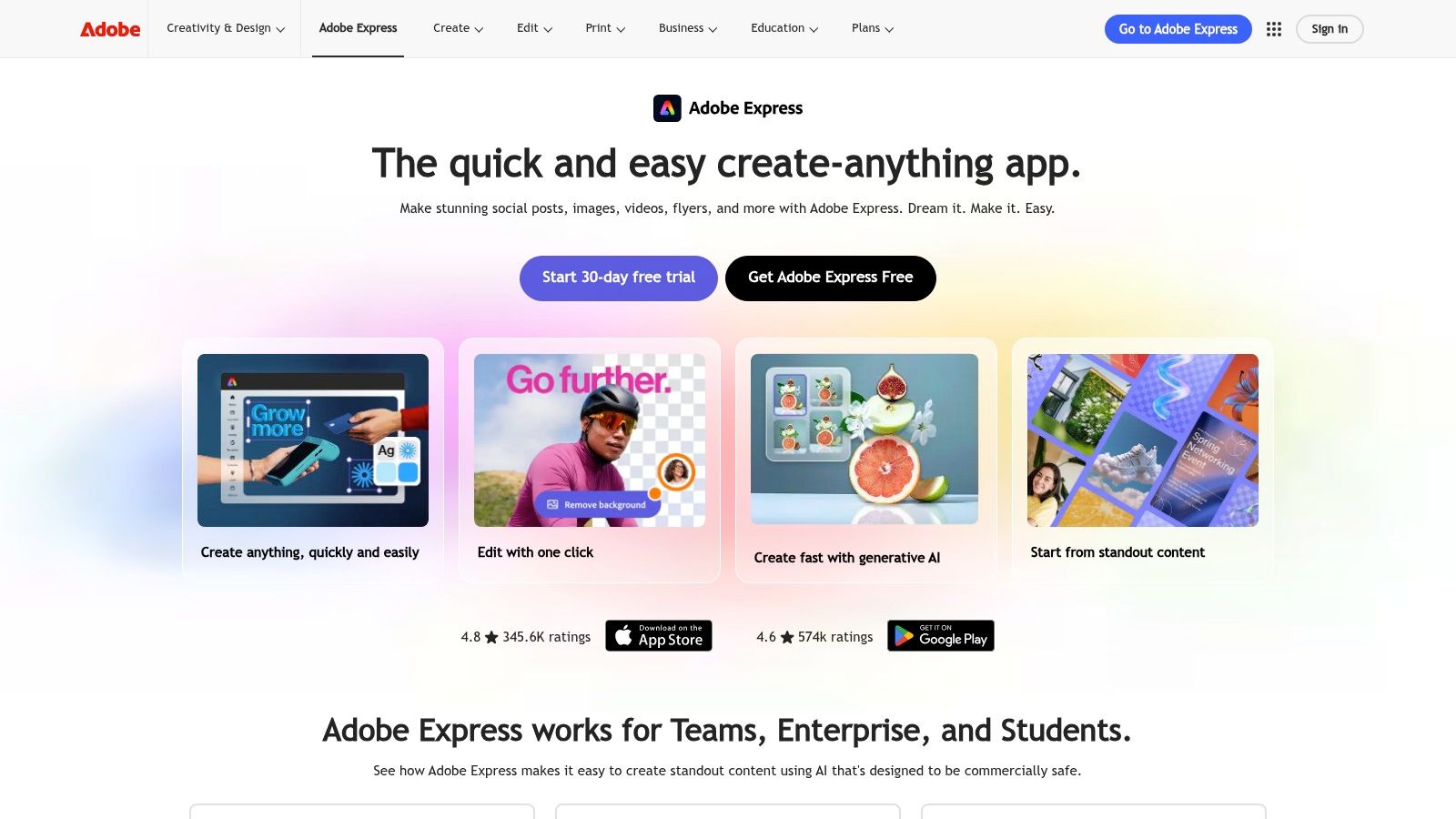
Adobe Express suits creative teams that need governed production rather than maximum editing depth. It brings templates, drag-and-drop video creation, voiceover recording, captions, background removal, stock assets, and a built-in Content Scheduler into the Adobe ecosystem. Teams already using Creative Cloud can work with familiar fonts, files, and Adobe Stock content without rebuilding their asset library.
The workflow is straightforward: start with a template or existing asset, apply approved brand elements, record or add voiceover, generate captions, then prepare versions for the required social placements. Check each aspect ratio before export, especially when one project must serve vertical feeds, wider placements, a website, and presentations. Adobe Express supports exports up to 4K, giving teams more flexibility when the same video needs to travel beyond social media.
Firefly-powered generative tools can speed up creative production. They are most useful when a team wants faster variations while still reviewing commercial-use guidance and administrative controls. Express also lets administrators manage access and approved assets, so creators can produce short videos without opening Premiere Pro for every task.
Governance matters: The fastest edit isn't useful if legal, brand, or marketing teams need to rebuild it before approval.
Use Adobe Express when brand consistency, permissions, and publishing coordination matter as much as editing speed. Its Content Scheduler supports planned publishing for TikTok, Instagram, Facebook, and Pinterest, but confirm the destinations, AI allowances, and export options included in your plan.
The trade-off is a heavier workflow than a phone-first editor. Some premium capabilities require business plans or a sales conversation, and lower-powered devices may feel slower. Express also offers less professional control than Premiere Pro for complex timelines, audio mixing, compositing, and motion design.
Adobe integration connects Creative Cloud, Adobe Stock, fonts, and existing brand assets. Team controls support approvals and administrative workflows. Publishing support helps teams schedule finished versions, while high-quality output supports projects that need exports up to 4K.
For an Adobe-centered team, Express is a practical video maker for social media that balances speed with brand governance. Teams seeking an AI-first workflow with automated avatars, translations, and social publishing can compare it with LunaBloom's Starter app.
5. VEED
Best for captions, localization, and browser-based repurposing
VEED is built for teams that want to create and adapt social video in a browser. There's no heavy installation, and the workflow covers screen and webcam recording, timeline editing, auto-subtitles, caption styling, translation, dubbing, and repurposing. That makes it particularly useful for turning webinars, product demonstrations, interviews, and tutorials into several platform-ready clips.
Its captioning tools are the main attraction. You can generate subtitles, style them for readability, translate them for international audiences, and create dubbed versions without moving the project into a separate service. VEED also includes AI avatars, text-to-video features, voice tools, lip-sync support, and eye-contact correction for teams experimenting with generated or enhanced presentations.
A practical browser workflow
Record a product walkthrough with the screen and webcam recorder. Clean the audio, remove unnecessary sections, generate captions, then create a vertical cut for short-form feeds and a wider version for other placements. Review every caption manually before export, especially for names, technical terms, and calls to action.
VEED supports team workspaces and APIs for automation, so it can grow from individual editing into a repeatable content pipeline. Pricing and promotions can vary by region, and some details may require signing in. Its asset library is also smaller than Canva's or Adobe's premium catalogs.
For teams focused on localization and browser collaboration, VEED is a strong pick. If you want to compare its workflow with a broader AI video studio, visit LunaBloom's platform overview.
Pros
- Browser-first production: Edit from a modern browser without installing a large desktop application.
- Caption strength: Generate, style, translate, and dub subtitles for multiple audiences.
- Repurposing tools: Convert recordings and long-form material into short social edits.
- Team automation: Use workspaces and APIs for collaborative or repeatable production.
Cons
- Variable pricing: Regional offers and promotions can make budgeting less straightforward.
- Smaller asset catalog: Stock options are less extensive than Canva's or Adobe's premium libraries.
- Review still matters: Automated captions and translations need human checks before publishing.
VEED is the best choice when the central problem isn't generating an idea. It's turning existing video into captioned, localized, platform-specific content quickly.
6. InVideo AI
Prompt-to-publish production from a written brief
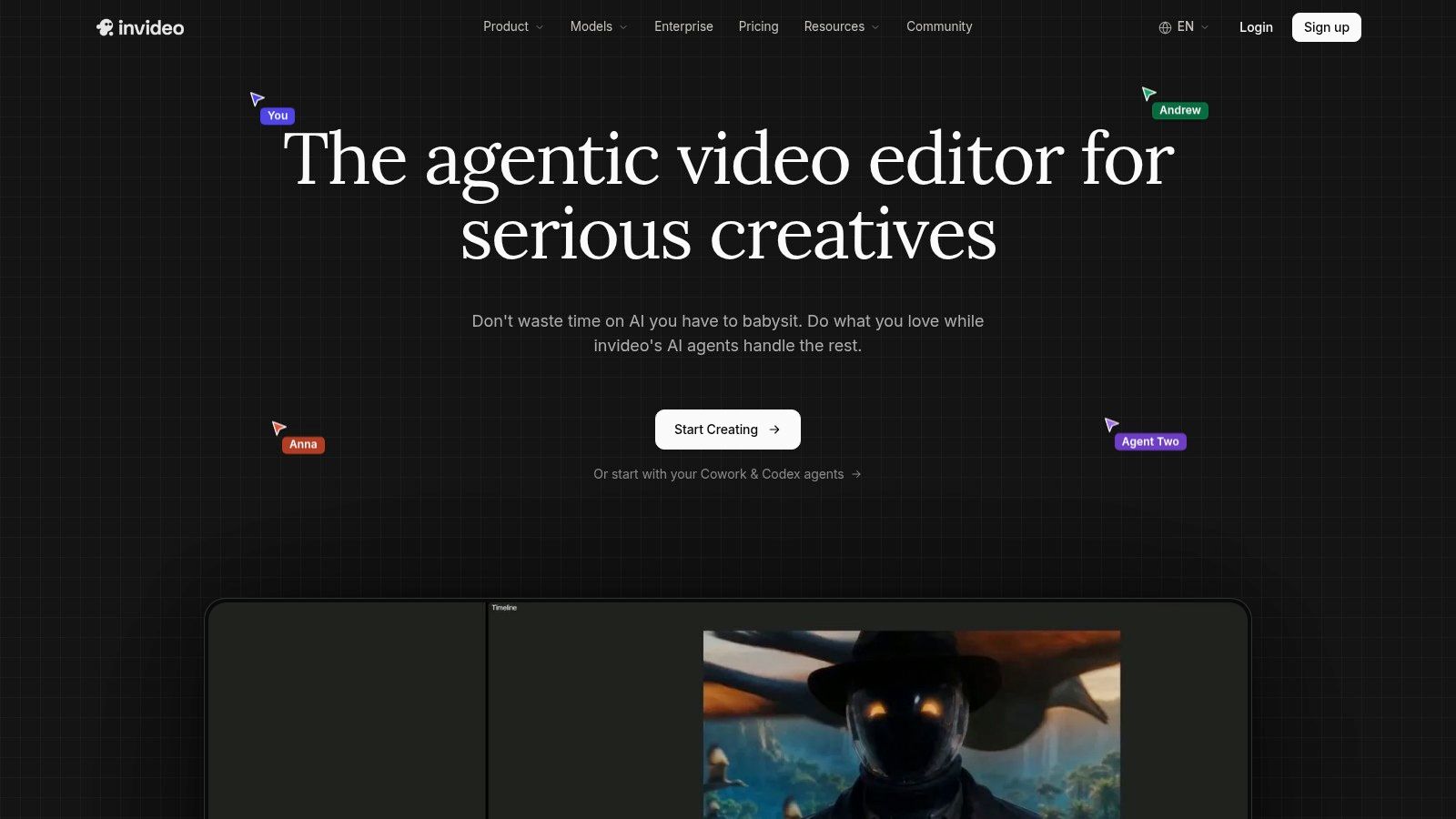
InVideo AI is built for marketers who need a publishable social video before they have a finished storyboard, shot list, or voiceover. Give it a prompt, script, or URL, and it assembles scenes, stock footage, captions, music, and narration. Its conversational Agent lets you revise the result in plain English.
That workflow suits faceless tutorials, explainers, social ads, and quick promotional videos. A written product explanation can become a narrated vertical edit, then change when the opening, pacing, visual direction, or call to action misses the brief.
The tool handles much of the early production work. Fast prompt-to-video production reduces the time spent sourcing clips and arranging a first cut. Built-in media keeps stock footage, captions, music, and voiceover in one project. Avatars and voice cloning add more format options on higher plans.
Prompt-led production is fastest when the brief names the audience, purpose, tone, key points, visual direction, aspect ratio, and final publishing destination.
Treat the first version as a starting point, not a finished export. Check captions, scene changes, voiceover pronunciation, branding, and the way the video crops for each social placement. The Agent provides Conversational revision, while the lighter timeline gives less hands-on control than a full non-linear editor. Detailed timing, audio adjustments, or final platform-specific exports may require another tool.
Credit usage is the main trade-off. Repeatedly regenerating scenes can consume credits faster than expected, especially while testing different visual directions. Generation quality and speed can also vary by selected provider, so set a review process before producing at volume.
InVideo publishes documentation about credits and third-party model pricing, giving buyers a basis for understanding AI usage. Check the current allowances before committing to a high-volume workflow. Teams comparing prompt-led production with a broader studio model can contact LunaBloom about available workflows.
Useful fit: Useful for faceless content when the goal is a narrated tutorial, explainer, ad, or social clip without filming.
Main limitation: Lighter timeline control makes InVideo less suitable for precise editing, complex audio work, or detailed finishing.
Choose InVideo AI when the bottleneck is getting from a written concept to a publishable first draft. Choose LunaBloom AI when the workflow also requires advanced avatars, multi-character dialogue, deep localization, and broader production governance.
7. Microsoft Clipchamp
Best for Microsoft 365 teams
Microsoft Clipchamp fits a clear workflow: a team records, edits, reviews, and exports social video inside the Microsoft 365 environment. It is a practical choice for internal communications, training, announcements, and straightforward social posts where adoption matters more than advanced creative automation.
Templates cover YouTube, Instagram, and TikTok projects. Simple aspect-ratio changes help adapt one edit for different placements, while text, transitions, screen recording, webcam recording, and basic captioning cover the needs of non-editors. Set the ratio early, check caption placement on the target platform, then export the version required for publishing.
The strongest advantage is collaboration. OneDrive and SharePoint connections let staff keep source files in familiar Microsoft locations instead of passing footage through personal devices or disconnected storage. That supports shared review and repeatable team workflows, especially when several people handle recording, editing, and approval.
Clipchamp also lowers the entry cost. Its free plan supports 1080p exports without a watermark, and Microsoft 365 users may receive premium capabilities through an existing subscription. Standalone options are more limited, so check the account's included features before standardizing the workflow.
The trade-off is creative range. Clipchamp does not target advanced AI generation, cinematic effects, complex audio work, or detailed localization. Teams producing prompt-led videos, trend-driven edits, or heavily localized campaigns may get more from LunaBloom AI, VEED, Canva, or Adobe Express. Clipchamp works best when Microsoft file management and simple production are the priority.
Easy entry makes it suitable for non-editors, while Microsoft integration keeps assets in OneDrive and SharePoint. Useful templates speed up platform-specific drafts, and the accessible export supports a low-friction publishing process.
Choose another editor for advanced generation, effects, or localization. Choose Clipchamp when a Microsoft 365 team needs a dependable video maker for social media that people can adopt quickly and use within existing collaboration routines.
Top 7 Social Media Video Makers Comparison
| Tool | Implementation Complexity 🔄 | Resource Requirements ⚡ | Expected Outcomes ⭐📊 | Ideal Use Cases 💡 | Key Advantages ⭐ |
|---|---|---|---|---|---|
| LunaBloom AI | Low for basic flows; Moderate for advanced avatars/enterprise integration 🔄 | Cloud credits and paid tiers for HD, voice cloning & long renders ⚡ | ⭐⭐⭐⭐, Studio-grade, localized videos with analytics 📊 | Social ads, demos, tutorials, scalable team workflows 💡 | End-to-end AI studio; hyper-realistic avatars; transparent credit pricing ⭐ |
| CapCut | Very low, template-driven mobile/desktop/web editor 🔄 | Minimal device needs; free tier with in-app purchases ⚡ | ⭐⭐⭐, Fast, trendy vertical videos optimized for socials 📊 | TikTok/Reels creators and fast trend execution 💡 | Speed, large user community, direct TikTok workflows ⭐ |
| Canva | Very low, drag-and-drop with templates 🔄 | Pro/Business for premium templates, larger storage & AI allowances ⚡ | ⭐⭐⭐, Consistent on‑brand social graphics and quick videos 📊 | Non-designers, social teams needing brand kits and scheduling 💡 | Massive template/stock ecosystem; Brand Kits; scheduler ⭐ |
| Adobe Express | Low–Moderate, template + Firefly AI; integrates with Creative Cloud 🔄 | Adobe account; premium features often on paid/business plans ⚡ | ⭐⭐⭐⭐, Higher-quality exports (up to 4K) with brand controls 📊 | Brand-governed teams and enterprises needing CC integrations 💡 | Firefly generative tools, Creative Cloud & Adobe Stock integration ⭐ |
| VEED | Low, browser-based editor; team APIs add integration complexity 🔄 | Browser access; team plans and Fabric APIs for automation ⚡ | ⭐⭐⭐, Fast captioning, translation/dubbing, and social-ready clips 📊 | Caption-heavy, multilingual posts; remote teams and web workflows 💡 | Auto-subtitles, AI dubbing/avatars, no-install browser workflow ⭐ |
| InVideo AI | Low for prompt workflows; Moderate managing credits & models 🔄 | Credit-based AI usage; stock allowances on some tiers ⚡ | ⭐⭐⭐, Quick prompt-to-publish videos; quality varies by model 📊 | Rapid ads, faceless tutorials and short-form marketing videos 💡 | Conversational AI agent, transparent credit/model options ⭐ |
| Microsoft Clipchamp | Very low, simple template-based editor 🔄 | Integrates with Microsoft 365; free 1080p export without watermark ⚡ | ⭐⭐, Accessible, basic social videos suitable for teams 📊 | Microsoft 365 teams, non-editors needing quick cuts and exports 💡 | Free 1080p export, OneDrive/SharePoint ties, very approachable ⭐ |
Turn One Video Into a Repeatable Social System
The best tool depends on where your production time disappears. Choose LunaBloom AI or InVideo AI for prompt-led production from scripts, prompts, or images. Choose CapCut for trend-driven vertical editing and rapid template work. Choose Canva when brand consistency, resizing, and scheduling matter most. Choose Adobe Express for governed creative teams already invested in Adobe. Choose VEED for captions, localization, browser editing, and repurposing. Choose Microsoft Clipchamp for approachable workflows connected to Microsoft 365.
The format decision should happen before the edit. Build the primary version around the audience and placement, then create alternatives rather than forcing one crop everywhere. A vertical 9:16 master is a practical starting point for short-form social content, while square and horizontal versions can make more sense for other feeds, embedded placements, presentations, or longer viewing contexts.
Short videos also deserve deliberate pacing. Hootsuite's social video guidance places most short-form videos between 15 and 60 seconds, with many platforms performing well in the 15-to-30-second range. That doesn't mean every post should use the same duration. It means your script, hook, captions, and visual changes must earn the chosen length.
Use this publishing sequence:
- Write one focused script: Give the video one audience, one problem, and one action.
- Create the primary version: Choose the tool that matches your production model, whether that's AI generation, templates, recording, or repurposing.
- Resize and reframe: Adapt the composition for each target channel instead of relying on an automatic crop alone.
- Check captions and audio: Correct names, numbers, technical terms, timing, music levels, and voice clarity.
- Export at the required quality: Confirm resolution, file type, audio, watermark status, and commercial-use rights.
- Review on mobile: Watch the complete export on a phone before publishing. Check the first frame, caption placement, crop, and call to action.
- Publish and learn: Track audience response, then revise the opening, format, or subject in the next version.
Practical rule: Treat one source video as the beginning of a content system, not the finished deliverable.
Before adopting a platform at scale, compare credit limits, AI allowances, storage, export quality, collaboration permissions, caption support, publishing destinations, and licensing terms. A tool that looks inexpensive for one post may become restrictive when several people generate variants, store source files, localize campaigns, and publish across multiple channels.
For most creators and small marketing teams, the clearest shortlist is LunaBloom AI for end-to-end generation, CapCut for trend-led editing, Canva for branded templates, and VEED for caption-heavy repurposing. Larger teams should add Adobe Express when governance matters, while Microsoft 365 organizations can start with Clipchamp before adding a more advanced production layer.
The right choice isn't the editor with the longest feature list. It's the one your team can use consistently from brief to export, with fewer manual rebuilds between platforms.
LunaBloom AI turns prompts, scripts, and images into finished social videos with voiceovers, captions, translations, avatars, thumbnails, and one-click publishing. Visit LunaBloom AI to test a faster workflow for producing platform-ready video variants without adding a full production team.