Streaming generated US$20.4 billion in 2024, accounting for 69.0% of global recorded-music revenue, according to IFPI's Global Music Report. Music already reaches listeners through digital channels. The practical challenge for an independent creator is giving a track visuals worth watching without spending the release budget on production.
A free AI music video generator can help, but a beautiful preview isn't necessarily a publishable video. Temporal stability, beat sync, and publishing rights matter more than a long feature list. Treat free access as a trade of money for limits, then choose the workflow that leaves you with something usable.
Free AI Music Video Generators at a Glance
Yes, you can make an AI music video for free. The practical shortlist is LunaBloom AI, Neural Frames, Runway, Pika, Luma Dream Machine, template editors such as CapCut and Canva, and Kaiber when a free trial is offered.
Two starts are worth your first session: a template lyric edit, or a short guided performer clip. LunaBloom AI's Starter plan is free to start and includes 2 free videos of up to 10 seconds each, with no monthly commitment and 720p export. Read the Starter plan details before you use those two clips.
84% of content creators reported using AI-powered tools or applications in their content-creation process in 2024, according to Epidemic Sound's Future of the Creator Economy report. Free access is still a trade. You give up length, resolution, or a clean download instead of paying for a longer cut.
Free AI music video generators compared
Use this as a workflow shortlist. Outside LunaBloom AI's Starter terms above, free access is a signup-credit pool or a trial, and export rules, resolution, and watermarks change by account. Confirm the download and the license on screen before you upload a finished master.
| Tool | Best for | Ease of use |
|---|---|---|
| LunaBloom AI | Lip-sync, AI Song & Dance, avatar music clips | Very easy, guided workflow |
| Neural Frames | Audio-reactive visualizers | Easy, music-first editor |
| Kaiber | Stylized artist promos and loops | Easy, preset-led |
| Runway | Cinematic text- and image-to-video shots | Moderate, pro-oriented |
| Pika | Effects and short social clips | Very easy |
| Luma Dream Machine | Animating still images | Very easy |
| CapCut or Canva | Lyric videos and template edits | Easy |
Shortlist by the result you need
Choose lyrics, reactive visuals, performance, or cinematic shots before you open another account.
CapCut or Canva fit timed words over a template, with premium assets left out of the free project. Neural Frames is the music-first pick when the track should drive the picture. Kaiber suits stylized promos and loops if a trial is open. Runway asks more setup and suits cinematic shots from text or a still. Pika is built for effects and short social clips. Luma Dream Machine is the simple route for bringing one photo to life. LunaBloom AI covers lip-sync, AI Song & Dance, and avatar music clips inside that 10-second Starter limit.
A free generation that flickers, misses the beat, or will not download cleanly is not a release file. I would match the job first, then check publishing rights before the track goes public.
What a Free AI Music Video Generator Really Includes
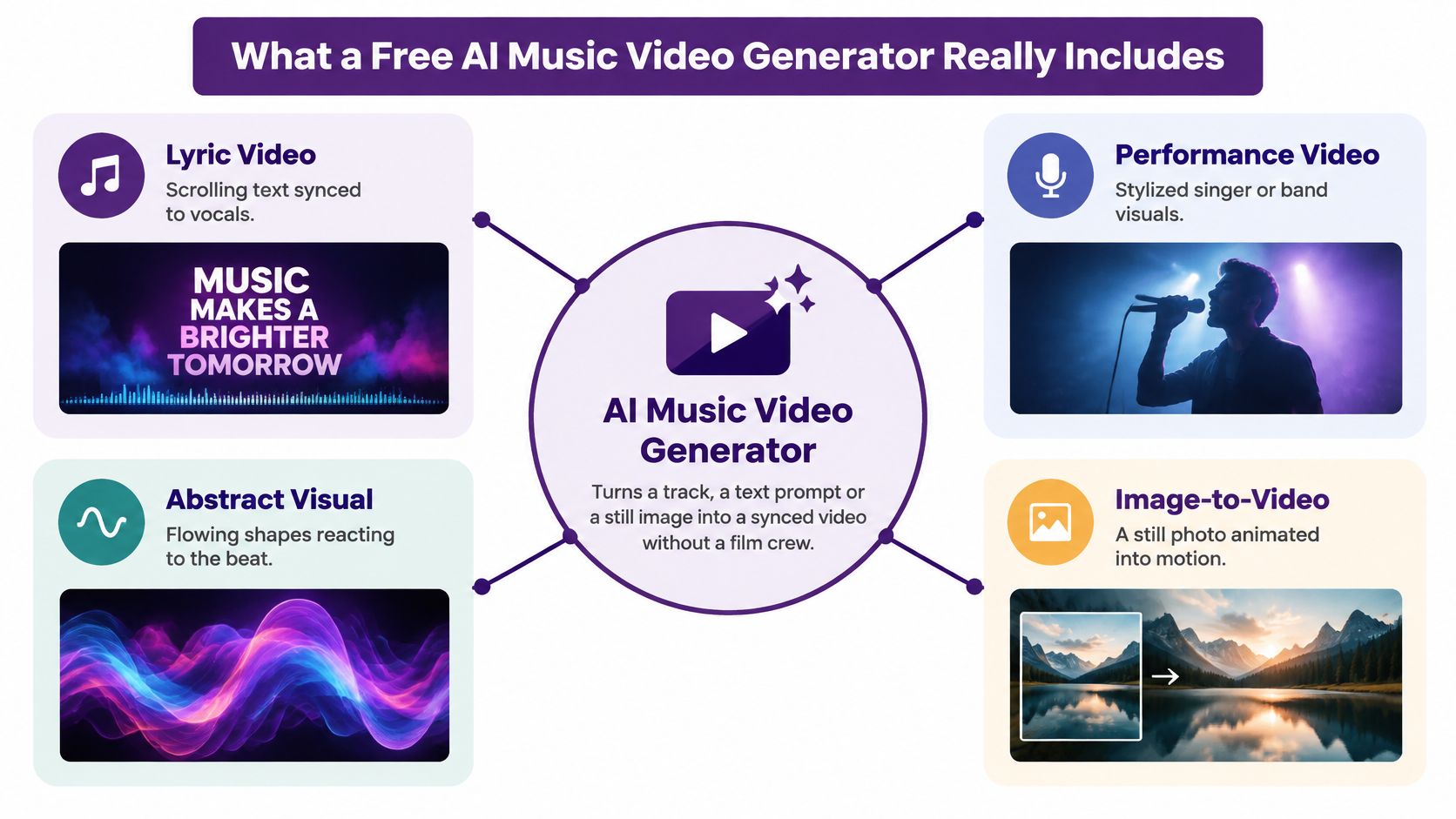
An AI music video generator turns a track, text prompt, or still image into video without a film crew. Synchronization may be built in, or you may need to finish it in an editor.
That distinction matters. Generating moving imagery and cutting imagery to music are separate jobs, even when a product places both behind the same button.
The main output types are easier to understand as a map.
Choose the output before the model
- Audio-reactive visualizers use musical signals to drive movement, texture, or changes in imagery. They're useful when atmosphere matters more than a recognizable performer.
- Lyric videos display timed words over backgrounds or footage. Add typography in an editor rather than asking a video model to draw accurate lyrics.
- Lip-sync and avatar performances put a singer or character on screen. Mouth timing and identity consistency become the main acceptance tests.
- Cinematic narrative shots illustrate a mood or story. They give you more directorial freedom but require more continuity work.
The demand for efficient visuals is understandable. WIPO's summary of IFPI's report states that more than 100 million songs were available on streaming platforms and, citing Luminate, over 100,000 new recordings were uploaded daily. Traditional filmed production isn't a practical accompaniment for every release.
Decode the word free
A free account might provide signup credits, replenishing credits, previews, or editing access without downloadable generated footage. These aren't interchangeable.
Check generation allowance, clip length, resolution, queue access, watermarking, and commercial permission separately. A preview can look finished while the download remains locked, and an export can be available without permission for an advertising campaign.
Also check what consumes credits. Length, model selection, audio processing, and enhancement options can affect the amount available for revisions.
Budget rule: Count usable exports, not successful generations.
Your best free route is the one that supports the final deliverable. Unlimited editing access may be more useful than a small generation allowance when your main need is accurate lyrics over a strong cover image.
How the Free Tools Differ Where It Matters
Don't rank every tool on a single best-to-worst ladder. A strong visualizer and a strong image animator solve different production problems.
For a realistic teaser, I'd test Runway and Luma first. For song-driven abstraction, I'd start with Neural Frames; for a painterly promo, Kaiber belongs on the shortlist. These are workflow recommendations, not a substitute for testing the available model.
Free tools scored on usable-video criteria
| Tool | Stability | Music sync | Rights watch-out | Ease |
|---|---|---|---|---|
| LunaBloom AI | Test face continuity in guided performer clips | Song, dance, and lip-sync workflows | Confirm Starter publishing permission | Very easy |
| Neural Frames | Check flicker and subject changes | Audio-reactive workflow | Confirm trial export license | Easy |
| Kaiber | Stylized motion; test scene control | Music-oriented visuals and loops | Confirm trial availability and license | Easy |
| Runway | Test realistic motion and continuity | Plan manual beat editing | Read the current output-use terms | Moderate |
| Pika | Best evaluated on short effects shots | Plan manual beat editing | Check model and account conditions | Very easy |
| Luma Dream Machine | Test still-image animation and identity | Plan manual beat editing | Check free-account output rights | Very easy |
| CapCut or Canva | Predictable text and layout editing | Manually time text and cuts | Clear music, templates, and stock assets | Easy |
Visual stability and music synchronization
Realistic lighting isn't the same as stable motion. A convincing opening frame won't rescue a guitar that changes shape halfway through a shot. Test the hardest visible object, whether that's a face, microphone, hand, or instrument.
Audio reactivity also isn't identical to editorial beat sync. Flowing shapes can respond to frequencies while a scene change still lands awkwardly between musical accents.
For cinematic footage, place beat markers in your editor and trim toward them. Don't expect a text-to-video prompt mentioning energetic music to produce dependable cut points.
Ease, control, and publishing permission
Template editors reduce setup because you're arranging existing elements. Pika is a sensible starting point for effect-led experiments, while Runway invites a more deliberate process of references, motion direction, and shot selection.
More control can mean more decisions. On a zero budget, use advanced controls only when they solve a visible problem.
The real price of a free tier is usually paid in resolution, clip length and rights, not dollars.
Don't infer commercial permission from the presence or absence of a watermark. Those are separate conditions. Pick the tool that performs best on the criterion your project can't compromise, then check whether its account terms support the intended release.
Matching a Free Generator to Your Project
A lyric video, a face-led performer clip, and a story teaser fail for different reasons. Pick the free route by the failure you cannot fix later: unreadable type, a mouth that drifts, or shots that will not cut together on the beat. Stable motion, beat placement, and publishing rights predict a usable result better than a long feature list. Free access trades money for clip length, resolution, and what the account lets you release.
Best free route by project type
| Your project | Best free route | Why it fits | Watch out |
|---|---|---|---|
| Lyric video | CapCut or Canva templates | Timed text without generating every background | Keep fonts legible on mobile |
| Audio-reactive visualizer | Neural Frames, if trial credits are available | Music-responsive visual workflow | Check flicker across the track |
| Lip-sync or AI performer clip | LunaBloom AI Starter | Song, dance, and uploaded-track workflows | 2 free videos, up to 10 seconds each, 720p export |
| Cinematic story teaser | Runway or Luma free access | Shot-based realistic imagery | Keep actions simple |
| Stylized artist promo | Kaiber, if free trial access is available | Painterly visual direction | Exact scenes are harder to lock |
| Vertical social teaser | Pika free access | Quick effect-led clips | Check watermark and caption placement |
Match the production risk
Lyrics fall apart when the background keeps changing and the words disappear. Hold one image, add slight motion, and time each line to the vocal. That spends almost no generation credit and still reads on a phone.
Play an audio-reactive visualizer through the whole section you plan to post. A treatment that stays calm in a sparse intro can strobe once the chorus fills the spectrum. If shapes flicker off the beat, simplify before the remaining trial credits are gone.
Performer clips need a shorter test. Choose one vocal phrase where the mouth stays in frame, and judge lip sync on that phrase alone. Performer clips built from a personal photo still require the person's permission before you use their image, including a birthday video.
Use a hybrid when generation isn't enough
Generate only the shots a timeline cannot build from a still. Finish cuts, captions, lyric placement, and color matching in CapCut. Those jobs burn credits without making the motion more stable.
Re-check the free allowance in the week you publish. Comparison posts go stale, and a zero-budget plan fails when the last export is locked behind a limit you already spent.
If the allowance covers it, run two short tests and keep enough access for the final file. If both tests fall apart, simplify the concept before you open another account. Switching tools will not save a shot that asks a character to sing, dance, change clothes, and cross a crowded stage at once.
Rights and Disclosure Before You Publish
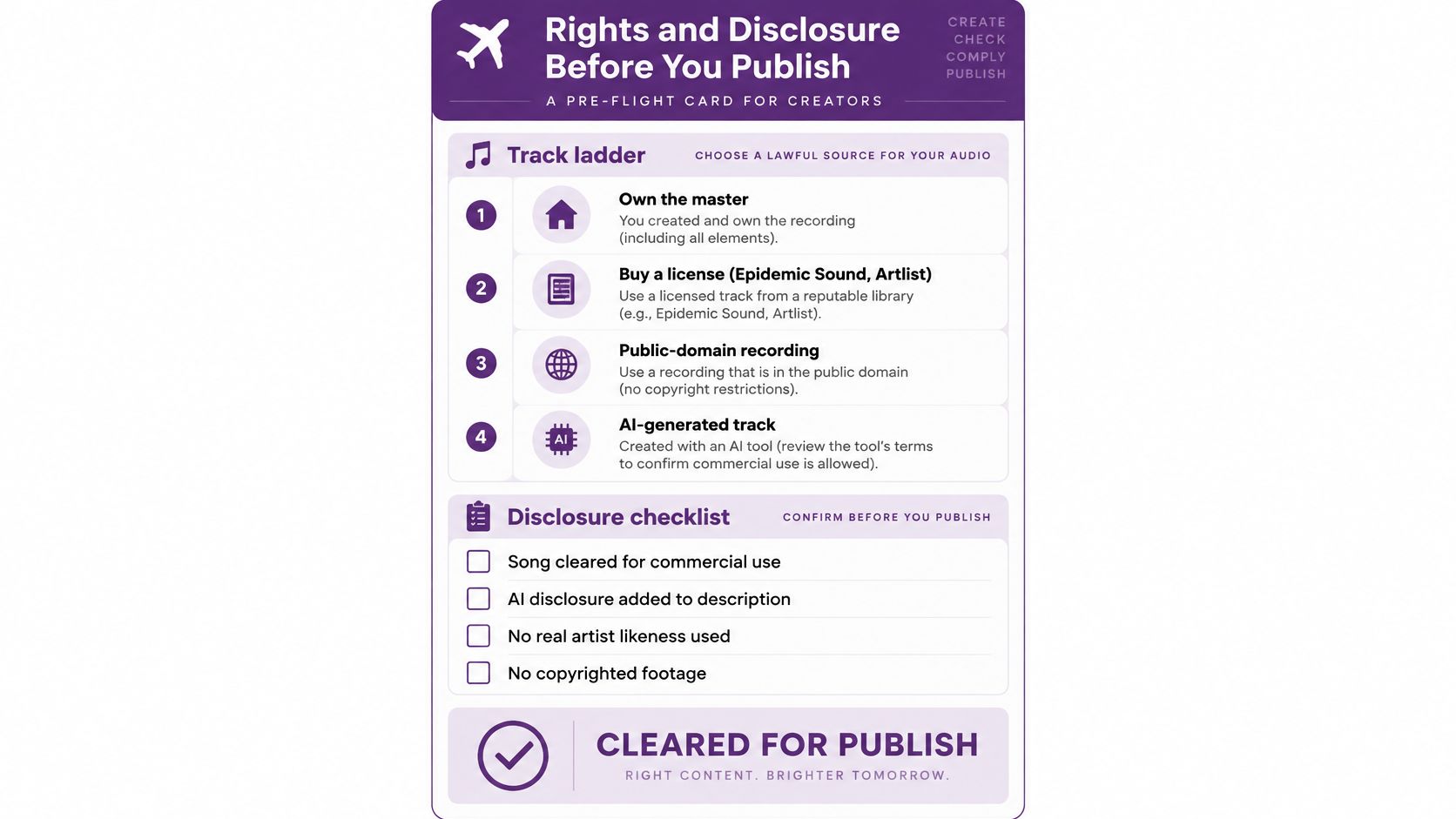
Start with the track-rights ladder. Use your own cleared recording, obtain an appropriate library license from a service such as Epidemic Sound or Artlist, verify public-domain status, or review the terms attached to AI-generated audio.
Owning a master recording doesn't automatically mean you control the composition, samples, or guest performance. Likewise, an old composition can be public domain while a particular recording remains protected.
Use this pre-flight card to organize the checks, then verify the details behind each box.
Consent and authorship
Don't clone an artist's voice or likeness without permission. In a BPI survey reported by Music Week, 78.5% of UK music listeners surveyed said an artist's music or vocals shouldn't be used by AI without permission, and 81.5% said music generated solely by AI should be clearly labeled.
Copyright ownership is another question. The U.S. Copyright Office's AI registration guidance distinguishes human authorship from autonomously generated material, so keep evidence of your creative arrangement, shot selection, direction, and edits; purely prompt-generated material may lack protectable human authorship.
For visual references and borrowed artwork, The Online College of Art & Design's guide to avoiding copyright mistakes in art projects is a useful companion. Keep permission records with the project rather than relying on memory.
Platform disclosure and the final clearance
YouTube's altered-content guidance requires disclosure of covered realistic synthetic or altered content and explicitly includes generated music. Use the upload control where required; a sentence in the description isn't a replacement for that setting.
TikTok describes creator labels, C2PA Content Credentials, and invisible watermarks among its mechanisms for identifying AI-generated content. Preserve provenance information when available, and don't present synthetic performers or events as documentary footage.
Before release, confirm:
- Audio clearance: The recording, composition, samples, and intended use are covered.
- Identity permission: Voices, faces, and reference photographs are authorized.
- Output permission: The generator's account terms allow your publishing context.
- Disclosure: Required platform controls are completed.
- Records: Licenses, approvals, and edit notes are saved.
Review our terms of use alongside your other asset licenses. Takedowns, lost monetization, and reputational disputes can cost more than the subscription fee you avoided.
How to Make an AI Music Video for Free
Build a short, complete edit before attempting a full song. That lets you test the entire path from audio upload to downloadable file without committing every credit to an unfinished concept.
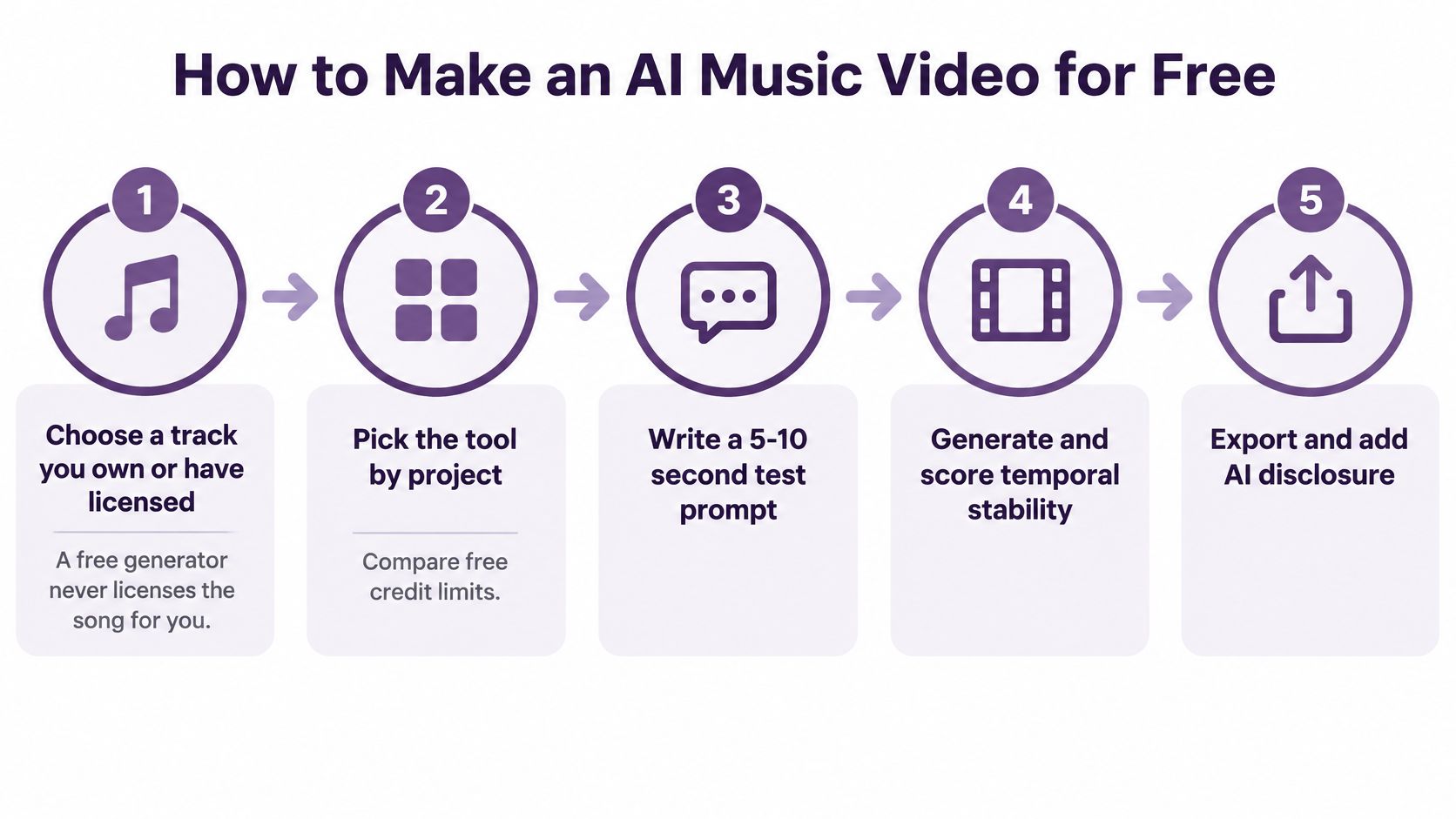
The production flow is straightforward when you separate generation from finishing.
Build the first usable sequence
Choose cleared audio. Start with a track you own or have appropriately licensed. Keep the permission record beside the audio file.
Pick the project route. Choose a visualizer, lyric edit, performer clip, or cinematic teaser. Don't combine every format in your first attempt.
Create a shot list. Divide the selected passage at musical changes and useful edit points. As a hypothetical example, a thirty-second teaser could use six five-second shots.
Write a focused prompt. Specify subject, action, camera movement, and style. Try: A singer in a dark blue jacket beside a rain-covered window, slow camera push-in, restrained cinematic lighting, mouth unobstructed.
Generate a short test. Use the shortest practical duration and inspect it before requesting more footage. Check the displayed credit cost rather than assuming every model charges the same way.
Assemble the keepers. Import clips and the original audio into CapCut or DaVinci Resolve. Mark the musical accents, cut deliberately, and add lyric text as editable graphics.
Export the actual deliverable. Use the highest resolution your free access permits. Preview the downloaded file, not just the editor's playback window.
Publish with the necessary disclosure. Complete the destination platform's AI settings and preserve your project records. Confirm that the uploaded preview still has the intended audio and framing.
Plan attempts before spending credits
For a hypothetical thirty-second vertical teaser, six five-second shots with three attempts each would require eighteen generations. Don't assume that fits a free allowance. Calculate the displayed cost first, then replace some generated shots with stills, lyric cards, or licensed footage if necessary.
You can also hold a strong image longer while introducing movement through a slow crop. That's often more coherent than filling a timeline with unstable footage just because it was generated.
For a visual walkthrough, use the video below alongside your shot list.
Editing shortcut: Cut to the music you have, not the motion you hoped the model would produce.
A modest teaser can be a realistic evening project when the audio is cleared, the concept is narrow, and the export is available. Render queues and failed generations still need room in the schedule.
Getting Quality Results from Free Credits
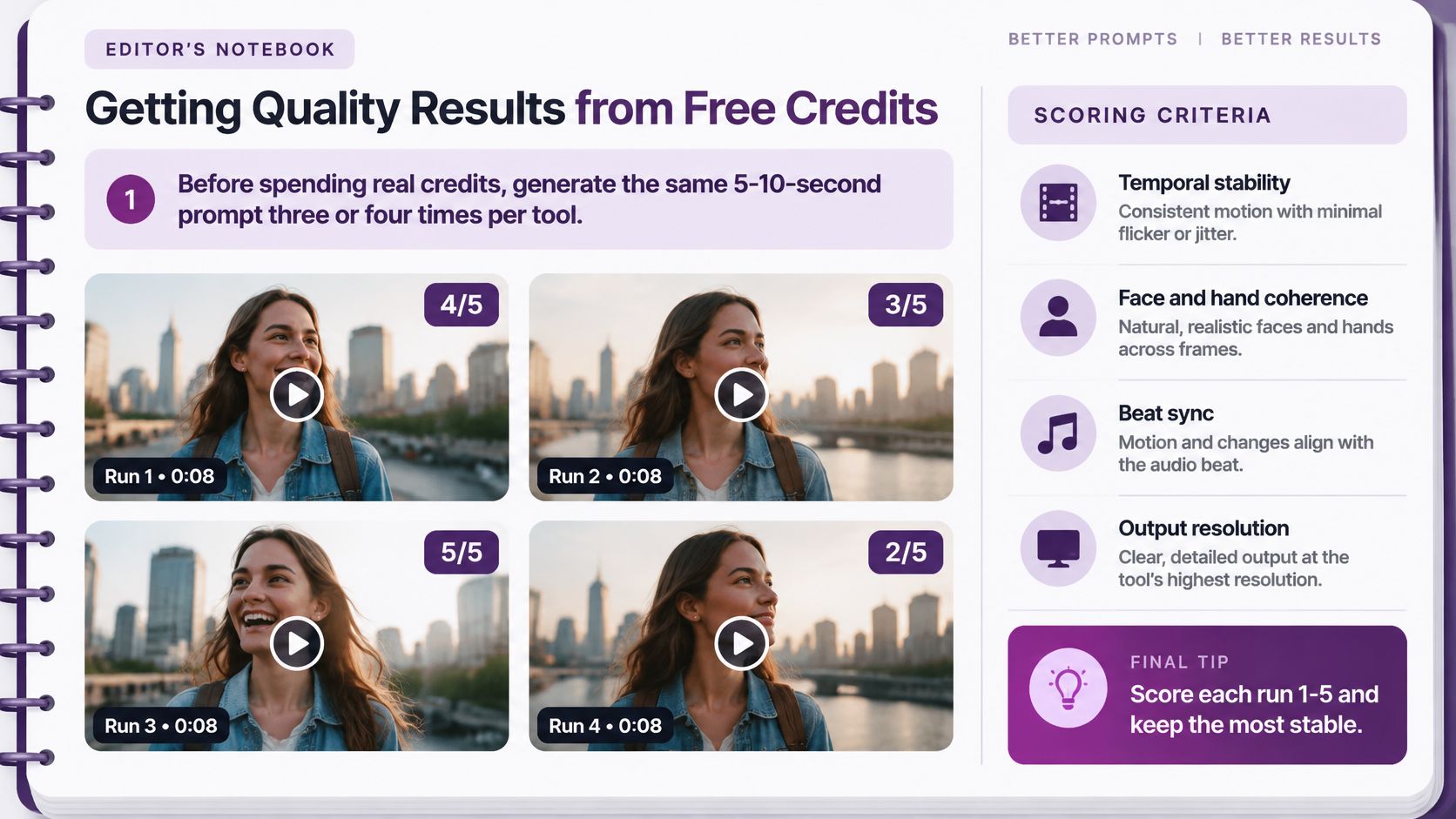
Test like an editor, not someone choosing a thumbnail. Before allocating your remaining credits, generate the same short prompt repeatedly if your allowance permits, then compare complete clips rather than attractive opening frames.
The VBench video-generation benchmark evaluates temporal qualities including subject consistency, background consistency, motion smoothness, and flicker. Borrow that distinction: frame quality and sequence quality are different tests.
Use a scoring sheet to make the decision repeatable.
Reject failures that editing won't hide
- Identity drift: Reject a face, outfit, or instrument that changes without an intended transition.
- Anatomy problems: Check fingers, wrists, microphone grips, and duplicated limbs.
- Unstable imagery: Watch for pulsing light, crawling background details, and accidental text.
- Timing failures: Reject a performance whose mouth movement or gesture contradicts the audible phrase.
Don't give a clip a passing score because most of it looks good. A brief, obvious face change can dominate how viewers perceive the whole sequence.
Prompt complexity deserves particular attention. TC-Bench reported that most evaluated video generators achieved less than 20% of required compositional changes in its experiments; that finding supports testing ordered actions instead of assuming a model will execute a complicated scene.
Simplify, preserve, and recheck
Use one principal movement per shot. A singer turns toward the camera is easier to assess than a singer leaves the stage, crosses the crowd, changes expression, and raises a microphone.
Keep character descriptions fixed, reuse reference images, and reuse seeds where supported. Prefer a workflow that lets you replace the failed shot without regenerating the entire sequence.
For lip sync, choose a short phrase with clear vowels and an unobstructed face. Test the language you'll publish, not a convenient substitute.
After export, play the downloaded file on a phone and check:
- Performance: If you render another lip-sync version, compare mouth timing again.
- Composition: Watermarks don't obscure faces or lyric lines.
- Delivery: Captions are visible, the intended audio is audible, and separately needed audio assets are saved.
- Resolution: The file matches the promised specification. Don't describe a lower-resolution export as Full HD.
Test small, then extend or upscale only the winners. Enhancement won't repair a changed identity or incorrect mouth timing.
Your Free Music Video Plan for This Week
Days one through three
Day one: Pick a cleared track and choose the matching project row. Write down its main watch-out before opening the generation screen, then prepare the reference image, audio passage, and prompt.
Days two and three: Make separate short tests of the same prompt within your allowance. Compare face, clothing, instruments, background, and musical fit without changing every variable between attempts.
Days four through seven
Day four: Apply the acceptance test. Reject identity changes, extra limbs, distracting light pulses, and unstable text; if everything fails, reduce the shot to a single movement instead of immediately switching tools.
Day five: Assemble the keepers in CapCut. Add lyric lines or captions, align the important cuts with musical accents, and leave enough screen space for platform interface elements.
Day six: Export at the highest available resolution and inspect the downloaded file. Confirm the audio, captions, crop, and watermark placement, then save the project and supporting assets.
Day seven: Upload with the required disclosure and review the platform's processed version. Save your prompt, reference, seed where available, and edit notes so the next clip starts with a repeatable setup.
Before every video, our app shows the exact credit cost for its length, model, and options, and customers only pay when the video finishes. Use that visibility to keep the experiment inside your budget rather than discovering the cost after committing.
A short teaser is a better weekly target than an unfinished full-length production. Aim for a clip you can confidently publish, then expand the visual catalog using the shots and settings that passed.
LunaBloom AI offers a free-to-start Starter plan with 2 videos of up to 10 seconds each, no monthly commitment, and tools for custom music uploads and AI Song & Dance videos. Visit LunaBloom AI to test a short music clip, inspect its timing and continuity, and decide whether the workflow suits your next release.