You have a clean product photo, a blank social calendar, and a post due Friday. A still image won't hold attention in a feed built for motion, but booking a shoot isn't realistic either. That's the exact moment many people search for image to video free tools and land on pages promising instant, unlimited animation.
The fine print tells a different story. Some tools give you daily credits you can use again tomorrow. Others hand you a one-time credit pool, a watermark on every download, or a clip so short you can't finish a product turn. Once you've burned the free allowance on test renders, the supposedly free project suddenly needs a subscription.
The demand is real, which is why the limits matter. According to Statista's online video creator topic page, YouTube had an estimated 211 million viewers in the United States in 2024, TikTok reached approximately 112 million monthly U.S. users, and TikTok videos averaged 42.7 seconds in 2024. Short video is now routine publishing, not an occasional campaign asset.
Brands feel that pressure too. In 2024, 33% of brands reported using AI to create videos faster, based on a Wyzowl survey of 967 respondents as reported by Net Influencer's Wyzowl summary. Speed only helps if the free tier produces something you can publish.
This list judges ten options by what the free allowance really permits. I look at renewal, watermarks, clip length, resolution, and editing after generation, then name the specific job each tool handles best.
1. LunaBloom AI
A product photo can carry a short clip if the motion stays controlled and the finishing tools are close by. LunaBloom AI is the broadest option here: it turns prompts, scripts and images into edited videos with visuals, multilingual voiceovers, background music, captions and timeline editing in one workflow.
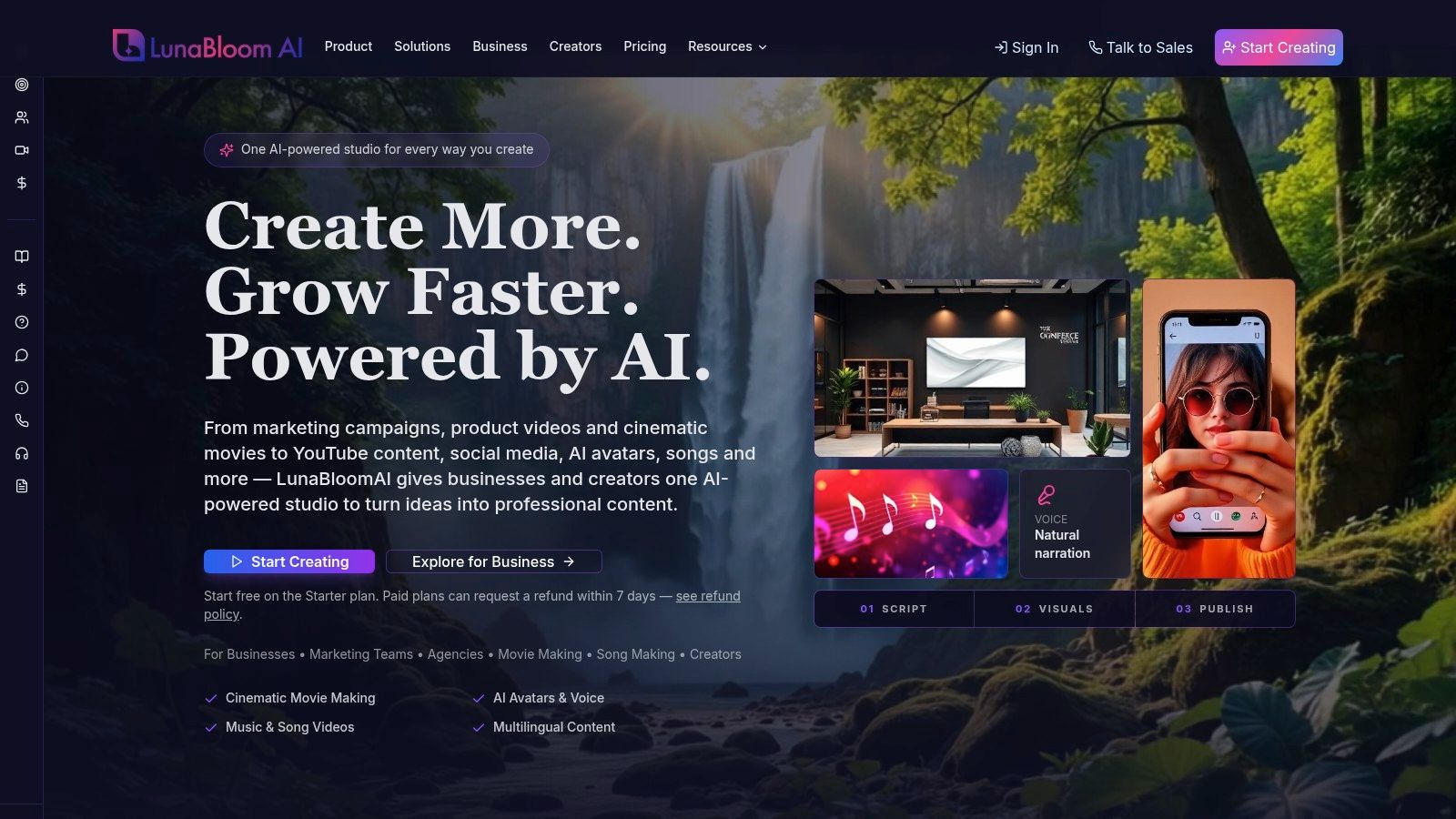
The free entry point is clear and small. The Starter plan includes 2 free videos of up to 10 seconds each, with 720p export and no monthly commitment. Treat it as a two-clip test of whether the wider studio fits your work, not as a production allowance.
What the Free Test Should Prove
Spend one clip on a real product shot and the other on a harder image, such as a person or a scene with text. Before each render, the app shows the exact credit cost for the length, model and options, and you only pay when the video finishes. That makes the free test useful for checking subject stability, motion smoothness, caption quality and whether the built-in voice and music save time outside the generator.
- Generation plus finishing: Storyboarding, timeline editing, thumbnails, captions, voice and music sit in the same project.
- Format range: Image-to-video, text-to-video, dialogue videos, AI presenters or custom avatars, voice cloning and AI song or dance videos cover more than simple photo animation.
- Publishing support: YouTube publishing, collaboration, analytics and API access suit repeat team production.
- Paid path: Paid creator plans add commercial-use rights and the Video Editor for work that moves beyond test clips.
The background on the LunaBloom AI platform overview matches that positioning: a registered digital service platform for AI-powered video creation. If your work needs localization across 50+ languages or several content types under one login, the two Starter exports will show whether the output quality justifies a paid plan.
Best for one specific job: testing whether a single studio can replace separate generation, voice, caption, music and editing tools for repeat social or business video.
2. Kling AI
Say your photo is strong but flat, and you want a slow push-in rather than random movement. Kling AI is built around that kind of direction. You upload a still, write a motion prompt, and use camera and start or end frame controls to shape the result.
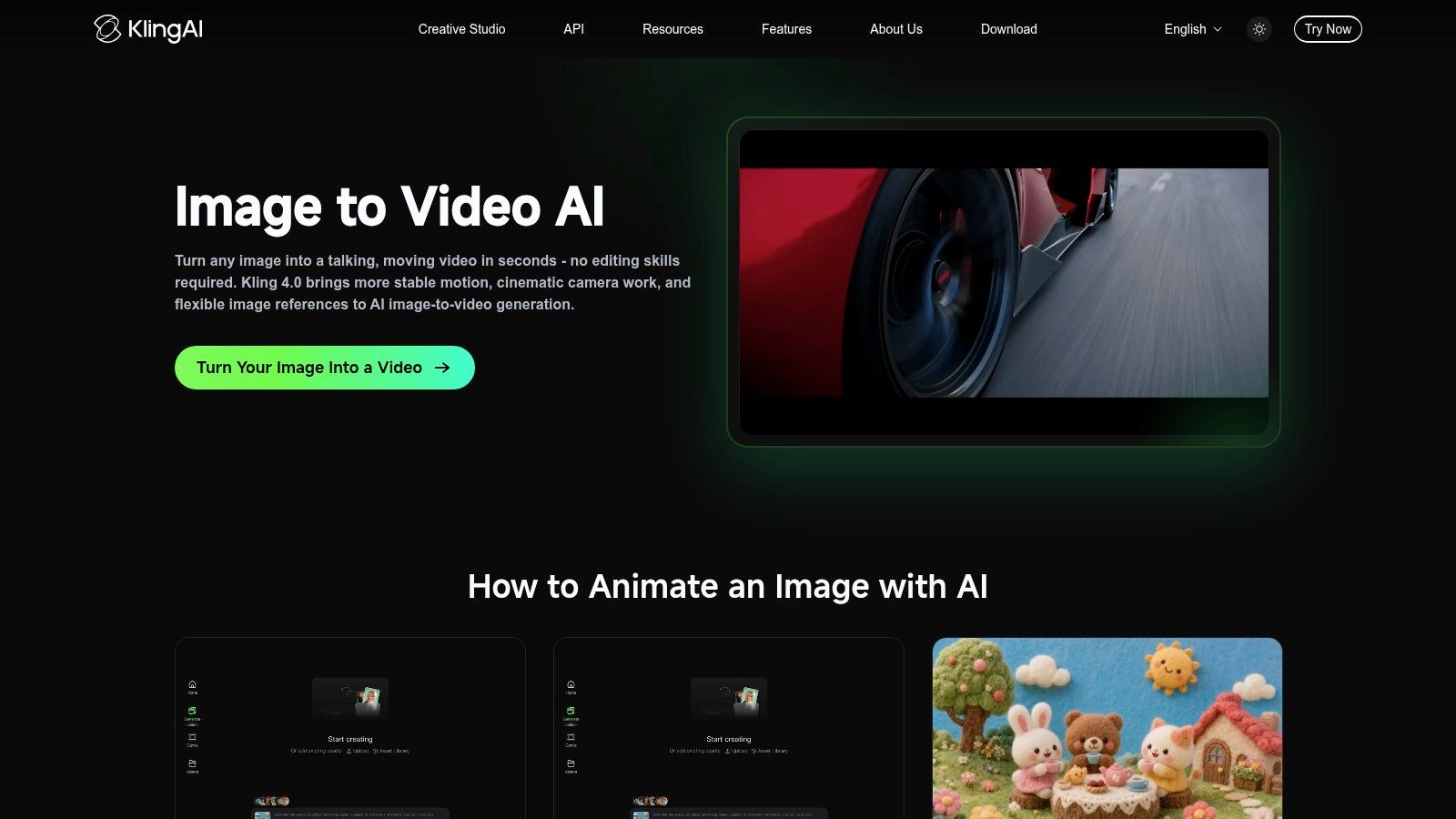
Its character-reference tools aim to preserve visual details, and some workflows include native audio and dialogue. That makes Kling more useful than a one-button animator when you're trying to keep a portrait, product, or illustration recognizable. It doesn't guarantee fidelity. Hands, logos, facial movement, and small objects can still drift once motion starts.
That review step matters. In a 2026 arXiv study of AI video detection, 87 participants evaluated 36 clips and correctly classified clips as real or AI-generated 60% of the time on average, while image-to-video clips were recognized most accurately at 79%. Viewers can notice physics, continuity, and camera problems even when a clip looks polished at first glance.
Free Tier Reality
Kling offers daily credits, which is better for learning than a one-time pool. Free generations may still be limited and watermarked, and longer or more controlled work can require payment. Verify current resolution and credit rules in your account before promising a client a clean export.
Best for one specific job: directing a deliberate camera move or scene action from a still you need to keep recognizable.
3. PixVerse
PixVerse suits a different working style. You don't need one perfect generation. You need several attempts across a week while you learn which prompts, models, and motion settings work for your images.
The Basic tier combines an initial credit pool with credits that renew on a daily cycle, and image-to-video and text-to-video share one browser workspace. Several models are available, although access varies by plan. Support information says failed generations aren't supposed to consume credits, which matters when you're testing unfamiliar settings.
That renewal rhythm is the main draw. Run a product image today, adjust the prompt tomorrow, and compare results side by side without treating every retry like the last coin in a trial account. Two catches apply: free output may be lower resolution or watermarked, and successful retries still spend credits, so a loose testing habit drains the allowance faster than a failed render does.
Quality decides whether the rhythm is worth it. A 2025 academic study in JCOM on generative AI satisfaction reported average overall satisfaction of 3.2 on a 1 to 5 scale, while video-generation experiences scored only 2.4, with just 11% of respondents giving a positive rating. Spend your credits checking identity retention, object boundaries, and prompt adherence, not first-frame beauty.
When comparing upgrade costs, the LunaBloom AI pricing page is a useful benchmark for what an integrated studio charges versus a generation-first workspace.
Best for one specific job: repeated short-form experiments where renewing credits let you iterate without paying immediately.
4. Google Flow
Most tools on this list animate one photo. Google Flow earns its place differently: a photo can become the opening frame of a scene you build outward. Its frames-to-video workflow starts from an image, extends clips, and assembles generated shots into a sequence.
Free access includes a recurring daily credit allowance rather than a one-time grant. Two catches shape what that allowance buys. Credit costs differ by model, so one generation on a higher-tier video option can consume what several cheaper generations would. Availability gates everything: Flow requires a Google Account, age verification, and a supported region before a single credit matters.
- Scene building: Extend and connect clips instead of stopping at one animated image.
- Model access: Google video models, including Veo options, sit inside the workspace at different credit costs.
- Recurring allowance: Credits renew daily, so a weak result today leaves room to try again tomorrow.
- Availability catch: Region, model, and plan can change what you receive.
Don't count credits until you've confirmed the model you want is available in your region and priced within the daily allowance.
Because you'll upload source images and prompts, check retention and account controls before feeding Flow customer or employee photos. LunaBloom AI publishes its own approach on its privacy policy page, which gives you a practical comparison point when reading any provider's terms.
Best for one specific job: turning a starting image into a multi-shot sequence rather than a standalone animated post.
5. Canva
Canva wins on what happens after generation. The animated clip drops straight into the Canva editor, where titles, music, sound effects, and brand elements turn a short animation into a finished social post or presentation slide. There's no downloading a raw file and rebuilding the design elsewhere.
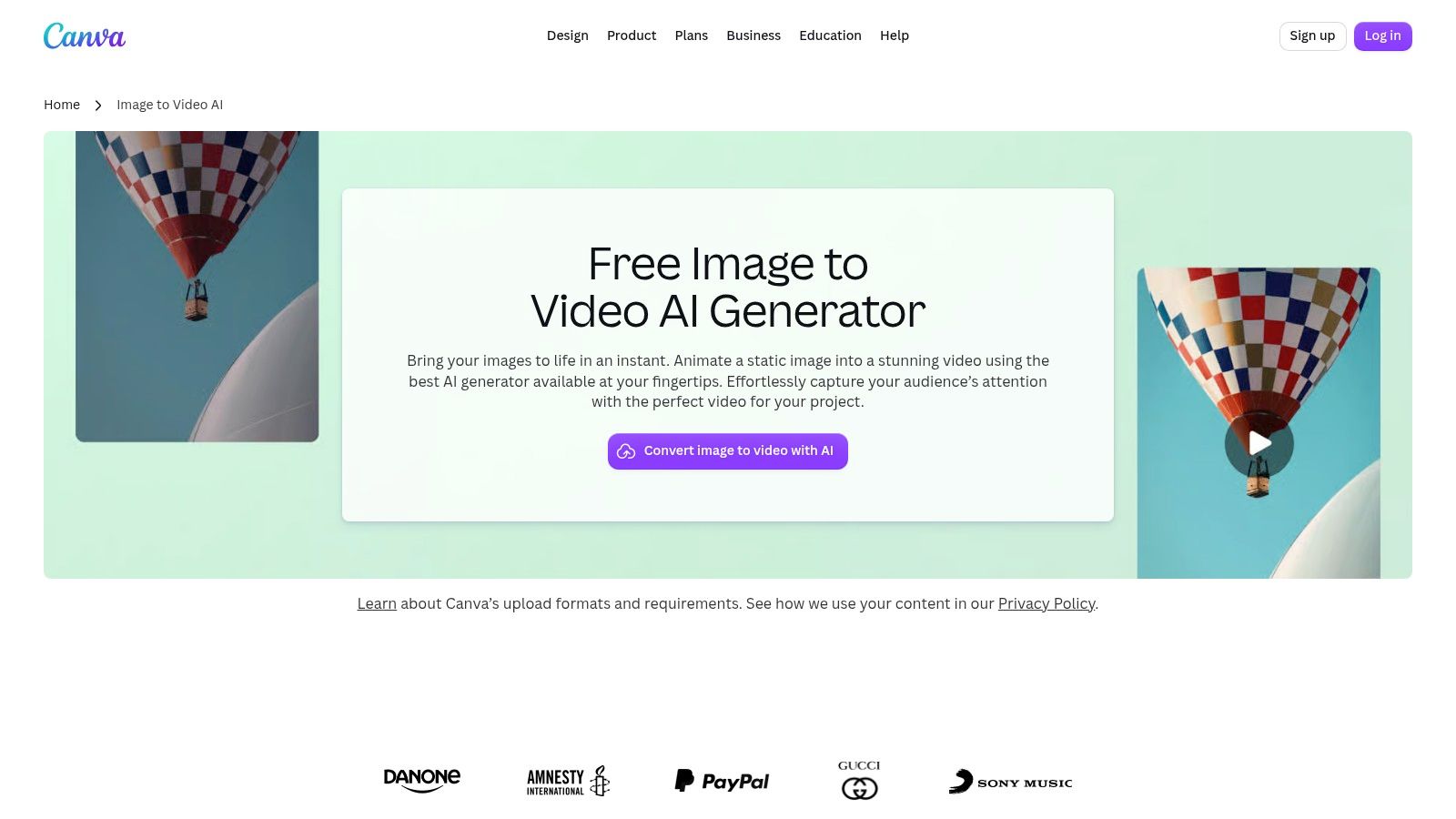
You get Smart mode for automatic motion or Custom mode driven by a written prompt. The tool keeps the image's original aspect ratio, which helps when a graphic was already sized for a platform. The feature runs on the Free plan while your monthly AI allowance lasts.
The constraints are blunt. Output is a short animation rather than a full scene, and music or voiceover is work you do in the editor, not something generation produces. Face animation, transparent backgrounds, and some image types carry their own limitations.
Short is still enough for a feed post.
For small teams weighing design subscriptions, affordable design access for small teams is relevant context, though animation alone isn't a reason to buy. Canva's value comes from combining a generated clip with fast layout, text, and publishing prep in the same workspace.
Best for one specific job: turning an existing graphic into a finished short social post or presentation slide without leaving the design editor.
6. Adobe Firefly
If your stills already live in an Adobe workflow, Adobe Firefly has an obvious convenience advantage. It offers image-to-video and text-to-video inside Adobe's broader creative ecosystem, so generation can become one step in a larger edit rather than a detached browser experiment.
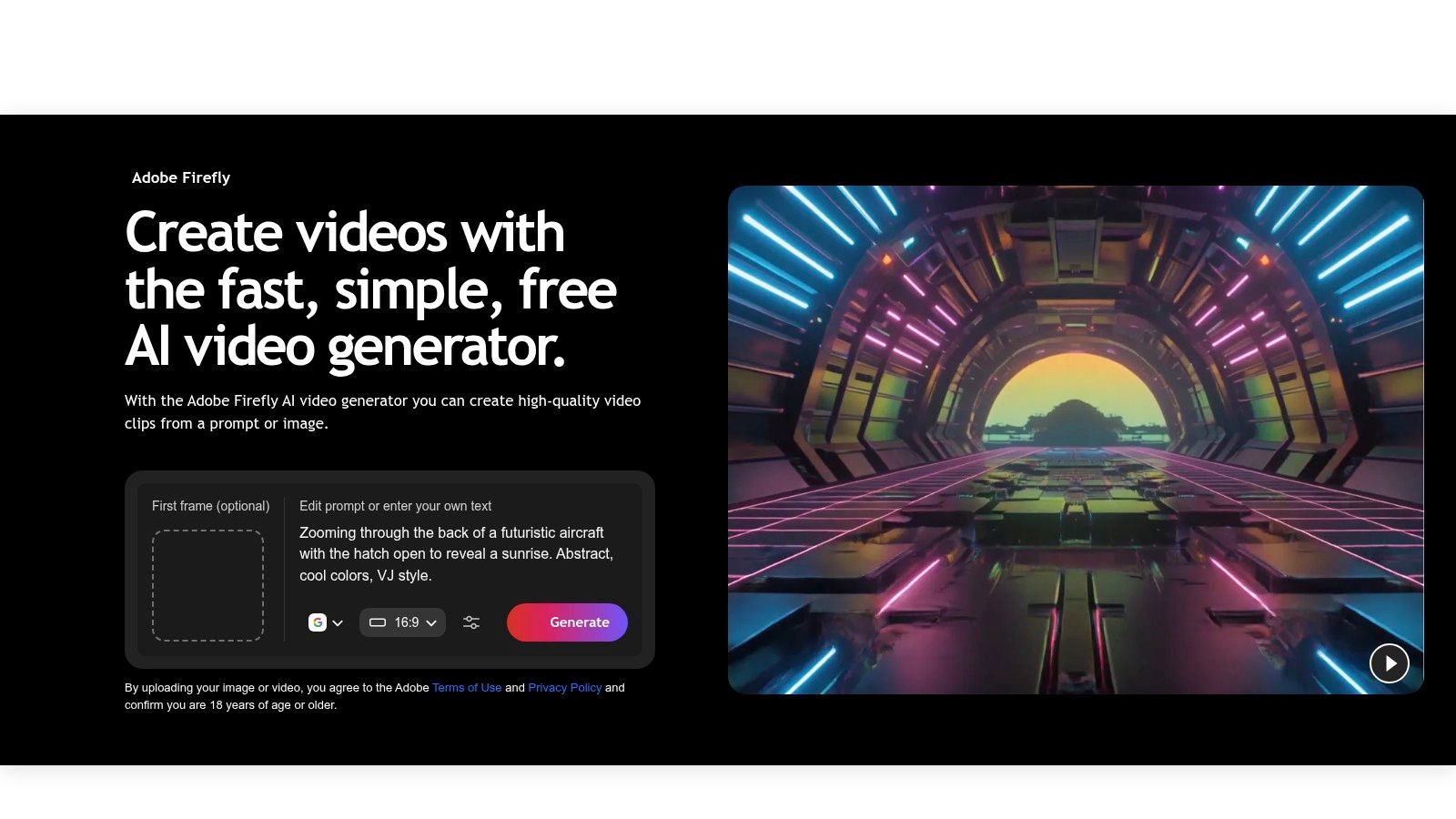
The free plan includes limited daily generations across select models. Paid plans move to monthly generative credit allowances, and video usage depends on model and credit costs. That's workable for evaluation, but it isn't an unlimited free renderer hiding inside a familiar brand.
Where It Fits and Where It Stops
Firefly makes sense when the generated clip will be refined with other Adobe tools or when your team already manages assets and approvals there. It makes less sense if you need the free tool itself to handle the complete finished video. Editing, finishing, or broader production may require additional tools or subscriptions.
- Ecosystem fit: Familiar for creators already using Adobe products.
- Image-led generation: Start from a supplied still instead of only text.
- Credit variability: Model choice affects how far an allowance goes.
- Finishing gap: A generated clip may still need work elsewhere.
Best for one specific job: generating an image-led clip that will be polished inside an existing Adobe production workflow.
7. Vidu
Vidu stands out when one image doesn't give the model enough information. Alongside standard image-to-video, its reference-to-video workflows let multiple images guide a character, object, or scene. That extra context can help preserve details that a single product angle or portrait can't establish.

Different models and output resolutions are available, and published pricing helps compare some settings. Credit costs vary by model, duration, and resolution, so a free balance can disappear quickly if you test the most expensive configuration first. Start with the least costly setting that can prove subject consistency, then raise resolution only after the motion works.
That testing order follows how these systems are evaluated. A technical review in an arXiv paper on image-to-video evaluation describes VBench-I2V as assessing temporal consistency, motion smoothness, visual fidelity, and semantic alignment, while broader VBench evaluation decomposes quality into 16 dimensions. Use those ideas as a practical scorecard when comparing the same references across settings.
Before uploading client products or identifiable people, read the applicable service terms carefully. LunaBloom AI sets out its own rules on its terms page, and every provider on this list deserves the same check.
Best for one specific job: preserving a character, product, or scene by guiding generation with several reference images.
8. Pika
Pika is the playful option. Its image-to-video tools sit beside creative transformations, frame-based workflows, and Pikaffects, so it's better suited to stylized social clips than restrained product demonstrations. A photo can become an effect-led post instead of a literal camera move.
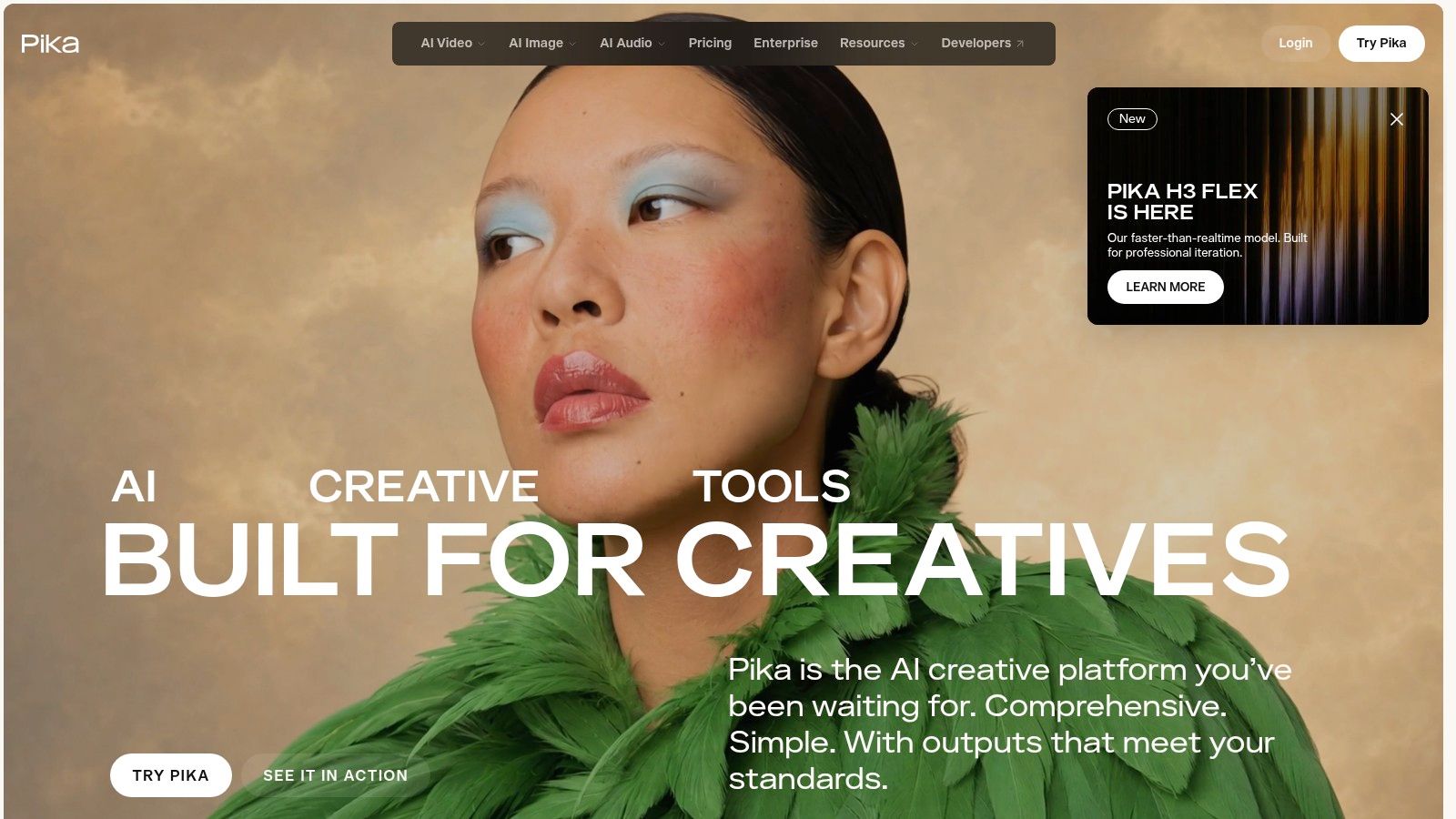
The in-app credit estimate is very useful. You can see estimated costs for selected workflows before generation, and costs vary by model, length, and resolution. Check that estimate every time. Changing an effect or setting can change the price of the experiment.
The free allowance is the weak point. Official pages describe it inconsistently, so I wouldn't plan a batch campaign around a number copied from a help page. Open the current pricing page, confirm the balance inside your account, and run one representative clip before building a schedule.
Budget rule: If a tool can't state its free allowance clearly in the account where you'll spend it, treat the free tier as a demo, not inventory.
Some effects are novelty-led and will look wrong for training, finance, health, or premium product work. That isn't a flaw if your audience expects playful transformations. It is a problem if you need clean, repeatable brand footage.
Best for one specific job: making stylized, effect-heavy social clips from stills when visual novelty matters more than realism.
9. Runway
Runway is broader than a single-purpose animator. Image-to-video sits beside AI image, video, and audio tools, with motion prompts guiding generation. If you expect to move into paid production, that wider suite can be a reason to learn it now.
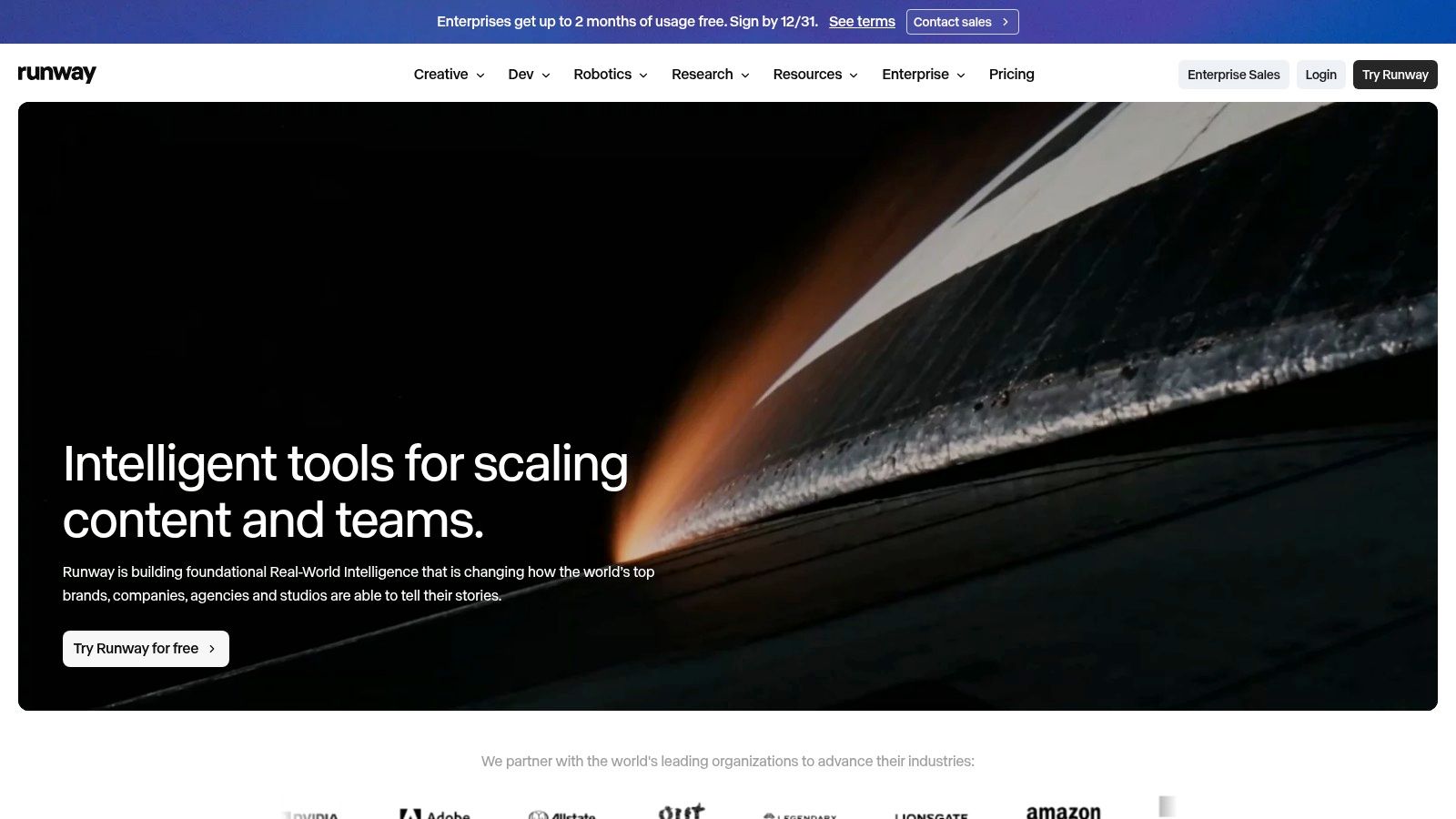
The Free plan is a one-time test budget, not an ongoing supply. New accounts get a limited pool of credits that does not renew each month, and free-plan output can carry a watermark. Once the balance is spent, generation stops until you pay, and which models the free tier can reach may change. Confirm the current plan details inside your account before you build anything around it.
How to Spend a One-Time Pool
A finite credit pool punishes random experimenting. Prepare two or three production-like images, write the motion prompts in advance, and inspect each result for subject drift before generating another. You are buying information with those credits, specifically whether Runway's wider toolkit justifies a paid plan.
- Suite value: More creative tools than a basic image animator.
- No renewal: The free balance is an initial test, not monthly capacity.
- Watermarked output: Free results aren't clean client deliverables.
- Upgrade path: Paid plans add models and recurring monthly credits.
Predictable billing is what separates a usable paid plan from a gamble. LunaBloom AI shows the exact credit cost of each video before generation and charges only when it finishes, and questions about account or production options go through its contact page. Expect the same clarity from any paid alternative you audition.
Best for one specific job: auditioning a broad professional AI creative suite before paying for recurring production.
10. Haiper
Haiper keeps the basic job simple. Its Animate Your Image workflow asks for a still and a prompt, then generates a short clip. If the movement misses, you can regenerate the same image with different motion instead of starting from a new upload.
That simplicity is useful for quick social ideas, mood tests, and learning how motion prompts change a scene. Haiper also supports text-to-video and video repainting, with web and iOS workflows described in its documentation. Membership adds benefits such as faster generation and watermark-free downloads.
The free limit is harder to plan around. Users can try generation free up to an unspecified limit, and the official FAQ doesn't state a fixed allowance. Free generations may be limited and may include a watermark. Default durations are short, so this is a brief-clip tool, not a way to build a long explainer from one photo.
Use Haiper when speed of setup matters more than predictable capacity. Test one image with two clearly different motion prompts, download the result, and confirm the watermark and duration before you design a post around it. If you need a guaranteed number of monthly generations, choose a tool that publishes and tracks that number clearly.
Best for one specific job: quickly trying different motion directions on the same image for a short social clip.
Free image to video tools at a glance
| Item | Free allowance | Watermark or resolution limits | Best for |
|---|---|---|---|
| LunaBloom AI | Starter trial: 2 videos, up to 10 seconds each | 720p export on the free trial | All-in-one video creation with avatars, voiceovers, editing, and publishing |
| Kling AI | Daily credits; amount not specified | Free generations may be watermarked; resolution limits not specified | Animating images with directed camera or scene movement |
| PixVerse | Basic tier: 60 initial credits and 30 daily credits | Free output may be lower resolution or watermarked | Repeated short-form video experiments |
| Google Flow | 50 daily Flow credits where available | Limits vary by model, region, and plan | Building and connecting generated scenes |
| Canva | Free plan access while monthly AI allowance remains | Clips are five seconds and silent; watermark details not specified | Adding animated images to social posts and presentations |
| Adobe Firefly | Limited daily generations across select models | Generation limits vary by model and credit costs; watermark details not specified | Generating video within the Adobe creative ecosystem |
| Vidu | Free credits; amount not specified | Costs vary by model, duration, and resolution | Image animation guided by multiple references |
| Pika | Free allowance is inconsistently described | Credits vary by feature and settings; watermark or resolution limits not specified | Experimenting with stylized clips and creative effects |
| Runway | 125 one-time credits; they do not expire or renew | Free-plan videos carry a watermark | Trying a broad suite of AI creative tools |
| Haiper | Free generation up to an unspecified limit | Free generations may be limited or watermarked; short default durations | Simple prompt-based animation of still images |
Picking a Free Tool Without Costly Surprises
Run the same real photo through two or three finalists before you choose. Don't use a perfect stock image if your actual work involves faces, packaging, hands, or text. Download every result and inspect the file you'll publish, not just the preview. A clean preview tells you nothing about watermarks, resolution, clip length, or credit cost.
Track the whole project, not a single successful render. Note the credits spent on failures, retries, upscales, and alternate crops. A daily allowance suits learning and recurring posts. A one-time pool suits an audition. An unspecified limit suits neither a deadline nor a client commitment.
Check Commercial Rights Before You Publish
Free doesn't automatically mean usable in ads or monetized posts. Confirm commercial licensing, input retention, training opt-out, deletion rights, export limits, and watermark rules before uploading portraits, product photography, or client assets. The U.S. Copyright Office guidance on AI-generated material states that purely AI-generated material generally lacks copyright protection, while human-authored elements, creative selection, arrangement, or substantial modifications may remain protectable. Keep records of your source assets, prompts, edits, and approvals.
Identity deserves a separate check. WIPO's 2025 discussion of synthetic media identified hyper-realistic deepfakes and digital replicas as risks involving identity theft, evidence manipulation, online abuse, privacy, and consumer protection. Get consent before animating customers, employees, or other real people. Label synthetic testimonials and news-like material clearly, and avoid celebrity or political likenesses unless you have a clear right to use them.
Finish the Video Properly
If your clip includes narration or meaningful sound, captions aren't optional decoration. WCAG 2.2 Success Criterion 1.2.2 from the W3C is Level A and requires captions for prerecorded audio content in synchronized media, with a limited exception for media clearly labeled as an alternative presentation of text. Review names, timing, contrast, and technical terms before export.
Publishing also needs page work. According to Google's video search documentation, a video must be embedded on an indexed watch page, must not be hidden behind other elements, and must have a valid thumbnail at a stable URL. An MP4 sitting in a downloads folder has no discoverability.
Metadata completes that setup. Google's VideoObject structured data guidance recommends a direct content URL where possible and requires unique text in the name property for each video. Give every clip a descriptive title, stable file URL, visible thumbnail, and valid markup.
If you want a clearly bounded starting point, LunaBloom AI's Starter plan includes two videos of up to 10 seconds each at 720p, with no monthly commitment. Compare those finished exports with the strongest daily-credit and editor-led alternatives above. Pick the limit you understand, not the promise that sounds unlimited.
Turn your best product photo or campaign still into a finished video with animation, voice, captions, music, and editing handled in one place, starting with two free Starter videos. Visit LunaBloom AI to test your real image today and see whether the complete studio fits your next deadline.