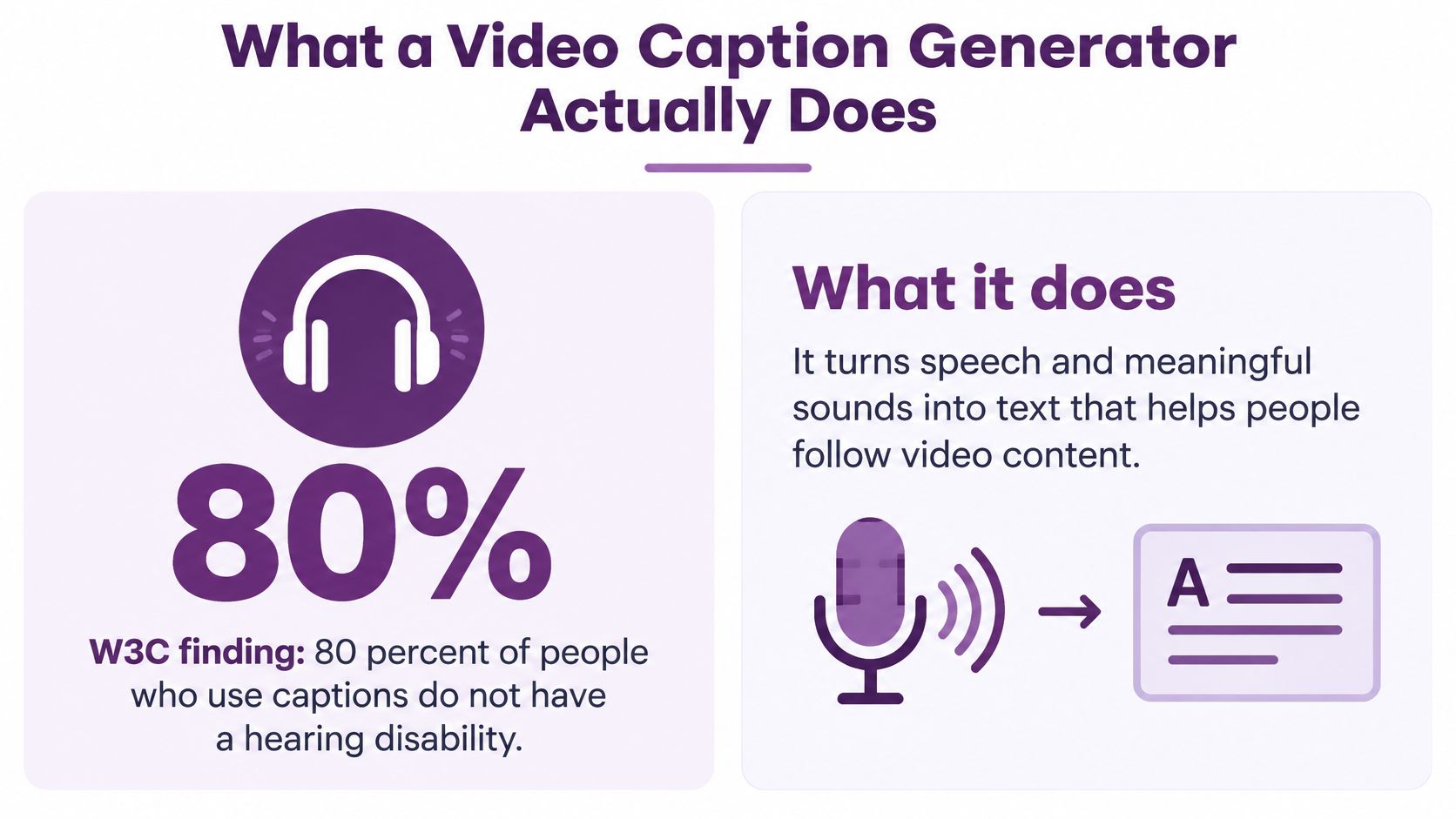
80% of people who use captions don't have a hearing disability, according to studies cited by the World Wide Web Consortium, which also notes that 71% of students without hearing difficulties use captions, primarily to improve focus and retention. A video caption generator therefore serves more than an accessibility checkbox. It helps people follow your video when they can't hear it, can't play it aloud, or understand the words more easily by reading them.
What a Video Caption Generator Actually Does
A video caption generator turns speech and meaningful sounds into text that appears and disappears in time with the video. The timing matters as much as the words: viewers need to know which sentence belongs to which action, speaker, or product demonstration.
Say you're publishing a tutorial that explains how to adjust a camera. Someone watches it at an airport, where announcements drown out the narration. Another viewer opens it on a train without headphones, while a colleague watches from a shared office with the sound muted.
The same captioned tutorial can serve all of them. Language learners can also read unfamiliar terms while hearing them, and viewers who process written language more easily don't have to rely entirely on the voiceover.
Captions aren't just a transcript
A transcript contains the words in reading order. Timed captions divide that text into cues and attach each cue to a moment in the video.
A useful generator should give you working material you can inspect, not just text painted onto the screen:
- An editable transcript so you can correct a product name without retyping the entire narration.
- Speaker labels when viewers need help identifying who's talking.
- Timed cues that connect each phrase to the relevant audio.
- A usable export that your destination player or publishing platform can display.
This overview shows how those pieces fit together.
Think about the player as well as the text
For a website, generating captions and displaying them are separate jobs. You still need a video player that accepts and exposes the caption track. House of Lyrics' guide to video embed services explained offers useful context when you're deciding how to place a video on a page.
For a social clip, you may instead need captions permanently visible in the picture. Neither approach fixes incorrect wording or awkward timing by itself.
Practical rule: Choose the viewing destination before you choose the caption export.
That decision gives you a concrete starting point: the text viewers need, the timing that keeps it understandable, and the delivery format they'll receive.
Generate Edit and Export Timed Captions
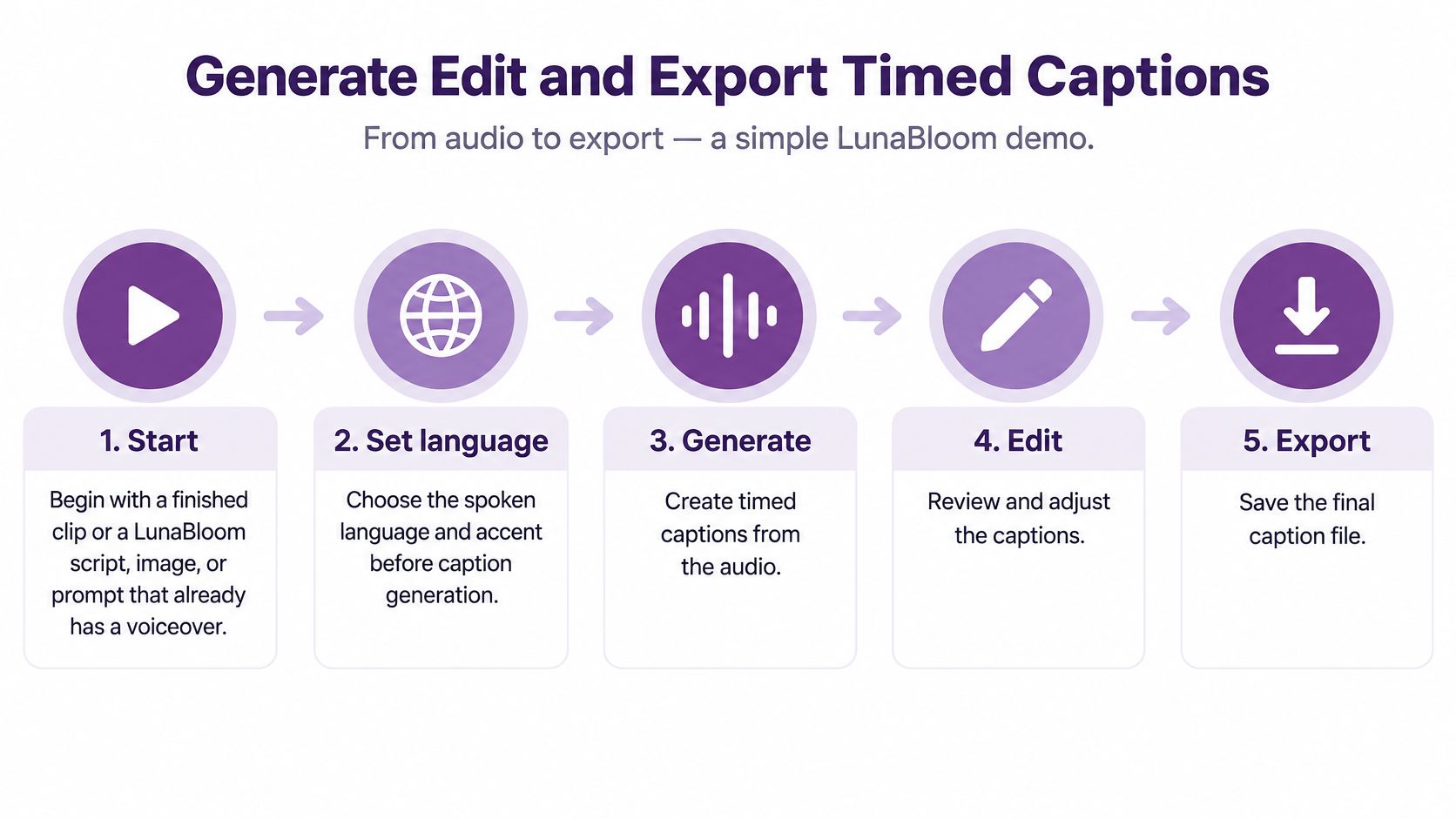
Treat captioning as a production task with an editable draft, not a single button followed immediately by publication. For a worked example, take a LunaBloom product demo showing a customer how to enable a notification setting.
Begin with the finished clip, or with a script, image, or prompt that already has a voiceover. You can start the creation workflow in the LunaBloom app, then evaluate the caption output against the requirements below rather than assuming every publishing destination accepts the same export.
The overall sequence is straightforward.
Start with stable audio
Finish the spoken edit before generating the publication draft. If you remove a sentence or insert a new introduction afterward, the existing caption timestamps may no longer match the picture.
- Choose the spoken language and accent. Select the closest available language variant before generation. Don't confuse the language being spoken with the language you eventually want to translate into.
- Generate from the primary audio. Use the narration or dialogue as the timing reference. Background music shouldn't determine when a sentence appears.
- Identify changing speakers. If a presenter and an avatar exchange lines, enable speaker labeling where available, then verify the labels yourself.
Listen to the mix before you blame the transcript. If music masks a product term, lower the music or replace the unclear voiceover where possible. A cleaner master is easier to caption and more useful for people listening with sound on.
Give every cue a valid place on the timeline
A cue is a piece of caption text with a start and end time. The W3C's WebVTT concepts describe ordered cues with explicit timestamps, with each end occurring after its start, and recommend synchronizing captions to the primary audio without perceptible gaps between sequential cues.
WebVTT is the web caption format used with the HTML track element. SRT is a simpler format made of timed subtitle blocks, commonly accepted by editors and video uploaders.
Inspect the timeline for empty cues, reversed timestamps, accidental overlaps, and text that flashes too briefly to read. A caption can arrive slightly before speech or remain slightly afterward, but it shouldn't linger into an unrelated action.
In the notification demo, keep the instruction about selecting a menu attached to that menu action. Don't leave it on screen while the presenter starts explaining a different setting.
Correct words without disturbing unrelated timing
Edit the cue that contains the mistake rather than shifting every later caption. After a text correction, confirm that the editor has preserved surrounding timestamps.
- Meaningful sounds: Add a concise description when an alarm, laughter, or music changes how viewers understand the scene. Don't label every background sound.
- Recurring terminology: Save brand names, interface labels, and technical terms in a custom vocabulary if the tool supports one.
- Long phrases: Split at pauses or natural language boundaries. Keep closely related words together instead of breaking solely at a character count.
- Translated text: Check the rendered result in every target language. A translation can occupy more space even when it expresses the same instruction.
For LunaBloom's multilingual workflow, don't assume the original layout will fit every localized version. Review the actual screen, especially where captions share space with interface labels or a presenter's face.
For a visual look at the production workflow, watch the demonstration below.
Export what the destination can keep
Open captions are always visible because they're rendered into the picture. Closed captions remain separate and can be switched on or off in a supporting player, as explained in the W3C's prerecorded captions guidance.
Neither format is universally superior. Choose according to how the finished video will be delivered.
Caption formats and where each one belongs
| Format | What it stores | Best destination | Viewer control |
|---|---|---|---|
| WebVTT | Ordered cues with start and end times | HTML5 players, web training, accessible sites | On or off when the player supports the track |
| SRT | Plain timed subtitle blocks | Editors and many video uploaders | On or off in players that support separate subtitles |
| Burned-in open captions | Text rendered into the picture | Social feeds and silent autoplay | Always visible and cannot be turned off |
| Closed caption track | Separate timed file with speakers and sound cues | Accessible players and learning systems | Viewer can toggle the track |
If you're comparing browser-based editors for music-led content, AIMVG's Veed Io overview for independent musicians provides another tool-specific reference. Test the export you need rather than choosing solely from an editor's styling options.
Before uploading, preview the final file. Check line breaks, contrast, and placement over faces, product details, and on-screen instructions. Keep the editable caption master alongside the video so later corrections don't require rebuilding the project.
Why One Accuracy Score Misleads You
A headline accuracy percentage doesn't tell you whether your price, product name, or safety instruction survived transcription. The location and consequence of an error matter more than an impressive average.
An accessibility survey described by the American Foundation for the Blind found that, in 2025, 4% of participants considered AI captions extremely accurate, 53% mostly accurate, and 42% somewhat accurate; the same overview describes benchmarking in which sports audio produced error rates three times higher than the best-performing category.
Review the evidence by content type
The following findings describe particular samples and conditions, not a guaranteed error rate for your next video.
Where automatic captions go wrong
| Check | What the evidence shows | What to review first |
|---|---|---|
| Viewer rating of AI captions | Survey responses ranged from extremely accurate to somewhat accurate, as detailed above | Don't treat one headline score as finished |
| Instructional video | A published caption-error analysis describes 525 phrase-level errors in 68 minutes, about 7.7 per minute, and commencement samples with 460 errors in 200 minutes, about one every 26 seconds | Lesson terms, names, and claims |
| Commencement speeches | Noun substitutions were the most frequent error category, followed by verb substitutions | Nouns first, then verbs |
| Sports and noisy audio | Sports benchmarking showed the category difference described above; noisy passages deserve separate inspection | Overlap, music, and background noise |
| YouTube automatic captions | YouTube's official guidance warns that mispronunciations, accents, dialects, and background noise can produce incorrect captions | Any line the draft got wrong |
Put consequential words first
Start with names, product terminology, numbers, and negations. Then inspect overlapping speech, music-heavy passages, and any words the editor marks as uncertain.
Say a presenter says a setting doesn't share customer information. Dropping the negative changes the claim, even if every surrounding word is correct. Similarly, substituting a common noun for a product name can mislead viewers and introduce incorrect text into a published transcript.
Look for these controls when testing a generator:
- Word-level confidence to help locate uncertain passages.
- A timeline-aligned editor so you can listen while correcting.
- Custom vocabulary for repeated names and specialist terms.
- Speaker labels that you can change without rebuilding the transcript.
For multilingual evaluation, use Word Error Rate, or WER, as one comparison measure, and test the dialects your audience speaks. Don't treat a supported-language badge as proof that regional pronunciation and terminology will work equally well.
Review by consequence, not by how plausible the sentence looks.
Regulated, medical, financial, instructional, and brand-critical videos still need a targeted human pass. Confidence indicators help prioritize that work; they don't certify that an unflagged sentence is correct.
Accessibility Checks Before You Publish
Accessibility requires more than an accurate copy of the spoken words. Under WCAG 2.2 Success Criterion 1.2.2, a Level A requirement, captions must cover prerecorded audio in synchronized media, except when the media is a clearly labeled alternative for text.
Those captions need to convey dialogue and meaningful non-speech audio. A transcript can reproduce every sentence yet still omit who's speaking, an alarm that explains someone's reaction, or laughter that changes the tone.
Check meaning on the finished picture
Say a training video shows an employee leaving a room after an alarm sounds. If the captions contain only the preceding conversation, a viewer watching without sound may not understand why the employee leaves.
Identify speakers when the picture doesn't make the change clear. Keep sound descriptions concise and relevant, and avoid covering the action they explain.
Readability also needs a visual check. Use high contrast, readable sizing, and phrase-based line breaks. If a translated cue becomes too dense, revise its segmentation or adjust the localized edit rather than shrinking the text until it's hard to read.
Leave room for correction after publication
A review of social-media caption research highlights expectations for caption feedback among Deaf and hard-of-hearing, neurodivergent, and multilingual viewers. Give viewers a practical way to report errors, and assign someone to update the caption master when feedback arrives.
Accessibility and discoverability are related publishing concerns, but they aren't interchangeable. Google's video structured-data documentation describes information that helps Google find and understand videos, including titles, descriptions, thumbnails, upload dates, and duration.
Don't promise search rankings because subtitles exist. Keep metadata consistent with the actual video, and treat caption quality as its own responsibility.
Run this pre-publish check on the finished export:
- Meaning: Can a silent viewer understand the dialogue and important sounds?
- Identity: Are off-screen or otherwise ambiguous speakers identified?
- Readability: Can you follow each cue without rushing?
- Placement: Do captions avoid essential visuals and on-screen text?
- Delivery: Does the uploaded version display the intended captions?
- Corrections: Can viewers report a problem, and can your team replace the affected track or export?
A standards checklist is useful, but playback reveals problems the transcript alone won't show. Test the delivered version, not just the editor preview.
Match the Generator to the Job
Choose a video caption generator by destination, review needs, and editing workflow before comparing brand lists. A tool can produce attractive captions and still be the wrong choice for your publishing process.
Which caption generator fits the job
| Situation | Require this | Safe to skip |
|---|---|---|
| Muted social clips | Burned-in captions, short lines, high contrast | A tool that only exports a sidecar file |
| Training and compliance | Speaker labels, sound cues, editable WebVTT, human review | One-click burn-in with no transcript editor |
| Many languages | Regional variants, accent support, reading-speed and line-length checks | A language-count badge with no per-language edit |
| Team production | Custom vocabulary, shared edits, API or publishing integration | A single-user editor with no export control |
| Budget test | Free or pay-as-you-go trial on your own audio | Annual lock-in before a real sample |
The last column identifies options or commitments you can leave out, not useful capabilities you should deliberately remove. For example, a sidecar-only tool won't finish a social workflow that requires text rendered into the picture.
Test the awkward sample first
Use a representative clip with the problems you encounter. Include the presenter's accent, recurring product terms, background noise, and a section where someone speaks quickly.
Check how the editor behaves after correction. Can you fix a name without shifting later cues? Can a colleague review the same version? Can you retrieve the caption master rather than only a flattened video?
Buying test: Pay attention to the work required after generation, not just the time until the first draft appears.
For team production, ask who owns final approval and how corrected terminology reaches future projects. Shared editing is less useful if reviewers overwrite each other or export an outdated draft.
Where an end-to-end creator fits
LunaBloom is an option when you want to generate the video, voiceover, and captions together rather than caption an otherwise finished production. Its creation workflow supports scripts, prompts, images, avatars, localization across languages and regional accents, and HD or Full HD exports.
That makes it relevant to script-to-publish social clips, product demos, and training videos. Check the LunaBloom pricing options for its free pay-as-you-go trial and creator, professional, and enterprise tiers, then test the caption editing and delivery steps your destination requires.
A specialist caption vendor may make more sense for a large legacy library that only needs remediation. In that situation, prioritize preservation of existing timing, correction management, and delivery specifications rather than video-generation features.
For either route, evaluate the finished sample. An advertised accuracy percentage is less useful than knowing how quickly your team can find and fix consequential mistakes in its own audio.
Review One Video Before You Trust the Draft
Choose a clip you intend to publish this week. Generate its caption draft, correct the consequential words, and export the version your destination will retain.
Then watch that export with the sound off. For a social post, inspect the rendered text; for a site or course, load the caption track in the actual player and verify that viewers can use it.
Make the publication decision on playback
The draft is ready when viewers can follow the explanation, identify relevant speakers and sounds, and see the subject without captions covering essential details. If a cue forces you to stop reading midway, revise it before publishing.
- For localization: Check regional wording and text expansion before duplicating the edit into another language.
- For new creations: Consider LunaBloom's pay-as-you-go trial if you want voiceover, captions, and a social export in the same production workflow.
- For existing libraries: Keep an editor or remediation service that preserves timing through corrections.
A video caption generator saves the typing. Your short risk review of names, numbers, noise, and translation length makes the result dependable enough to publish.
Don't start another tool tour until you've completed that test. A real exported clip will tell you more about the workflow than a feature comparison alone.
LunaBloom AI combines video creation, natural voiceovers, and automated captions for demos, tutorials, and social content. Visit LunaBloom AI to try a captioned video workflow, then review your finished export with the sound off before you publish.