The popular advice is to choose the easiest interface. That's incomplete. An editor can be simple to learn and still slow you down if you're producing localized ads, screen-recorded tutorials, product demos, or a steady stream of branded clips.
This comparison ranks 10 easy video maker tools by the job they perform best, not by a generic feature checklist. Each pick is assessed against the workflow it supports, its automation, editing control, collaboration, export requirements, pricing considerations, strengths, limitations, and the fastest sensible way to start.
The market is already substantial. One industry report estimates the global video creation tools market at USD 8.94 billion in 2025, with a projection of USD 24.67 billion by 2033 and a projected 13.4% CAGR from 2026 to 2033. The market analysis from DataHorizzon Research also identifies North America as holding 38% of the market in 2025, while Asia-Pacific is projected to grow fastest at 15.8% CAGR. An easy video maker is no longer a niche shortcut. It's becoming part of the production stack behind influencer video marketing that converts.
LunaBloom AI is the strongest end-to-end choice for teams that want scripts, avatars, voice cloning, localization, captions, collaboration, analytics, and publishing in one workflow. Simpler editors still win for quick manual social edits or recorded tutorials, so the right choice depends on the video you need to make.
1. LunaBloom AI
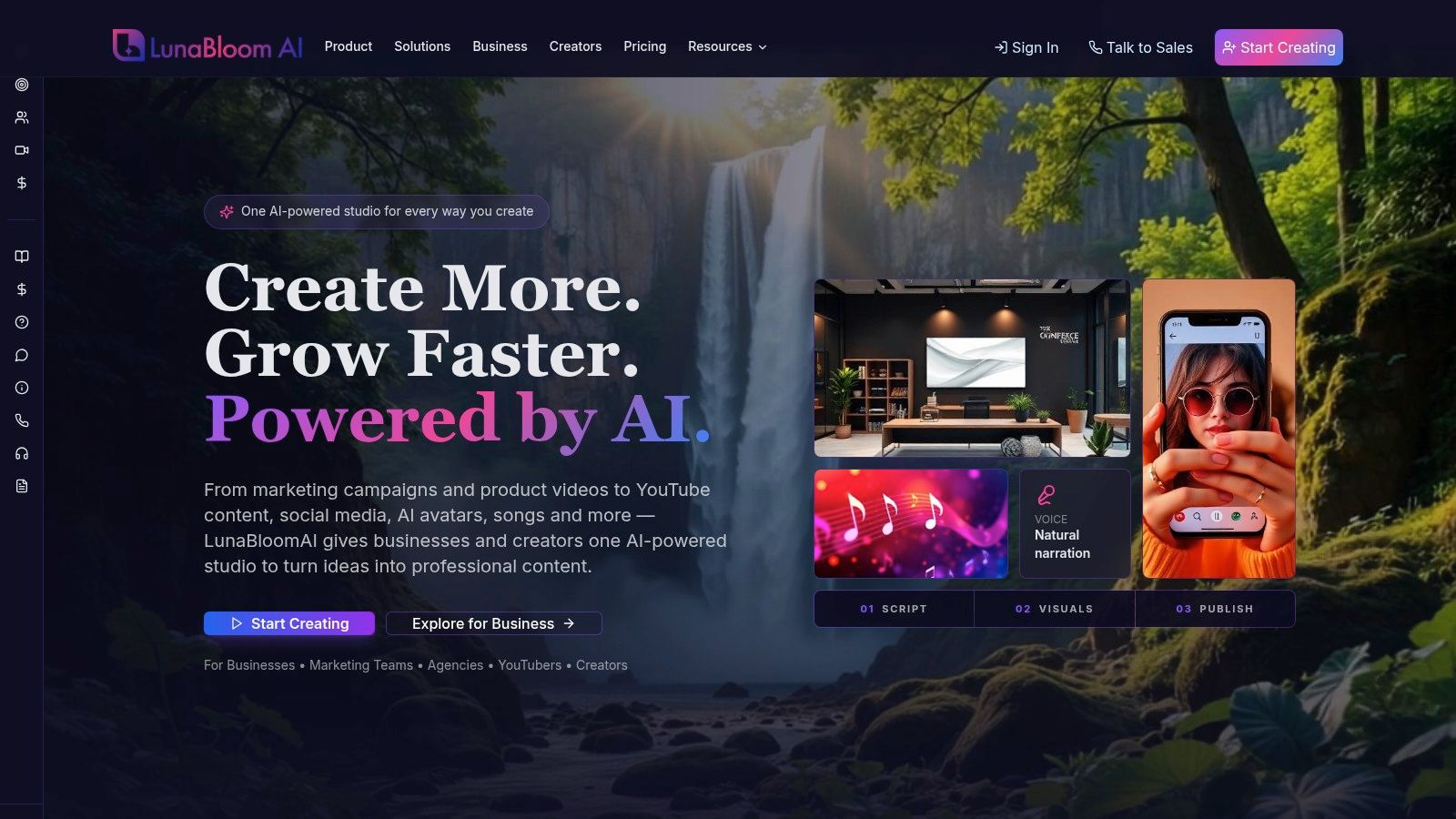
Best for end-to-end AI video production. LunaBloom AI turns a script, prompt, or image into a polished video workflow that can include storyboards, generated scenes, natural voiceovers, voice cloning, lip-sync, captions, translations, and publishing. It's designed for creators, agencies, marketing teams, educators, and enterprises that need repeatable output without assembling a separate writing, voice, editing, captioning, and localization stack.
The platform supports photo-real, animated, and 3D avatars, multi-character dialogue, AI-generated music, sing-and-dance videos, and uploaded-track lip-sync. It also adds SEO-oriented thumbnails, titles, and metadata, which makes it more useful for publishing workflows than an editor that only trims clips.
Why teams choose it
LunaBloom's main advantage is workflow compression. You can move from idea to usable draft quickly, then refine tone, visuals, timing, consent, and brand details during human review. That matters because AI-assisted production still works best as a reviewable process rather than an unattended publishing button. A 2026 trend roundup reports that 71% of creators generate first drafts with AI and then refine them manually. The Mean CEO's AI video trends coverage supports the practical case for tools that make revision easy.
Localization is another major strength. LunaBloom supports multilingual subtitles, translations, voices, and regional accents, helping teams create versions for different audiences without rebuilding every video from scratch. That's important for accessibility and distribution. Kapwing's 2026 video translation research reports that localized videos saw about 40% higher engagement than non-localized versions, and viewers were 80% more likely to watch through to completion in their native language.
Practical rule: Treat generated videos as drafts until a person checks facts, pronunciation, brand tone, rights, and voice-cloning consent.
Collaboration, version control, analytics, and API access make LunaBloom better suited to high-volume production than a solo editor with isolated project files. Pricing runs from a free pay-as-you-go trial through creator subscriptions, including Basic at $29.99 per month, Growth/Fundamental at $79.99 per month, and Professional at $119.99 per month. Business plans start at $999 per month, while enterprise and custom tiers begin around $5,000 or more per month. Generation credits and feature caps vary by plan, so confirm the allowance before committing.
The trade-off is clear. Voice cloning, Full HD exports, larger multilingual caption sets, multi-voice cloning, analytics, and other advanced capabilities can require higher tiers. AI output can also need manual correction when you need exact creative control or strict legal review.
Fastest start: Create one repeatable product demo or social ad, generate two versions, review every scene and voice element, then measure production time before scaling.
2. Canva Video Editor
Best for template-led branded social content. Canva Video Editor is the easiest recommendation for a non-editor who needs a polished reel, presentation, promotional clip, or social ad without learning a conventional timeline. Its browser-based drag-and-drop workflow combines templates, stock video, audio, text animation, and brand controls.
Magic Video can assemble and style clips, while AI Highlights can identify useful moments. Enhance Voice helps clean up recorded audio, and paid brand kits help teams keep fonts, colors, and visual assets consistent. The workflow feels closer to designing a campaign asset than operating a professional editing application.
Where it fits
Canva works well when the creative direction is already familiar. Choose a template, replace the media, adjust the message, add captions, and resize for the destination platform. Teams can work in the same browser-based environment instead of passing exported files between departments.
Its biggest limitation is editing control. The timeline is approachable, but it won't match a professional non-linear editor for detailed sound mixing, complex compositing, precision keyframes, or elaborate scene timing. The strongest AI and stock features also depend on the plan you choose.
For a small business, educator, or marketing coordinator, that trade-off is usually sensible. You're buying speed and consistency, not deep post-production control. If your video depends on a custom avatar, generated dialogue, cloned voice, or multilingual versions, a dedicated AI studio such as LunaBloom AI's creation workspace is a better fit.
Workflow: Start with one brand template and create a short campaign variant. Check the export dimensions, caption readability, stock licensing, and whether your required assets are included before producing a full batch.
3. CapCut
Best for fast short-form social edits. CapCut is built around the pace of TikTok, Instagram Reels, and similar vertical-video workflows. Its templates, automatic captions, effects, transitions, and trending styles help creators turn phone footage into publishable clips quickly.
The platform runs on web, desktop, and mobile, so you can capture or assemble content wherever the source material lives. Cross-device and cloud synchronization can make handoffs easier, although availability depends on the plan and setup.
The practical trade-off
CapCut gives beginners a strong starting point for cutting clips, adding subtitles, applying effects, and exporting social-first versions. Its free experience is useful for basic work, which makes it a sensible first stop for creators testing a format before paying for a larger production system.
The limitations appear when the project becomes more structured. Pricing can vary by region and platform, and some assets or capabilities are gated behind Pro. That can make the upgrade path less predictable than it first appears. It's also primarily an editor, so it won't replace a full script-to-video system when you need avatars, automated voiceovers, localization, or publishing orchestration.
CapCut is the right answer when your raw material already exists and the job is to make it sharper, faster, and more social.
Workflow: Import one vertical recording, apply auto captions, remove dead air manually, add only the effects that support the message, and export a single platform-ready version. For broader automated production, compare it with LunaBloom AI's starter workflow.
4. Adobe Express
Best for marketing teams already using Adobe assets. Adobe Express offers a simpler path into video than Premiere Pro while keeping users close to Adobe Fonts, Adobe Stock, templates, brand tools, and cross-device projects. It's a strong option for social promos, short explainers, educator content, and campaign variations.
AI-assisted video and animation features help users move from an idea to a visual draft without mastering professional editing software. Quick resizing supports different platform formats, and TikTok Creative Assistant integration is useful when the distribution target is social-first.
Control versus consistency
Express favors repeatability over detailed editing. The simple timeline and brand tools help teams produce assets that look related, especially when several people contribute to a campaign. That's valuable for organizations that care more about consistent visual identity than intricate motion design.
You'll notice the ceiling if you need frame-level control, complex audio work, advanced compositing, or a multi-track edit. The best stock and brand features also sit on paid plans, so review your asset requirements before building a process around the free tier.
Workflow: Create a branded explainer template, lock the recurring visual elements, and ask contributors to replace only the script, footage, and call to action. If you want to compare that manual template route with automated script-to-video production, visit LunaBloom AI.
5. VEED
Best for captions, translations, and browser-based review. VEED is a practical online editor for creators and teams that want to produce clips without installing a heavy application. Its strongest workflow centers on automatic subtitles, translation, text-to-speech, voice tools, social exports, and review links.
That focus matches how many audiences consume video. A controlled test reported that adding subtitles increased YouTube views by 7.32%, while separate subtitle research found that 80% of viewers are more likely to finish a video when subtitles are present. The same research reports that 85% of Facebook videos are watched with the sound off. Kapwing's subtitle statistics provide the cited evidence, but the operational lesson is simple: captions should be part of the first edit, not a last-minute add-on.
Best use and limits
VEED's cloud workflow supports sharing, comments, and review links, making it useful when a client, marketer, and editor need to approve the same clip. Brand kits and templates become more useful on higher tiers, especially for recurring campaign production.
The free plan has watermarks and limits. Heavy AI usage, larger localization requirements, and advanced brand workflows require paid tiers, so calculate the number of videos, languages, and revisions your team expects.
Workflow: Upload a talking-head clip, generate subtitles, correct names and technical terms, translate only after the original transcript is accurate, and send the review link to stakeholders. Choose VEED when caption quality and handoff speed matter more than cinematic generation.
6. Microsoft Clipchamp
Best for straightforward Microsoft-centered video tasks. Clipchamp gives Windows and Microsoft 365 users a familiar browser-based editor with templates, screen recording, camera recording, voice recording, automatic subtitles, and voiceover generation. It's especially suitable for internal communications, classroom content, software walkthroughs, and everyday business videos.
The defaults are sensible. You can record your screen and camera, arrange clips, add captions, and export without confronting a complex professional interface. Free exports support 1080p, while 4K export is available with Microsoft 365. Microsoft's Clipchamp product information is the appropriate place to confirm current account and export availability.
Why the ecosystem matters
OneDrive backup and Microsoft 365 integration reduce friction for teams that already store documents and media in Microsoft's environment. That can be more valuable than a longer feature list because the files, permissions, and collaborators are already familiar.
Clipchamp remains basic for complex timelines, advanced effects, detailed audio mixing, and compositing. Some premium stock and features also require a Microsoft 365 Personal or Family subscription, so check which account owns the project before a team builds a shared process.
Workflow: Record a short screen tutorial, generate subtitles, trim pauses, add a branded opening, and save the project with a clear version name. Before sharing sensitive recordings, review your storage, access, and retention settings, including the platform's privacy information when comparing broader video workflows.
7. InVideo
Best for turning prompts and scripts into marketing drafts. InVideo combines AI text-to-video generation with templates, stock media, and a manual editor. That makes it useful for marketers who need to test concepts quickly, then polish the strongest draft instead of building every scene from a blank timeline.
The process is direct. Enter a topic or script, let the system assemble a first version, replace weak stock footage, correct the narration, adjust timing, and finish the call to action in the editor. This handoff between automation and manual control is its central advantage.
Watch the credit model
InVideo uses credit-based usage for AI runs and media generation. That model can feel confusing at first because the cost of experimentation depends on how often you regenerate, how much media you use, and which features you select. Paid tiers generally provide a more practical path to higher-quality output and sustained volume.
InVideo is less suitable when you require highly specific character continuity, exact visual direction, or fine-grained scene control from the first generation. It's strongest as a rapid ideation and production layer for ads, social posts, and tutorials.
Workflow: Write the hook, proof point, and call to action before generating. Make one draft, identify the scenes that need human replacement, and track credit use during revisions. Agencies producing ad concepts can also compare InVideo's workflow with AdStellar AI for ad creative.
8. Descript
Best for tutorials, explainers, and repurposing recorded conversations. Descript lets you edit video by editing its transcript. Delete a sentence from the text, and the corresponding spoken section disappears from the video. That approach is far faster than hunting through a timeline when the content is dialogue-heavy.
The tool combines transcript editing with screen and webcam recording, captioning, a multitrack timeline, AI voice tools, Overdub voice cloning, stock voices, and AI regeneration features on higher tiers. It works particularly well for product walkthroughs, podcast clips, recorded meetings, educational explainers, and talking-head content.
Where text editing wins
Descript reduces the friction between recording and revision. You can remove repetition, tighten an explanation, correct a transcript, and create short clips from a longer conversation without mastering conventional editing commands. Teams can also review the words directly, which often makes approval easier for subject-matter experts.
The trade-off is visual control. Motion graphics, detailed compositing, and fine-cut editing are more limited than in professional non-linear editors. AI minutes and credits vary by plan, so heavy transcription, regeneration, or voice use needs a clear budget.
Workflow: Record one tutorial with a clean outline, edit the transcript first, add screen highlights second, and caption the final version. If you're comparing text-led editing with generated avatar presentations, review LunaBloom AI's platform background before choosing the production model.
9. Wondershare Filmora
Best for hands-on timeline control without a professional learning curve. Filmora sits between browser-based editors and advanced tools such as Premiere Pro. Its downloadable Windows and Mac workflow offers templates, effects, transitions, a multi-track timeline, AI audio denoise, speech-to-text, and 4K export.
That makes Filmora a strong choice for YouTube videos, how-to content, product promotions, and creators who want to decide exactly when footage, music, narration, and overlays appear. It's also useful when an internet-dependent workflow isn't practical or when a project needs more control than a template editor provides.
The cost of extra control
Filmora is easier to approach than a professional non-linear editor, but it still rewards users who are willing to learn a timeline. Its effects marketplace is extensive, although availability depends on the plan. Plan names, add-ons, and entitlements can feel complicated, and some premium effects require additional subscriptions.
The software is a poor fit if your priority is instant script-to-video generation, automated multilingual production, or one-click publishing across a large campaign. It's a better fit when the editor wants to remain responsible for every cut.
Workflow: Start with a three-layer timeline consisting of primary footage, voice or dialogue, and music. Add captions and effects only after the story works without decoration. Confirm whether the effects and export options you need are included in your chosen plan.
10. Lumen5
Best for converting written marketing into branded video. Lumen5 turns blog posts, articles, and scripts into social videos through a text-to-video workflow. It's built for marketers who already have written source material and need explainers, thought-leadership clips, promotional posts, or branded content without starting every edit from scratch.
The platform combines templates optimized for social platforms, stock integrations, quick resizing, brand controls, and enterprise team features. Its strongest benefit is consistency. A marketing team can define a visual direction, feed in new written content, and produce related videos without asking every contributor to become an editor.
A focused tool with a clear ceiling
Lumen5 keeps the learning curve low by simplifying the timeline and emphasizing scenes, text, stock media, and brand treatment. That's ideal for content teams with a large editorial calendar and a repeatable message structure.
It doesn't provide the granular timeline control of a desktop editor. Advanced brand and team capabilities also sit on higher tiers, so smaller teams should confirm access rules and collaboration needs before standardizing on it.
Workflow: Use a finished article with clear subheadings, convert each main idea into a scene, replace generic stock where the message needs specificity, and verify every on-screen statement before export. For a blog-to-video workflow, Lumen5 is faster than manual editing. For generated avatars, cloned voices, and localized versions, choose a more automation-heavy studio.
Top 10 Easy Video Makers: Quick Comparison
| Product | Core Features | Quality & UX (★) | Pricing / Value (💰) | Target Audience (👥) | Key Differentiator (✨) |
|---|---|---|---|---|---|
| LunaBloom AI 🏆 | Script→video, hyper‑real avatars, voice‑clone, lip‑sync, localization, API | ★★★★☆ Studio‑quality, fast, automated end‑to‑end | 💰 Free pay‑as‑you‑go; Creator $29.99–$119.99/mo; Business $999+/mo | 👥 Creators, marketing teams, agencies, enterprises | ✨ Cinematic end‑to‑end AI, multi‑character & music videos, SEO + localization |
| Canva Video Editor | Drag‑drop editor, Magic Video, templates, stock media | ★★★★☆ Extremely simple, polished UI | 💰 Free tier; Pro unlocks stock & brand kit | 👥 Social creators, marketers, non‑editors | ✨ Huge template & asset library, cross‑platform ease |
| CapCut | Templates, auto captions, effects, cross‑device apps | ★★★★☆ Fast for short‑form, mobile‑first | 💰 Strong free offering; Pro assets/region pricing | 👥 TikTok/Reels creators, short‑form editors | ✨ Social‑first templates & trending styles |
| Adobe Express (Video) | Templates, Adobe Stock, AI animation, brand kits | ★★★★☆ Familiar Adobe UX, brand consistency | 💰 Free basic; Premium via Adobe subscription | 👥 Marketing teams, educators | ✨ Adobe ecosystem + stock & brand integration |
| VEED | Auto subtitles, TTS, translations, templates, collaboration | ★★★★☆ Very quick, excellent caption workflow | 💰 Free limited; paid tiers remove limits/watermarks | 👥 Creators & teams needing fast localization | ✨ Best‑in‑class subtitling & translation flow |
| Microsoft Clipchamp | AI subtitles/voiceover, screen/cam recorders, 1080p exports | ★★★★☆ Straightforward, Windows/OneDrive integrated | 💰 Free 1080p; 4K with Microsoft 365 | 👥 Casual creators, Microsoft 365 users | ✨ Native Windows + OneDrive backup, no watermark 1080p |
| InVideo (AI + Editor) | Text‑to‑video AI, templates, manual editor, credit system | ★★★★☆ Fast ideation, smooth AI→manual handoff | 💰 Free trial; credit‑based paid tiers | 👥 Marketers needing volume & speed | ✨ Strong text→video drafts with polish workflow |
| Descript | Transcript‑based edit, Overdub voice clone, recorder | ★★★★☆ Excellent for dialogue & repurposing audio | 💰 Free basic; Overdub/AI minutes on paid plans | 👥 Podcasters, educators, tutorial creators | ✨ Edit‑by‑transcript + industry‑grade voice cloning |
| Wondershare Filmora | Downloadable NLE, templates, 4K, AI audio tools | ★★★★☆ Familiar timeline, offline stability | 💰 One‑time or subscription; marketplace extras | 👥 YouTubers, hobbyists, beginners wanting control | ✨ Offline 4K + large effects marketplace |
| Lumen5 | Text→video for blogs, brand control, social templates | ★★★☆☆ Very fast for marketing videos | 💰 Free trial; paid plans for teams/branding | 👥 Marketers, content teams, bloggers | ✨ Optimized for converting articles/blogs into videos |
Choose the Easy Video Maker That Fits Your Workflow
The best easy video maker isn't the one with the shortest feature list or the most impressive demo. It's the tool that removes the biggest delay in your actual production process.
Start with the job:
- Choose CapCut for fast short-form social edits, especially when your footage already exists and you need captions, effects, transitions, and platform-ready exports.
- Choose Canva Video Editor for template-led branded content that non-editors need to produce across web and mobile.
- Choose Adobe Express when your marketing team depends on Adobe Fonts, Adobe Stock, brand kits, and quick resizing.
- Choose Clipchamp for straightforward screen recordings, webcam videos, internal communications, and Microsoft-centered tasks.
- Choose Descript for transcript-based tutorials, talking-head content, podcast clips, and repurposing recorded meetings.
- Choose Filmora when you want a friendly interface but still need hands-on timeline control, multi-track editing, effects, and offline work.
- Choose InVideo for rapid text-to-video drafts that move into a manual editing pass.
- Choose Lumen5 when the source material is a blog post, article, script, or thought-leadership idea that needs branded social treatment.
- Choose VEED when subtitles, translations, browser collaboration, and review links are central to the workflow.
- Choose LunaBloom AI when you want end-to-end generation, avatars, voice cloning, multilingual versions, team workflows, analytics, API access, and one-click publishing.
The broader market supports making this decision around workflow rather than novelty. AI video generator estimates vary by market definition, but Fortune Business Insights' cited estimate places the global AI video generator market at USD 716.8 million in 2025, with a projection of USD 3.35 billion by 2034 at an 18.8% CAGR. The same source summarizes a broader estimate that puts AI video generation and editing software at USD 3.67 billion in 2026, growing to USD 24.89 billion by 2036 at a 21.4% CAGR. Adjacent market coverage also values the AI video generator and editor market at $0.6 billion in 2023, with a projection of $9.3 billion by 2033 and a 30.7% CAGR from 2024 to 2033. Allied Market Research presents that projection as a signal of accelerating enterprise and creator adoption.
Those figures don't mean every team needs the most automated product. They do show why script generation, voice, captions, localization, avatar production, collaboration, and publishing are becoming connected workflow decisions.
Cloud access matters too. Cloud-based video editing deployments account for 72.8% of the market, and roughly 48% of creators reportedly use browser-based or cloud editing tools regularly, according to Adwave's AI video statistics roundup. For teams, that makes instant browser access, shared review, and reliable file handling more important than a long list of isolated effects.
Localization and accessibility deserve equal attention. Captions support viewers watching without sound, while translated and localized versions can help content travel across markets. Teams should check pronunciation, subtitles, regional language choices, disclosure requirements, originality expectations, and consent for any cloned voice or likeness.
Collaboration also needs more than a share button. A sound workflow uses a centralized repository, automated backup and archiving, and version-control practices that keep project files synchronized and prevent overwrites. This collaborative editing workflow guide explains why push and pull synchronization matters when several people edit the same production.
Make the decision with a controlled pilot:
- Pick one repeatable project, such as a product demo, tutorial, ad, or blog-to-video post.
- Produce the same type of output in your leading tool.
- Check export resolution, captions, credits, watermarks, storage, and review permissions.
- Review AI-generated facts, visuals, pronunciation, brand tone, rights, and consent.
- Measure production time, revision time, and handoffs instead of counting features.
LunaBloom AI is the strongest choice when your bottleneck is the entire path from script to final export. It can generate scenes, avatars, voices, dialogue, captions, translations, SEO metadata, and publishable versions while supporting collaboration, analytics, version control, and API access. Its higher tiers cost more, and human review remains necessary, but teams producing localized, repeatable video can gain more from workflow compression than from another manual timeline.
LunaBloom AI turns prompts, scripts, and images into studio-quality videos with avatars, voice cloning, captions, multilingual localization, analytics, collaboration, and one-click publishing. Visit LunaBloom AI to test one repeatable video workflow and see whether end-to-end automation fits your production needs.