You've finished a clean edit, and it looks sharp in the preview. Then the upload crawls, the version in the feed looks soft around faces and text, and fast motion turns mushy. The problem isn't that the file is large. It's that each compression choice can affect quality, delivery time, playback, and how much room you have for future edits.
Compression techniques determine what information stays exact, what can be approximated, and what gets discarded before a file reaches its audience. The right choice depends on what you're making and where it's going. A project file, an archival master, and a social upload don't have to serve the same purpose.
A smaller file isn't automatically better once you count upload time, playback, and another round of edits.
The practical questions are straightforward: When must a file stay identical? When is a smaller lookalike acceptable? Which codec and bitrate choices change delivery? And how do you avoid re-encoding an asset until it falls apart? The answers can help creators, marketers, and small teams keep a master worth revisiting, prepare exports for their channels, and judge quality by what viewers see and hear.
Why File Size Still Breaks Good Videos
A finished video can look crisp on your editing timeline and still disappoint after upload. A creator may export a sharp product demo, only to find that small text has blurred, a face looks soft, and a quick hand movement has lost detail in the version shown in a feed. That gap between the local export and the delivered video is frustrating because the edit itself may be fine.
The file has to travel, store, and play back under real constraints. A large upload can take longer to send, while a platform may create its own version for viewing. If the export already contains visible damage, that later conversion can make it more noticeable. The file size alone won't tell you whether a viewer will see the text clearly or hear dialogue cleanly.
Start with the job the file needs to do
Before choosing a compression setting, decide what you're making. An archival master should leave room for future edits. A viewing copy should be practical to upload and play on its intended channel. Project assets and working files may need to preserve information exactly so a teammate can pick up the edit without surprises.
Those jobs lead to different questions. Does this file need to reconstruct identically, or is a visually similar copy enough? Will it be edited again, or only watched? Is it headed for a platform that will process it once more? Each answer changes which costs matter most.
Compression is the set of decisions that shape the trade-off. Some methods preserve the original data exactly. Others make the file smaller by removing details that may be less noticeable to a viewer. For video, the visible result also depends on what's on screen: motion, texture, faces, and fine text can reveal flaws that a smooth background hides.
A creator doesn't need to judge quality by file size alone, or by staring at a waveform. Watch the export at its intended viewing size, check the details that matter to the story, and listen to the audio that will ship. The aim isn't the smallest possible file. It's a file that meets the channel's needs without making the next edit harder.
How Lossless and Lossy Compression Work
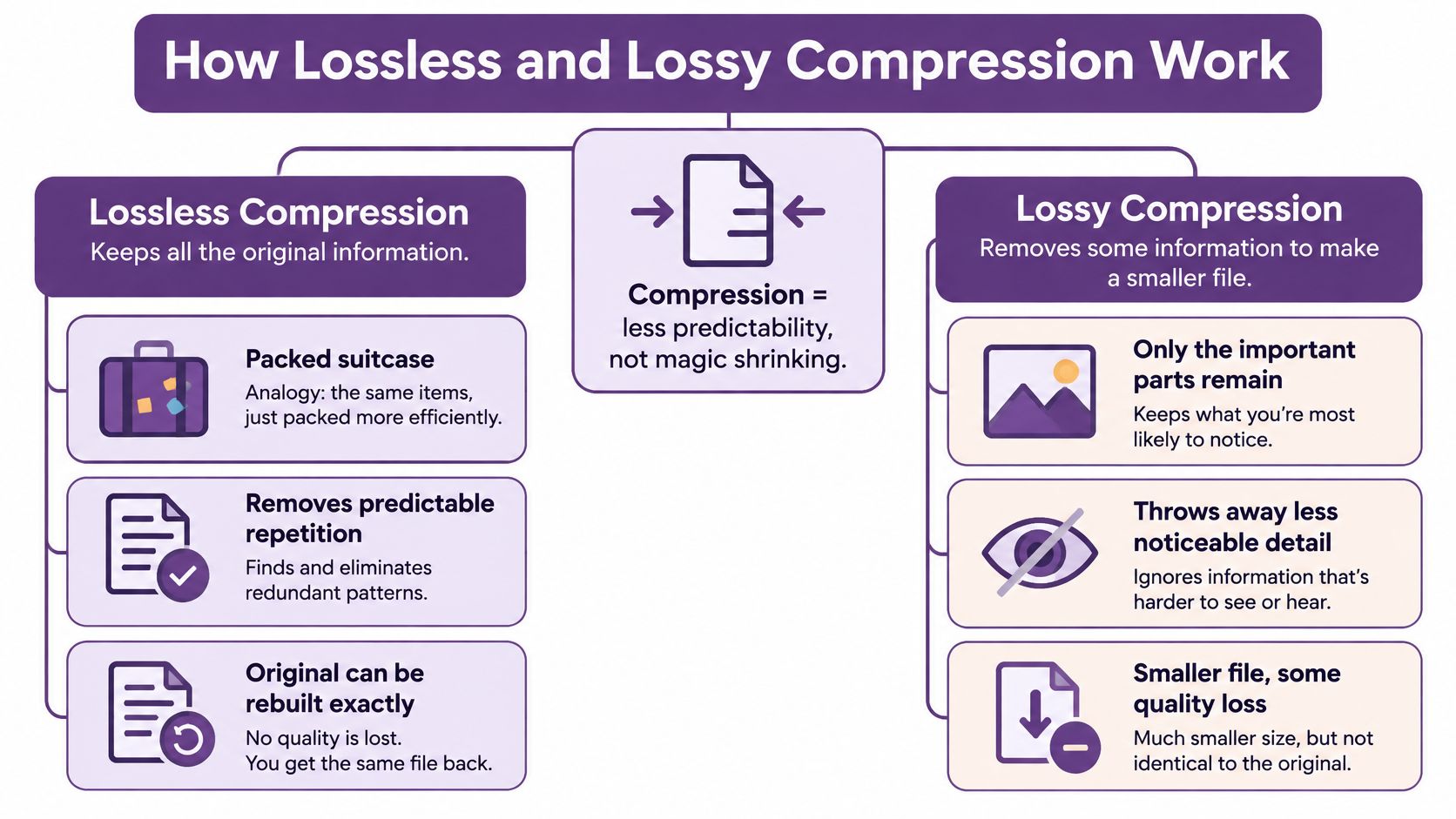
Compression doesn't shrink data by magic. It looks for predictability. If a file repeats the same patterns, or uses some symbols far more often than others, a compressor can describe that data more compactly. But a lossless method can't represent the original information below its entropy, the lower bound set by how much information the source contains. Claude Shannon formalized this foundation in 1948; in plain language, redundancy can be removed, but the information itself can't be losslessly represented below that limit (Shannon's information theory and data compression).
Same data back, or a smaller approximation
Think of lossless compression as packing a suitcase so every item can be unpacked and used exactly as before. It removes redundant ways of representing information, not the information itself. A lossless decoder restores the original file exactly.
Huffman coding makes frequent symbols cheaper to store. It gives common symbols shorter binary codes and rare ones longer codes. Its prefix-free structure means a decoder can read the code without separators and still know where each symbol ends. LZ77 takes a different approach: when a sequence repeats, it can point back to an earlier occurrence instead of writing the same bytes again. LZ78 builds an explicit dictionary of phrases. Both ideas help explain why repeated patterns are useful opportunities for compression.
These methods sit behind familiar tools and formats. DEFLATE, used by gzip, ZIP, and PNG, combines LZ77-style references with Huffman coding. It removes repeated patterns first, then encodes the remaining symbols more compactly. When decompressed, the original byte sequence is restored.
Lossy compression makes a different bargain. It discards information to create a smaller file, aiming to remove detail a viewer or listener may be less likely to notice. The decoded result isn't identical to the source. That can make sense for a viewing copy, but it's a poor substitute for a source you may need to revise.
Use the distinction to decide what belongs where:
- Keep working assets exact: Project files, captions, manifests, and other material that must be restored precisely are good candidates for lossless compression.
- Protect a reusable master: Preserve a high-quality source for future edits and channel-specific versions.
- Spend lossy compression on the viewing copy: Accept approximation where smaller delivery matters more than exact reconstruction.
Codecs Bitrates and What Quality Really Means
A video codec defines how video is encoded and decoded. It predicts what parts of a frame are likely to repeat, transforms the remaining picture information, and allocates bits to represent it. A bitrate is the budget available for that representation. Perceptual quality is the viewer's experience of the result: whether the picture still looks right at the size and speed it'll be watched.
This is why two exports with the same quantization setting aren't necessarily equal in quality. A setting doesn't describe the same visual outcome across different encoders or clips. A better comparison holds the intended viewing quality roughly steady and asks how many bits each codec needs to achieve it.
Compare at a similar visual target
In a controlled comparison of representative video sequences with comparable encoder configurations, H.265/HEVC reduced average bitrate by 39.3% relative to H.264/AVC and 43.3% relative to VP9 at similar reconstructed quality. MPEG verification testing also reported 50% or greater bitrate savings for HEVC versus AVC High Profile across material from VGA through 4K (HEVC, VP9, and AVC comparison).
Those results show why an efficient codec can matter for storage and delivery, but they aren't a guaranteed saving for every clip. Motion, texture, resolution, and scene cuts all affect how well an encoder can represent a video. A quiet shot with a simple background gives an encoder a different problem from a busy scene with movement, detailed textures, and fast cuts.
| Approach | What changes | Practical use |
|---|---|---|
| H.264/AVC | Uses a widely supported video format. | Keep it as a fallback when playback compatibility is a priority. |
| H.265/HEVC | Can represent comparable visual quality at lower average bitrate in controlled comparisons. | Consider it for supported devices, especially when storage or delivery size matters. |
| One fixed setting for every codec | Holds a numeric setting constant, not necessarily the viewer's experience. | Avoid treating equal settings as proof of equal quality. Compare at a similar perceptual target. |
A practical delivery policy is to keep an AVC fallback for broad compatibility and use HEVC where target devices and browsers support hardware decoding. Test on the devices your audience uses. A smaller export only helps if people can play it smoothly.
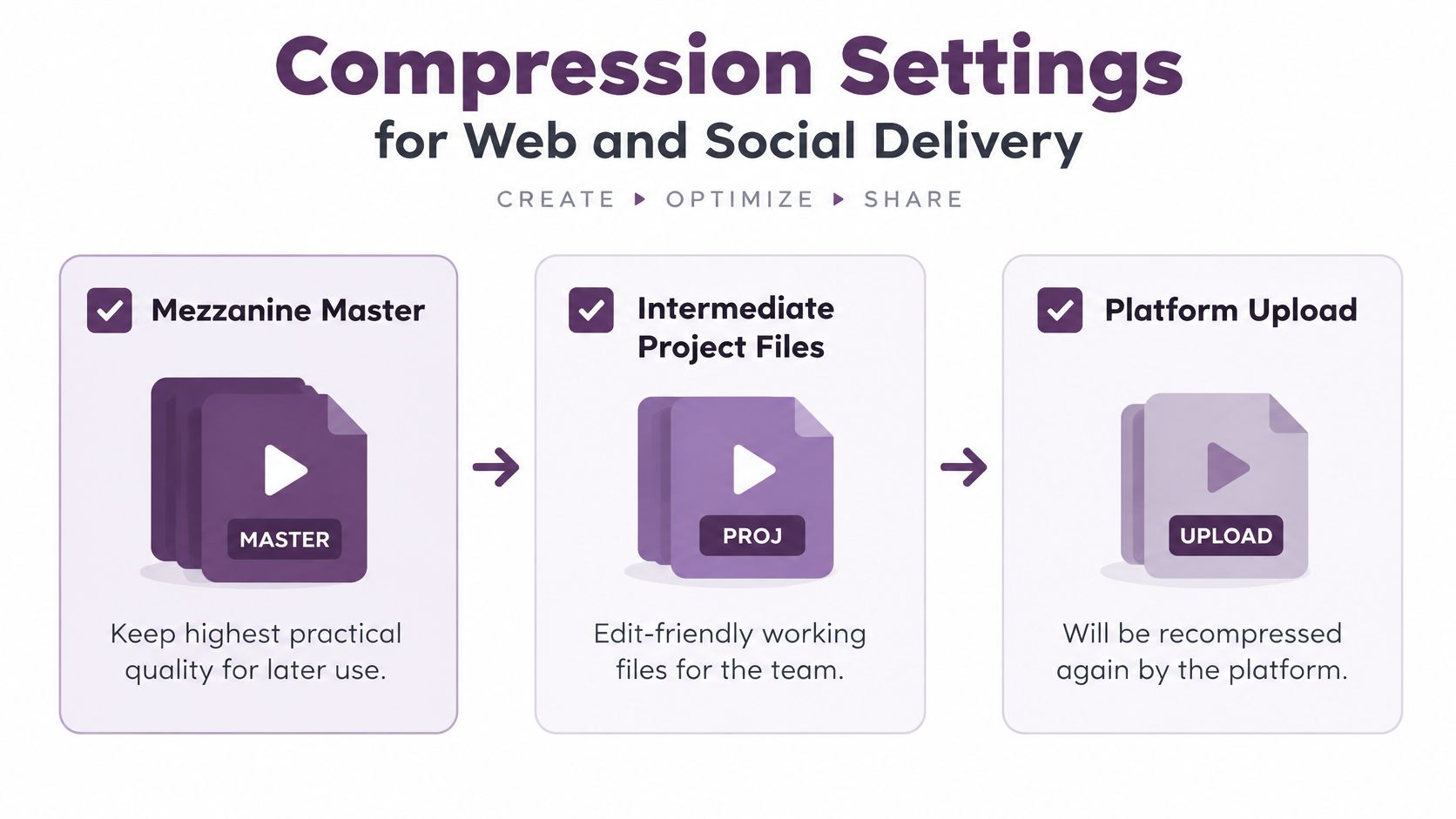
Keep a mezzanine master before making lossy exports. Repeated decoding and re-encoding can pile visible artifacts onto text, faces, gradients, and fast motion. Create the channel copy from the master, not from an already compressed upload.
What JPEG and Audio Cuts Look Like in Practice
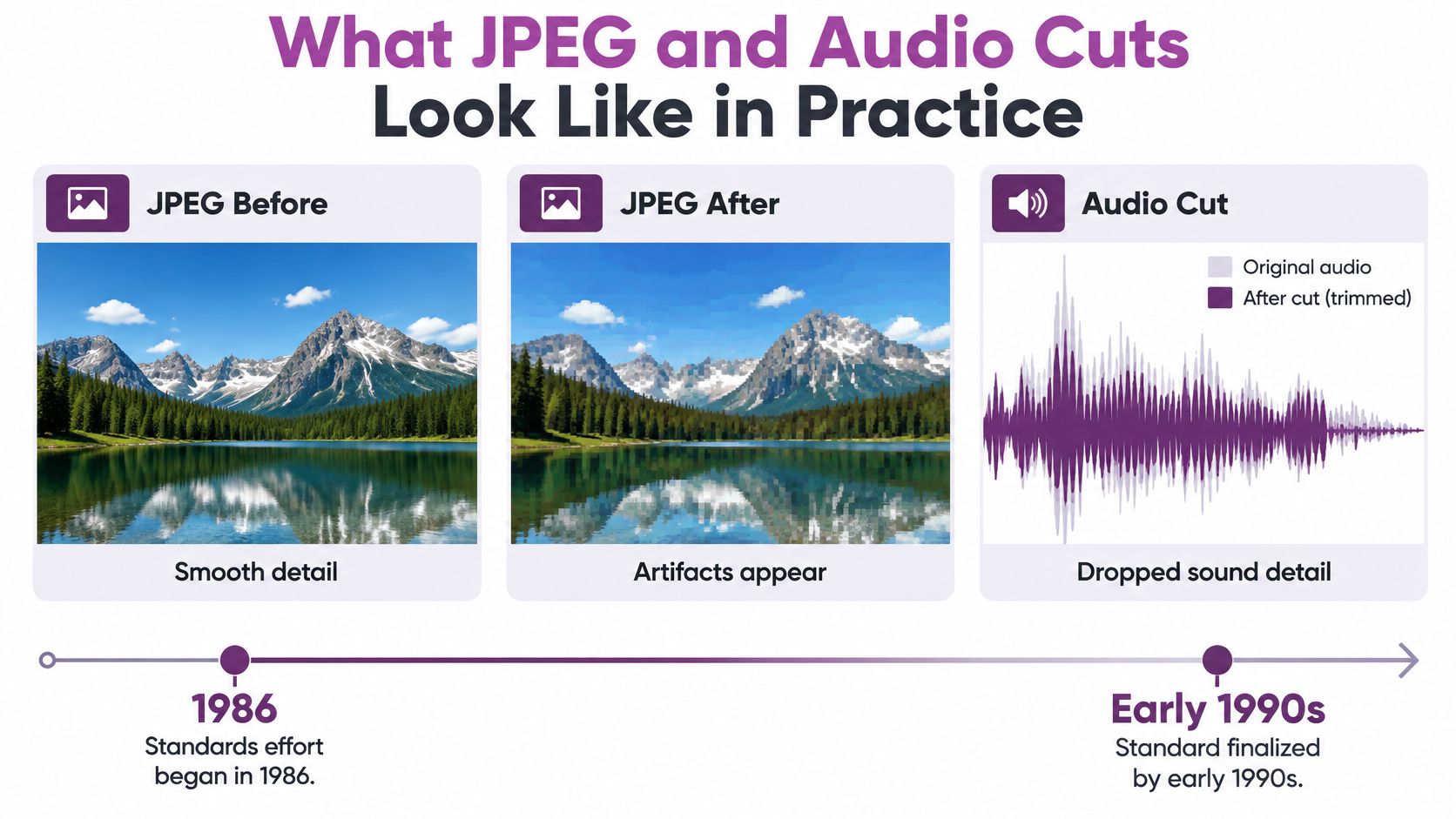
An image can lose detail gradually until the file is much smaller, but the damage doesn't always stay invisible. JPEG offers a useful example of how a lossy format trades exact reconstruction for reduced size. Its standards effort began in 1986, and the standard was finalized by early 1991. Early design targets cited an average compression ratio of about 15:1, meaning an image could use roughly one-fifteenth of its original storage while remaining visually useful (JPEG compression examples and history).
Notice where the image starts to break
The same JPEG demonstrations show stronger reductions at lower quality settings: 82%, 91%, 95.8%, and 97.7%. These are examples, not promises. Results depend on image content, resolution, chroma subsampling, and quantization settings, so a reduction that looks acceptable on one image may damage another.
When you compare exports, look beyond the overall impression. Blocking can show up in flat-color areas. Halos may appear around type. Skin can look mushy, and smooth gradients can turn into visible bands. These flaws often stand out on the subjects viewers care about most, even when the image still looks fine at a glance.
Audio has a similar trade-off, though the warning signs are different. Speech can often shed more detail than music with sharp transients, but a loud, compressed track can also hide damage that becomes clear in a quiet passage. Listen at the level and on the kind of device your audience is likely to use, not only in the edit room.
Try a controlled comparison instead of guessing:
- Export two or three quality steps from the same master.
- View the versions at the size your audience will see.
- Listen through the same material, including quiet parts.
- Stop when the next cut creates a flaw a viewer would notice right away.
The best export isn't necessarily the one that wins the file-size comparison. It's the smallest version that still preserves the details the audience needs to see and hear.
Compression Settings for Web and Social Delivery
A reliable delivery workflow starts by separating your files according to what they need to do. Keep a mezzanine master for future edits, intermediate project files for the team, and a platform upload for viewing. A platform may recompress that upload, so treat it as a delivery copy rather than the only version worth keeping.
Make the export fit its destination
For a web image, start with the master and resize to the intended display size before applying heavy compression. Avoid repeatedly saving a JPEG over another JPEG; each lossy generation can move the image farther from the source. If a graphic includes small text or faces, inspect those details at the size it'll appear.
For video, export for the viewing size rather than sending a 4K file to a mobile feed that will shrink it. Give text and faces a careful quality check, and expect the platform to encode the upload again. For audio, preserve a clean mix, leave a little headroom, and don't crush the track so aggressively that another social transcode makes the noise pump.
The supporting files around an edit need a different tool. Zstandard is a lossless option for scripts, captions, manifests, and API payloads, where exact reconstruction matters. Its published benchmark on the Silesia corpus reports a compression ratio of 2.896, compression throughput of 510 MB/s, and decompression throughput of 1,550 MB/s for zstd 1.5.7 at level -1. In the same benchmark, Brotli reports a ratio of 2.883, compression throughput of 290 MB/s, and decompression throughput of 425 MB/s. A faster zstd setting, fast=4, raises compression throughput to 665 MB/s and decompression throughput to 2,050 MB/s, while lowering the ratio to 2.146 (Zstandard benchmark details).
Those results illustrate the choice between speed and size, but your own files should decide the setting. Test with the actual mix of JSON, captions, thumbnails, and audio metadata. A fast setting can suit uploads and temporary files; a stronger setting may fit archives. Running Zstandard on an already encoded MP4, JPEG, or WebP usually spends CPU for little size gain because those formats already have little exploitable redundancy.
Before each channel export, check:
- Master: Is a reusable high-quality source saved?
- Size: Does the export suit the intended viewing size?
- Details: Are text, faces, motion, and speech still clear?
- Destination: Will the platform transcode the file again?
- Working files: Are supporting assets compressed losslessly where exact restoration matters?
How to Choose a Compression Workflow
The workflow matters as much as the export setting. A manual editor-and-encoder stack gives you direct control over the source, codec, and delivery copy, but the team has to manage those choices and avoid unnecessary re-encoding. A single preset reused everywhere is easier to repeat, but it may waste bits on a lightweight channel or compromise quality on a demanding one. An end-to-end generator can reduce handoffs, but it still needs a plan for masters and final delivery.
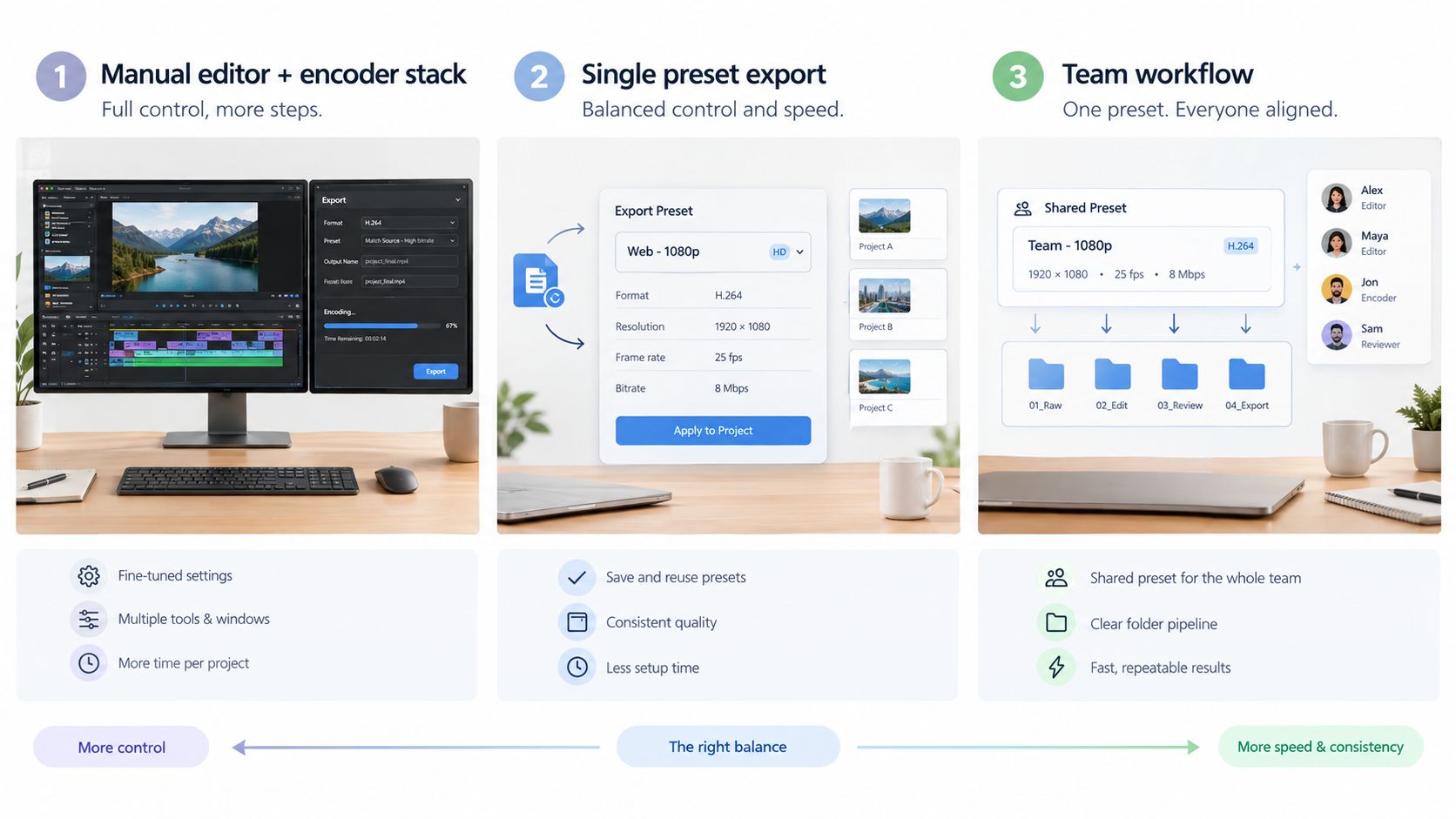
Compare each approach by quality per byte, time to a publishable file, the number of lossy generations it creates, and how easily the team can repeat the result. A manual stack can give an experienced editor precise control. A universal preset can keep production simple, but may force one export to serve different audiences. A generated viewing copy can shorten the path from material to publishable video, but the team still needs to retain a reusable master.
Count energy along with size
Smaller files don't automatically make a workflow more energy-efficient. Encoding and decoding require computation, which has to be weighed against the energy saved in storage or transmission. Research on error-bounded lossy compression describes compression ratios of 10–100×, reductions in large-scale I/O energy of up to two orders of magnitude, and energy reductions of about 25% in multi-node environments. The outcomes depend on the compressor, error bound, hardware generation, and workload. A related 2025 study argues that strict latency targets can raise energy costs, and that slightly relaxing a target may save energy (research on compression, energy, and latency).
The creator's practical lesson is to count the whole path: rendering, transcoding, uploading, playback, and future revisions. Mobile social can use a lean viewing copy. Archives should stay gentle. Collaborative editing should avoid baking damage into working assets. A slightly larger file with fewer conversions can be cheaper and more reliable than aggressive compression followed by repeated exports.
LunaBloom AI is one end-to-end option for turning text, scripts, and images into edited videos with voiceovers, captions, and one-click social publishing. It supports HD and Full HD export, layered audio, avatars, voice cloning, and localization across 50+ languages. Like any workflow, it still calls for a kept master and an export suited to the channel. Don't send its result through a second compression tool unless the platform requires it.
For a closer look at video export workflows, watch this overview:
Start with a Master and a Smaller Export
Pick one asset you're working on today and make two versions. Save or export a high-quality master that you can use for later edits. Then make one viewing copy sized for the place it'll appear, whether that's a social feed, a website, or a message to a client.
Watch the viewing copy once at its real display size, once on a phone, and once with the sound that will ship. Check the details that carry meaning: Is the type legible? Do faces still look natural? Can you understand the speech? Reject the export if those details fall apart, even if its file size looks attractive.
If the asset needs to go to another channel, branch from the master rather than from the already compressed upload. That gives each destination a fresh export and helps prevent one platform's processing from becoming the source for the next version.
If you'd rather produce a viewing copy without a separate edit stack, try the workflow on LunaBloom from a script or stills, then publish the social version and keep the higher-quality export as the master. Apply the same two-file check to your next three posts so choosing a useful balance of quality and size becomes part of the routine.
LunaBloom AI turns text, scripts, and images into edited videos with voiceovers, captions, and social publishing, with HD and Full HD export options. Use it to create a channel-ready viewing copy while keeping a higher-quality master for future edits, then try the workflow with LunaBloom AI.