A cinematic virtual background can make a video look less professional, not more. If the scene is busy, the subject's outline flickers, or a private detail slips through around a shoulder, the effect distracts from the message and can undermine trust. Knowing how to add backgrounds to videos means choosing the right method and background for the job, not swapping one scene for another.
Background replacement is a layering decision. It involves isolating the subject, placing a new visual behind them, and checking whether the composite works for viewers. The right choice depends on the footage, the importance of privacy, and whether the background helps people follow what's being said.
Why Your Background Choice Matters More Than You Think
A virtual background isn't automatically an upgrade. A detailed animated scene may look cinematic, but movement and visual clutter can compete with the speaker. A survey of 610 videoconferencing users found that the type and content of virtual backgrounds affected video-conferencing fatigue, and that video backgrounds significantly predicted cognitive load (β = 0.27, p = 0.036) (survey of virtual background effects). For an explainer or presentation, a quiet background can make the message easier to follow than a dramatic one.
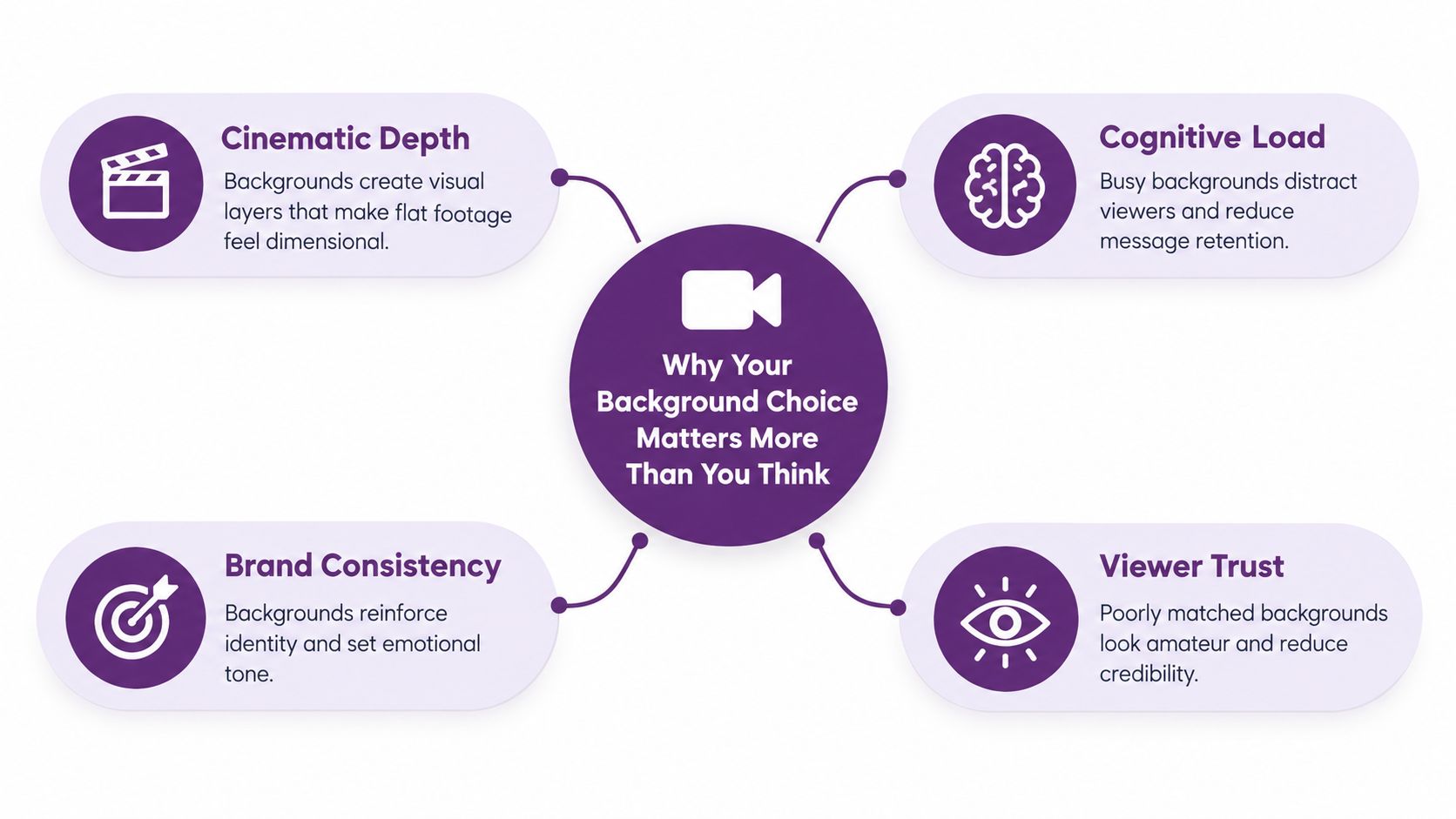
There's also a privacy trade-off. A replacement effect can miss parts of the original room, so it shouldn't be treated as a guarantee that confidential details are hidden. And a background can make a video less accessible if its colors or movement compete with captions.
The practical choice starts with four questions:
- Layering: Can the software separate the subject cleanly from the original scene?
- Method: Is a physical green or blue screen available, or will AI segmentation need to identify the subject?
- Privacy: Would a missed edge expose anything sensitive?
- Design: Does the background support the message, or ask for attention of its own?
A marketer recording a product demo at home may want brand polish, but a bright animated office behind their face could compete with the product and make captions harder to read. The better result may be a simple, static scene, or no replacement at all.
Setting Up Chroma Key the Way Editors Actually Do It
Chroma keying removes pixels within a selected color range so another image or video can sit behind the subject. Green and blue screens are common because they contrast strongly with typical skin tones, though another sufficiently uniform, distinctive color can work. Good keys begin on set. Editing can refine a matte, but it can't reliably fix a screen covered in uneven light, hard shadows, or color spill.
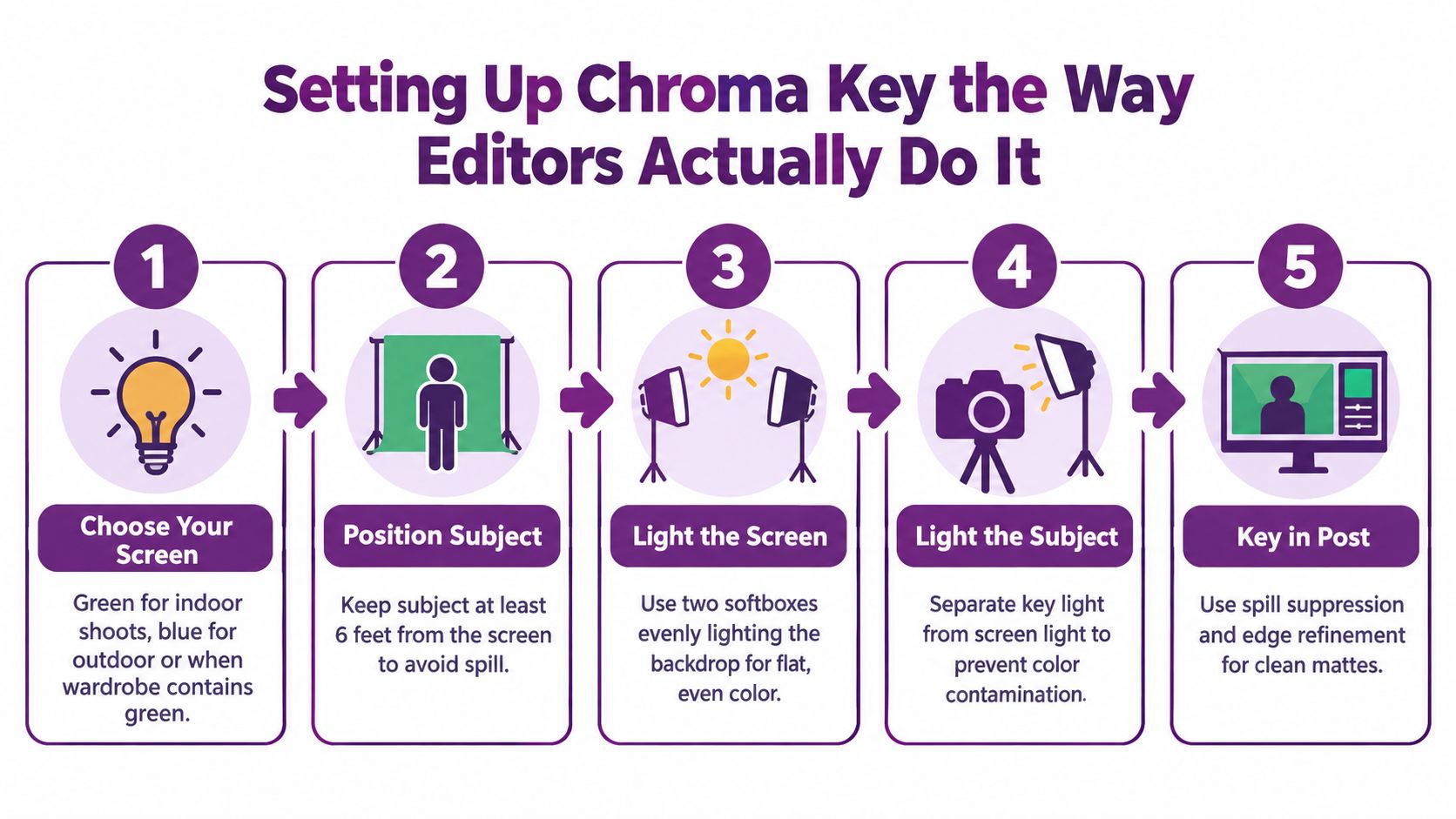
Start by lighting the screen evenly. Soft, diffused light helps avoid bright patches and dark corners that make the key color inconsistent. Light the subject separately where possible, and keep them away from the backdrop to reduce shadows and green or blue spill on skin, hair, and clothing. Before recording, lock exposure and white balance so the camera doesn't shift the screen color or subject tone during the take. For more on planning consistent green background light settings, consider how the screen and subject lighting work together rather than adjusting them as one source.
Practical rule: A clean, evenly lit screen saves more time than trying to rescue a rough key in post.
In Adobe Premiere Pro, add Ultra Key, then use its eyedropper to select the screen color. The controls handle different problems: matte generation defines which pixels become transparent, matte cleanup refines rough edges, spill suppression reduces unwanted screen color on the subject, and color correction helps the foreground sit naturally against the replacement. Put the new background on a layer behind the keyed subject.
Adobe recommends testing footage before committing to an edit, because poor lighting or uneven screen color can make parts of a subject disappear or leave visible spill (Adobe's Ultra Key workflow). Inspect a short export at 100% scale, especially hair, glasses, hands, semi-transparent edges, and fast motion. Look for halos, chatter, and holes before rendering the full video.
Using AI Background Removal Without Flickering or Holes
Without a physical screen, AI segmentation can separate a person from their surroundings, but it needs to track the subject across time. A mask that looks convincing on a still frame may flicker, lose strands of hair, or briefly cut through a moving hand when played back. Review the result as a sequence, not as a collection of isolated cutouts.
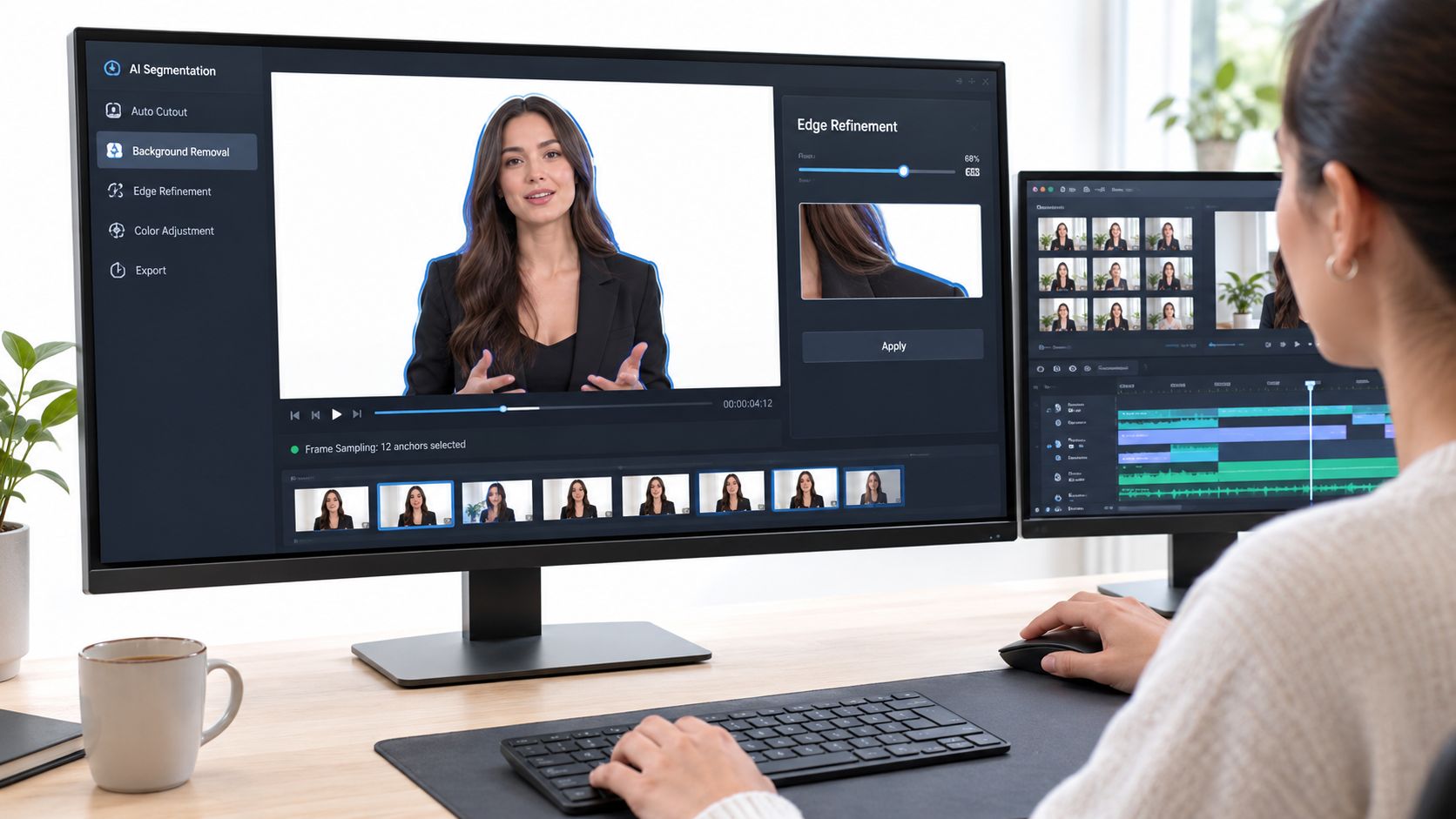
A practical workflow is to identify or stabilize the subject, select anchor frames, create an initial mask, and propagate it through neighboring frames with tracking or optical flow. Then refine boundaries around hair and motion blur, smooth the alpha over time, composite the new background, and inspect difficult moments manually. Temporal information helps keep edges coherent; treating every frame independently can produce sudden mask changes and distracting flicker.
Here's what to check during review:
- Hair and motion blur: Watch for missing strands, hard cut lines, and edges that pop in and out.
- Hands and movement: Check that the mask follows gestures without leaving transparent holes.
- Subject and background colors: Similar colors can confuse segmentation and erase parts of clothing or hair.
- The replacement scene: A moving background can draw attention to small edge errors that a still image might conceal.
A short validation render is worth doing before the full export. Check the footage at full scale, and pay attention to exposure changes and rapid movements. High-resolution matting systems have demonstrated real-time targets of approximately 30 frames per second at 4K and 60 frames per second at HD on modern GPUs, but those figures depend on the method and hardware, not a universal production guarantee (video-segmentation research).
Green Screen vs AI Background Which Method Fits Your Shoot
There isn't one right tool for every shoot. Green screen gives you control over the color being removed, but it requires a suitable backdrop and consistent lighting. AI segmentation can work with an ordinary room, but its edges may need more review, particularly around hair, motion blur, and fast gestures.
| Criterion | Green Screen (Chroma Key) | AI Background Removal |
|---|---|---|
| Setup | Requires a distinctive, evenly lit backdrop and careful subject placement. | Can work without a screen, though the subject still needs clear separation from the surroundings. |
| Hair and fine edges | A clean key can give predictable results, but spill and uneven color can leave halos. | Can preserve a natural scene without screen spill, but edges may flicker or break during movement. |
| Moving subjects | Works best when the screen stays evenly lit and the subject remains separated from it. | Needs temporally consistent masks; inspect movement rather than judging still frames alone. |
| Lighting tolerance | Uneven screen color makes the key harder to control. | Avoiding a screen helps, but changing exposure and similar subject-background colors can still cause mask failures. |
| Privacy | The physical room can be excluded from the shot, though any replacement still needs a careful edge review. | Segmentation can miss parts of the room, especially during movement; live-call failures may happen dynamically. |
Choose chroma key when you can control the screen and lighting, and when you need repeatable results across a planned shoot. Choose AI removal when there's no screen, the location can't be changed, or a physical setup would be impractical. Neither method excuses a frame-by-frame review when privacy matters.
The distinction between a finished video and a live call is important. In an export, you can inspect and correct troublesome moments before publishing. In a live call, a segmentation error may appear in real time, without an opportunity to fix the affected frame first. If a clean physical setup is available, use it for sensitive conversations.
The Privacy Leak Most Virtual Backgrounds Cause
An educator checks a virtual background before a live lesson. The room looks replaced, so they start presenting. Then they reach for a glass, the mask shifts around their hand, and a real detail behind them appears briefly. That kind of failure can be easy to miss in a preview, yet visible to everyone on the call.
Virtual backgrounds aren't the same as redaction. In an evaluation, viewers recognized objects in reconstructed backgrounds in about 35% of cases, and background information could be recovered under certain movement and accessory conditions (evaluation of virtual-background privacy). That's a reason to treat segmentation as an effect that can fail, not as a privacy boundary.
Use a preflight check before recording or joining a call:
- Clear sensitive items: Remove documents, screens, personal photographs, and anything else you wouldn't want visible.
- Test movement: Turn, lean, and move your hands to see whether the mask exposes the room.
- Inspect difficult edges: Check hair, glasses, hands, and transparent objects, which can challenge segmentation.
- Avoid visual collisions: Clothing or hair that resembles the virtual background can make separation less dependable.
- Choose a safer fallback: Use a plain physical backdrop or deliberate blur if a missed edge could expose private information.
A finished video gives you a chance to inspect and correct frames before sharing. Live segmentation can fail dynamically while you're speaking, so it offers less control. For a privacy-conscious workflow, review LunaBloom AI's privacy information, and don't rely on a polished preview as proof that the original room is hidden.
Designing Backgrounds That Help Viewers Actually Understand You
A background should support the speaker, not compete with them. The survey cited earlier found that background type and content affected videoconferencing fatigue, with video backgrounds predicting cognitive load. For a lesson, interview, or product explanation, a moving scene may add visual noise without making the information clearer.
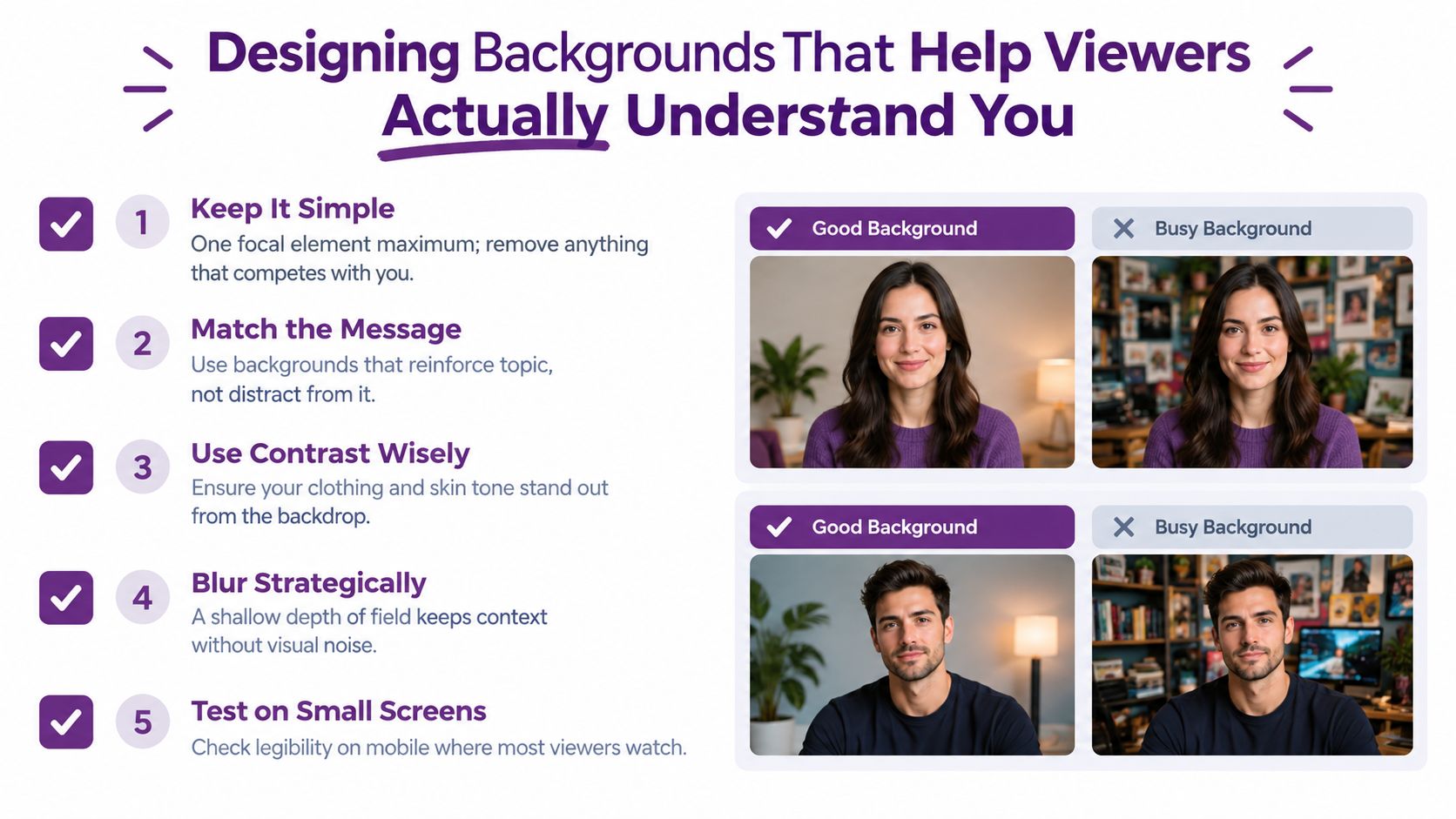
A useful visual hierarchy is speaker first, product or brand cue second, decoration last. Keep the speaker's outline distinct from the scene, and check that the background doesn't swallow dark hair, light clothing, or a product being demonstrated. A skyline or office that feels neutral in one market may carry a different meaning elsewhere, so localize imagery for the audience rather than assuming one scene fits everyone.
Captions need room to be read. If a busy background sits behind on-screen text, contrast can suffer, especially on a small screen. The W3C describes WebVTT as a time-indexed caption format referenced by HTML5 video and audio elements. A valid WebVTT file begins with WEBVTT; its cue timestamps use padded hours, minutes, seconds, and three-digit milliseconds (W3C WebVTT concepts). Keeping captions in a separate track lets viewers turn them on or off rather than baking them into the image.
Use this decision rubric:
- Static image: Pick it when you want a clean, consistent setting for a talk or tutorial.
- Subtle motion: Use it only when movement adds context without pulling focus.
- Strong contrast: Choose it when the subject or captions need clearer separation.
- No replacement: Keep the original scene when it's appropriate, controlled, and less distracting than a synthetic one.
A Preflight Checklist Before You Export
The composite isn't finished when the key looks clean. The replacement plate has to fit the camera's framing, perspective, and lighting, or the subject can look pasted on. Match the horizon and approximate light direction, then add a contact shadow where it helps the subject sit naturally in the scene. Compare blur, grain, and color grade so the foreground and background don't look as if they came from different worlds.
Before exporting, check:
- Canvas and framing: Match the video's aspect ratio and resolution to its destination. YouTube lists 16:9 as the standard computer viewing ratio, with 1920 × 1080 for 1080p, 1280 × 720 for 720p, 3840 × 2160 for 4K, and 7680 × 4320 for 8K (YouTube's recommended upload encoding settings). Crop, letterbox, or reposition a background that doesn't fit. Don't stretch it out of shape.
- Edges and motion: Review hair, hands, glasses, and fast movement at full scale. Look for spill, halos, chatter, and holes.
- Scene match: Check horizon, subject scale, light direction, shadows, blur, grain, and color.
- Captions and text: Make sure text remains legible against the finished background and captions are included in an accessible format.
- Short test render: Export a difficult segment first. A quick review can catch a bad matte before it affects the full video.
Sometimes the best background is the one you remove. If the original setting is already tidy and supports the subject, replacing it may introduce more edge problems, privacy concerns, or visual noise than it solves. When no physical backdrop is available and you want to create or edit scenes from a script or image, LunaBloom AI offers an AI video studio with a built-in editor that can be used to work with video scenes and backgrounds.
Frequently asked questions
Is a live-call virtual background safe for private rooms?
It can help conceal a room, but segmentation can fail during movement. Remove sensitive items first, test the mask while moving, and use a physical backdrop or blur if exposing the room would be a problem.
What should I do if the chroma key removes my clothing?
The clothing may share the selected screen color. If possible, change the wardrobe or screen color; otherwise, refine the key and test the result to make sure the subject isn't left with holes.
How should I localize a background for different markets?
Choose imagery that fits the audience and context, rather than reusing a scene automatically. Keep the speaker and message prominent, then check the result with localized captions.
Short-form video publishing has grown in importance, which makes a repeatable background workflow useful, but speed shouldn't come at the cost of legibility or trust. Test the composite, keep captions readable, and choose a background that serves the message.
Use LunaBloom AI to create videos from prompts, scripts, or images, then refine scenes and backgrounds in its built-in editor. Visit LunaBloom AI to explore a workflow for your next video.