You've got a twelve-minute product demo sitting on your desktop. Marketing wants a blog post from it by Friday, your editor wants captions on the YouTube upload, and someone in sales has already asked for a pull quote from the minute where the founder explains pricing.
Three requests, one recording. Handle the upload once with the right settings and all three come out of the same pass. Handle it carelessly and you'll spend Saturday retyping a paragraph you already own.
What You Get When You Transcribe a Video
Transcribing video to text means turning the spoken track into words you can read, search, and edit. That part is simple. What trips people up is that the words arrive in two shapes, and the shapes aren't interchangeable.
Here's how the two outputs sit side by side in a real editing session.
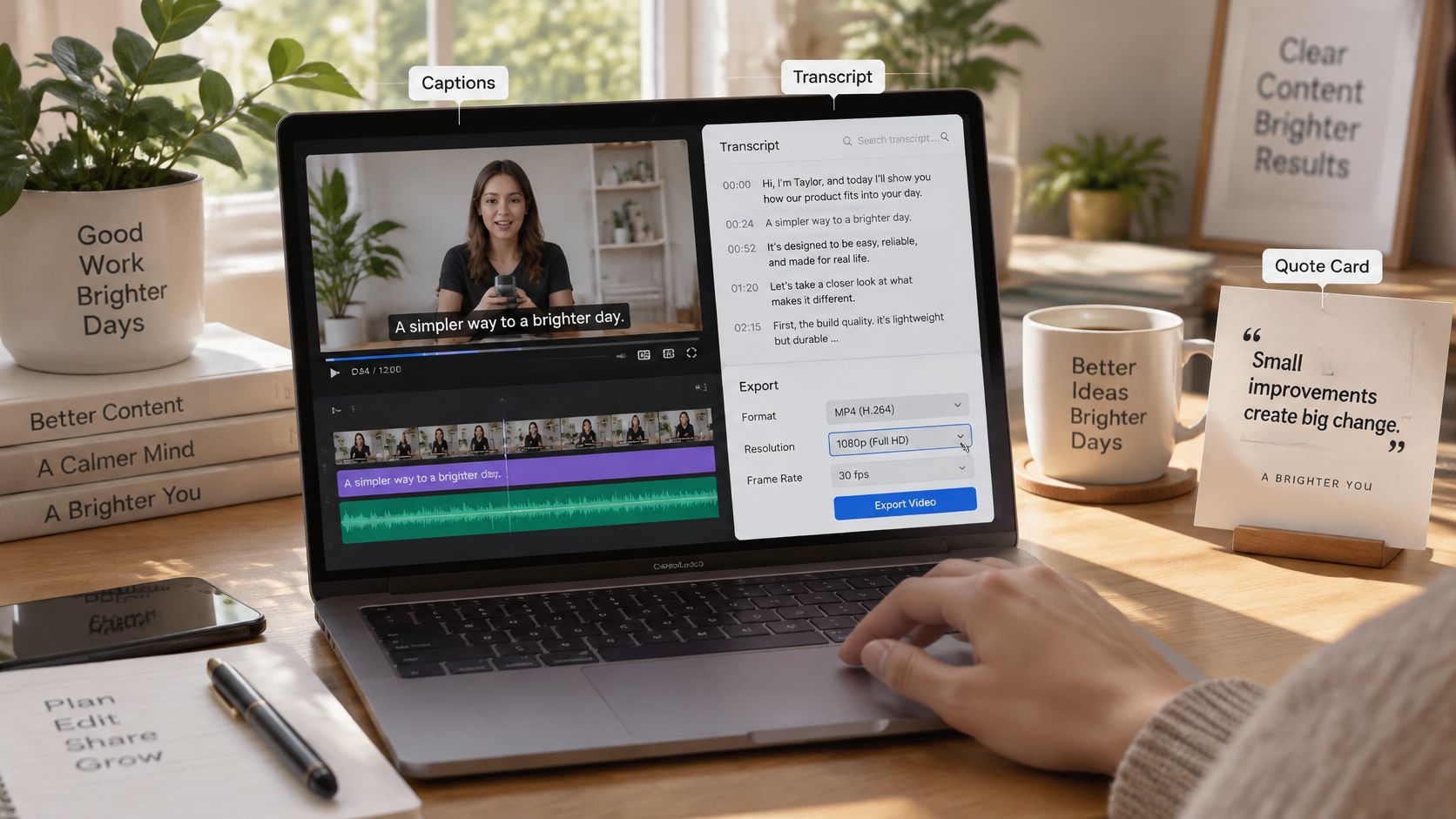
The first shape is a searchable transcript, a flowing document someone reads on its own, quotes from, or feeds to a search engine. The second is time-aligned captions, short lines of text that appear with the picture, cued to the moment the words are spoken. A transcript with no timestamps is a reading copy. Captions with sloppy timing are decoration. There's a gallery of finished, captioned work in the media room if you want to compare the two formats in the wild.
Why the first draft stopped being the hard part
Speech recognition has been part of the plumbing long enough that most creators barely think about it. Google's account of automatic captioning in YouTube dates the launch of automatic captions to November 19, 2009, and reports that within a year viewers had watched videos with automatic captions more than 23 million times. The same post notes those captions could be machine-translated into 51 languages. Detect speech, generate a transcript, align words to timestamps, optionally translate. That sequence is still what runs when you hit upload today.
The change is on the back end. The sensible default for most creator and marketing video in 2026 is automatic recognition for the draft, then a short human pass over names, prices, numbers, and speaker changes. Fifteen minutes of review beats an hour of typing, and it catches the failures that matter.
Some recordings break that plan before you start:
- Heavy background music masks consonants, and the model fills the gaps with plausible nonsense.
- Two people talking at once blurs who said what, even when every word is clearly audible.
- Strong accents on technical vocabulary produce confident, wrong product names.
- Any line that would misquote a customer, a price, or a legal claim can't be left to a machine, however clean the rest of the file is.
So the path runs four moves: pick a method that matches this file, run a repeatable workflow, shape the timing into real captions, then judge the error risk before anything goes public. Before you start, note three things about the recording. How long does it run, how many people speak in it, and will the finished text be read on a page, watched as captions, or both? Those three answers decide everything that follows.
Which Method Fits This Video
For nearly every creator and marketing video, the right pick is hybrid: an automatic draft, then a focused edit. Save the slower routes for files where one wrong word does real damage.
Match the recording in front of you to one row. The effort and the risk matter more than the feature list.
| Method | Best for | Typical effort | Main risk | Output |
|---|---|---|---|---|
| Auto ASR upload | Clear single speaker, decent mic | Minutes for a short video | Names, noise, fast speech | Draft transcript plus SRT or WebVTT |
| Platform auto captions | YouTube or social publish | Minutes, then an edit pass | Accents, music, auto line breaks | Editable on-screen captions |
| Manual listen and type | Quotes, training, high-stakes claims | About 4 to 8 times runtime | Fatigue and missed words | Verbatim transcript you control |
| Hybrid auto then polish | Most creator and marketing videos | About 1.5 to 3 times runtime | Skipping the risky lines | Timed captions and a clean transcript |
| Live captions exported later | Meetings and interviews in progress | Real time, weak timing | Overlap, lag, wrong speaker | Rough notes to clean up |
An auto ASR upload is the fastest route from a clean single speaker to a file you can edit. It's also the row where an unusual product name comes back as three different wrong words. Platform captions win on convenience because the video is already there, and you'll still be fixing line breaks and misread accents by hand. Manual typing stays the honest answer when a quote will be printed, and the failure mode is fatigue rather than vocabulary.
Hybrid is where most production work lands, at roughly one and a half to three times the runtime once you count the review pass. Live captions pulled out of a meeting are rough notes, not a finished transcript, because the timing is built for the moment rather than for playback.
Three rules settle the close calls:
- More than one voice means diarization on. Speaker separation is what preserves attribution, and it's cheaper to enable at the start than to reconstruct afterwards.
- Music under the speech means you isolate the voice track first, or accept that you've bought yourself a manual pass.
- A public misquote means you sample the audio before you trust the file, no matter which row you picked.
The two automatic rows aren't equal, and there's a measured comparison behind that. In a study of online video captions, 75.6% of YouTube videos had a word error rate below 20%, against 84.0% of Whisper transcriptions in the evaluated dataset (the arXiv comparison of speech recognition for online video captions). A 20% rate means errors touch roughly one reference word in five, and neither number holds for every accent, language, or noisy room.
Choose built-in YouTube or social captions when the file is already publishing there and you'll be editing line breaks anyway. Choose a Whisper-class upload when the job needs a downloadable draft plus SRT or WebVTT and you can hand it a short list of product names first.
Transcripts also feed pipelines beyond the video itself. If your team turns recordings into digests and newsletters, a walkthrough of automating story discovery with feeds shows how that queue stays stocked without manual copying. And if you'd rather wire the upload into your own tooling than click through a web form, our developer API notes cover that route.
Pick one row for the file on your desk and write it beside the file name. That single choice sets how long the rest of the job takes.
How to Transcribe the Video Step by Step
The order matters more than the tool. NIST's write-up of a robust video-to-text workflow splits the job into media preparation, speech recognition, alignment, normalization, and quality assurance. Keeping those stages separate is what makes a re-run cheap when one of them goes wrong.
A tighter version of that sequence is easier to hold in your head during a real upload.
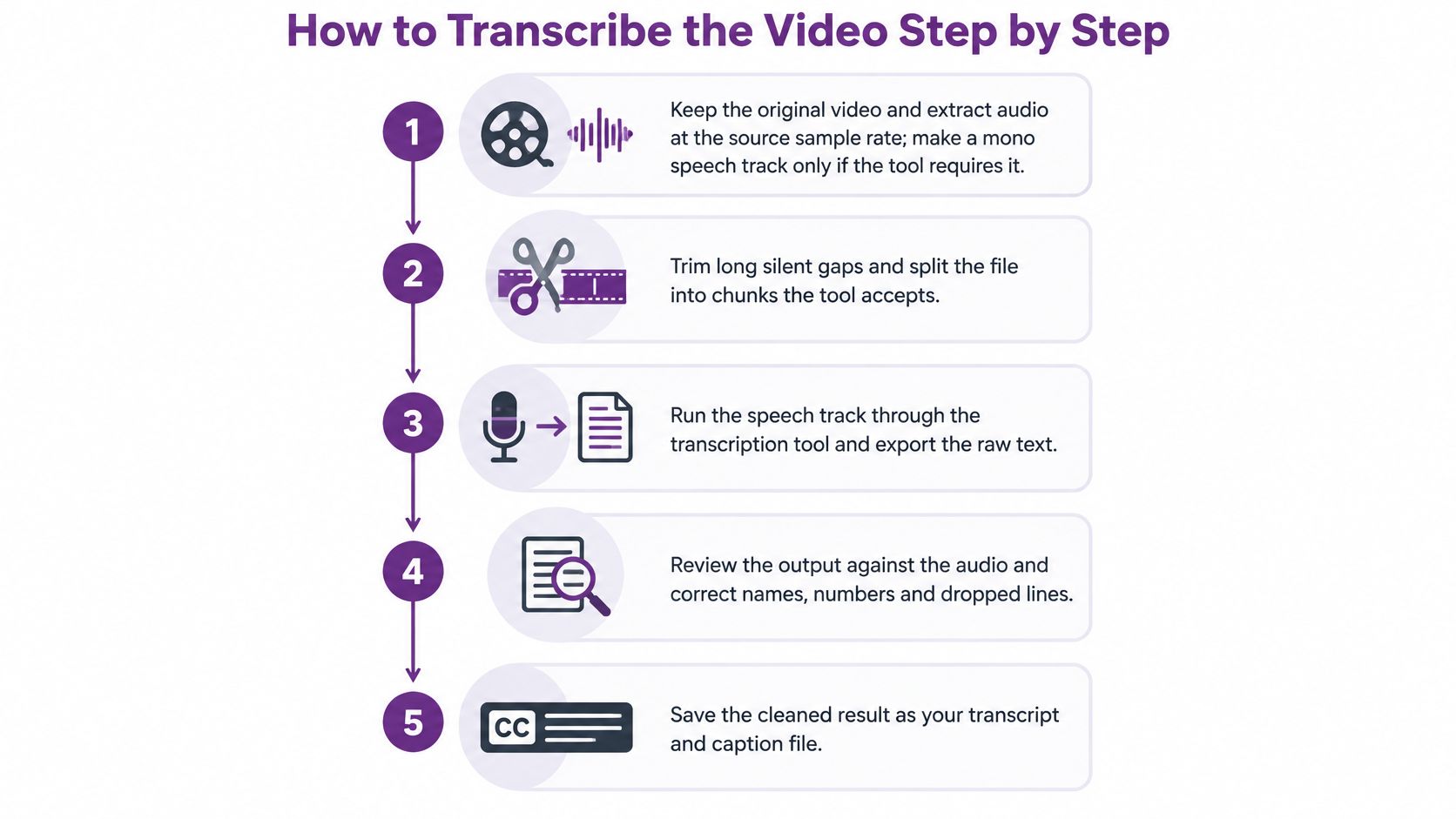
Keep the original and extract audio at the source sample rate. Convert down only when a tool refuses the file, because resampling smears the consonants the model depends on. Make a mono speech track if your pipeline requires it, and keep the original for your own review.
Trim the long silence and music-only stretches, then label the speakers. Voice-activity detection removes the dead air that pads runtime and invites invented text. When two people speak, run diarization here rather than trying to fix attribution later from memory.
Set language, locale, and a short vocabulary list before you press go. Product names, prices, acronyms, and spelled-out numbers go in first, because the model can't learn them from a paragraph of ordinary speech. The slip that wastes a whole pass is uploading now and discovering afterwards that your flagship product came back as two unrelated words.
Generate word or short-phrase timestamps, not one untimed paragraph. Timed text is what you convert into captions later without listening to the video again. A single block of prose looks finished and forces you to rebuild the timing from scratch.
Restore punctuation, capitalization, and speaker labels, then correct the names. A readable draft is what makes the human pass quick, and proper nouns are where a fluent paragraph lies to you. Check every brand, person, and place against your own notes rather than against your memory of the demo.
Export two files. A plain-text or HTML transcript for reading, searching, and quoting, plus an SRT or WebVTT file for playback. They answer different questions, and one won't cover for the other.
Play the risky minutes once and fix them. Overlapping speech, proper names, numbers, code, and fast passages are where errors cluster, so sample those instead of reading the whole file top to bottom. Word error rate is the score you apply later, substitutions plus deletions plus insertions divided by the number of reference words. For scale, the NIST evaluation used a corpus full of background noise, music, distant microphones, accents, and reverberation, and recorded 32.6% word error on TED speech and 36.6% for a system trained only on YouTube data and tested on TED.
A screen recording of the recognition and alignment stages makes the timing questions concrete.
If your editor generates the caption track, start the video project in the same tool so the timing you export matches the cut you published. When it doesn't, you'll be nudging cues in a text file later.
Save both files next to the video, and tape a short list of the risky minutes to the folder. That list is what makes the next review fast.
Spot the Lines the Model Will Miss
A single accuracy percentage doesn't travel. The number a tool page quotes was measured on some recording, and yours is probably not it.
The gap shows up fastest when the room changes.
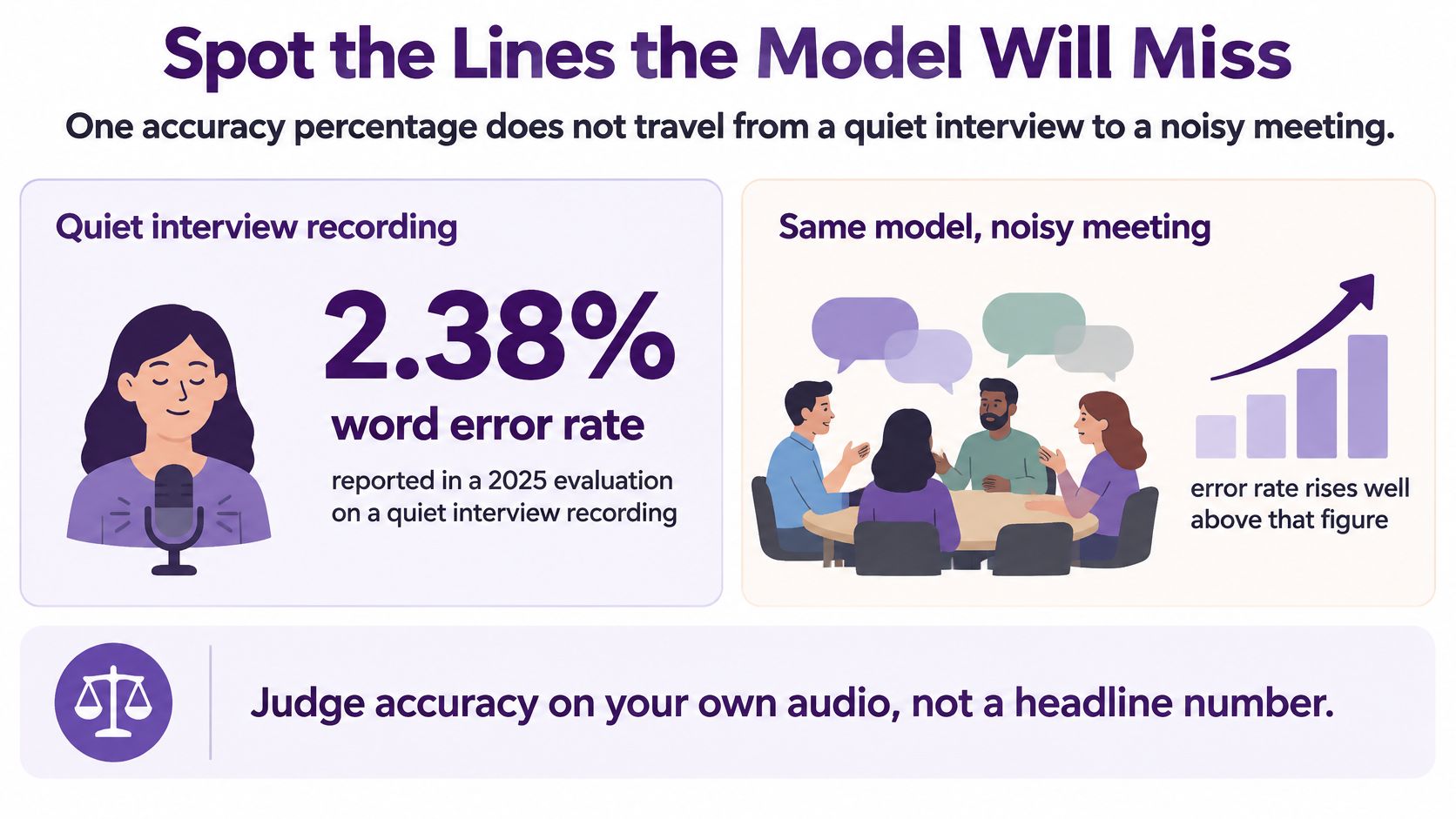
One 2025 evaluation across real recording conditions makes the spread plain, as reported in the 2025 study of word error across recording conditions. Same task, same kind of model, wildly different numbers.
Word error by recording condition
| Recording | Reported word error | What usually breaks |
|---|---|---|
| Clean two-speaker interview | 2.38% | Occasional word swaps |
| Accented English | 29.47% | Substitutions on accent and unfamiliar terms |
| Open-plan overlapping speech | 27.08% | Deletions and mixed-up speakers |
Errors cluster in predictable places: speaker overlap, voices that are quiet or far from the mic, and vocabulary the model has never met. If you're recording the narration yourself rather than capturing a live room, a guide to recording voiceovers in TikTok covers the mic placement and level choices that remove half these failures before the model ever hears them.
What the score quietly skips
Word error rate counts word-level slips. It doesn't see a sentence broken in the wrong place, a line handed to the wrong speaker, or a term spelled consistently and wrongly throughout. That's why a transcript can read beautifully and still put a claim in the wrong mouth. Training material, legal-adjacent business communications, healthcare discussions, and customer interviews are exactly where that matters, because someone will quote the file later.
Run a two-minute check before you trust anything longer. Choose a stretch that contains a name, a number, a fast passage, and a second speaker. Listen once with the transcript in front of you. If those lines are messy, the clean ones don't rescue the job, and averaging the whole file hides the problem.
When the sample fails, fix the causes in this order. Get the mic closer or strip the music first, because no vocabulary list saves a sentence the model never heard cleanly. Add the custom terms next. Then re-run the same two minutes and compare, rather than trying a different clip and hoping.
Publish rule: ship the file when the risky sample matches the audio and the speaker labels are right. Hold it when overlapping speech or accented technical terms still come out wrong, even if the rest reads perfectly.
Shape Timestamps Into Real Captions
Open the SRT or WebVTT you exported and look at it the way a viewer would. A blog-style transcript under the player serves readers who want to scan. It does nothing for someone who can't hear the audio at all.
For prerecorded video with audio, synchronized captions are required at WCAG Level A under Success Criterion 1.2.2, unless the media is clearly labeled as a text alternative, as the W3C guidance on captions sets out. Those captions also have to carry meaningful non-speech audio such as music, laughter, alarms, and the identity of whoever is speaking.
The distinction worth taping to your monitor: a clean transcript is not a caption file. Same words, different job, and only one of them is synchronized to the picture.
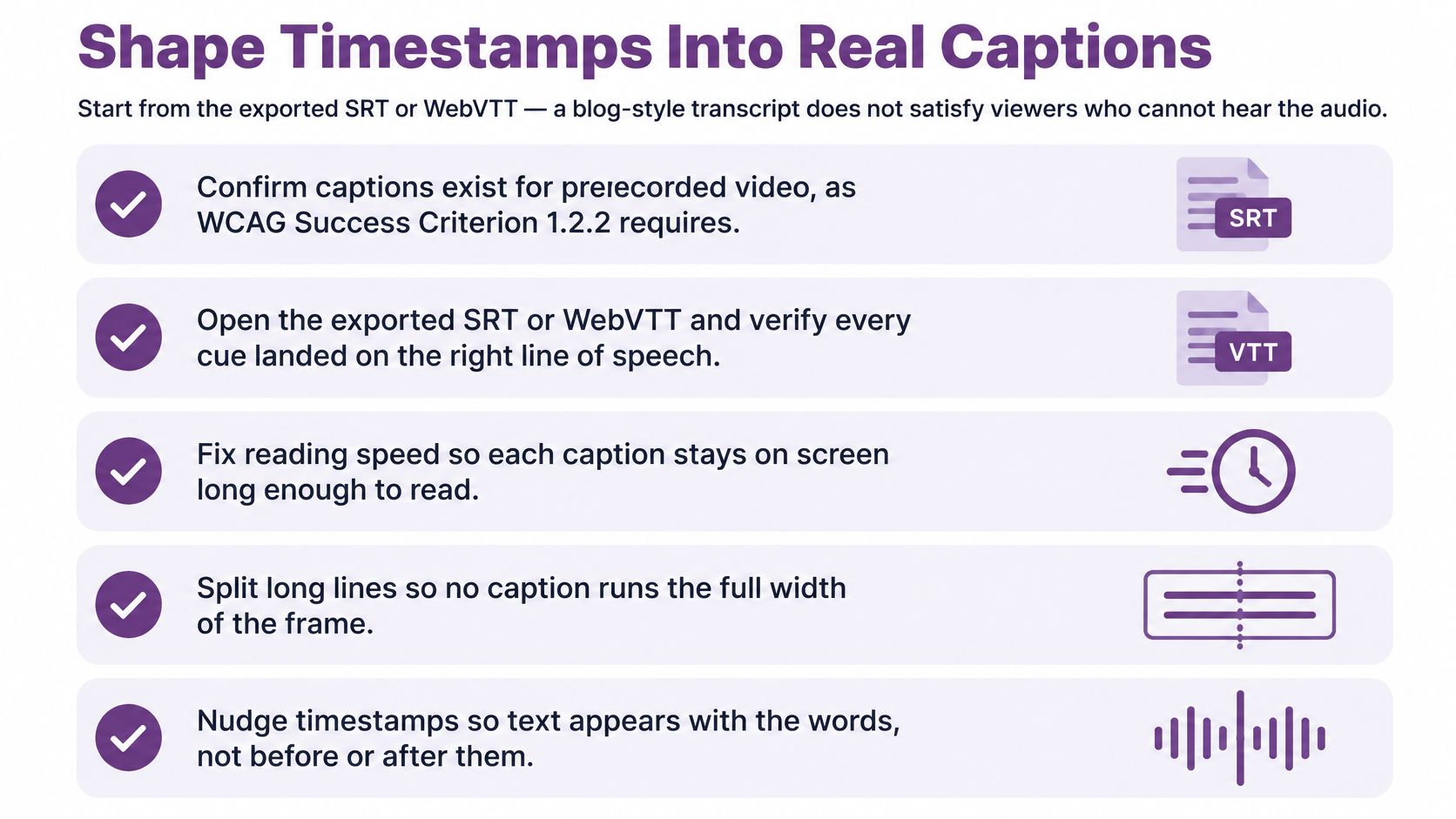
- Break lines where the speaker breaks phrases. A line end in the middle of a noun phrase makes the eye jump back.
- Give each caption enough time to read. If you can't read it once at normal speed, neither can anyone else.
- Name the speaker when the voice changes. Two unlabeled voices in a dialogue are indistinguishable on screen.
- Add sound labels only where sound changes meaning. [door slams] or [upbeat music] earns its place; a label for every cough doesn't.
- Keep the wording verbatim unless reading speed forces a trim. W3C's media accessibility requirements describe captions as a verbatim representation of the audio, with editing justified by reading speed or language level, and a full descriptive transcript should also carry meaningful visual content (W3C media accessibility requirements).
- Use the video timeline as the clock, not the order of the text file. Nudge cues so the words land with the sound.
A separate, complete transcript is worth building too, and W3C treats it as a different deliverable rather than a by-product. For prerecorded content, a transcript containing the audio information sits at WCAG Level AAA, and it can do things captions can't, including describing important visual information and interaction that the audio never mentions. The guidance asks for it as a separate but programmatically linked resource, beside or below the player, with scrolling and static display options and reader-controlled font size, colors, and spacing (W3C guidance on transcripts).
Then there's the usability bar. Accessibility research found that captions with 2 to 5% word error were rated significantly more positively by Deaf and hard-of-hearing participants than captions at 10 to 15% word error, which means "mostly accurate" still carries a real cost for the people relying on it (the 2025 accessibility study in Universal Access in the Information Society). Play the finished file once with the sound off. If you can follow it, you're close.
The same pass applies to personal projects, and the birthday video example shows how much timing changes the read. You'll know the job is finished when the video plays with captions on and the full transcript sits underneath, linked and readable on its own.
Put the Transcript and Captions to Work
Once the sample matches the audio, each finished file has a next job.
A blog post or help article takes the plain or HTML transcript under the player, so a reader can search and skim without pressing play. A YouTube or social cut takes the SRT or WebVTT, with the speaker named whenever the voice changes and only the sound cues that change meaning, such as laughter or an alarm. Training and customer-facing videos get one extra read for product names, prices, URLs, and negations like not and never, because a dropped negation flips the sense of the whole sentence.
Keep the corrected transcript as the source of truth if that script will be reshot. Rebuilding lines from memory is how the second version drifts from the first.
Where the video is finished inside LunaBloom AI, Automatic Captions are part of the same studio that produces the video, so the caption check happens in the edit rather than in a separate export. The creator workflow runs eight steps, Idea, Script, Visuals, Voice, Video, Music/SFX, Captions and Publish, and YouTube Publishing carries the finished edit out without a second caption job.
This week, run the two-minute name, number, and speaker sample on one video you've already published. Fix the caption file before the next upload and you'll have a repeatable check instead of a scramble.
LunaBloom AI turns a script or a prompt into a finished video with voiceover and captions in the same studio, so the transcript you check is the one that ships with the edit. The eight-step workflow keeps captions next to the script and the voice, which is exactly where the two-minute sample is easiest to run. Visit LunaBloom AI and start with a short clip to see how the caption step fits your next upload.