The Friday request is familiar. A client webinar sits in the folder, the product demo still holds up, and someone wants three social cuts before the weekend. The people on screen are real, and so is the claim they made. You don't need a clip invented from a sentence. You need an AI video generator from video workflow that changes language, crop, or look without throwing away the performance.
That workflow breaks when a sharp export is treated as finished. Keep the original, log what changed, and have a person read the captions. Effects are the fast part. Rights, disclosure, and version history are what stop a testimonial or a training module from going out wrong.
Which Transformation Fits Your Existing Footage
Pick the smallest change that still meets the brief. The table is the decision, not the preview reel.
| Transformation | What changes | Input you need | Best use | Main risk |
|---|---|---|---|---|
| Style transfer | Look, colour, art style and background | Stable, well-lit footage | Brand restyling and B-roll | Faces and on-screen text can drift |
| Avatar creation | Presenter replaced by a digital figure | Consented photo or footage of the person | Explainers and training without filming | Identity consent and stiff delivery |
| AI dubbing | Spoken language and voice | Clean dialogue audio and transcript | Multilingual ads and tutorials | Terminology errors and timing overruns |
| Lip-sync | Mouth movement matched to new audio | Front-facing face and clear speech | Dubbed presenter videos | Artifacts on fast speech and profile angles |
| Localization | Dubbing, captions, on-screen text and aspect ratio per market | Script, glossary and target locales | Global campaigns | Cultural mismatch and longer review |
| Captions and reframing | Subtitles added and frame cropped to a new ratio | Original audio and speaker position | Social cutdowns | Auto-captions misread names and numbers |
Style transfer repaints the scene and keeps the motion, so watch faces and logos. Avatar creation replaces the person, which helps when you can't reshoot and fails when consent is thin. AI dubbing changes the language and voice. Lip-sync retimes the mouth, and it struggles on profile angles. Localization stacks those changes with on-screen text and a market-specific ratio. Captions and reframing leave the performance alone and crop to 9:16, 4:5, or 1:1.
What teams actually order
Wistia's 2025 research, drawn from more than 14 million videos, 100,000 businesses, and 1,300 professionals, found AI video-creation adoption rose from 18% in 2024 to 41% in 2025. Planned or current uses led with captions (over 60%), then dubbing (38%) and translation (31%). Most of the work is adapting footage that already exists.
In 2024, 75% of video marketers reported using artificial intelligence to create or edit videos, according to Wondershare Filmora's video marketing statistics. Using a model is no longer the edge. Choosing the lighter edit is.
Practical rule: When the speaker's delivery is the point, as with testimonials, medical guidance, or executive messages, start with captions or reframing rather than an avatar or a replaced voice.
How to Prepare Source Footage Before Upload
Work through the file in order. Each check takes minutes on one clip and saves a ruined render.
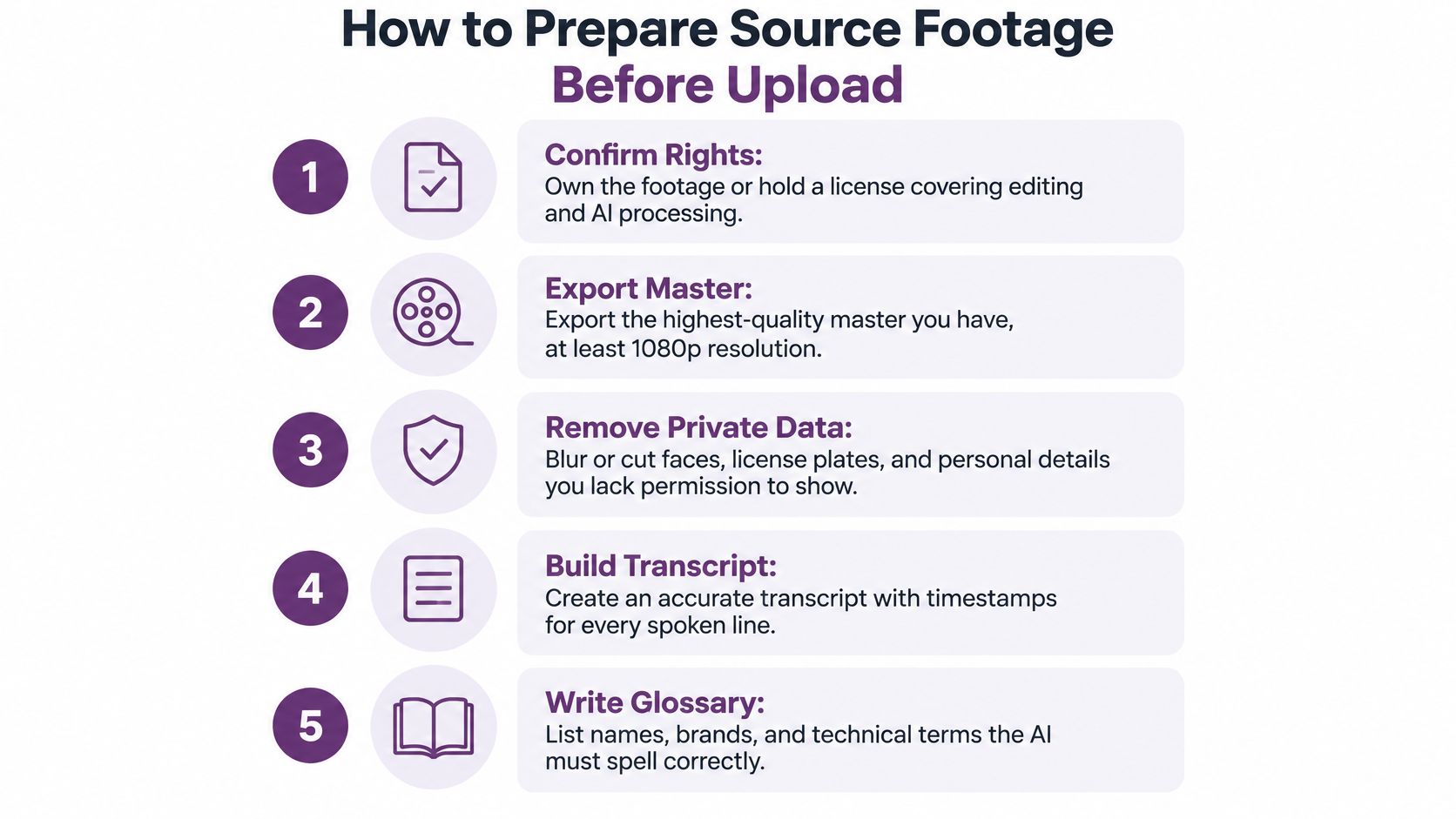
- Confirm rights. You own the footage, or the licence covers editing and AI processing. Permission to repost a clip is not the same thing.
- Export the master. Use at least 1080p and the original frame rate. Don't start from a messaging-app copy, because compression smears mouths and on-screen text.
- Archive, then strip private data. Keep an untouched original and never overwrite it. Blur or cut faces, plates, and personal details you lack permission to show.
- Split by idea. Shorter jobs fail less often and are easier to review. Check the tool's maximum clip length before you upload a full hour.
- Match framing to the mode. A face visible most of the time, with no hands across the mouth, can take lip-sync. A speaker turned away should stay captions-only.
- Separate audio and write the transcript. Export a clean dialogue track, note music you'll replace, and timestamp every spoken line.
- Build the glossary. List names, brands, product terms, and figures so captions and translations have a source of truth.
Play the clip once with the sound off. If the message still lands, the visuals are doing their job. Run that short practice file in a starter project before you touch the client master.
The clean file belongs in a folder the render can't overwrite. Version history starts before upload, not after the first export looks fine.
How to Run the Workflow From Upload to Render
Upload isn't the render. The checks between those two steps are the actual job.
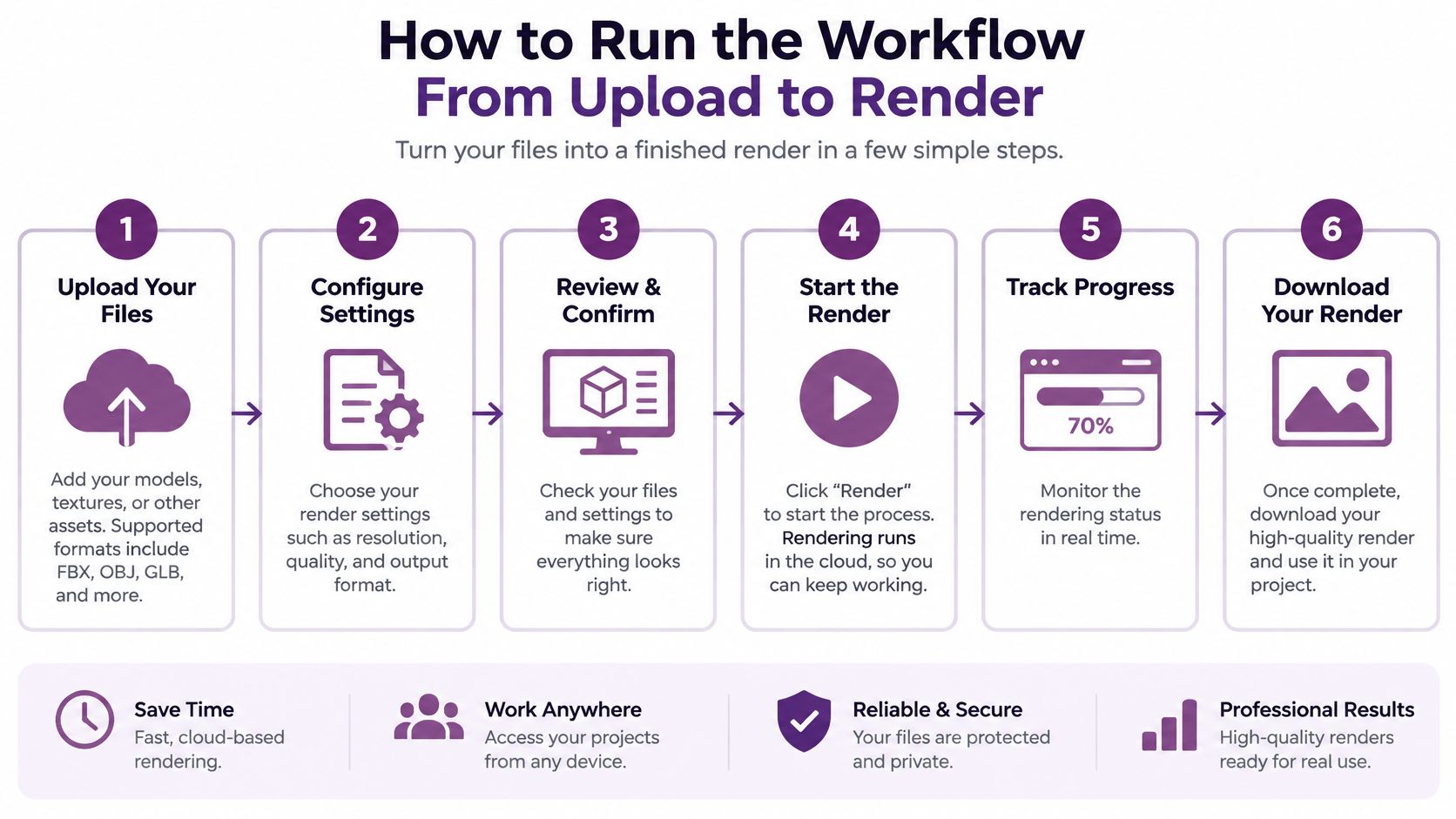
- Create the project and upload the master. Attach the transcript and glossary so names aren't guessed later.
- Pick the mode that matches the table. Dubbing, avatar, captions, or a full localization pass. Don't add voice replacement to a testimonial just to see what happens.
- Set source language, target language, and regional accent. The locale has to match the market, not a generic language label.
- Read the auto transcript line by line. Correct names, product terms, and numbers before any voice is generated.
- Choose the voice or avatar only after permission is clear. A cloned voice or a stand-in face needs its own approval, separate from the camera release.
- Preview about ten seconds of the hardest moment. Fast speech or a head turn shows lip-sync and timing problems a still frame hides.
- Generate a low-resolution draft and compare it with the original. Watch once with sound and once muted. The muted pass catches captions that fight the picture.
- Fix flagged segments, then render in HD or Full HD. Keep separate audio layers if they're offered. Save each language or ratio as its own project so the history stays clean.
One review pass per language
When subtitles, translation, and voice cloning live in the same project, a bad term gets caught once and corrected for that language version. Open the project workspace, duplicate the approved setup, and don't rebuild settings from memory for the next market.
A full-resolution render of a wrong glossary is just an expensive mistake. The short preview is the cheap one.
Fix Common Failures During Preview
Jump to the symptom on screen. Don't rerender the whole project first.
- Mouth drift on fast speech. Split at the fastest passage, rerun lip-sync on the shorter segment, and compare again with sound on.
- Artifacts on a head turn. Keep lip-sync on front-facing frames. Cut to captions or B-roll on profile angles.
- Translated lines that overrun the scene. Shorten the target script, nudge voice speed inside the platform's range, or cut to the next shot.
- Wrong names, terms, or figures. Fix the glossary and regenerate only those captions, not the whole project.
- Captions that lag or end early. Resync after reframing, because crops and cuts move the timing.
- Style transfer rewriting a logo. Mask the text region, or overlay the original text after the render.
- Fine on a phone, broken on desktop. Check the aspect ratio and safe zones for that placement, then rerender.
Log each fix in the project notes so the history shows what changed and why.
Export Settings and Metadata for Each Platform
The destination decides the file. Search fields have to describe that file, not the webinar you started with.
| Destination | Aspect ratio | Resolution | Notes |
|---|---|---|---|
| Vertical short video (TikTok, Reels, YouTube Shorts) | 9:16 | Full HD vertical | Put the hook in the first two seconds and keep captions clear of UI overlays |
| Portrait feed post (Instagram, Facebook) | 4:5 | Full HD portrait | Takes more screen space than square in most feeds |
| Square feed (LinkedIn, Facebook, Instagram) | 1:1 | 1080 x 1080 | Safe fallback for mixed placements |
| Long-form and websites (YouTube, landing pages) | 16:9 | Full HD widescreen | Add chapters and a thumbnail for each language version |
| Mixed ad placements | 4:5 or 1:1 | Match the placement spec | Confirm each placement's current spec before upload |
Reframe, then rewrite the record
A 16:9 talking head cropped to 9:16 can lose the speaker. Re-centre the subject and move captions clear of platform buttons. That vertical cut also has a different opening, runtime, and thumbnail, so it is a new asset with its own title and description.
Google's video documentation lets publishers mark segments with Clip markup, using a start time, an end time, and a label, and SeekToAction tells Google how timestamps work in the page URL. Google may detect segments on its own, but it prioritizes the moments you supply. Structured data for video has to stay consistent with the file people watch. After a language change, a new order, or a shorter runtime, the old title, duration, and chapters are wrong.
- The declared video URL has to resolve to the final file, not the master.
- Chapter times have to fall inside the exported duration.
- Labels have to describe what is on screen in that cut.
Name files by platform and language. Keep a full-resolution master and the project settings so a later tweak doesn't mean starting over.
Quality, Consent and Disclosure Checks Before Publishing
A sharp export can still be the wrong video to publish. Four checks, then a name on the sign-off.

Captions
If the output contains prerecorded synchronized audio, captions aren't optional. WCAG 2.1 Success Criterion 1.2.2, Level A, requires captions for that audio unless the media is clearly labeled as a text alternative. They should track the speech and include meaningful sounds, such as music that carries the message. U.S. Section 508 guidance says the same thing. Captions should appear about when the audio does. After a reframe, a cut, a dub, or a new soundtrack, regenerate them and read them for names, accents, speaker changes, and timing.
Consent and the label
Confirm consent for every identifiable person and any cloned voice. Face replacement, or dubbing into a new language, is a new consent event. The original camera release may not cover it.
Ofcom's reporting says 85% of UK adults support AI labels, yet only 34% have seen one in practice. Technical testing also found that watermarks can often be removed through basic edits. A mark in the corner won't carry trust by itself. Pair any label with a record of what the AI changed: speech, face, setting, or production elements only.
Accuracy against the source
Play the shortened or translated cut beside the original. Ask whether a step, a warning, or a qualifier disappeared. That gap matters most in tutorials, medical or safety content, and testimonials.
A second reviewer should be able to see what "approved" looks like before the file leaves the project.
The sign-off line names the approver, the date, and the source-file version. If any of the three is blank, the cut isn't ready.
Test One Ad Variant Before You Scale Production
Don't scale a transformation you haven't watched fail. Take one approved source, such as a four-minute webinar, and cut three versions. Make a 15-second hook, a 30-second benefit clip, and a 60-second walk-through. Each gets its own opening line in the first two or three seconds. Keep the message identical and change only the hook or the language. If you change both, the results won't tell you anything.
Run them against the same audience and budget for a fixed window. Compare three-second hold, average watch time, and click-through. A high view count can hide weak comprehension. Watch the captioned cuts with the sound off, because plenty of people never turn audio on.
Most video marketers already create or edit with AI, as noted earlier. The advantage now is accuracy and a test you can repeat, not the fact that a model touched the file.
Run it this week
Pick one clip that already passed review. Produce two localized or reframed versions. Let the test run for seven days, then save the winner's project settings for the next batch.
Choose the transformation, prepare the source, run the workflow, match each platform, and clear the rights checks before any ad goes live. That sequence is slower than a one-click restyle on Tuesday and much faster than pulling a bad ad on Thursday. Before you commit the week, compare current plan limits with the number of languages and ratios you actually need.
LunaBloom AI turns an approved source video into captioned, dubbed, and reframed cuts, with avatars, voice cloning, and version history kept in one project. If you repurpose client footage every week, start from a reviewed master instead of a blank prompt. Visit LunaBloom AI and run one language or ratio variant before you scale the batch.