AI upscaling, denoising, stabilization, color grading, and audio cleanup are the highest-impact video enhancement techniques to prioritize, with super-resolution benchmarks testing 4× restoration from 270p to 1080p. Stack those capabilities in that order when planning your toolkit, but process noisy footage with denoising before upscaling.
You open a customer interview and immediately notice grain in the shadows, shaky framing, and a voice buried beneath room noise. The message is useful. The recording looks like something you'd rather not publish.
Don't discard it yet. Separate the problems before deciding whether you need a reshoot. Enhancement can improve a compromised recording, but it can't reliably recover clipped highlights, missing words, or facial details the camera never captured.
Choose tools by the defect they fix, not by the strength of their AI branding. An upscaler won't correct an unnatural color grade. A stabilizer won't remove motion blur. A caption generator won't make an inaccurate translation safe to publish.
For a practical comparison, judge each tool category against the same production needs:
- Source condition: Identify noise, compression damage, camera shake, missing detail, and dialogue problems separately.
- Delivery target: Match processing to the actual screen, platform, and export format.
- Review burden: Allow time to inspect faces, text, motion, captions, and audio after processing.
Keep the original file untouched and test a representative shot before committing to a full render. Your best result may come from a restrained combination of tools rather than the most aggressive preset.
1. AI Video Upscaling (Super-Resolution)
An older product demonstration can still explain your offer perfectly while looking soft beside newer footage. AI super-resolution is the tool category to compare when resolution, rather than camera shake or exposure, is the main limitation.

Unlike basic resizing, learned restoration models reconstruct plausible detail. That distinction matters: a sharper-looking label isn't necessarily an accurate label, and a more detailed face isn't necessarily more faithful to the person.
The real-world restoration research discussing the AIM benchmark describes 4× restoration from severely degraded 270p to 1080p across 30 varied clips, alongside practical hardware constraints. Treat that as evidence of a demanding test setting, not a promise that every source will upscale convincingly.
Choose restrained detail over maximum sharpness
For a reused product demo, trim the selected shots, clean obvious noise, and establish the composition before the final upscale. Compare moving footage, not just an attractive paused frame.
- Standalone restoration tools: Consider these when you need detailed model controls and can accommodate longer processing.
- Editor-integrated enhancement: Prefer this approach when simpler revisions matter more than extensive restoration settings.
- Combined presets: Check whether denoising and sharpening are already included before adding duplicate effects.
Reject settings that invent lettering, change facial identity, or make texture shimmer. For generated-video production, the LunaBloom AI creation workspace offers a separate creation route, rather than a reason to assume every existing recording needs restoration.
2. AI Frame Interpolation for Smooth Motion
Interpolation fixes motion cadence, not image resolution. It generates intermediate frames from existing footage, making it useful when a product rotation needs gentler slow motion or a camera move looks uneven at the intended delivery cadence.
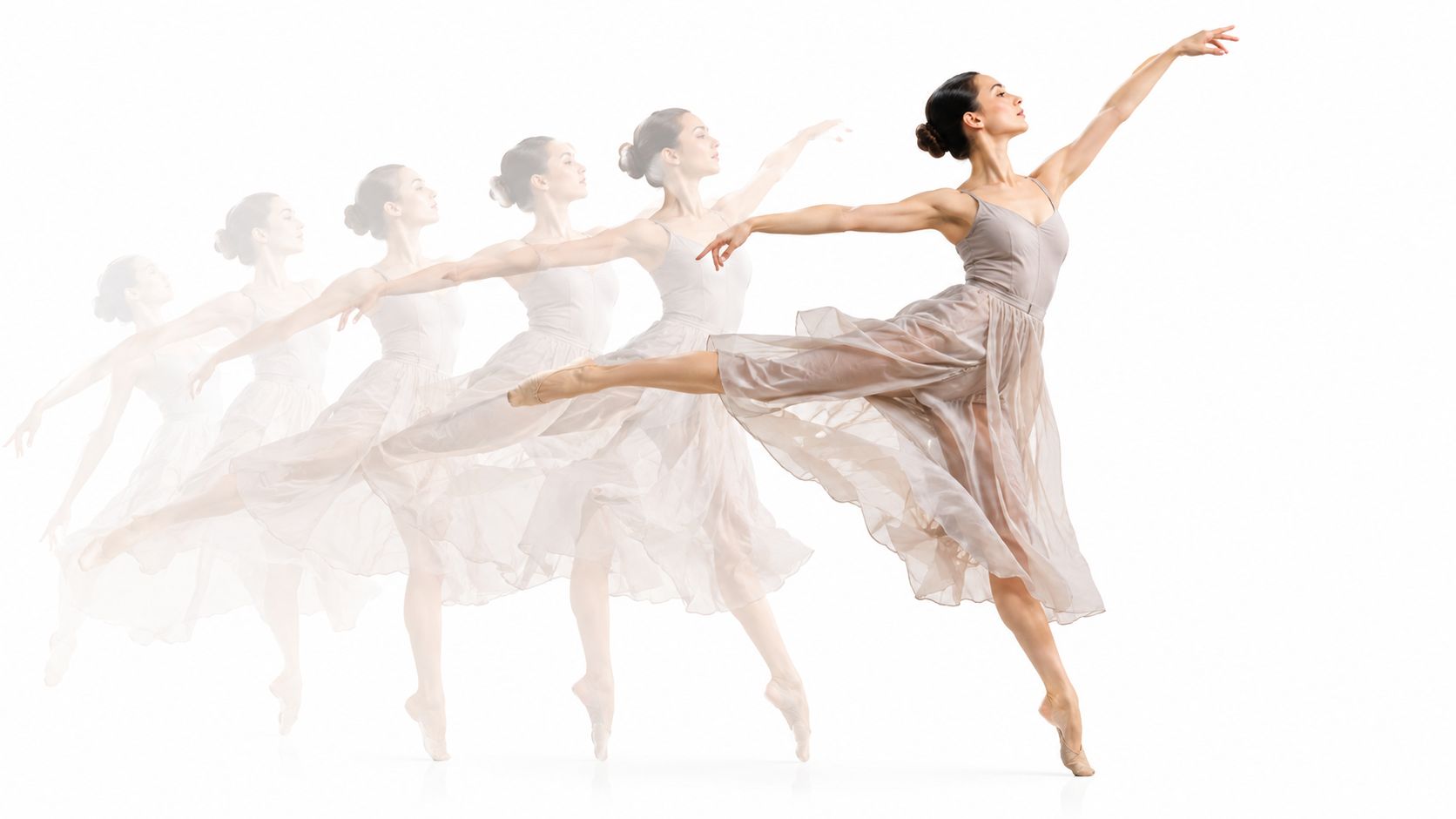
Compare a dedicated interpolation model with your editor's optical-flow controls on the same difficult movement. Look at hands crossing a face, objects passing behind one another, and thin edges against a busy background.
A smooth product turntable shot is a sensible candidate. Confetti, rapidly moving fingers, or a dancer's overlapping limbs require much closer review because the tool must estimate what happened between captured moments.
Interpolate shots, not an entire finished edit
Set the intended playback speed first. Process continuous shots separately so the model doesn't try to invent motion across a cut, then inspect entrances, exits, and occlusions.
Smoother motion isn't automatically better motion. Preserve the original cadence when interpolation changes the intended feel.
Transformer-based VRT research evaluates five restoration tasks across 14 datasets, including frame interpolation, with improvements reaching 2.16 dB in PSNR. That breadth supports comparing restoration capabilities together, but it doesn't remove the need for shot-level visual review.
If you're creating replacement material instead of repairing captured motion, explore the LunaBloom AI starter workspace. Keep that decision separate from interpolation: generating a new shot and reconstructing intermediate frames solve different production problems.
3. AI Denoising and Grain Reduction
A dimly lit interview often needs noise reduction before added sharpness. Otherwise, you risk emphasizing speckles and compression damage alongside the details you want.
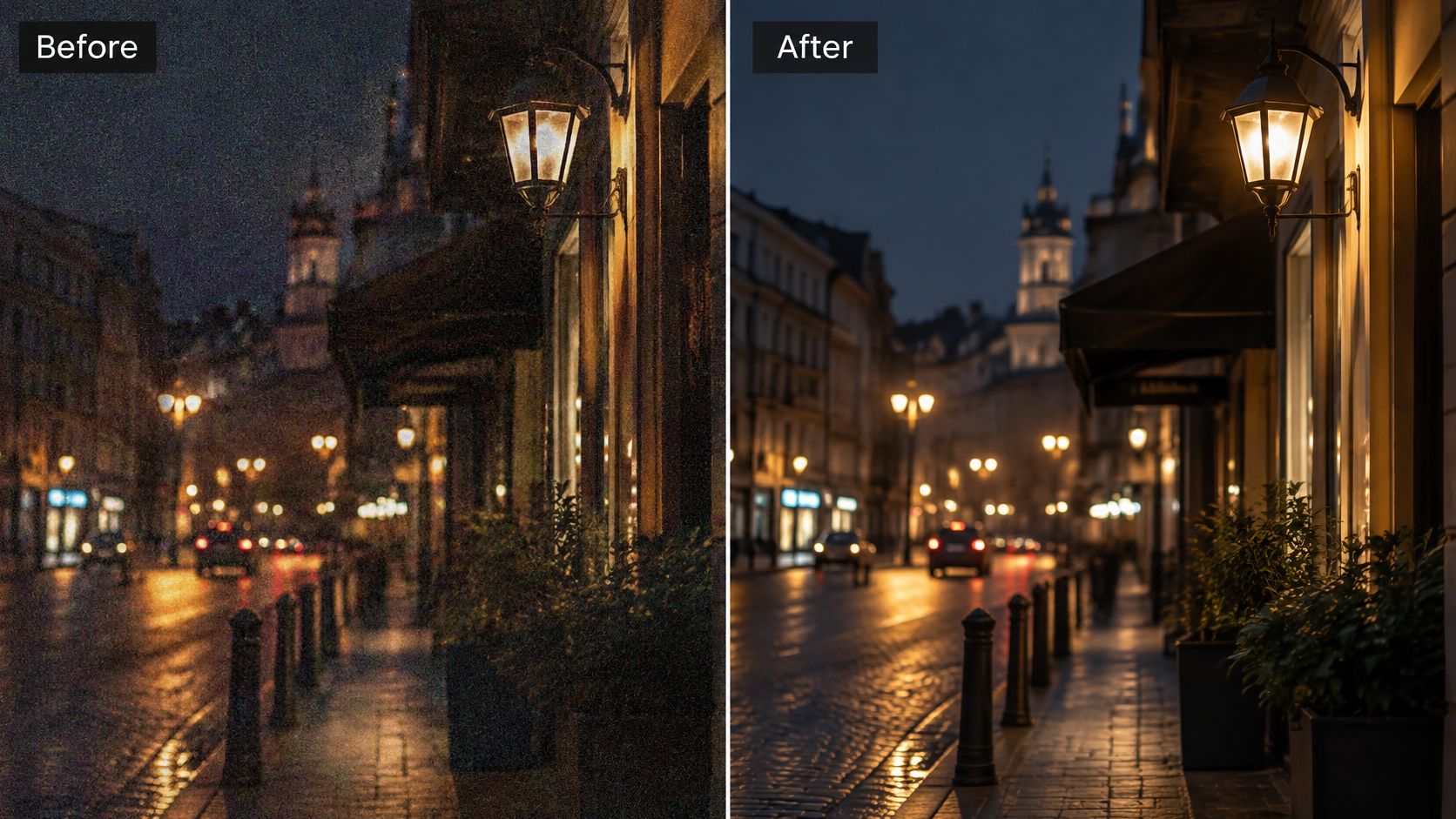
Temporal denoisers use neighboring frames to help distinguish persistent detail from unwanted variation. Compare them with simpler spatial smoothing on movement, not merely on a static background.
For an interview, inspect cheeks, hair, jacket fabric, and the shadow behind the presenter. A clean wall is a poor trade if the speaker's skin looks painted or their hair leaves trails during movement.
- Temporal processing: Favor it when neighboring frames provide useful information, but watch for smearing around moving subjects.
- Spatial smoothing: Consider a restrained pass for simpler cleanup, while protecting edges and fine texture.
- Intentional grain: Preserve it when it belongs to the visual style rather than treating every textured image as defective.
Stop when detail starts disappearing
Increase reduction gradually, then compare the processed shot at normal playback speed. Don't keep pushing merely because noise remains visible when you zoom into the image.
A real-world super-resolution study reported post-processing changes from 25.2 to 25.3 PSNR, 0.75 to 0.76 SSIM, and 3.643 to 3.382 NIQE. These modest metric changes illustrate why a numerical improvement needs perceptual review.
For teams producing new material, LunaBloom AI's video-creation overview provides context for an automated workflow. Don't infer that an automated creation platform replaces a dedicated temporal denoiser for damaged camera footage.
4. Video Stabilization
The handheld walkthrough looks acceptable until the presenter stops beside a product display. Small shakes suddenly make the whole frame feel unsettled. Stabilization is the appropriate tool when unwanted camera movement, rather than subject movement, causes the distraction.
Software stabilization estimates motion and repositions the image to smooth the camera path. The practical cost is framing: correction usually needs room around the edges, so you must review the crop before approving the result.
Compare motion modes before increasing strength
Start with the least complicated correction that works. If basic position and rotation adjustments look natural, don't automatically switch to a more aggressive perspective-warping mode.
- Product walkthroughs: Preserve deliberate pans and forward movement instead of trying to lock the camera in place.
- Talking-head footage: Watch the background as carefully as the speaker for bending or drifting.
- Vehicle footage: Inspect frame edges and nearby objects for unnatural deformation.
A stabilizer can reduce shake without removing the blur already captured during that shake. When the frame looks steadier but still smeared, raising stabilization strength won't address the remaining defect.
Framing rule: Approve the stabilization crop before committing to the upscale. Otherwise, you may spend processing time enlarging pixels you later discard.
For a realistic test, choose a shot containing both a stationary background and intentional camera movement. The acceptable result should preserve that distinction.
The LunaBloom AI company overview describes the publisher behind its automated creation workflow. Treat creation automation and camera-motion repair as separate evaluation criteria when comparing production options.
5. Color Grading and LUT-Based Looks
Before applying a cinematic look, make neighboring shots agree. A tutorial that alternates between greenish skin and warm orange skin needs color correction before it needs a stylized LUT.
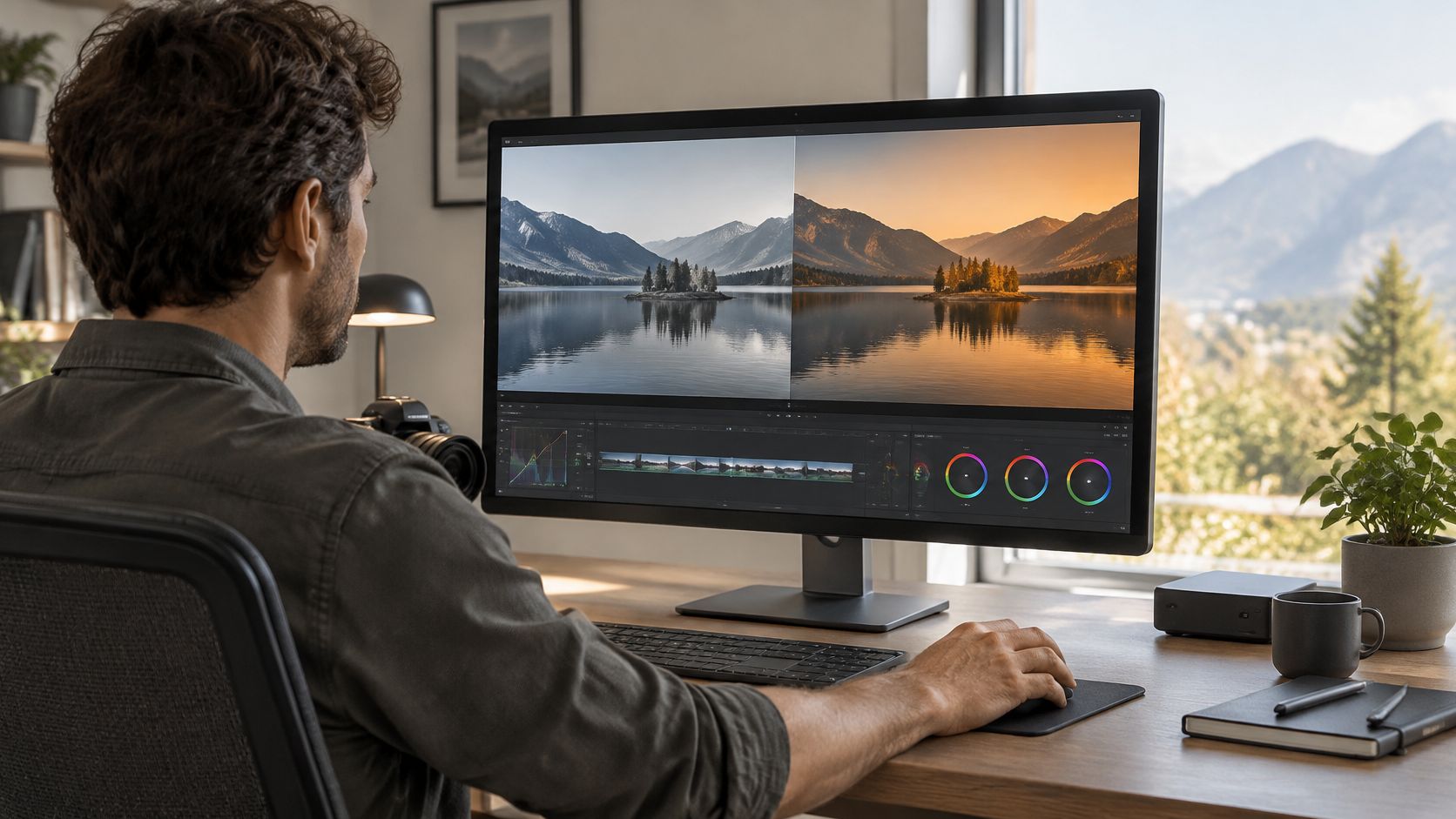
Correction establishes usable exposure, white balance, and contrast. Grading shapes the look after that foundation is stable. A lookup table applies a predetermined transformation, so it's a starting point rather than an automatic diagnosis of the shot.
For a branded training series, compare manual correction plus a restrained shared look against applying the same LUT at full strength everywhere. The latter is quicker to apply, but it can exaggerate differences between cameras and lighting conditions.
Use a reference shot
Choose a representative presenter shot and match the surrounding material to it. Protect skin tones and product colors before introducing a stronger creative treatment.
- Primary controls: Adjust overall exposure, balance, and contrast.
- Secondary controls: Isolate a distracting color or a specific region.
- LUT controls: Confirm the expected input color space and reduce intensity when the result becomes heavy-handed.
Check the sequence as a sequence. A beautiful isolated frame can still look wrong when placed beside the previous shot.
When weighing automated creation against manual finishing, review LunaBloom AI's plan options against your actual workflow needs. Don't assume a subscription tier includes specialist grading controls unless the product explicitly documents them.
6. SDR-to-HDR Conversion and Tone Mapping
SDR-to-HDR conversion isn't a repair for missing exposure information. It changes how brightness and color are represented for an HDR workflow, but it can't reliably reveal a highlight that the original recording reduced to featureless white.
Consider a company updating an older video library for HDR-capable displays. The sensible comparison isn't just converted versus unconverted. Compare the HDR version on an appropriate display and its SDR counterpart through the intended tone-mapping path.
The ITU's audiovisual standards history explains that HEVC/H.265, released in 2013, targeted applications including UHD, HDR, and wide-color-gamut video. Delivery technology matters, but a compatible codec alone doesn't make an SDR source convincingly HDR.
Convert only for a defined destination
Establish the required HDR format, viewing environment, and SDR fallback before adjusting the image. HDR10, HLG, and Dolby Vision belong to different delivery workflows, so don't treat their labels as interchangeable export decorations.
- Conversion tools: Evaluate whether highlight expansion looks plausible rather than brighter.
- Tone-mapping controls: Check whether the SDR version retains readable text and sensible contrast.
- Monitoring: Review faces, bright graphics, and saturated brand colors on the intended displays.
For a routine social tutorial without an HDR requirement, a consistent SDR master may be the better editorial choice. Extra conversion work isn't worthwhile when you can't validate playback.
Preserve the original grade and make the HDR treatment reversible. If your converted version looks dramatic but less natural, back off.
7. AI Artifact Removal and Deblurring
A downloaded campaign clip may have adequate dimensions yet still look damaged. Compression blocks, ringing, banding, and blur aren't the same problem, so compare restoration tools against the defect you can see.
Begin by finding the best available source. Requesting the original export is usually a more defensible production decision than reconstructing a heavily compressed download.
If that source is unavailable, test targeted restoration before upscaling. A model that cleans flat backgrounds may damage small packaging text, while a deblurring pass may sharpen edges by adding visible halos.
Match the treatment to the damage
Use the least aggressive combination that makes the clip acceptable at delivery size.
- Blockiness: Test artifact removal on gradients, shadows, and movement.
- Blur: Inspect whether apparent sharpness comes with doubled edges or invented texture.
- Banding: Review smooth backgrounds without sacrificing intentional graphic boundaries.
In the AIM challenge for AV1-compressed content, methods improved average VMAF by as much as 4.16 points, while average PSNR-Y improvement was approximately 0.24 dB across 95 videos. Those different gains show why the metric you choose affects your assessment.
Restoration boundary: When a tool makes damaged text look readable, verify it against an independent reference before publishing it.
For archival or factual material, preserve an untouched master and document the restoration. A cleaner surface isn't proof that reconstructed information is authentic.
If the tool changes product details, faces, or on-screen claims, replacing the shot may be safer than continuing to enhance it.
8. Automated Captions, Subtitles, and Translations
Captions address a different kind of quality problem: viewers may be unable to hear or access the message even when the picture looks excellent. Automated transcription is a draft, not publication approval.
For an onboarding video, generate timed captions after the dialogue edit is stable. Correct names, specialist terminology, speaker changes, and meaningful non-speech sounds before styling the text.
Under WCAG 2.1's prerecorded-media requirements, captions must represent spoken content and relevant non-speech audio, subject to the stated exception for clearly labeled media alternatives for text. That makes accurate captioning an accessibility task, not merely a promotional enhancement.
Compare caption control, not just transcription speed
A useful captioning tool should let you revise timing, wording, line breaks, and placement without rebuilding the whole edit.
- Transcription: Review accents, technical language, and speech under background noise.
- Translation: Have a fluent reviewer check meaning, tone, product terminology, and regional usage.
- Presentation: Keep captions readable against changing backgrounds and away from important labels.
LunaBloom AI provides automated subtitles and multilingual localization. For production use, still review the final spoken track and captions together, especially when you've changed the script or language.
Discoverability needs separate attention. Google's video guidance recommends unique thumbnail, name, and description values and structured data that matches the actual video and page metadata.
Don't assume captions alone complete video SEO. Publish accurate titles, descriptions, and thumbnails alongside the accessible version, and verify that the text describes what viewers will see.
9. AI Audio Enhancement and Dialogue Cleanup
A presenter can look slightly soft and still communicate clearly. A presenter buried beneath hum, echo, or unstable volume is harder to follow. Dialogue cleanup deserves its own review pass, not a hurried preset at export.
For a home-recorded webinar, compare dialogue isolation, noise reduction, and loudness balancing separately. They solve different problems, and combining them aggressively can produce a thin, metallic, or underwater sound.
Clean the voice without stripping its character
Start with obvious interruptions and background noise, then address room sound and level differences. Compare processed and original audio at similar playback loudness so a louder version doesn't win automatically.
- Dialogue isolation: Useful when competing sound masks speech, but inspect consonants and word endings.
- Noise reduction: Target hum and hiss without removing natural breaths or soft syllables.
- Reverb reduction: Reduce distracting room sound conservatively rather than forcing an unnaturally dry voice.
- Level balancing: Make neighboring clips comfortable to hear without flattening every expressive change.
Listen through headphones and ordinary speakers. Include pauses in the review because unnatural pumping often becomes obvious between words.
Don't judge cleaned dialogue only while the music is playing. Listen to the voice alone before approving the mix.
Choose a tool that lets you compare changes quickly and bypass individual stages. If several words remain unintelligible, ask for a pickup recording or replace the passage.
No amount of confident processing makes a guessed word accurate. Finalize the approved dialogue before generating captions or refining lip sync.
10. AI Face Restoration and Lip-Sync Refinement
Talking-head footage exposes restoration errors quickly. Viewers recognize unnatural eyes, unstable teeth, and mouth movement that doesn't match speech, even when the surrounding image looks polished.
Face restoration and lip-sync refinement need different acceptance tests. Restoration should preserve identity and expression. Lip-sync processing should align visible articulation with the approved audio without distorting the face.
A realistic scenario is a localized product tutorial. The translated voiceover may be ready, but the presenter's visible speech still follows the original language.
Lock the voice before refining the mouth
Approve the script, translated audio, pacing, and pronunciation first. Then review lip sync on fast phrases, pauses, profile views, and head turns.
- Face restoration: Apply it selectively and check skin texture, eye shape, and identity.
- Lip-sync refinement: Inspect mouth closures and transitions as well as obvious open vowels.
- Synthetic presenters: Confirm consent, usage rights, and appropriate disclosure before publication.
LunaBloom AI supports custom avatars and lip-synced visuals for uploaded tracks. Those capabilities are relevant to generated and localized presenter content, but they shouldn't be confused with faithful recovery of a damaged real-world face.
Microsoft Research's video-super-resolution challenge guidance notes that PSNR, SSIM, and MS-SSIM can correlate poorly with subjective human judgments. For faces, human review is especially important.
Compare the restored face with the original during motion. If the result looks sharper but less like the person, reject it.
10 Video Enhancement Techniques: Feature Comparison
| Technique | 🔄 Implementation Complexity | ⚡ Resource Requirements | 📊 Expected Outcome | 💡 Ideal Use Cases | ⭐ Key Advantage |
|---|---|---|---|---|---|
| AI Video Upscaling | Moderate; test settings and source quality | High GPU use; slow processing | Higher-resolution footage with reconstructed detail | Archival or legacy footage for HD/4K delivery | Repurposes footage without reshooting |
| AI Frame Interpolation | Moderate; select scenes and target frame rate | High processing; adds render time | Smoother motion or slow motion | Product rotations, sports, gradual camera moves | Creates in-between frames without high-speed capture |
| AI Denoising and Grain Reduction | Low to moderate; tune strength carefully | Moderate to high, depending on tool | Cleaner footage with reduced noise | Low-light, high-ISO, or webcam recordings | Improves footage and prepares it for grading or upscaling |
| Video Stabilization | Low; usually an automatic effect | Low to moderate; may crop frames | Smoother footage with some loss of image area | Handheld, smartphone, or vehicle-shot footage | Quickly reduces distracting camera shake |
| Color Grading and LUT-Based Looks | Moderate; requires color judgment | Low to moderate; editing software | More consistent color, tone, and visual style | Brand series, product demos, corporate video | Establishes a repeatable visual identity |
| SDR-to-HDR Conversion and Tone Mapping | High; requires format and display checks | High; specialized workflow and larger files | Wider brightness and color range, subject to source limits | HDR streaming or adapting HDR content for SDR feeds | Supports delivery across different display capabilities |
| AI Artifact Removal and Deblurring | Moderate; results vary by source | Moderate to high; long clips take time | Reduced compression artifacts and sharper edges | Compressed downloads, archives, and old recordings | Can improve footage that may otherwise be unusable |
| Automated Captions, Subtitles, and Translations | Low to moderate; review and edit output | Low to moderate; often automated | Timed captions and multilingual versions | Accessibility, silent autoplay, and international content | Makes video more accessible and easier to discover |
| AI Audio Enhancement and Dialogue Cleanup | Low to moderate; listen for processing artifacts | Low to moderate; some tools require subscriptions | Clearer dialogue and more consistent levels | Interviews, voiceovers, and noisy recordings | Improves perceived production quality without reshooting |
| AI Face Restoration and Lip-Sync Refinement | Moderate to high; requires review and consent | Moderate to high; targeted processing | Clearer faces and better-aligned dubbed speech | Talking-head restoration, avatars, and localized videos | Helps make translated presenter content feel more natural |
Build Your Enhancement Stack in the Right Order
The most useful video enhancement techniques solve a defined problem without creating a more distracting one. Upscaling addresses resolution. Interpolation addresses motion cadence. Denoising, stabilization, artifact removal, grading, HDR treatment, captions, audio cleanup, and facial refinement each require their own judgment.
Don't apply every tool because it's available. A clean studio recording may need only modest grading, balanced dialogue, and carefully reviewed captions. A compressed archive clip may justify a longer restoration chain.
Use a dependency-based processing order
For compromised footage, start with this practical sequence and adjust it when your tools combine stages:
- Denoise: Reduce unwanted noise while protecting real texture.
- Stabilize: Approve the camera movement and resulting crop.
- Remove artifacts: Address compression damage and blur selectively.
- Upscale: Target the required delivery resolution.
- Interpolate: Adjust cadence only where smoother motion helps.
- Grade: Match shots before adding a creative look.
- Convert to HDR: Proceed only for a defined, testable destination.
- Enhance audio: Approve dialogue clarity, balance, and timing.
- Add captions: Generate and proofread against the approved soundtrack.
- Refine faces and lip sync: Use locked audio and preserve identity.
This isn't an inflexible render recipe. Clean dialogue earlier if it helps you edit, and delay final captions until timing is locked. When a restoration model combines denoising, deblurring, and upscaling, compare its output before adding separate passes that repeat the same work.
Accessibility also extends beyond captions. The W3C's media-planning guidance distinguishes Level A captions under Success Criterion 1.2.2, a descriptive alternative or audio description under 1.2.3, and Level AA audio description under 1.2.5. Choose the appropriate descriptive treatment when essential visual information isn't available through the soundtrack.
Start with a representative project
Choose a short tutorial or product demonstration containing speech, movement, and on-screen text. Save an untouched original, then make a restrained enhanced version using only the stages the source needs.
Review the final export beside the original at its intended viewing size. Listen without watching, then watch without sound. Check whether the message remains clear in both situations, and inspect captions, brand colors, faces, and readable typography.
Record which settings worked and which introduced defects. That becomes a useful starting preset for similar footage, not a universal preset for everything your team publishes.
If your real need is creating new content rather than restoring damaged recordings, an automated workflow may be more appropriate. LunaBloom AI combines script- and image-based video creation with editing, voice synchronization, captions, and multilingual output. Keep a human approval step for factual accuracy, accessibility, pronunciation, and visual consistency.
LunaBloom AI offers automated video creation and editing with voiceovers, captions, localization, and lip-synced visuals. Visit LunaBloom AI to build a tutorial, product demo, or presenter video, then review the finished output using the quality checks above.