Your video is finished, but the ending still feels wrong. The last shot hangs around, the music stops awkwardly, and adding a fade makes everything look smoother without making it feel resolved.
A fade out effect works when you know what the viewer should feel, hear, or do as the image disappears. The craft isn't finding the transition button. It's choosing an ending that preserves the final word, gives the last image its due, and doesn't bury the reason you made the video.
What the Fade Out Effect Actually Is
A fade-out is a gradual transition from an image to a solid color, usually black. A hard cut changes the image instantly; a dissolve blends one shot into another rather than ending on a blank frame, as explained in Adobe's guide to fade transitions.
That distinction matters on a layered timeline. Lowering a clip's opacity reveals whatever sits underneath it. If another shot occupies the lower track, you're not necessarily creating a fade to black.
The concept map below separates the visual action from its editorial purpose.
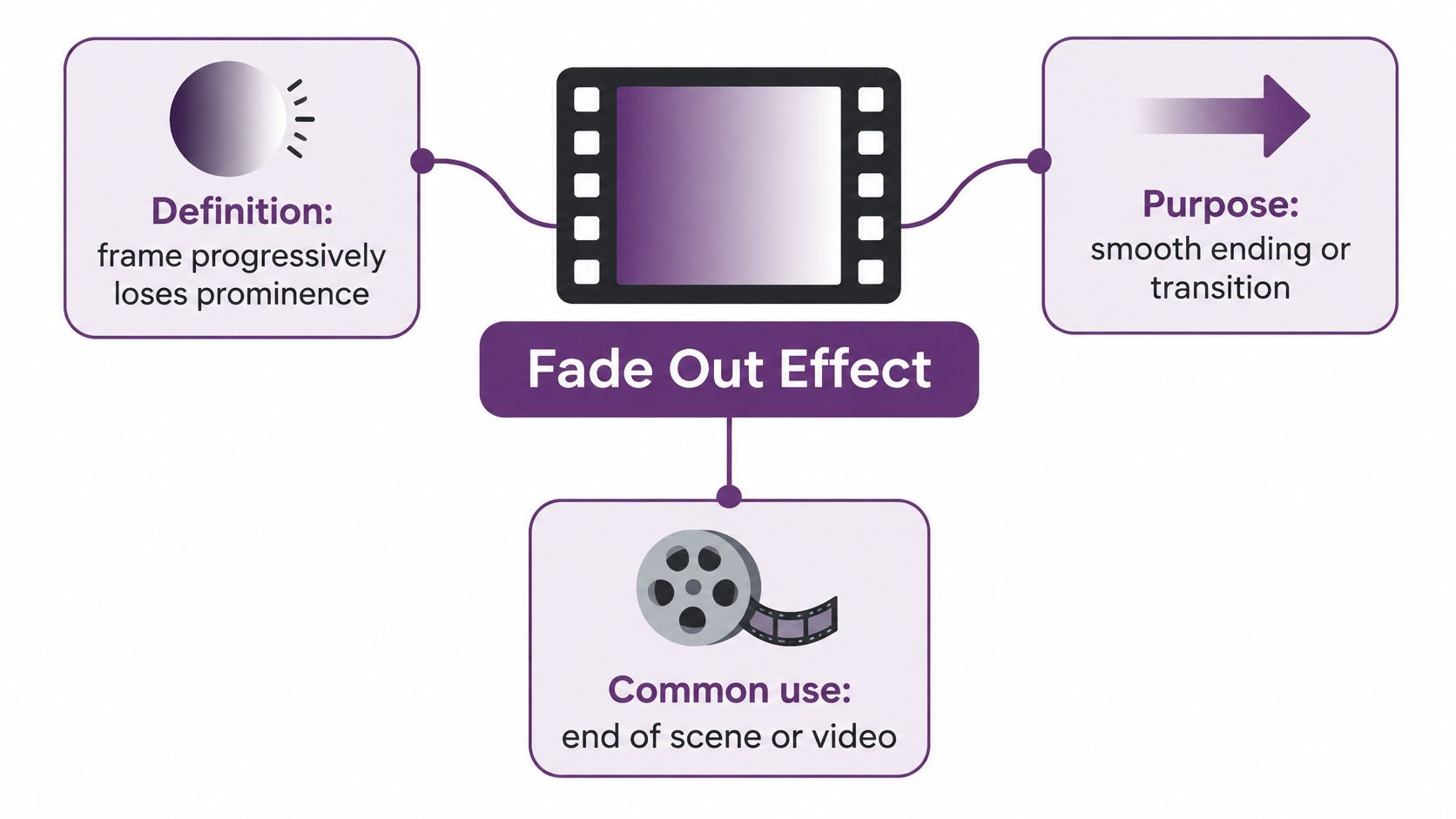
Picture, sound, and intent
Treat the ending as separate controls rather than a single preset:
- Picture: The image gradually disappears into the chosen background.
- Audio: A volume envelope reduces the level of speech, music, or ambience.
- Editorial intent: You decide whether the transition communicates closure, a narrative break, or emotional release.
Those controls don't have to move together. A picture can disappear while a final musical phrase continues, or a closing instruction can remain visible after the footage is gone.
For image-led tours, transition selection also needs to fit the surrounding movement. VideoTour.ai's choose tour animations guide is a useful companion when considering animation choices alongside an ending.
A different meaning in psychology
In education and developmental psychology, fade-out effect describes intervention benefits declining after treatment ends, not a video transition. UC Santa Barbara's explanation of intervention fade-out discusses that separate meaning.
For an editor, the useful question is simpler: does this moment deserve a visible release? A fade should communicate an ending, not conceal uncertainty about where to stop.
How to Apply a Fade Out in an Editor
Finish the cut before styling the exit. If the final shot hasn't delivered its information, adding a transition won't solve the pacing problem.
In a timeline editor such as Adobe Premiere Pro, choose between a transition preset and manual opacity keyframes. Presets are convenient; keyframes are better when the fade must begin on a particular expression, movement, or musical event.
A dependable timeline workflow
- Select the outgoing clip. Inspect its tail and confirm the final useful action has finished.
- Check the underlying tracks. Put the intended solid background beneath the footage if the timeline contains other visible layers.
- Open transition or opacity controls. Apply an outgoing fade, or set opacity keyframes that move from fully visible to transparent.
- Adjust the start point. Keep the decisive image readable before the transition begins.
- Scrub, then play normally. Scrubbing reveals technical problems. Full-speed playback tells you whether the ending drags.
- Preview the export. Check the rendered result rather than trusting the timeline alone.
Avoid choosing a transition solely because its name contains “dissolve.” Confirm what it reveals at the end of this particular clip.
The studio view below provides a visual reference for an AI-video editing workspace.

Working with an AI-generated sequence
Let automatic animation and voice synchronization finish before refining the ending. Select the final scene, then inspect the available transition panel or scene-end settings for an outgoing fade. Interface labels vary, so verify the preview rather than assuming a particular button name or control location.
If your editor doesn't expose the required curve or separate audio envelope, export the sequence and finish it in a timeline editor. That's preferable to accepting a preset that cuts off dialogue.
For photo-led projects, Photo for Video memory creation offers related editing context. Judge the final photograph's hold separately from the transition itself.
Finally, locate the audio clip's fade handle or volume automation controls. Picture opacity doesn't control the soundtrack, and a visually finished ending can still contain an abrupt audio cut.
Timing and Easing That Feel Cinematic
Duration sets the pace; easing sets how the change unfolds. A fade can begin gently and fall away quickly, or darken immediately before taking its time reaching black.
Use the following graphic as a visual comparison of timing categories, not as a universal technical specification.
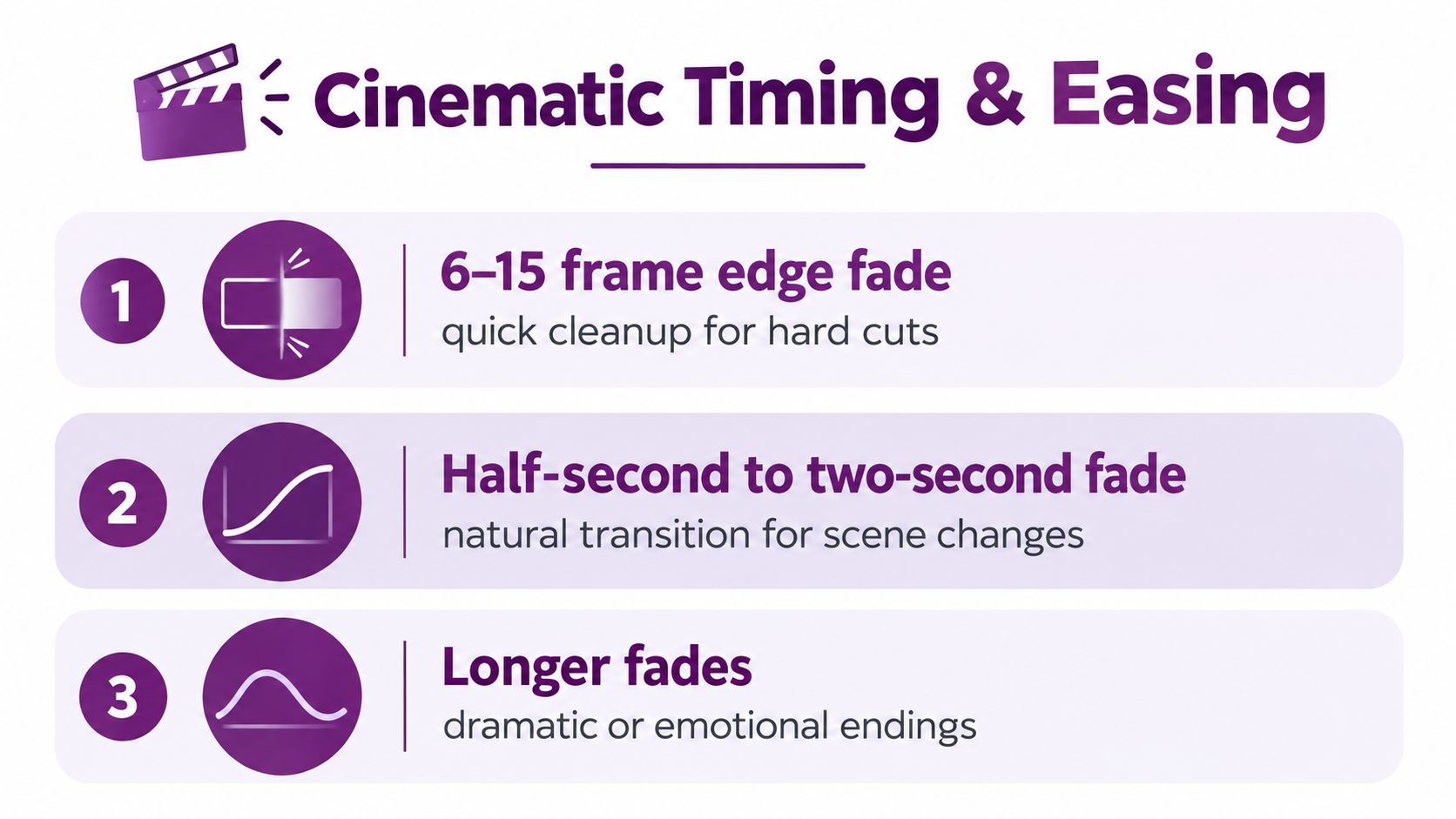
Match the curve to the material
A linear fade changes the control value evenly. It's a useful baseline because you can hear or see what changing the duration alone accomplishes.
An S-curve softens the beginning and end of the change. For music, it can provide a less mechanical exit. An equal-power curve deserves more care: it can help with overlapping audio, but on an isolated track it may retain more energy than you want.
For cinematic music, align the onset with a beat or phrase boundary. For ambience, consider whether a slower reduction supports the scene or merely exposes the remaining noise.
Audacity's discussion of fades includes a pulse-continuity finding in which listeners perceived a faded musical passage as lasting 2.4 seconds longer than an otherwise identical cold ending. That's evidence about those musical endings, not proof that every visual fade should be longer.
A cinematic ending preserves the last meaningful beat. It doesn't simply take longer to disappear.
Compare versions with different jobs
For a short product ad, try ending on the demonstrated result rather than fading while the result is still becoming clear. For a narrated explainer, let the final instruction settle before testing a more relaxed visual exit.
For deliberately continuous drones, the practical guidance supports testing fades longer than 10 seconds; for music more generally, compare 2–4 seconds, 4–8 seconds, and a longer alternative against phrase completion and audible noise, rather than choosing by duration alone.
Watch the example below for pacing and transition placement, then judge your own sequence at normal playback speed.
Audio Fade Out That Respects the Last Word
The most damaging audio fade begins before the speaker has finished. A weakened final consonant can make the last word harder to understand even when the sentence seems complete from the waveform.
Set speech timing and loudness first. Then find the final voiced phoneme and place the narration's fade start in the following pause, not underneath the word.
Audio Fade Duration by Asset Type
The ranges below are starting points from practical audio fade guidance: speech commonly uses 0.3–0.5 seconds in and 1–2 seconds out, while music commonly uses 1–2 seconds in and 2–4 seconds out. The same guidance supports beginning a narration-tail test at 0.5–1.0 seconds, extending toward the longer speech range only when room tone or the bed remains prominent.
| Asset | Fade-In Range | Fade-Out Range | Curve |
|---|---|---|---|
| Speech | 0.3–0.5 seconds | 1–2 seconds | Linear or gently curved |
| Narration tail test | Follow the speech guidance | 0.5–1.0 seconds initially | Linear or gently curved |
| Music | 1–2 seconds | 2–4 seconds | Phrase-aware S-curve |
Keep dialogue and music on separate envelopes. The music can already be declining while the narrator remains fully intelligible, provided the balance still supports the sentence.
An audio edge repair is a different operation from an audible ending. The engineering guidance recommends 5–50 ms for suppressing clicks at hard-edited boundaries; stretching that repair unnecessarily can soften consonant attacks.
A compact listening check
- Last-word integrity: Confirm that the spoken word ends before its envelope begins.
- Caption completion: Make sure the final subtitle cue isn't truncated.
- Tail inspection: Check the final 300 milliseconds for clicks or an abrupt spectral change.
- Playback conditions: Audition at normal and low listening levels, including on a small speaker.
The tail-inspection window follows the audio guidance cited above. It's a diagnostic check, not a requirement to make every ending equally quiet or equally long.
Practical rule: If you can hear the fade working harder than you can hear the final sentence, move it later or separate the tracks.
When to Skip the Fade Out Entirely
In a study of more than 200 Facebook movie-trailer ads lasting 30–60 seconds, 90% of viewers who watched the opening three seconds didn't finish, and 70% left within the first half; suspense and action endings outperformed plain fade-outs on completion, according to Dartmouth Tuck's account of trailer-viewing research.
That doesn't establish a universal rule against fades. It does challenge the assumption that a polished exit is automatically a persuasive one.
The useful editing decision happens before you reach for the transition control.

Choose the ending by its job
| Ending | Reach for it when | Main trade-off |
|---|---|---|
| Cinematic fade | Emotional release matters more than immediate action | Can slow an otherwise energetic finish |
| Hard ending | A reveal, joke, or demonstration supplies the payoff | Can feel unfinished if the payoff is weak |
| Fade plus CTA | The viewer needs a clear next action | Requires text to remain independent of the footage |
| Open loop | A genuine unresolved question supports continuation | Can disappoint if the promised answer never arrives |
A product demonstration often benefits from ending on proof: the finished task, the visible result, or the relevant comparison. Fading before that result settles is an editorial mistake, even if the transition looks elegant.
A reflective film has a different requirement. The audience may need space after the final expression or action, making a gradual exit appropriate.
Test the ending, not just the effect
- Completion rate: Compare whether viewers reach the ending.
- Replay rate: Check whether the payoff or loop invites another watch.
- Click-through rate: Assess whether the closing action remains usable.
- Brand recall: Evaluate whether viewers retain the intended identity or message.
Keep the preceding edit consistent when comparing endings. Otherwise, you won't know whether the transition or a different sequence caused the difference.
Don't generalize trailer findings into a guarantee for tutorials, onboarding, or every social platform. Use the research to challenge your default, then test against your actual objective.
Fades, Captions, and Distracted Viewers
An ending must work for someone who isn't watching every frame. A Harvard Business School review of advertising attention reported that fully viewed, high-attention ads fell from 97% in early-1990s studies to below 20% in more recent research, alongside skipping, channel switching, and multitasking.
That comparison concerns advertising attention, not a measurement of your audience. The practical implication is still useful: don't make the conclusion depend on uninterrupted visual attention.
Keep essential information independent
Put captions, the CTA, and required disclosures on layers that can remain readable while the underlying image fades. Avoid applying a master opacity change that darkens every element together.
Caption contrast needs checking throughout the transition, not just against the opening background. A readable treatment over bright footage can behave differently as the image darkens.
Automated subtitles and translations still need an ending review. Check translated line length, cue timing, and whether the final instruction remains visible long enough to read comfortably.
- Caption persistence: Keep the cue active until its spoken content and reading opportunity are complete.
- Audio continuity: Decide deliberately whether narration or ambience continues after the image disappears.
- Post-fade hold: Leave a readable hold for essential text rather than ending the export immediately at black.
- Platform preview: Inspect the actual mobile presentation, including interface overlays that may cover the closing text.
Review with different channels unavailable
Watch the ending muted. You should still understand the result and any necessary next action.
Then listen without looking. The spoken conclusion shouldn't rely on an unexplained visual reference or vanish before it resolves. Finally, review picture, captions, and audio together to catch timing conflicts.
Essential information should remain available through the transition, not disappear merely because the footage does.
There's no defensible universal hold duration for every CTA or disclosure. Text length, language, layout, and placement all affect the decision, so judge comprehension rather than visual smoothness alone.
Your Next Edit with the Fade Out Effect
A fade-out is a deliberate ending signal, not a closing default.
- First, inspect the picture: Does the duration and curve preserve the final beat?
- Next, listen: Does the audio envelope respect the last word?
- Finally, check the purpose: Does this ending support reflection, continuation, or action?
Export the strongest version, then measure completion, replay, and click-through on your next upload.
LunaBloom AI brings script-to-video creation, animation, voice synchronization, captions, and social publishing into a single workflow. Use it to build your next video, then review the final scene, spoken conclusion, and caption hold together before publishing.