91% of people have watched an explainer video to understand a product or service, and 44% prefer a short video over other formats for product education, according to video marketing statistics compiled by Content Beta. The best animated explainer video template depends on whether you need fast browser-based editing, professional motion-graphics control, or an AI-assisted workflow that turns a script or prompt into a video.
A marketer can have a strong script ready and still face a familiar problem: the campaign window is closing, and the video isn't. The right template isn't the most attractive design. It should match your team's editing skills, story complexity, brand system, export needs, and production budget.
A useful template gives you an editable sequence that helps explain one idea clearly, not just a set of polished scenes. This shortlist compares ten resources across three production paths: approachable online editors, downloadable templates for professional tools, and AI-assisted workflows.
For teams that want to move from a script or text prompt toward an edited video with voiceovers, captions, avatars, localization, and social-ready exports, LunaBloom AI is one AI-native option to consider. Whichever path you choose, plan the video for mobile viewing: 58% of consumers prefer watching video on smartphones, so readable text, strong contrast, safe margins, and captions matter from the first scene, as the Content Beta video marketing data notes.
1. Vyond
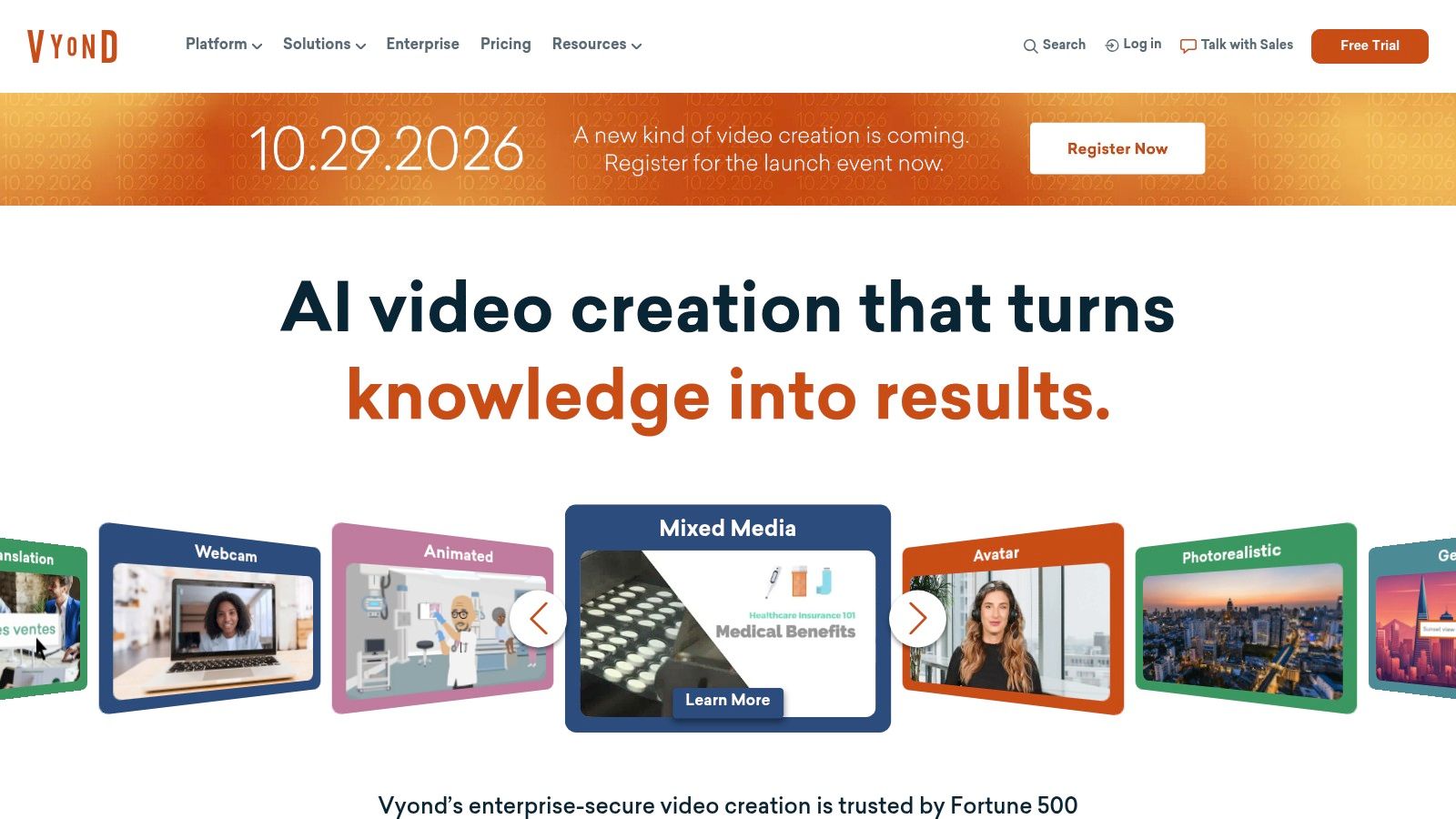
Vyond is the clearest fit for business teams that need animated explainers without building every scene from scratch. Its searchable library includes explainer and mixed-media templates, ready-made scenes, characters, and props, making it practical for product explainers, learning and development, and internal communications.
Best for repeatable business videos
Vyond Go can generate videos from text, documents, or URLs. Translation, text-to-speech, subtitles, and localization tools support teams producing versions for different audiences, while multiple aspect ratios and 1080p export help fit common publishing needs. Brand colors, fonts, collaboration options, and enterprise features also make it easier to maintain consistent output across a team.
A training manager could use a scene collection to explain a workplace process, then adapt the same visual language for onboarding. Teams that need more generative flexibility can also consider LunaBloom AI's video workflow, which is designed to move from a prompt or script toward an edited video.
Practical rule: Choose Vyond when brand-safe business animation and localization matter more than frame-by-frame motion control.
The main trade-off is cost: Vyond's pricing is higher than entry-level tools, and complex scenes can still take time to fine-tune. It's a strong option for recurring business content, but a poor fit if you only need a one-off, highly customized animation and already have professional motion-graphics skills.
2. Powtoon
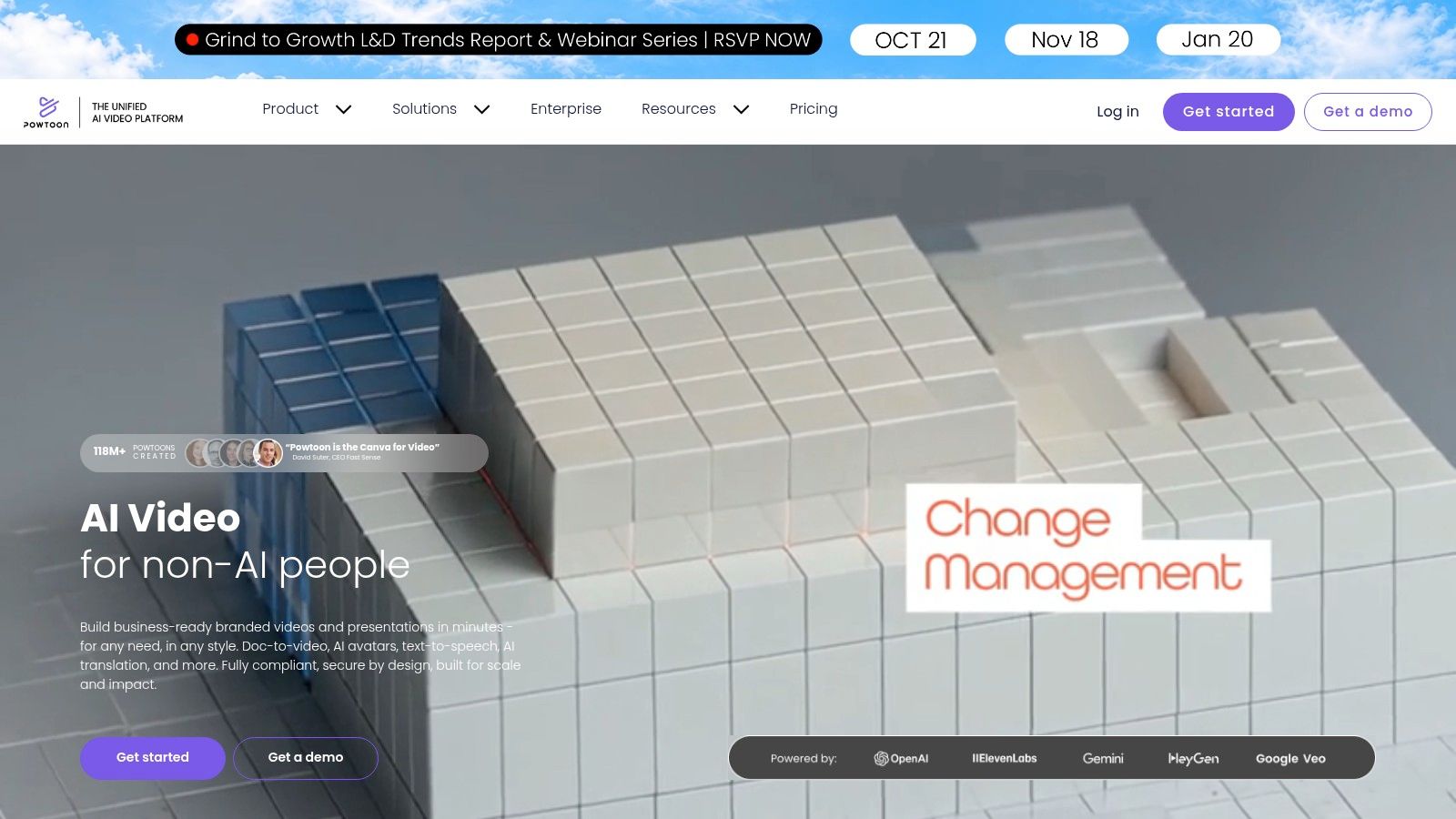
Powtoon works well when your explainer should feel like an animated presentation rather than a custom motion-graphics production. Its drag-and-drop editor combines slides and a timeline, and its template gallery includes whiteboard and character styles, camera movement, and scene transitions.
A manageable starting point for non-designers
A communications team can use a ready-made sequence to introduce a new service, then replace the copy, media, and calls to action without starting from a blank canvas. Paid plans add AI tools such as text-to-speech, avatars, and translation or dubbing, alongside stock media access and Full HD exports. Some plans include AI credits, with optional credit packs available.
Powtoon's template-first approach makes it approachable, but check the plan details before building a customer-facing video. Lower tiers may include export caps or watermarks, and advanced assets or features can require a higher tier. That can turn an apparently simple template job into an upgrade decision at the export stage.
For teams comparing ways to turn written direction into a video, LunaBloom AI's starter workflow is another route to consider. Powtoon remains the better fit when you specifically want to arrange animated presentation scenes yourself and keep direct control over the sequence.
If your team already thinks in slides, Powtoon's editor should feel more familiar than a dedicated animation timeline.
3. Animaker
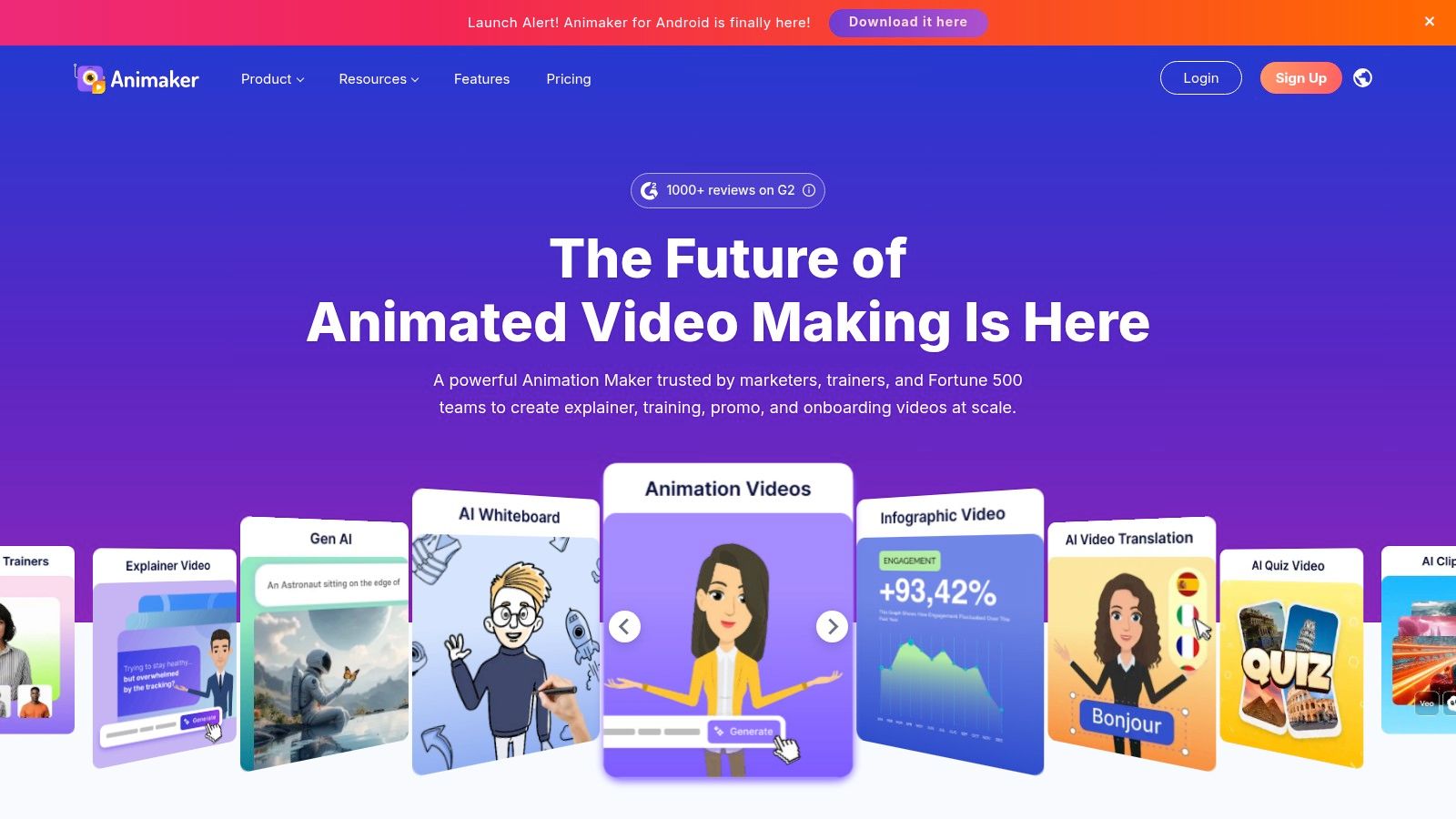
Choose Animaker when the explainer depends on characters, branded illustrations, or animated charts rather than a presenter-led sequence. The platform offers templates for product videos, training, onboarding, and internal communications, with a character builder for customizing scenes to match a brand.
Better for hands-on scene customization
An educator could use animated characters to introduce a lesson, while a small business could build an illustrated product introduction with reusable visual elements. Animaker also includes prebuilt text and graphic assets, animated charts and infographics, voiceover tools, multiple export options, and brand kit support. That makes it useful when a template needs more than a text swap to feel specific to the organization.
The breadth of customization comes with a learning curve. Advanced editing takes time to learn, and the free tier may limit quality or exports and add a watermark. Frequent users may find business-tier plans a better fit, but teams should verify the current plan terms against their export needs before settling on a template.
For a script-led alternative that puts more emphasis on generating the video than manually customizing each scene, explore LunaBloom AI's pricing options. Animaker is the stronger choice when character animation and editable assets are central to the finished explainer.
4. Biteable
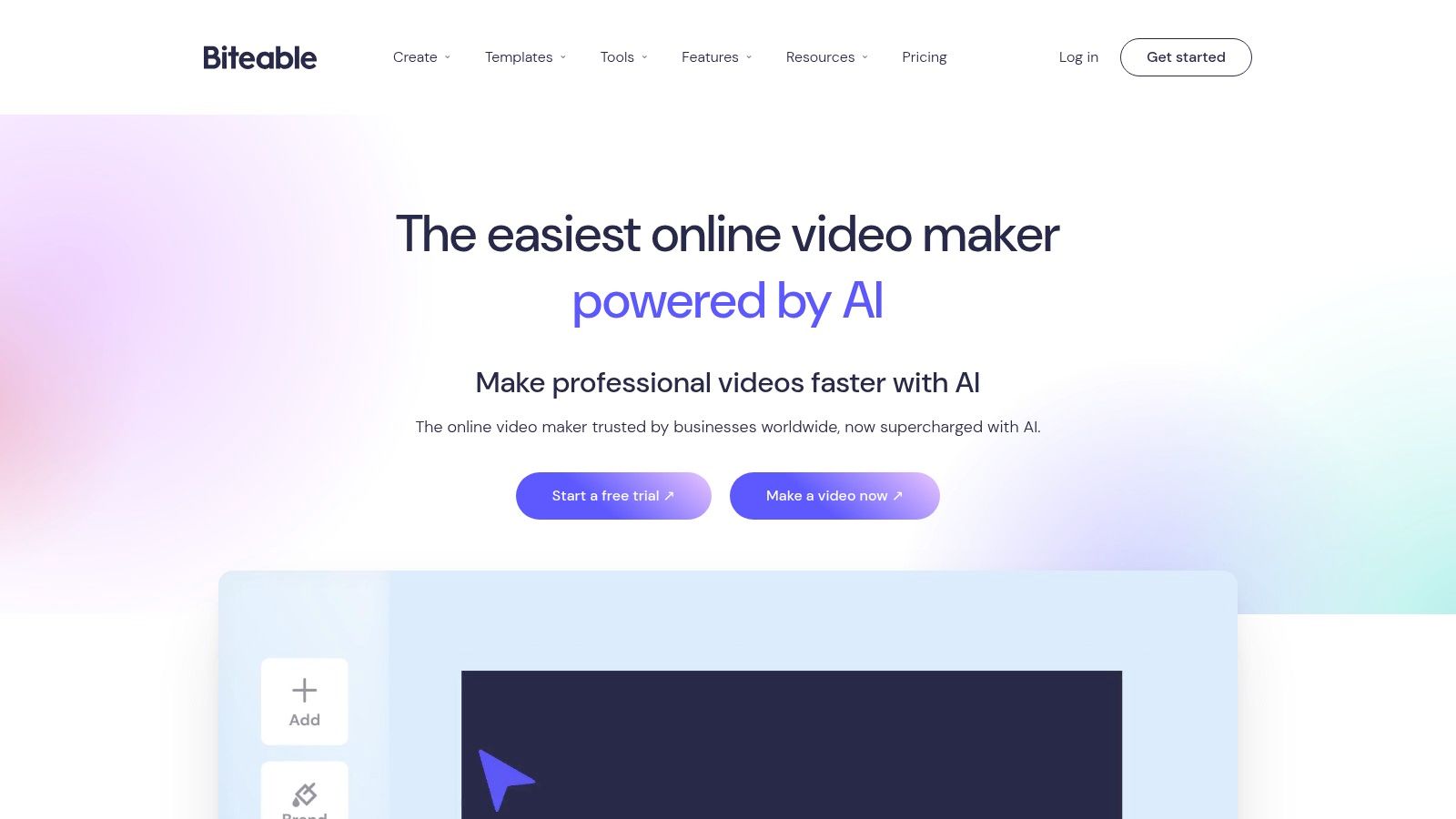
Biteable is designed for teams that need polished campaign videos without a deep animation workflow. It combines explainer and animated-video templates with stock clips and animations, so a marketer can assemble a short product introduction or social variant from existing building blocks.
Quick production with lighter animation control
Brand profiles and analytics support campaign work, while AI avatars, text-to-speech, and auto-captions help with narration and accessibility. Biteable offers collaboration on multi-seat plans, unlimited exports on Pro, and 4K export on Premium. Those features make it practical when a team needs to produce several finished variations without taking on a complex animation workflow.
There's a clear trade-off: the tool is faster to use than a dedicated 2D animation editor, but it offers less granular control over animation. Avatars and longer runtimes are also limited to higher tiers. Before committing, check that the plan supports the length, export quality, and collaboration setup your campaign needs.
Production note: Use Biteable when speed and campaign-ready output matter more than custom character motion.
If you'd rather move from written input toward a video that includes voiceover and captions, LunaBloom AI offers an AI-assisted workflow to compare. Biteable is still the more direct pick when a stock-led template and browser-based editing suit the project.
5. Renderforest
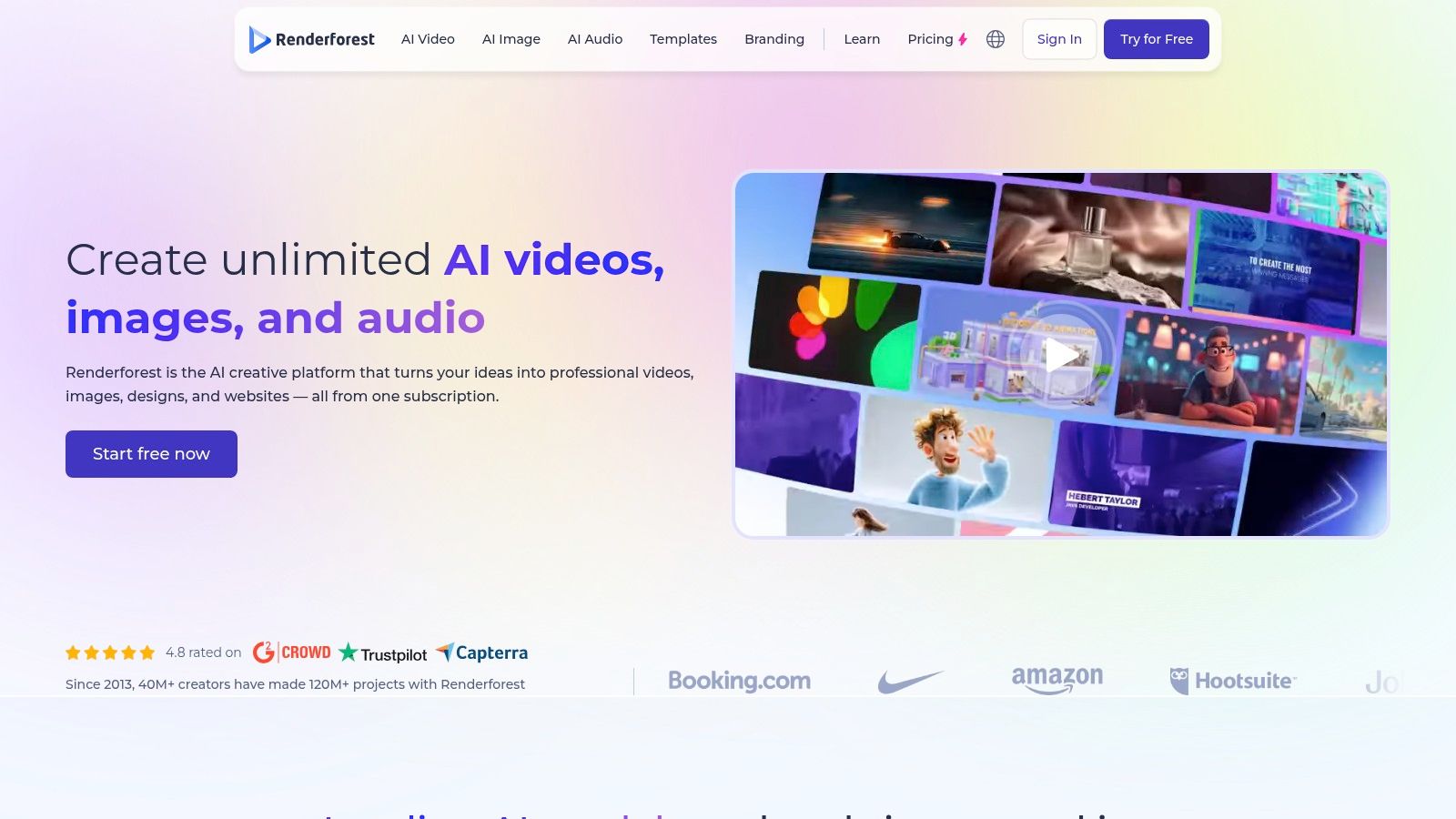
Renderforest is a good starting point for a team that wants to make several kinds of visual content in one platform. Its explainer builders use modular scene packs for whiteboard animation, characters, and product walkthroughs, with scene-by-scene customization that doesn't require professional animation experience.
Choose a guided workflow over granular control
A product team could use a walkthrough template to introduce an offer, then create a separate whiteboard-style video for explaining a process. Renderforest also includes stock assets and access to tools for logos, websites, and mockups through its subscription offering. That range can be useful for a small business that needs a consistent set of materials rather than only an explainer.
Its guided approach makes the editor accessible to non-designers, but it offers less detailed control than professional motion-graphics software. Most premium templates require a paid plan, so review template access and export terms before building a project around a particular style.
Start with a scene pack that matches the story, then replace its visuals and wording rather than forcing an unrelated template to fit.
For a team evaluating alternatives, LunaBloom AI's background and workflow may be relevant if script-to-video production is part of the decision. Renderforest is the more natural fit when template-led editing and access to several creative tools matter.
6. Canva
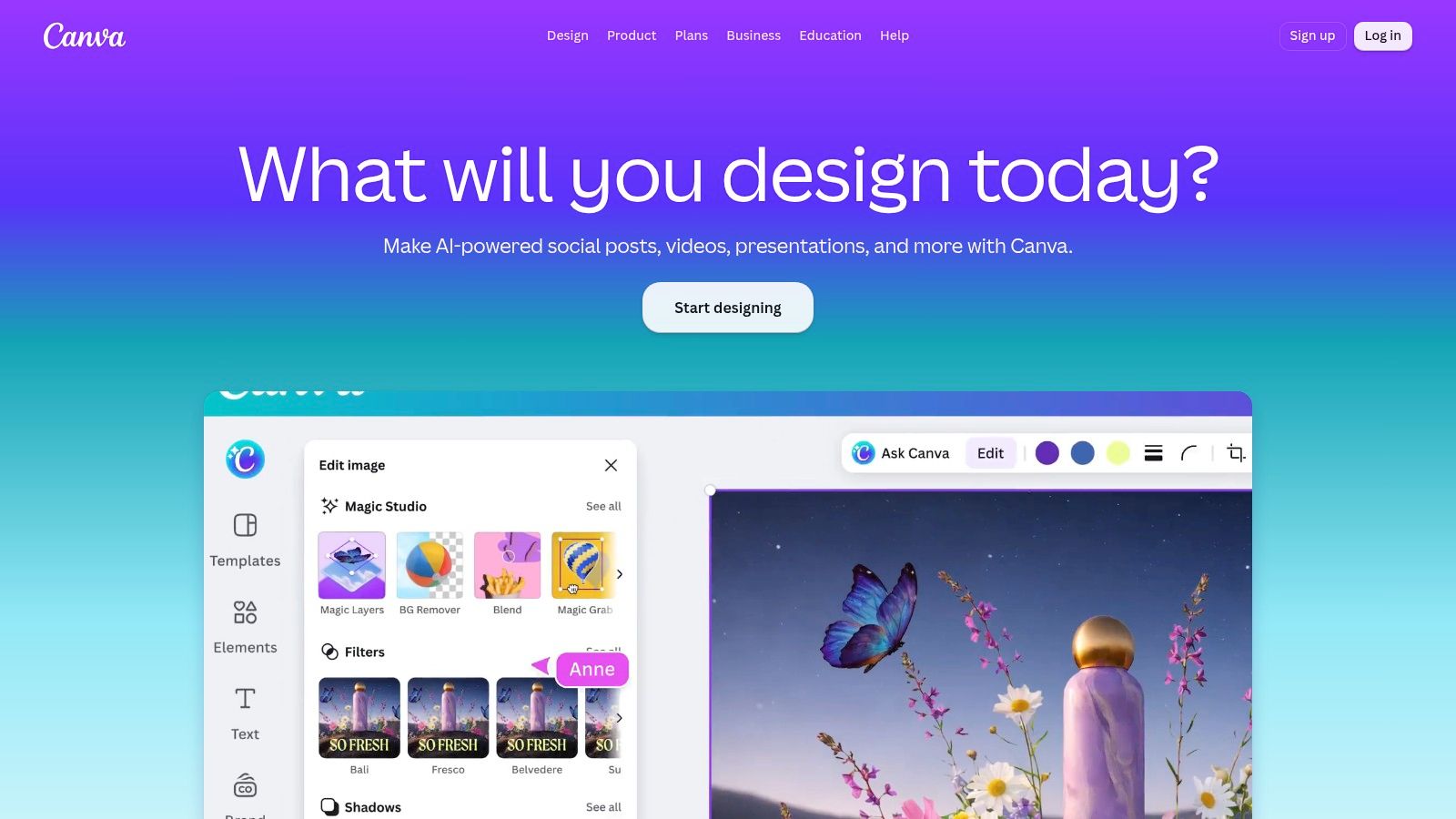
Canva makes sense when your team already uses it for brand assets, presentations, or social content. Its video editor includes explainer-style templates and animated elements, so you can build a simple, on-brand video in the same workspace as campaign graphics and other materials.
Strong for brand consistency and simple explainers
Canva's timeline editor, captions, stock media, Brand Kit, and collaboration features support quick production for social and marketing teams. Free, Pro, Business, and Enterprise plans provide different levels of access, and an optional AI Pass add-on offers generative AI features.
For a product marketer, a template can become a short feature explainer without switching between design and video tools. Canva also supports work across video, social graphics, and presentations, which helps teams keep related assets visually consistent. The limitation is motion depth: advanced animation controls aren't as extensive as those in dedicated 2D tools, and some premium assets or features require Pro or Business.
Choose Canva when you want easy layout editing and campaign consistency. If the explanation depends on complex character movement or finely timed animation, shortlist Vyond or Animaker instead.
7. Envato Elements
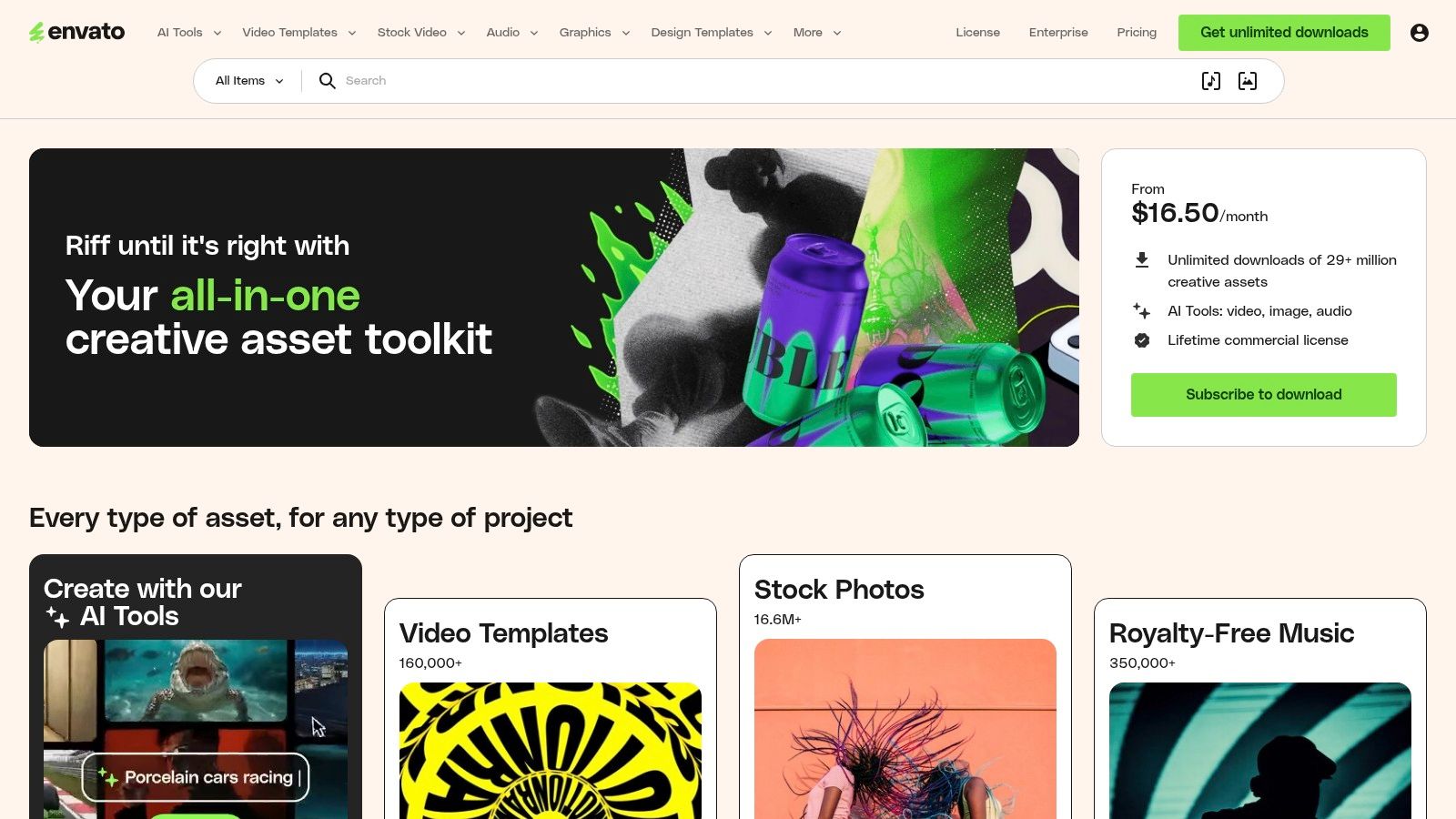
Envato Elements isn't a browser-based explainer editor. It's a subscription library of downloadable templates for professional editing and motion-graphics applications, alongside music, sound effects, graphics, and fonts.
Best for editors who want downloadable assets
Editors working in After Effects, Premiere Pro, Final Cut Pro, Apple Motion, or DaVinci Resolve can use the library to find templates for explainers, infographics, promos, and titles. A subscription can also provide access to music, sound effects, graphics, and fonts, with unlimited downloads subject to fair-use terms. Some plans include commercial licensing and AI tools or credits.
The advantage is choice: one library can supply several kinds of production assets. The trade-off is that you need to know how to customize the files in a supported editing tool. Template quality varies by author, so search results need curation, and teams without editing experience may spend more time learning the workflow than adapting the animation.
Best fit: Reach for Envato Elements when your team already has a professional editor and wants to customize rather than assemble a browser-based template.
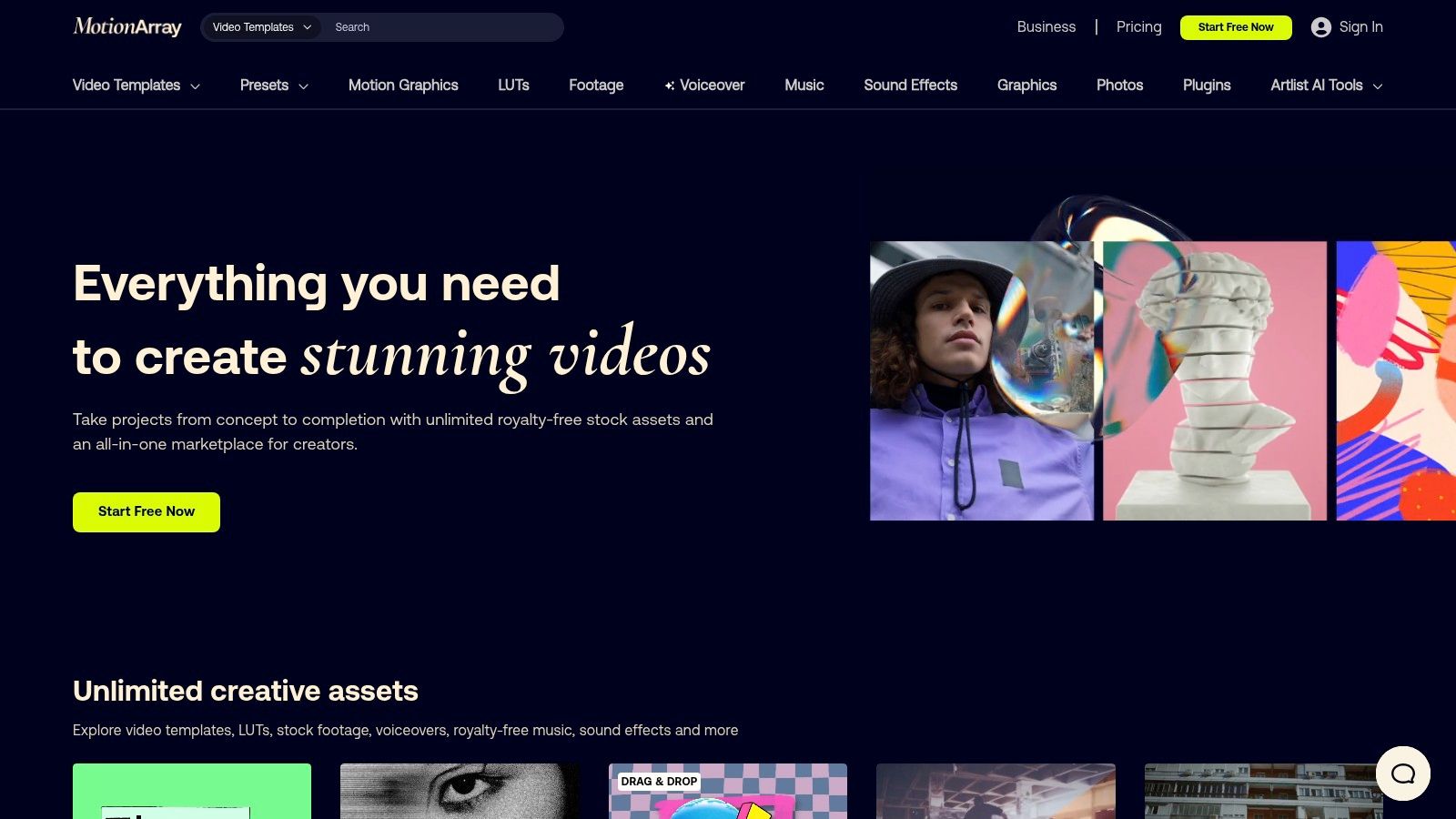
8. Motion Array
Motion Array serves editors who want a wider creative asset library alongside explainer-friendly templates. Its catalog includes templates for Adobe tools and other workflows, plus stock video, music, sound effects, presets, and plugins.
For Adobe-based production teams
A video editor working in After Effects or Premiere Pro can use explainer and infographic packs with other assets from the library. Applicable plans offer unlimited downloads, and plan options include Everything, Teams, and Business. An AI voiceover add-on may also suit a workflow that needs narration support.
Motion Array is a practical choice when editors want templates, plugins, and stock assets in one subscription. It's less suitable for someone expecting an all-in-one browser editor: familiarity with After Effects or Premiere Pro is the advantage that makes its library useful. Pricing details may vary by region or account, so check the current terms before you decide.
The main distinction from a browser-based template editor is control. Motion Array supplies assets for an editing workflow; it doesn't remove the work of assembling and customizing them in your chosen application.
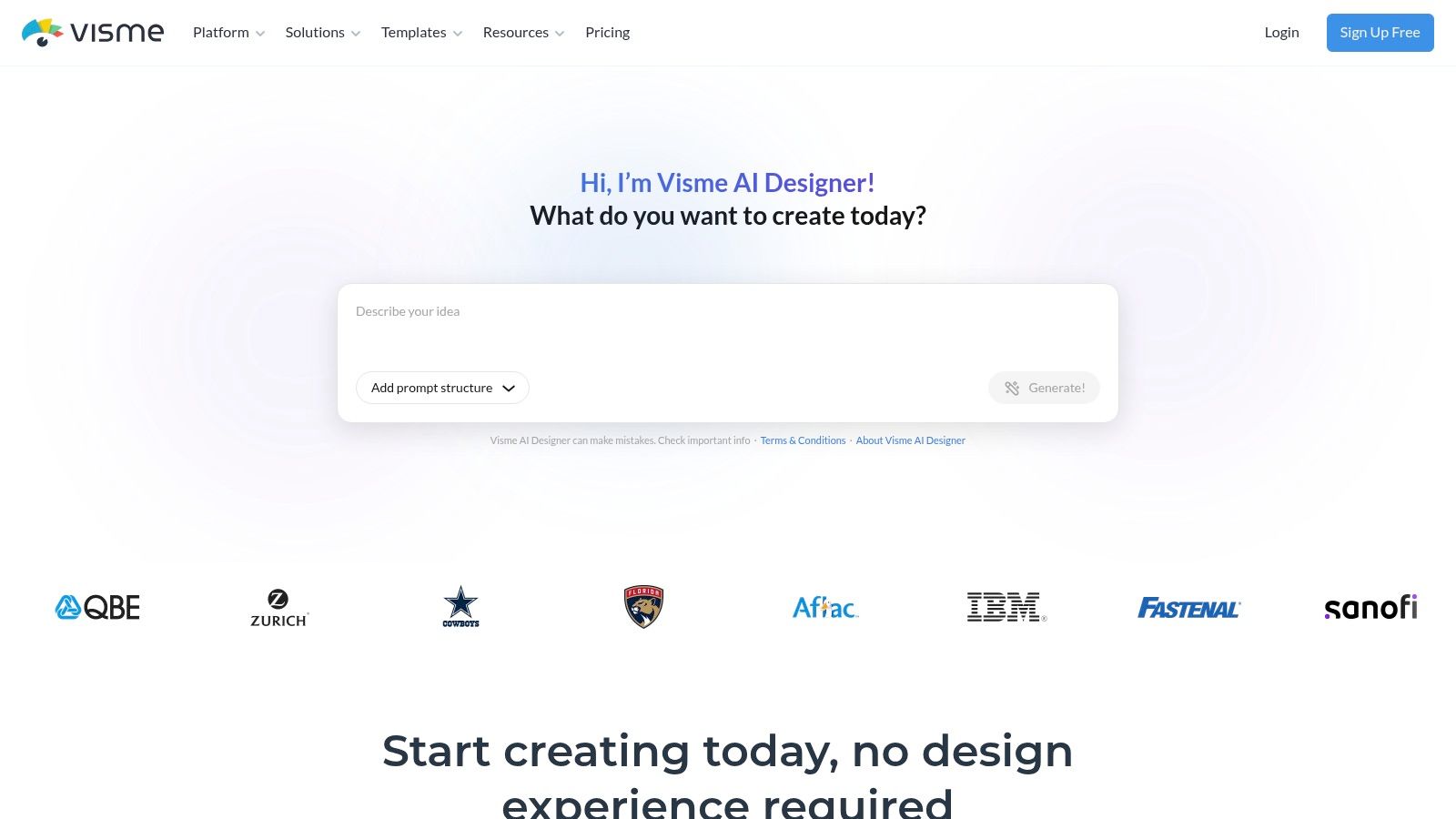
9. Visme
Visme fits explainers that rely on diagrams, data, or information-dense visuals. Its templates combine video elements with infographics and data visualization, making it useful for reports, education, process explainers, and training materials.
Keep information-heavy scenes on brand
A training team can use animated charts and graphics to explain a process, while brand governance features help organizations control approved fonts, colors, and locked templates. Team permissions support shared production, and export options include video, GIF, HTML5, and PPTX.
Visme's controls are useful when teams need consistency across information-heavy materials, but it's not the best pick for complex character animation. Some advanced assets are also available only on paid tiers. Choose it for a structured explanation built around graphics and data, not for a story driven by animated characters.
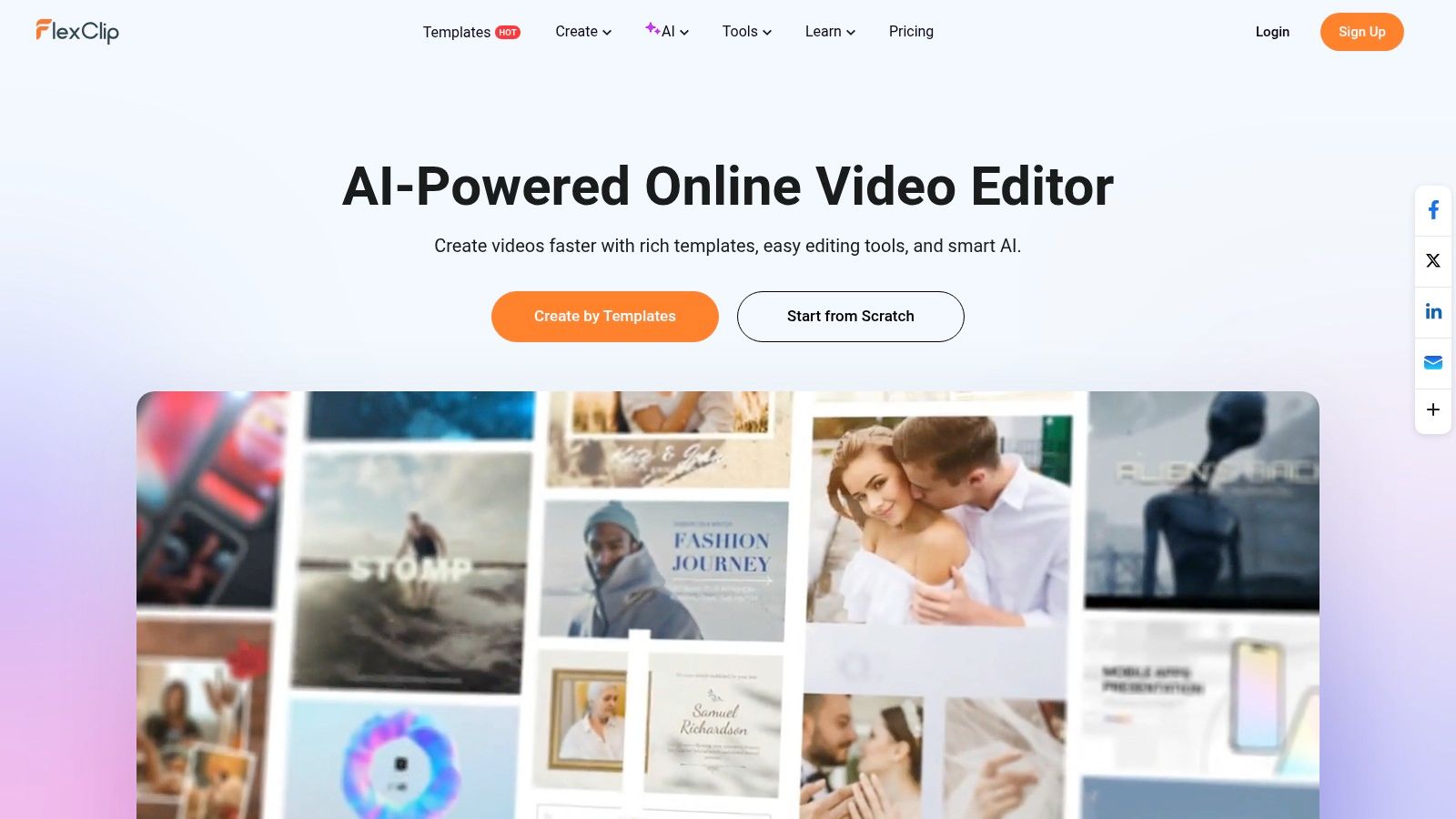
10. FlexClip
FlexClip is a lightweight browser editor for simple product introductions, how-to videos, and social explainers. Its drag-and-drop workflow and template gallery help solo creators and small teams get from a rough idea to a basic video without learning a full animation suite.
Fast editing for straightforward stories
AI helpers for scripts, voiceovers, and captions can speed up routine production tasks. Stock media, multiple aspect ratios, and social exports support teams adapting one explainer for different publishing contexts. FlexClip is especially practical when the video relies on clear text, supporting visuals, and a simple sequence rather than intricate animation.
The free tier has watermark and quality limitations, so check what you can export before building a customer-facing video. Brand controls are lighter than in professional suites, and animation tools are less detailed than in full 2D platforms. Pick FlexClip for speed and simplicity, not for highly customized motion design.
Top 10 Animated Explainer Video Template Resources: Comparison Table
| Platform | Core Approach | AI & Workflow Highlights | Best For | Standout Value |
|---|---|---|---|---|
| LunaBloom AI | Cinematic AI video generation from prompts, scripts, or images | ✨ Avatars, voice cloning, 50+ language localization, captions, publishing, and team tools | 👥 Businesses and creators producing video at scale | 🏆 End-to-end video creation with minimal editing; 💰 free pay-as-you-go trial and subscriptions |
| Vyond | Business-focused animated explainers with editable templates | Text-to-video, translation, text-to-speech, subtitles, SCORM export, and collaboration | 👥 L&D, product, and internal communications teams | 🏆 Deep business template library and enterprise governance; 💰 higher-priced plans |
| Powtoon | Drag-and-drop animated explainers and slide-to-timeline editing | AI video tools, avatars, text-to-speech, and translation on paid plans | 👥 Non-designers and teams creating presentations or explainers | ✨ Approachable templates and AI credit options; 💰 export limits may apply on lower tiers |
| Animaker | DIY 2D animation with characters, charts, and templates | Voiceovers, brand kits, and customizable characters | 👥 Marketers, educators, and small businesses | ✨ Broad training and explainer templates; 💰 business plans may suit frequent users |
| Biteable | Simple editor for short explainers and campaign videos | AI avatars, text-to-speech, captions, analytics, and 4K on Premium | 👥 Teams making polished short videos quickly | ✨ Stock animation library and collaboration; 💰 unlimited Pro exports |
| Renderforest | Template-led explainers, whiteboards, and product walkthroughs | Modular scene customization, multiple styles, and aspect ratios | 👥 Non-designers creating guided video content | ✨ Video, logo, website, and mockup tools together; 💰 premium templates require paid plans |
| Canva | Broad design suite with a lightweight video editor | Templates, animated elements, captions, Brand Kit, and team collaboration | 👥 Teams already using Canva for brand and social content | ✨ One workspace for video, social, and presentations; 💰 free and paid plans |
| Envato Elements | Downloadable video and motion-graphics templates for editing apps | Templates, music, sound effects, graphics, and fonts | 👥 Editors comfortable with tools like After Effects or DaVinci Resolve | ✨ Broad creative asset library and unlimited downloads subject to fair use; 💰 subscription |
| Motion Array | Template and asset marketplace for video editors | Adobe templates, stock media, music, plugins, presets, and AI voiceover add-on | 👥 Editors working in After Effects or Premiere Pro | ✨ Extensive assets with commercial licensing; 💰 unlimited downloads on applicable plans |
| Visme | Visual content platform for data-rich explainers | Animated charts, brand controls, team permissions, and multiple export formats | 👥 Teams creating training, reports, and information-dense videos | 🏆 Strong data visualization and template governance; 💰 advanced assets require paid tiers |
| FlexClip | Lightweight drag-and-drop editor for simple explainers | AI scripts, voiceovers, captions, stock media, and social formats | 👥 Solo creators and small teams | ✨ Quick production with a low learning curve; 💰 free tier has watermark and quality limits |
Build a Repeatable Explainer Production System
Start with the resource that matches the animation control you need. Choose a browser-based editor such as Canva or Biteable when your team wants to adapt scenes directly online. Choose a professional template library such as Envato Elements or Motion Array when an editor can work in After Effects or Premiere Pro. Choose an AI-native workflow when the priority is moving from a script or prompt toward an edited video.
Before production, confirm the template's export resolution, aspect ratio, watermark rules, licensing, and localization support. Then shape the scenes around one clear audience problem. Use a focused progression. Establish the problem, show the key visual explanation, provide proof, and end with a clear next step. A template should support the explanation, not add scenes just because they're available.
Use the same production steps each time:
- Select a proven template: Start with a structure that fits the audience and story.
- Adapt the opening and closing: Make the first scene specific to the viewer's problem and the final scene clear about what to do next.
- Replace stock visuals: Add branded assets or genuine product visuals where they improve understanding.
- Tighten the script: Remove repetition, keep the main idea clear, and preserve any detail that changes the meaning.
- Add narration and captions: Record or generate the voiceover, then check that captions are readable and correctly timed.
- Export for each platform: Create the aspect ratio and file format each destination needs, rather than relying on a single version.
For prerecorded videos with synchronized audio, captions aren't an optional finishing touch. The W3C guidance for prerecorded captions identifies captions as a Level A requirement, with a narrow exception when the media is clearly labeled as an alternative for text. Reserve caption space in the design, keep text readable, and make sure meaningful sound effects are represented as well as speech.
Test one browser-based editor, one professional template library, and an AI-native option such as LunaBloom AI if your team needs to move quickly from a script or prompt to a polished, localized explainer. Use a real project for each trial, and check how easily you can revise its most important scene. For more production guidance, find video production best practices. The best template is the one your team can edit consistently without sacrificing clarity, brand consistency, or delivery speed.
LunaBloom AI turns text prompts, scripts, and images into edited videos with voiceovers, captions, avatars, localization, and social publishing options. If you're comparing animated explainer video templates, visit LunaBloom AI to explore a script-to-video workflow for product explainers, training, and social campaigns.