Your script is finished. It's sitting in a document, and you want a usable video without waiting for budget approval. A free script-to-video tool can get you from written draft to a first cut, but the free plan may limit export length, add a watermark, ration credits, or restrict commercial use.
The right option depends on what you're making, who'll watch it, and how often you need to publish. Below are 10 script-to-video tools assessed by what their free access offers, what it restricts, and the point where it may stop being useful. Test a real script before choosing: a draft that looks promising in the editor still needs to export cleanly in the format you need.
1. LunaBloom AI
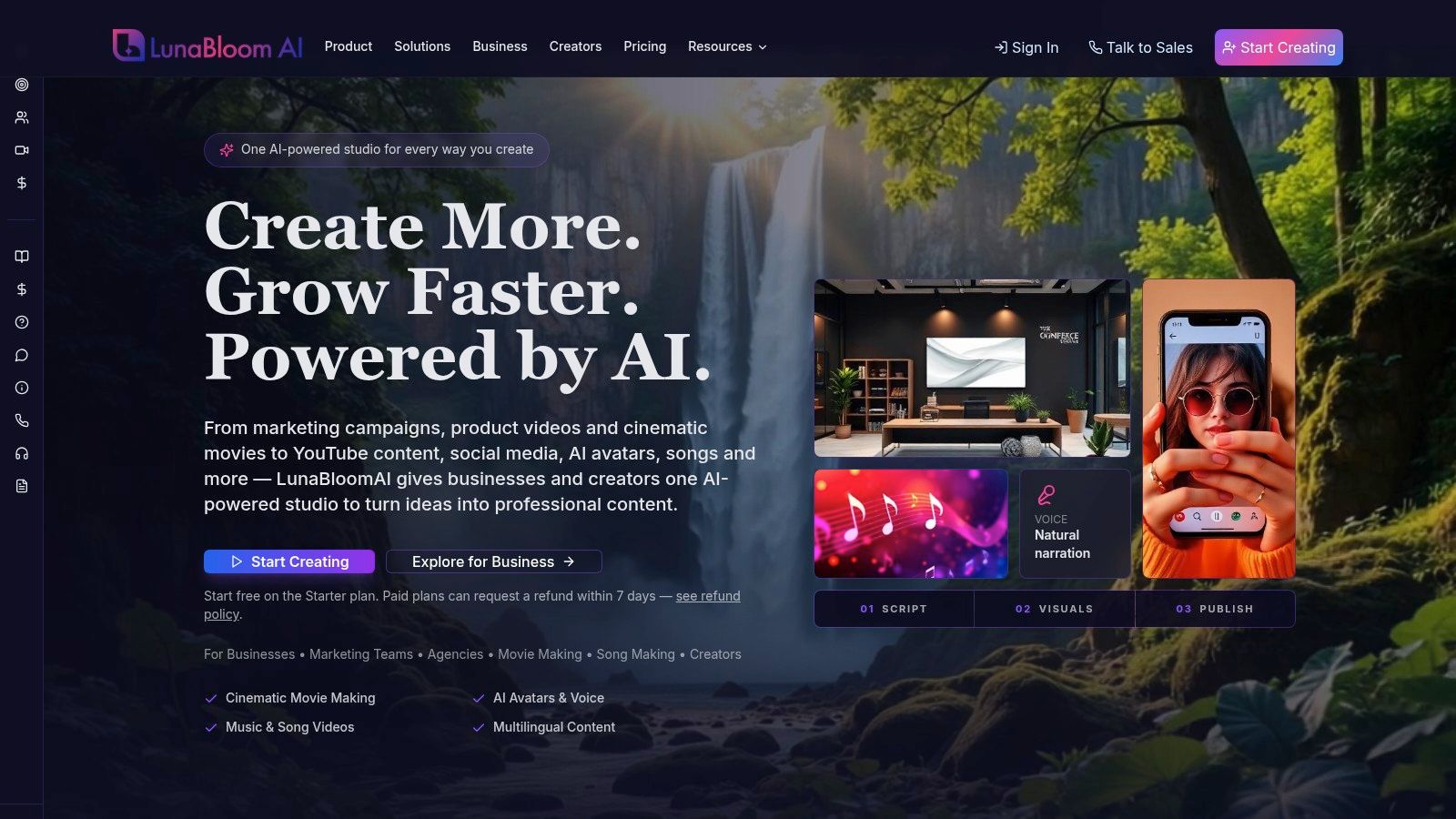
LunaBloom AI brings video generation and editing into one workflow. You can start with a prompt, script, or image, then build a video with visuals, voiceovers, captions, and editing tools. Options include realistic or animated AI presenters, voice cloning, multi-character dialogue, cinematic scenes, and generated music or music videos.
The free Starter option is useful for trying the process, but it's tightly capped at two videos, up to 10 seconds each. That's enough to judge visual style, voices, and basic workflow. It won't establish whether the service fits a recurring publishing schedule or a full-length explainer.
Where it fits best
LunaBloom suits creators and teams that want more than a stock-footage montage. It supports product explainers, social ads, training, and cinematic content, with localization across 50+ languages and regional accents. Timeline editing, subtitles, thumbnails, and social publishing help refine the output. Collaboration, brand kits, analytics, and API access support larger workflows, while paid plans include commercial-use rights.
Paid creator subscriptions are listed at $29.99, $79.99, and $119.99 per month, and business plans start at $999 per month. The site says paid plans may request a refund within seven days. Generation uses credits based on length and selected features, so a longer video or feature-rich scene can consume credits differently from a short test.
Practical rule: Use the free videos to test a representative scene, not to judge monthly production capacity. Check credit use before planning a batch.
Pros: Broad creation and editing features, voice and language options, and a free way to try the workflow.
Cons: The free allowance is short, and credit use can make high-volume costs harder to predict.
For a first test, try the LunaBloom AI Starter app.
2. InVideo AI
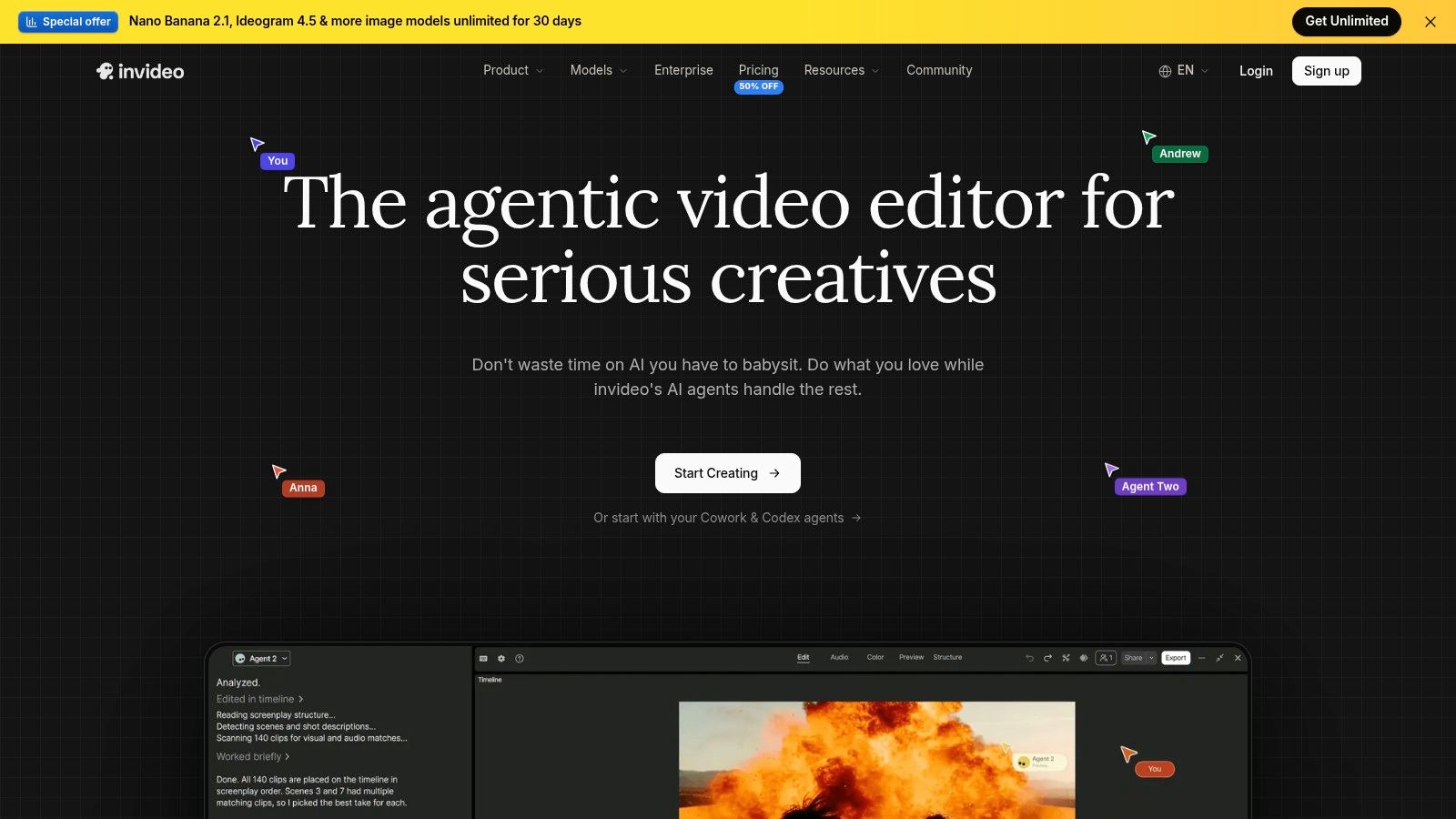
InVideo AI is a practical pick for turning a prompt or script into a social-ready draft. It assembles scenes with stock media, voiceover, and captions, then lets you adapt the result for different aspect ratios. That makes it suited to short ads, explainers, and social clips where a quick first cut matters more than fine-grained control.
The free plan gives you limited credits to test the workflow. That's useful for learning how the tool interprets a script and selects footage, but credits can run out quickly if you keep regenerating scenes. Free exports may also have limits or watermarks, so check the finished file before treating a draft as ready to publish.
When it works, and when it doesn't
InVideo is strongest when you have a concise script and want a fast assembly of narration and stock footage. It's less suited to long-form projects that need detailed pacing or precise scene-by-scene editing. A generated video can be a useful starting point, but mismatched stock clips and awkward transitions may still need manual correction.
Pros: Fast social-video drafts, stock footage, captions, and aspect-ratio variants.
Cons: Limited free credits, possible watermarks, and less control over longer edits.
Before relying on it for a recurring workflow, compare the free export against the LunaBloom AI pricing options to see which limits matter for your use.
3. Kapwing AI
Kapwing combines automated generation with a browser-based timeline editor. Its Script to Video and Text to Video tools can build a draft, while auto-subtitles, stock media, and common social formats help get it ready for platforms like YouTube and TikTok. The main appeal is that you can generate and then refine in the same workspace.
The trade-off is that the free plan has usage limits and adds a watermark. A watermark can be fine for an internal preview, but it usually makes the export unsuitable for client delivery or a polished public channel. Larger projects may also feel slow on a modest laptop, especially if you're editing while the browser handles a heavy timeline.
Best for hands-on refinement
Kapwing makes more sense when you want to adjust the generated result rather than accept an automatic assembly as finished. You can tune the cuts, captions, and layout, which helps when the first version gets the subject right but misses the pacing.
Pros: Combines AI generation, subtitles, stock media, and manual timeline editing.
Cons: Free exports are watermarked, usage is limited, and bigger projects may strain a slower computer.
Kapwing's guidance indicates that generation takes about 30 seconds per minute of video. Treat that as an indication of generation time, not a promise that the final edit will be ready just as quickly. You can also explore LunaBloom's browser-based video editor if editing generated scenes is central to your workflow.
4. Lumen5
Lumen5 is built around repurposing written content. Paste a script, import a URL or PDF, and the platform can suggest a video script and assemble scenes. A drag-and-drop editor lets you adjust the result, while brand styles and social aspect ratios support marketing teams that need to adapt written material for video.
Its free plan is a way to try the core workflow without a card. The catch is the export: free videos include Lumen5 branding or an outro, and advanced brand controls and stock assets require a paid plan. That's a meaningful restriction if the video needs to look fully on-brand or go directly to a client.
Turning an article into a video
Lumen5 is most useful when the source material already has a clear structure, such as a product article, a blog post, or a how-to guide. The tool can help surface key points, but it won't automatically know which details are essential to your audience. Review the proposed script and remove material that doesn't belong in a short video.
Pros: Convenient blog and document repurposing, with a straightforward scene editor.
Cons: Branding appears on free exports, and more advanced brand and stock options sit behind paid access.
If the goal is to convert a particular article, compare the generated script with the original before editing visuals. A video can be visually tidy and still lose the point if the summary cuts too aggressively.
5. Steve.AI
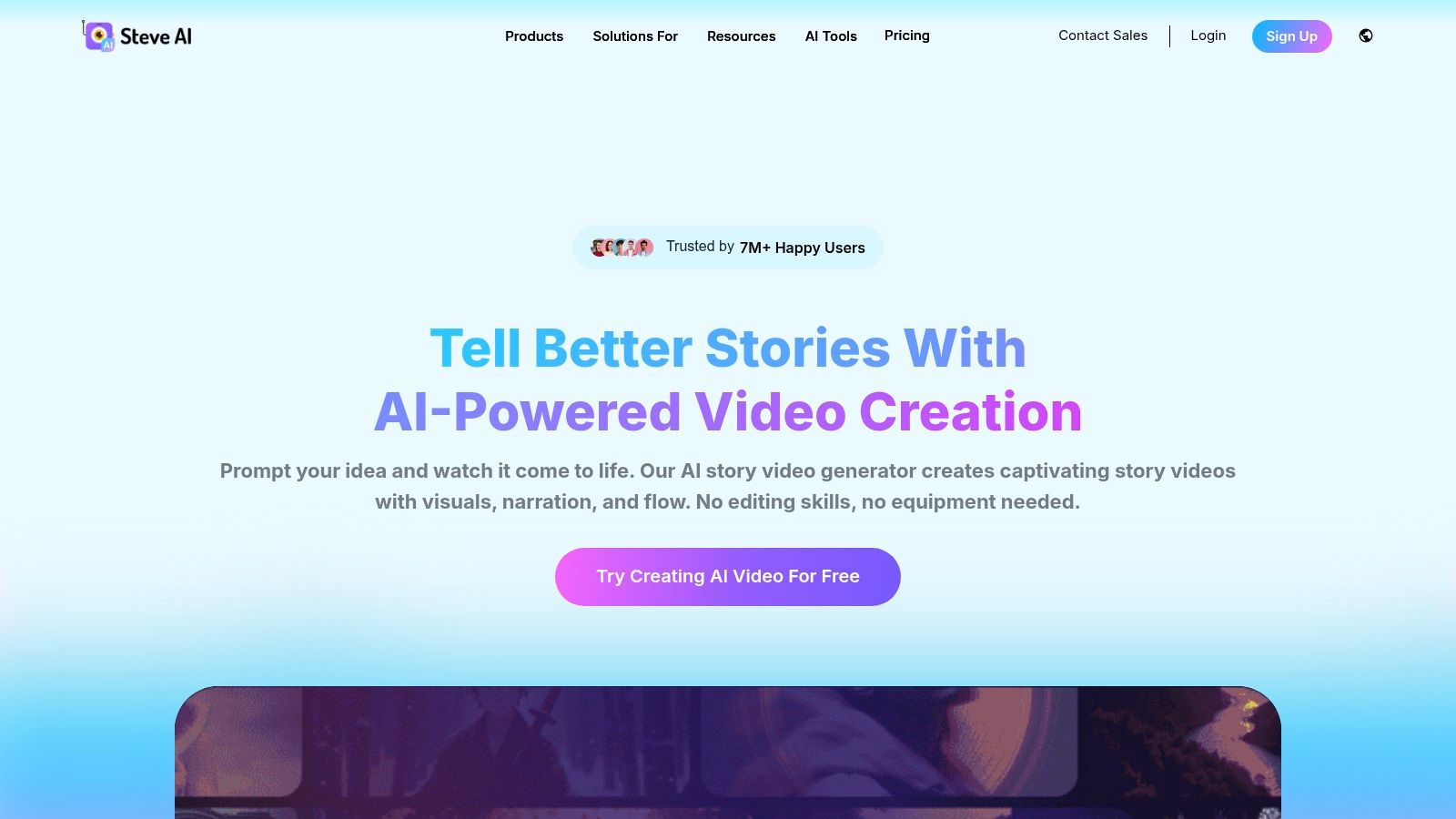
Steve.AI focuses on script-driven faceless videos, including cartoon and stock-based explainers. It also offers AI script generation and voice-to-video, so you can build a narrated piece without appearing on camera. Templates for social formats make it a candidate for short tutorials or simple educational content.
The useful distinction here is style. Cartoon scenes can make an explainer feel approachable, while stock footage can give a more familiar marketing look. Neither guarantees that the visuals will match every line of the script, so review the scene choices and replace anything that feels generic or misleading.
Check the export before committing
The free plan allows creation and downloads with limits, but resolution and asset access are restricted, and exports may include a watermark. It works best with short-to-medium scripts. If your draft needs many scenes, a large asset library, or higher-resolution delivery, the free tier may be better for testing than publishing.
Pros: Offers animated and stock-based styles, plus script and voice workflows.
Cons: Free limits affect resolution and assets, with possible watermarking.
Use Steve.AI when an animated or narrated format is appropriate. If a video depends on product-specific footage, plan to supply or carefully select visuals rather than assuming the first automated choice will be accurate.
6. Fliki
Fliki turns scripts, blog posts, and presentations into narrated videos with visuals and captions. Its large multilingual voice library and optional AI avatars make it useful for explainers, tutorials, social posts, and localization. The workflow is direct: provide written material, let Fliki assemble narration and scenes, then review the video.
Fliki lists more than 2,000 AI voices in over 80 languages. That breadth can help when you need to compare voice styles or prepare versions for different audiences. Still, a large voice selection doesn't remove the need to check pronunciation, pacing, and whether a voice sounds right for the subject.
A strong voice can't rescue a script that's too dense to follow aloud.
The free-tier trade-off
A free-forever plan is available for evaluating the workflow, but usage is limited and exports may carry a watermark. Some advanced features and commercial rights require paid tiers. Visual variety can also depend heavily on stock media unless you customize scenes, so inspect the footage rather than assuming it will reinforce every line.
Pros: Fast narration and scene assembly, with multilingual voices and optional avatars.
Cons: Limited free use, possible watermarks, and paid restrictions on some features and commercial rights.
Fliki's script-to-video workflow is worth comparing with other options if voice-led content is your priority. Before publishing, confirm that the license and export conditions match the project.
7. Colossyan
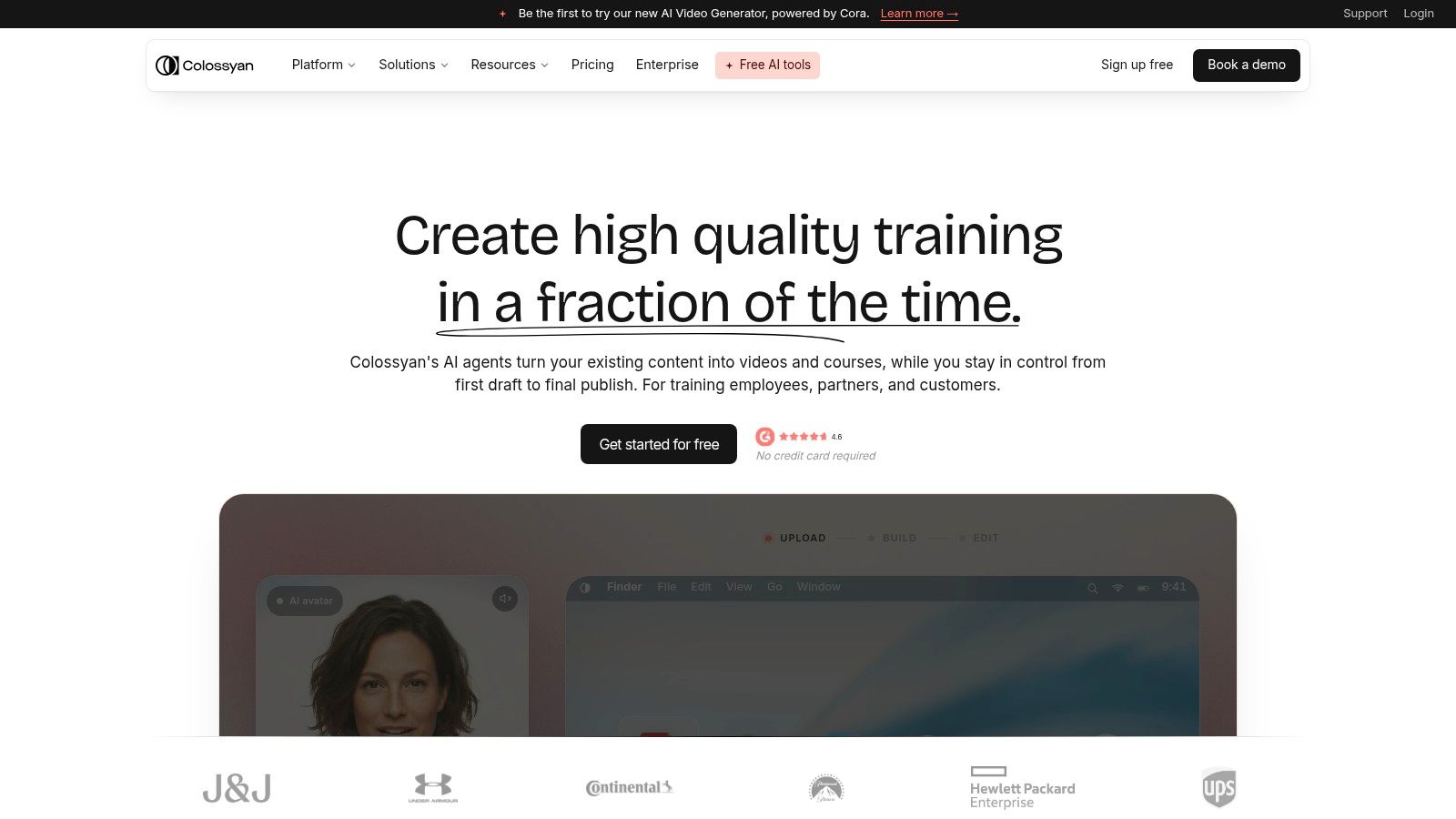
Colossyan is aimed at business videos, especially training, onboarding, and internal communications. You can turn a script into a presenter-led video with realistic AI actors and scene layouts. Localization, accent options, team workspaces, and collaboration controls make it more relevant to organizations than to creators seeking fast, visually dynamic social clips.
A free plan and free trial give you a way to try the presenter format. That matters because an AI presenter's delivery and appearance are subjective: a sample export tells you more than a feature list. Test a script that resembles your actual training or announcement, not a generic placeholder.
Strong for presenters, less so for B-roll
The talking-head format works when a speaker needs to deliver clear instructions or explain a process. It's less suited to B-roll-heavy shorts without manual editing, because a presenter on its own may make a video feel static. More extensive branding and avatar options are paywalled, so inspect the free output for the exact controls you need.
Pros: Presenter-led business videos, localization, and collaboration features.
Cons: Some brand and avatar options require payment, and dynamic edits may take extra work.
For onboarding or training, prioritize clarity and accurate captions over visual novelty. For a fast-paced social ad, compare the presenter format with a stock-based or scene-heavy tool before settling on it.
8. VEED
VEED's Gen-AI Studio assembles a short stock-based video from a script or prompt, then hands it off to a browser editor for further work. Auto-subtitles, layouts, overlays, and social templates help turn a rough idea into a draft for a reel or ad.
The key limitation is what the generator creates. It assembles stock footage rather than generating every visual from scratch. That can be a good fit when suitable stock clips exist, but it may struggle to make a specific product, location, or action look exact.
Where the free option stops
The free plan adds a watermark, and AI credit availability can vary by region. Check the credits shown in your account before planning a batch, and verify the exported file for branding before using it publicly. Manual refinement is useful, but it can also take longer than expected if you need to replace multiple stock scenes.
Pros: Quick social-video concepts, subtitles, templates, and an editor for follow-up changes.
Cons: Stock-based generation, watermarked free exports, and region-dependent AI credits.
VEED is a sensible choice for concepting short clips, especially when you're comfortable with stock footage. To understand the broader product workflow, see LunaBloom AI's overview.
9. Microsoft Clipchamp
Microsoft Clipchamp is a consumer-friendly editor with a free plan, text-to-speech voiceovers, auto-captions, templates, and stock media. You can use it to build a script-led explainer by arranging scenes, adding narration, and reviewing captions in the editor. It suits people who want to assemble a video themselves rather than hand every decision to an automatic generator.
The free plan offers unlimited exports for personal use. That makes it useful for learning the editing workflow or producing personal projects, but it doesn't mean every AI feature is included. Copilot's prompt-to-narrated-video assembly is available only to eligible Microsoft 365 work accounts with Copilot.
A good fit for manual, simple edits
Clipchamp has an easy learning curve and fits naturally into a Microsoft workflow. Its limits show up when you need complex editing or a fully automatic script-to-video process without a qualifying account. You can still create the structure manually, but expect to spend time matching narration, clips, and captions.
Pros: Free personal exports, approachable editing, text-to-speech, and captions.
Cons: Copilot video assembly requires eligible paid Microsoft 365 access, and advanced editing needs may outgrow the editor.
Use Clipchamp when you want to control the sequence and add narration without a steep setup. Don't mistake a free editor for a free version of every connected AI feature.
10. Pictory
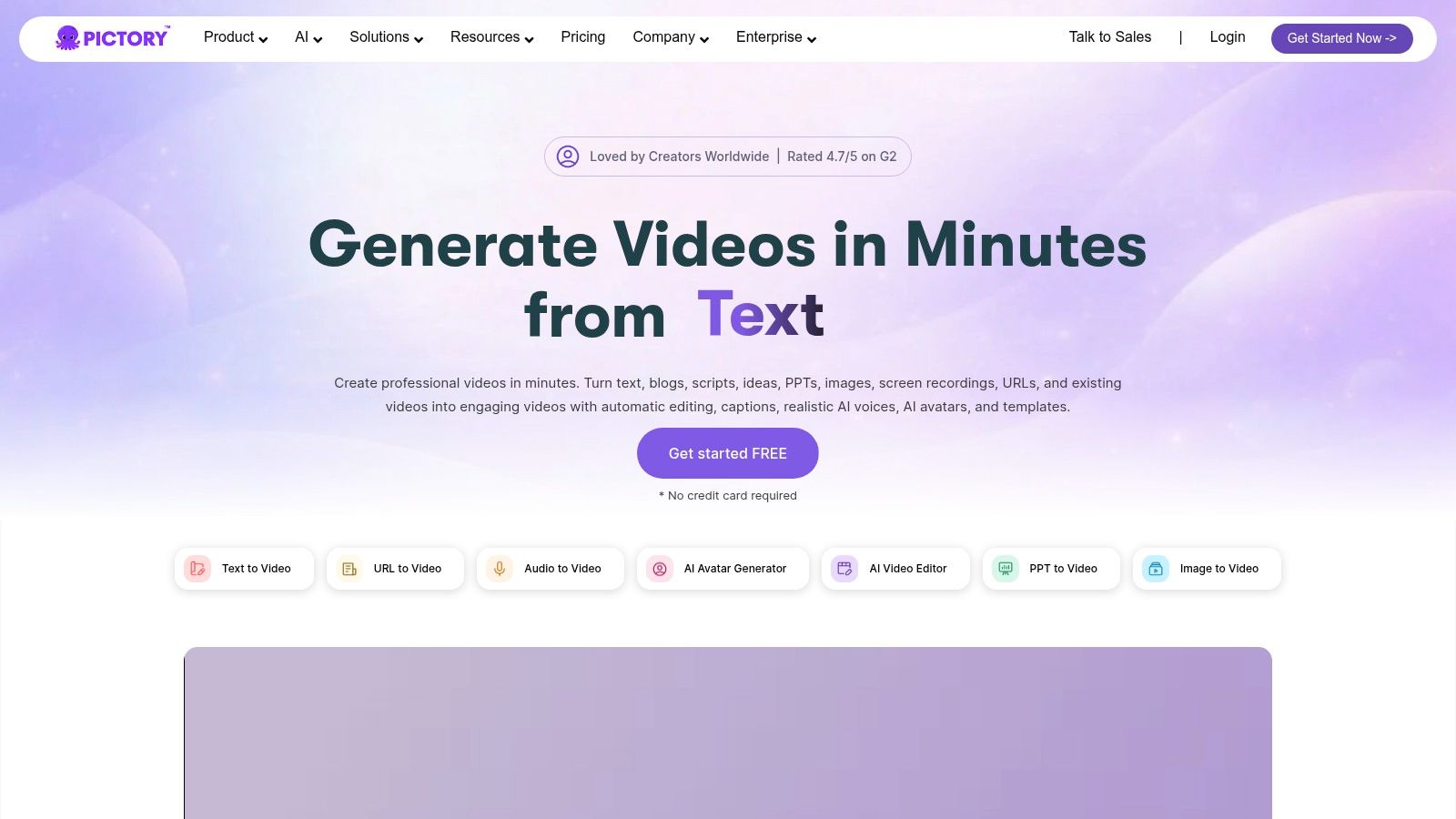
Pictory creates narrated explainers, listicles, and tutorials from scripts or blog URLs. It drafts scenes, offers voiceover options and captions, and supports social aspect ratios. Marketers and solo creators can use it to turn written material into a storyboard and a video draft without assembling every scene from scratch.
The important free-plan distinction is that Pictory offers a time-limited trial rather than a permanent free tier. Trial exports have limits and may include a watermark. That makes it a tool to evaluate with a specific script, not a dependable free publishing workflow.
Give it a concise source script
Pictory works best when the source text has a clear order and focused message. If a blog post covers several topics, choose one angle before importing it. Otherwise, the generated scenes may feel like a string of disconnected summaries instead of a coherent video.
Pros: Fast storyboarding, voiceover, captions, and social formats for repurposing written content.
Cons: Trial access is temporary, exports are limited and may be watermarked, and dense scripts need editing.
Use the trial to assess how well Pictory turns your own material into scenes. Check the final export and current terms before building a publishing routine around it.
Top 10 Free Script-to-Video Tools Compared
| Platform | Core strengths & unique features | Quality & workflow | Best for | Value / pricing |
|---|---|---|---|---|
| 🏆 LunaBloom AI | Text/image-to-video, custom avatars, voice cloning, dialogue, music videos, 50+ languages | ★ End-to-end creation, editing, captions, and publishing | 👥 Creators, marketers, and business teams | 💰 Limited free trial; creator plans $29.99–$119.99/month; business from $999/month |
| InVideo AI | Prompt-to-video, stock footage, voiceover, captions, social formats | ★ Fast, beginner-friendly drafts | 👥 Social marketers and short-form creators | 💰 Limited free credits; export limits may apply |
| Kapwing AI | Script/text-to-video, subtitles, stock media, timeline editing | ★ Generation plus hands-on browser editing | 👥 YouTube and TikTok creators | 💰 Free plan with watermark and usage limits |
| Lumen5 | Converts scripts, URLs, and PDFs into branded videos | ★ Strong written-content repurposing workflow | 👥 Marketing teams and publishers | 💰 Free plan; branding and advanced assets require paid plans |
| Steve.AI | Script, voice, cartoon, and stock-video creation | ★ Flexible animated or faceless formats | 👥 Creators making explainers and social videos | 💰 Limited free plan; resolution or watermark restrictions |
| Fliki | Script/blog-to-video, 2,000+ voices, 80+ languages, optional avatars | ★ Broad voice and localization options | 👥 Creators, educators, and localization teams | 💰 Free-forever plan with limits; advanced features are paid |
| Colossyan | Realistic AI presenters, dubbing, team collaboration | ★ Polished presenter-led business videos | 👥 Training, onboarding, and corporate teams | 💰 Free plan and trial; advanced options may require paid tiers |
| VEED | Prompt-to-stock video, subtitles, templates, browser editing | ★ Quick drafts with manual refinement | 👥 Social teams creating reels and ads | 💰 Free exports include a watermark; AI credits vary |
| Microsoft Clipchamp | Templates, text-to-speech, captions, editing, eligible Copilot assembly | ★ Accessible editing in the Microsoft ecosystem | 👥 Personal users and Microsoft 365 teams | 💰 Free personal exports; Copilot features require eligible access |
| Pictory | Script/blog-to-video, drafted scenes, voiceovers, captions | ★ Efficient article-to-explainer workflow | 👥 Marketers and solo creators | 💰 Time-limited trial; export limits may apply |
Choose Your Free Starting Point and Know When to Upgrade
The best free script-to-video tool is the one whose limits match the video you need. Choose a stock-footage workflow for quick explainers, a presenter tool for training, or a manual editor when you need to control every cut. Then run one real script through the tool from start to export. A good-looking preview isn't enough if the file has a watermark, the export is too short, or the credit allowance runs out before you finish revisions.
Check these details before you publish:
- Export length: Does the free plan allow the complete video, or only a short sample?
- Watermarks: Is the exported file clean enough for your channel or client?
- Credits: Do revisions or regenerated scenes consume the allowance?
- Commercial rights: Can you use the output in paid work or an advertisement?
- Workflow fit: Are captions, voiceovers, formats, and editing controls good enough for your audience?
Upgrade when the free tier repeatedly blocks the work. That could mean recurring watermarks on client projects, needing more exports than the plan allows, or requiring commercial rights, brand kits, and team collaboration. Don't pay for a broad feature list if your actual workflow only needs a few reliable exports. But don't keep rebuilding around a free plan once its limits are adding avoidable work.
Caption accuracy deserves its own review. W3C guidance explains that captions support viewing in silent or noisy environments, can help people who are less fluent in the spoken language, and provide text that search engines can index. Check synchronization, speaker changes, names, and meaningful non-speech audio before publishing. For broader production planning, these free audio-to-text tools compared can help you evaluate ways to work with spoken content.
Short-form video is a strong reason to test more than one workflow, but survey results aren't a promise that any particular video will perform. HubSpot's summary of Wyzowl's 2025 survey reports that 89% of businesses use video marketing and 93% of marketers report strong ROI from it. Treat that as directional market evidence, then measure your own results with watch time, clicks, and conversions.
Run your script through two or three shortlisted tools and compare the exports side by side. Keep the one that delivers the most usable video with the least cleanup, and upgrade only when a specific limit stands in the way.
LunaBloom AI turns scripts, prompts, and images into edited videos with voiceovers, captions, and publishing tools. Try its free option to see how the workflow fits your script, then visit LunaBloom AI to explore the available creation features.