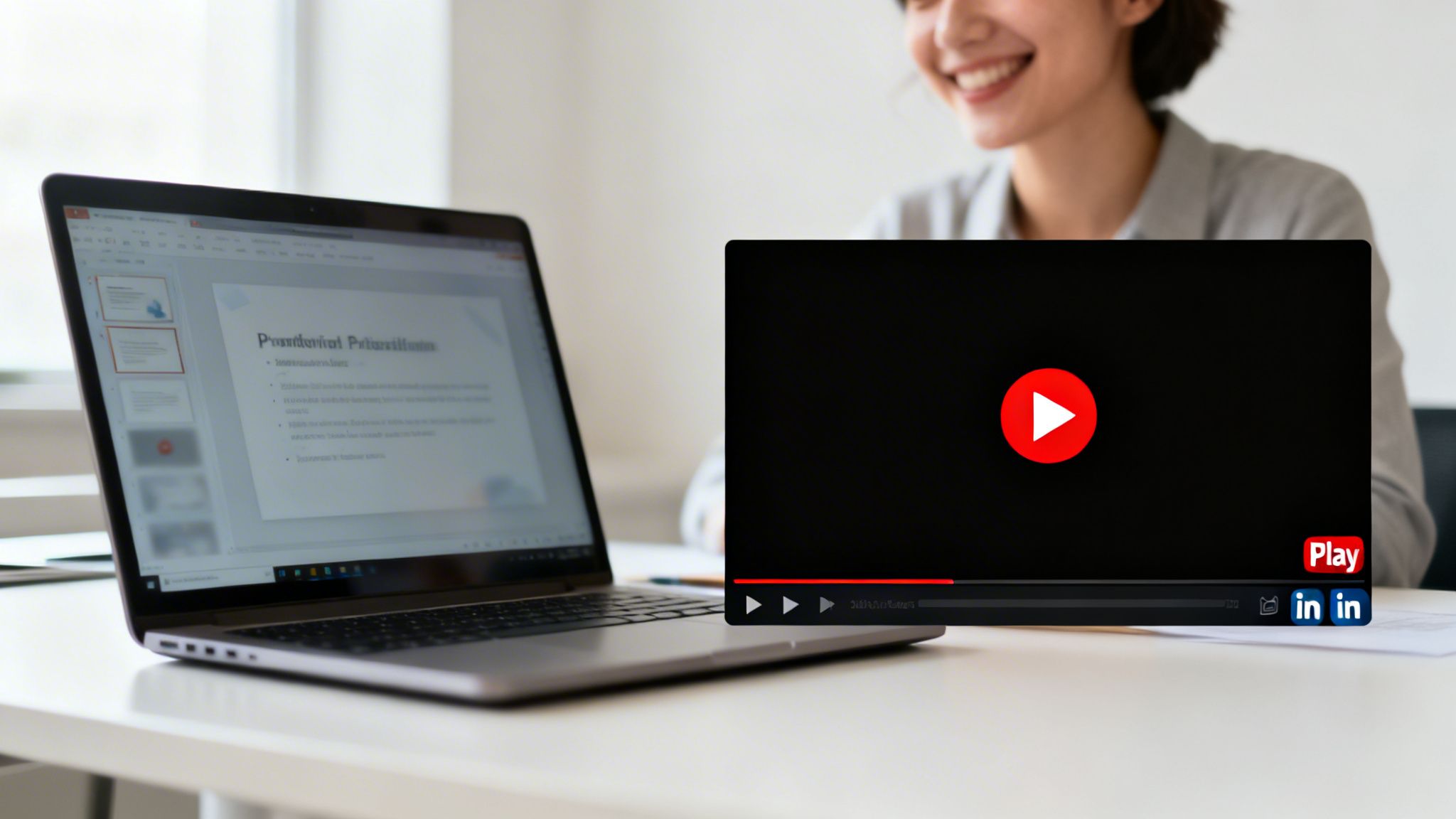
It’s surprisingly simple to convert your PowerPoint presentation into a video, and you have three great options: using PowerPoint’s built-in Export function, using a screen recorder, or leveraging an AI tool to create a polished MP4 file. This simple conversion makes your content more engaging, accessible, and ready for platforms like YouTube and LinkedIn.
Why Turn a PowerPoint Presentation Into a Video?
Let’s be honest: emailing a static slide deck just doesn't cut it anymore. We live in a world of dynamic content, and videos are essential for grabbing and holding attention. Converting your PowerPoint is a smart move that breathes new life into your ideas.
A traditional presentation needs you there to make an impact. A video, however, works for you 24/7. It can be shared, rewatched, and consumed on-demand, turning a passive deck into an active and memorable experience.
Expand Your Reach and Boost Engagement
When you convert your PowerPoint presentation to video, you unlock a much larger audience. Your hard work is no longer confined to a single meeting; it becomes a flexible asset for multiple channels.
Here’s why that’s a game-changer:
- Social Media is Video-First: Platforms like LinkedIn and YouTube are built for video. Sharing your presentation as a video is the best way to engage your network or find new customers where they already are.
- People Remember What They See: Viewers retain an incredible 95% of a message when they watch it in a video, compared to just 10% from reading text. Your key points will actually stick.
- It’s More Accessible and Convenient: A video lets your audience learn at their own pace. They can pause, rewind, and watch with subtitles—making your content far more inclusive.
The way professionals communicate is shifting toward video. As of 2025, PowerPoint's market share has already dipped to 22.75%, falling behind more visual-first platforms. It’s clear that video is leading the charge.
This guide shows you exactly how to make the switch. We'll explore three solid methods: using PowerPoint's export feature, screen recording for a personal touch, and leveraging powerful AI tools like LunaBloom AI to generate a polished video effortlessly.
Choosing the Right PowerPoint to Video Method
Picking the right way to turn your PowerPoint presentation into a video can mean the difference between a quick win and a day of frustration. The best choice depends on your end goal: are you looking for speed, creative control, or a professional finish?
Let's break down the three main paths. Each has unique strengths, and knowing when to use them will save you time and produce a better final video.
The Quick and Simple Native Export
PowerPoint’s "Export to Video" feature is the most direct route. If your presentation is ready to go—with animations and transitions already timed—this is your fastest option. It’s perfect for creating a simple, self-playing video to email your team or post internally.
No extra software or special skills are needed. Just set the quality, adjust the timings, hit export, and you're done. This method is the go-to for a straightforward digital copy of your slide deck that plays on its own.
The Personal Touch of Screen Recording
Sometimes, slides need your voice and personality to truly connect with the viewer. That's where screen recording software is a game-changer. Tools like Loom, Camtasia, or even the built-in Xbox Game Bar on Windows let you record your screen while you narrate your presentation.
This approach gives you total control over the pacing and allows for spontaneous commentary, which is fantastic for:
- Detailed Tutorials: Walk someone through a complex process step-by-step.
- Personalized Sales Pitches: Record a custom walkthrough of a proposal for a high-value client.
- Educational Lectures: Deliver a lesson that feels engaging and personal, as if you're in the room.
This method produces a more human-centric video, but it requires a confident delivery and a quiet recording environment.
The Polished Finish with AI Video Generators
What if you want a video that looks like it came from a production studio, but you lack the time or budget for complex editing? This is where AI video generators shine. Tools like LunaBloom AI can transform your static slides into a dynamic, professional-looking video.
Simply upload your presentation, and the AI takes over. It adds slick camera movements, generates a natural-sounding voiceover from your slide notes, and syncs background music automatically.
This method is less about file conversion and more about reimagining your presentation as a true video experience. It’s the best choice for high-impact marketing campaigns, corporate training modules, or any public-facing content where quality is paramount.
To make the decision easier, here's a quick comparison of these methods.
Comparing PowerPoint to Video Conversion Methods
| Method | Ease of Use | Final Quality | Speed | Best For |
|---|---|---|---|---|
| Native Export | Easiest | Standard | Fastest | Quick, no-frills conversions for internal sharing. |
| Screen Recording | Intermediate | Good | Moderate | Narrated tutorials and personalized presentations. |
| AI Generator | Easy | Highest | Fast | Polished, professional marketing and training videos. |
Ultimately, it’s about balancing your time, tech comfort, and the desired quality of the final video. Matching the tool to the task ensures your message doesn't just get seen—it makes an impact.
Preparing Your Slides for a Flawless Video Conversion
A great video never starts with a messy slide deck. Before you export or record, preparing your slides is the most important step. Think of it as setting the stage for a professional-looking final product.
A cluttered presentation will only become a cluttered video. The goal is to optimize your content for a dynamic format so your message is crystal clear. Spending a few minutes cleaning things up now will save you a massive headache later.
This decision guide helps you determine how much prep work is needed based on your video's purpose.
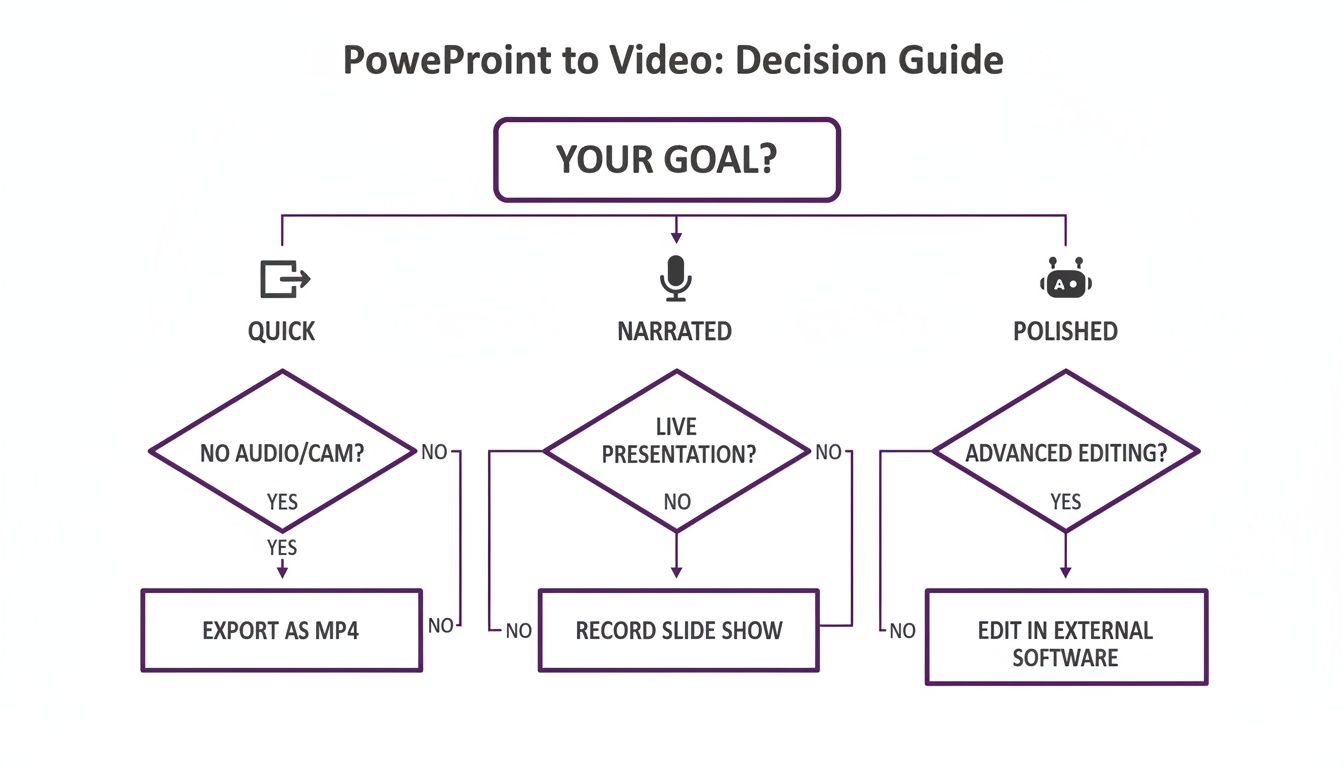
The takeaway is simple: match your effort to the outcome. A quick internal video doesn't need the same polish as a marketing video for your website.
Streamline Your Content
In video, clarity always beats quantity. A slide crammed with dense paragraphs and a dozen bullets might work in a live presentation, but it’s a disaster in a video where viewers can't ask you to slow down.
Your mission is to make each slide communicate one single, powerful idea. Be ruthless with your text to help the audience absorb your message. If a slide feels too busy, break it into two or three separate slides.
Script Your Narration in the Notes
This next tip is a game-changer, especially if you're using an AI video generator. Type your narration directly into the Presenter Notes section below each slide instead of using a separate document.
Here’s why this works so well:
- It keeps you organized. Your script is perfectly synced with the on-screen visuals.
- It powers AI tools. Many AI video generators pull text from slide notes to create an automatic, professional voiceover.
- It makes you a better presenter. If you're screen recording, having the script right there helps you sound confident and polished.
Think of your slide notes as the engine for your video's audio. A well-written script transforms a silent slideshow into a compelling narrative, guiding your viewer through the content with a clear voice.
Optimize Your Visuals and Branding
Nothing says "amateur" like pixelated images and inconsistent branding. Before converting your powerpoint presentation to video, do a quick visual audit. Ensure every image is high-resolution and that you have the right to use it.
Consistency is key. Check that all slides use the same color scheme, fonts, and logo placement. This creates a cohesive, branded feel that reinforces your professionalism. For more ideas on building engaging video content, check out our guide on the LunaBloom AI starter-app.
Using AI to Create Cinematic Videos From Your Slides
This is where things get exciting. Forget a simple export or screen recording. When you use AI to turn a PowerPoint presentation to video, you're not just converting a file—you're reinventing it. This method transforms your static slides into a visual story, and you don't need any video editing experience.
Say goodbye to the flat, lifeless videos from a basic export. We're talking about dynamic camera movements, professional voiceovers generated from your slide notes, and perfectly synced background music. It's all handled for you, delivering studio-quality content without the studio price tag.
This approach makes professional video creation accessible to everyone, from marketers launching campaigns to educators making lesson plans more engaging. The time saved compared to manual video editing is a massive advantage.
The Automated Creative Process
So, how does it work? It's surprisingly simple. You upload your prepared PowerPoint file to an AI video generator, and the platform analyzes your content slide by slide.
The AI identifies key elements—text, images, and structure—to build a unique video scene for each slide. Instead of static images, the AI adds subtle pans, zooms, and smooth transitions to create motion that keeps viewers hooked.
Think of the AI as your personal director and editor. It applies storytelling principles to your content, making smart choices about pacing and focus to keep your audience engaged from start to finish.
This automated direction elevates your presentation from a click-through slideshow to a real video experience.
From Notes to Narration in Seconds
One of the most powerful features is how AI handles audio. If you've written your script in the presenter notes, the AI can instantly turn that text into a natural-sounding voiceover.
You can choose from a library of voices, accents, and languages to adapt your content for different audiences. The AI then syncs the narration perfectly with the visuals.
- No Recording Booth Needed: Forget about background noise, mic quality, or on-camera nerves. You get a clean, professional voiceover every time.
- Easy Updates: Need to change the script? Just edit the text and regenerate the audio. No more re-recording everything.
- Background Music and Sound Effects: Most platforms include vast libraries of royalty-free music, which the AI can mix into your video to set the perfect tone.
This all-in-one approach to audio saves time and removes major technical hurdles. Between 2023 and 2025, business adoption of AI for video creation shot up from 18% to 41%. And it's working—businesses using AI-driven video marketing report an 82% increase in ROI, while AI-generated product demos can lift conversion rates by 40%.
Customization and Final Polish
While the AI does most of the heavy lifting, you're always in control. Once the first draft is ready, you can easily tweak it. Adjust the timing of a scene, swap the background music, or try a different AI voice.
This workflow gives you the speed of automation and the freedom of manual control. When you’re happy with the result, export your video in various formats and resolutions, ready to share. It's a straightforward way to turn your ideas into polished, professional videos. You can see it in action by checking out the LunaBloom AI app.
Exporting and Sharing Your Video for Maximum Reach
You've done the hard work, and your video is polished and ready. But the job isn't done until it’s in front of your audience. This final step—exporting and sharing—is where your effort pays off. Getting the technical settings right ensures your video looks professional on any screen, from a smartphone to a projector.
When it comes to format, MP4 is the undisputed champion for online use. It offers the perfect balance of high quality and manageable file size, making it universally supported on platforms like YouTube and your company’s internal network.
For resolution, make 1080p (Full HD) your standard. It delivers a crisp, clear picture on most modern screens. If your presentation has fine details or you're aiming for a cinematic feel, 4K is a great option—just be prepared for larger file sizes and longer upload times.
Platform-Specific Sharing Strategies
Where you post your video is just as important as how you export it. Each platform has its own audience and rules for grabbing attention. Simply dumping the same file everywhere is a missed opportunity.
Tailor your approach to get your video seen:
- For YouTube: Focus on discoverability. Write a compelling, keyword-rich title and a detailed description. A great custom thumbnail is non-negotiable—it needs to make someone want to click. Brushing up on YouTube SEO tips can make a huge difference.
- For LinkedIn: Keep it professional and get to the point. Videos under two minutes perform best. Don't forget subtitles! A staggering 85% of social media videos are watched with the sound off. Frame your video with a post that adds context and sparks conversation.
- For Instagram (Reels/Stories): Think vertical. A standard widescreen (16:9) video will look awkward. Reformat your content to a 9:16 aspect ratio to fill the screen. Keep it short, punchy, and visually engaging to stop the scroll.
Your export settings are the foundation, but your sharing strategy drives results. Tailoring your approach for each platform is key to turning a great video into one that gets seen, shared, and remembered.
This extra effort is crucial as the demand for video continues to grow. A recent study found that 85% of people have been convinced to buy a product or service after watching a brand’s video. For more ways to create compelling content, check out our guide on the LunaBloom AI blog for fresh ideas.
Common Questions About Converting PowerPoint to Video
Even with a solid plan, questions often arise when turning a PowerPoint presentation to video. It's a straightforward process, but a few details can be tricky. Let's cover the most common questions to ensure you're ready to go.
Can I Edit My Video After Converting It From PowerPoint?
Absolutely, but your editing options depend on the conversion method you used.
If you use PowerPoint's built-in "Export" feature, you'll get a finished video file (usually an MP4). You can import this file into any video editor to make basic changes, like trimming the ends or adding text overlays.
However, for true editing freedom, AI video generators are superior. They work non-destructively, meaning your script, visuals, and voiceover remain separate and editable within the platform. Need to update a stat or swap an image? Just go back into the project, make the change, and re-render the video in seconds.
What Is the Best Video Format and Resolution to Use?
For nearly all online uses, MP4 is the gold standard. It provides the perfect blend of high quality and reasonable file size, ensuring your video plays smoothly on websites, social media, and everywhere else.
As for resolution, consider 1080p (Full HD) your minimum. This ensures your video looks crisp and professional. If your slides contain detailed charts or complex visuals, exporting in 4K will deliver incredible clarity, especially on larger screens. Just be prepared for larger files that take longer to upload.
The bottom line: choose settings based on where your audience will watch. For most business and marketing purposes, a 1080p MP4 file is the perfect combination of quality and practicality.
How Do I Add Narration and Music to My Video?
Good audio separates amateur videos from professional ones. You have several options:
- Inside PowerPoint: The simplest method is to record narration directly onto each slide before exporting.
- With Screen Recording: If you're screen recording, your microphone will capture your voice as you speak, syncing it with the slides.
- Using AI Generators: For the cleanest sound, AI video generators are in a league of their own. They can take your slide notes and instantly create a natural-sounding AI voiceover.
Most AI platforms also include large libraries of royalty-free music. This is a big deal, as you want to avoid copyright strikes on YouTube. Using pre-cleared music keeps your content safe. If you're curious about how these tools handle your data, you can read our privacy policy.
Ready to transform your static slides into captivating videos? LunaBloom AI makes it effortless to create studio-quality content in minutes. From automated voiceovers to cinematic animations, our platform handles the heavy lifting so you can focus on your message. Start creating professional videos today at https://lunabloomai.com.