Have you ever created a fantastic PowerPoint presentation, only for it to be overlooked after the meeting?
Imagine converting those static slides into an engaging video that keeps working for you 24/7. Turning PowerPoint into a video is one of the easiest ways to maximize the value of your content.
With narration, music, and synchronized timing, your message will always be delivered exactly as you intend. It’s a fast, impactful enhancement that makes your content more memorable, shareable, and effective.
Why It’s Smart to Turn Your PowerPoint Into a Video
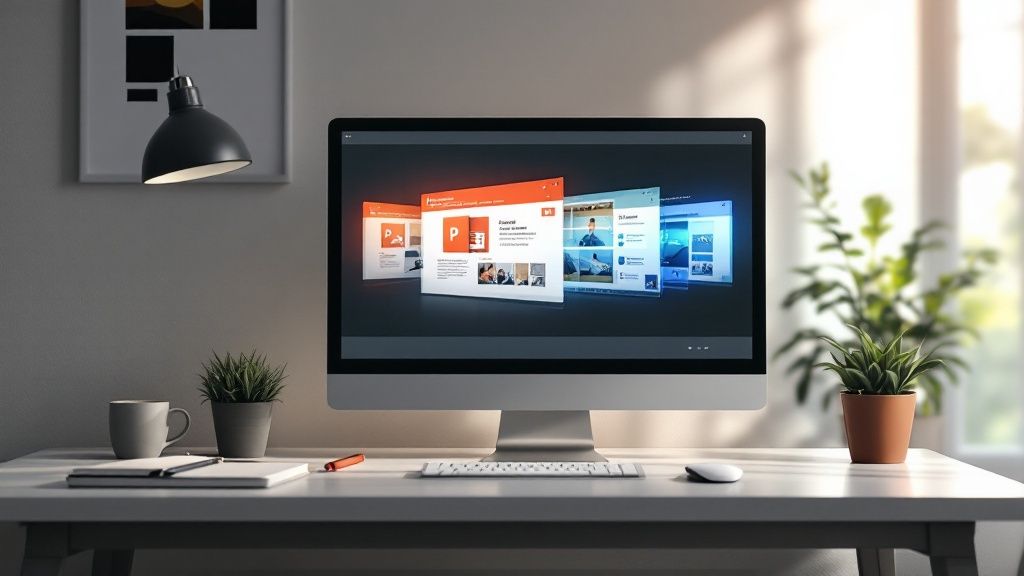
Think about the last presentation you sat through. Were you captivated, or did your mind wander as someone read bullet points off the screen? In a world dominated by video, a standard slide deck struggles to hold attention. Converting your PowerPoint into a video isn’t just a neat trick; it’s a strategic advantage.
When you convert your deck, you move from a passive medium to an active one. Video grabs attention immediately, using visuals, sound, and motion to pull viewers in. This simple shift is a game-changer for helping people actually remember what you have to say.
Broaden Your Reach and Impact
Once your presentation is a video, its potential skyrockets. You can share it on LinkedIn, embed it in an email marketing campaign, or feature it on your website as a permanent resource. A simple .pptx file can’t do that.
Consider the possibilities:
- Sales Teams: Send perfectly polished video pitches to prospects, ensuring every lead receives the same powerful, consistent message.
- HR Departments: Build a library of video training modules for new hires, making onboarding scalable and accessible on demand.
- Marketers: Slice up webinar content and turn slides into bite-sized promotional videos for YouTube, Instagram, or TikTok.
This is a classic example of smart content repurposing. You get more mileage out of the work you’ve already done. It’s all about working smarter, not harder.
The marketing world has embraced this shift. By 2025, an estimated 98% of marketers plan to use video, with a massive 87% already satisfied with the ROI it delivers. Explainer and product demo videos are particularly effective, proving how powerful this format is for clear communication. Tools like LunaBloom AI put this power in your hands, letting anyone create a professional video without needing a film degree.
How to Prepare Your Slides for Video Conversion

A great video starts with a well-prepared presentation. Before you even think about turning your PowerPoint into a video, take time to optimize your slides for clarity and flow. This prep work makes a world of difference in the final product.
Think of each slide as a scene in your video. Your biggest enemy is clutter. The goal is to focus on one main idea per slide, making it easy for viewers to absorb information without feeling overwhelmed by text or confusing graphics.
Declutter and Focus Your Message
The best AI video generation tool are simple and direct. If a slide is packed with bullet points, that’s your signal to break it down across multiple slides. Your narration will fill in the details, so let your visuals support the story, not try to tell it all at once.
Follow these core principles for success:
- One Idea, One Slide: Dedicate each slide to a single concept. This keeps the pacing sharp and helps your audience follow along without getting lost.
- High-Resolution Visuals: Use high-quality images and graphics that look crisp on any screen. Blurry visuals signal an amateur video and can damage your credibility.
- Consistent Branding: Stick to your brand’s fonts and color palette. This reinforces your brand identity and gives the final video a polished, cohesive feel.
A great presentation isn’t about cramming in information; it’s about telling a clear, compelling story. Each slide should build on the last, creating a logical path for your audience to follow from start to finish.
Craft a Script Before You Convert
Finally, write a concise narration script beforehand. This is a non-negotiable step. Writing out what you plan to say for each slide is crucial for nailing the pacing and ensuring your message lands effectively. This script becomes the foundation for your AI-generated voice-over in tools like LunaBloom AI.
A solid script prevents rambling and helps you deliver a tight, impactful message. It ensures every word serves a purpose, making your final video more engaging and respectful of your audience’s time.
Creating Your Video with LunaBloom AI
With your slides polished and ready, it’s time for the fun part: actually turning your PowerPoint into a video.
Using a tool like LunaBloom AI makes this process far more creative and less technical than you might think. Forget wrestling with complex timelines or keyframes. Here, it’s all about making smart choices to bring your story to life.
The process kicks off when you upload your .pptx file. Once uploaded, LunaBloom AI analyzes each slide and prepares it for transformation. Think of it less as a simple file conversion and more as building the foundation for a dynamic video.
From Static Slides to an Animated Story
Your first major decision is choosing the visual style. LunaBloom AI offers a variety of AI video generation templates, each with its own unique feel.
Ask yourself what you’re trying to achieve. Are you aiming for a sleek corporate presentation or something more casual and energetic? Selecting the right template from the start is key to making your video feel professional and on-brand.
This quick infographic breaks down the basic workflow.
As you can see, it’s a straightforward path from your raw PowerPoint file to a finished video.
Next, you can add a human touch without stepping in front of a camera by choosing an AI avatar as your presenter. With plenty of options for different looks and styles, you can find a persona that fits your brand or topic. Pair them with a natural-sounding AI voice, and you have a presenter ready to deliver your script.
This technology is advancing rapidly. Similar platforms can now convert slides into videos with realistic avatars speaking over 110 languages, complete with perfect lip-syncing. This isn’t just a slideshow anymore; it’s a full-fledged, presenter-led video experience.
Fine-Tuning Your Video’s Pace and Script
Once you’ve selected your template and presenter, it’s time to jump into the editor to tweak individual scenes. This is your opportunity to polish the AI-generated script, adjust the timing of each slide, and perfect the overall flow.
The interface provides all the controls you need to manage narration and timing—two critical elements for keeping your audience engaged.
I’ve learned that the secret to a great presentation video is rhythm. You need to give people enough time to actually read what’s on the slide while the voiceover adds the extra detail. Don’t be afraid to add a little pause here and there for dramatic effect—it works.
Spending a few extra minutes on the script is just as important. The AI will likely pull text directly from your slide notes, but you’ll want to edit it to sound more natural and conversational. A great tip is to read it out loud. You’ll instantly catch any awkward phrasing and can smooth it out.
Adding Professional Polish to Your Video
Great visuals capture your audience’s attention, but audio quality and accessibility keep them watching. A truly professional video is about creating a complete experience that feels polished from start to finish. After all, the whole point of turning a PowerPoint into a video is to make your message stick.
This is where you add the final touches that distinguish a decent video from a great one. Elements like a clear voice-over, accurate subtitles, and suitable background music can elevate a simple slide conversion into compelling content. LunaBloom AI is designed to handle these details for you.
Elevate Your Message with Audio
Let’s face it: a crackly, hard-to-understand voice-over is an instant turn-off. A clear, natural-sounding narration is non-negotiable for holding your viewer’s attention.
LunaBloom AI’s voice generation can deliver your script in numerous languages, instantly opening up your content to a global audience without the cost of hiring voice actors. It’s a huge time-saver that ensures your message comes across with perfect clarity every time.
To complete the soundscape, a little background music goes a long way in setting the right mood.
- Match the music to your message. An upbeat track is perfect for a product launch, while a softer, ambient tune works better for a training tutorial.
- Keep the volume down. The music should support the voice-over, not compete with it. A good rule of thumb is to mix the audio at around 80% narration and 20% music.
Your video’s sound is just as important as its visuals. I’ve seen beautifully designed presentations fall flat because of poor audio. It feels unprofessional, makes the content hard to follow, and viewers will click away in a heartbeat.
Maximize Engagement with Subtitles
Never skip subtitles. Many people watch videos in public, during their commute, or while scrolling social media with the sound off. On-screen text has become essential. Data consistently shows that videos with subtitles see a massive boost in viewer engagement.
This used to be a tedious task, but LunaBloom AI automatically generates accurate subtitles for your narration, saving you hours of transcription work. This simple feature makes your video accessible to everyone, including those with hearing impairments, and ensures your message gets through even when the audio is muted.
AI Feature Comparison for Video Enhancement
| Feature | Benefit for Your Video | Implementation Tip |
|---|---|---|
| AI Voice Generation | Creates consistent, clear narration without recording. Instantly localizes content by generating voice-overs in multiple languages. | Test a few AI voices to find one that matches your brand’s tone—some are formal, others more conversational. |
| Automatic Subtitling | Makes your video accessible and effective even when muted. Boosts SEO and engagement on social platforms. | Always proofread auto-generated subtitles. While AI is good, it can miss nuances or proper nouns. |
| Background Noise Removal | If you record your own audio, this cleans up distracting sounds, making your narration sound crisp and professional. | Use this feature even if you think your audio is clean. It often catches low-level ambient noise you didn’t notice. |
| Smart Music Suggestions | AI can analyze your video’s content to recommend fitting background tracks, saving you search time. | Start with the AI’s suggestion, but don’t be afraid to override it. You know your content’s emotional goal best. |
Layering these AI-powered features is what transforms a basic slideshow into a polished piece of content that feels professionally produced.
Exporting Your Video for Maximum Impact
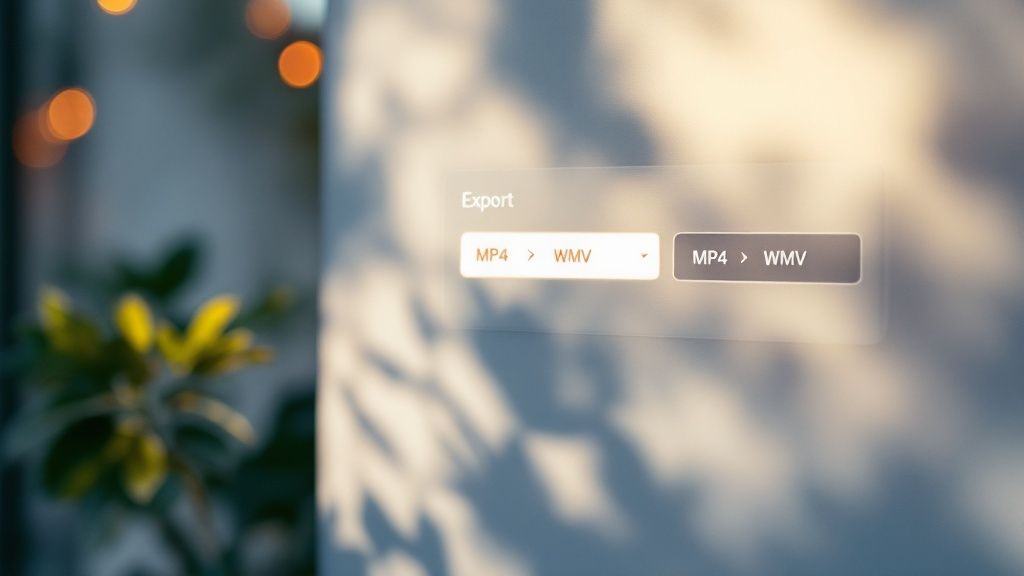
You’ve done the creative work; now it’s time to prepare your video for the world. This final step is crucial. How you export your project determines its look and feel on every platform, from YouTube to LinkedIn.
Don’t rush this part. Inside LunaBloom AI, the export process is simple, but your choices here make all your hard work pay off.
Choosing Your Resolution and Format
When exporting, you’ll see options like 1080p (Full HD) and 4K. Which one is right?
- 1080p (Full HD): This is the perfect balance of sharp quality and manageable file size for most online platforms like social media and websites. It looks crisp on almost any screen without taking forever to upload.
- 4K: Choose this only if you know your video will be displayed on very large screens, like at a conference. The files are massive and generally overkill for a social media feed.
For file format, stick with MP4. It’s the universal standard, compatible with virtually every device and platform while keeping file sizes reasonable. A polished export is non-negotiable for building trust.
After turning a PowerPoint into a video, the export settings are your final quality check. A crisp, clean video says you pay attention to detail, while a pixelated one can undermine your entire message.
The impact of high-quality video is significant. Recent data shows that 91% of consumers believe video quality directly affects their trust in a brand. This proves why getting the export right is so important for making a professional impression.
One last thing: file size. If you plan to email your video or upload it to a platform with strict size limits, you might need to compress it. For tips on how to do this without sacrificing quality, check out this ultimate guide to compressing video without losing quality.
Common Questions About Converting PowerPoint to Video
Even with tools that simplify the process, you likely have questions about turning a PowerPoint into a video. Here are answers to some of the most common ones.
Can I Edit the Narration Script After Uploading My PowerPoint?
Yes, and you absolutely should. A good AI tool like LunaBloom AI is built for this. When you upload your deck, the platform uses your slide notes to create a first-draft script.
However, that’s just a starting point. You have full control to edit the text for each slide directly in the editor. This is your chance to polish the message, add personality, or tweak the pacing—all without altering the original PowerPoint file. It’s a critical step for making the final narration sound natural.
What Is the Best Video Format for Social Media?
Hands down, MP4 is the gold standard. For YouTube, LinkedIn, or Facebook, it offers the perfect balance of great video quality and a manageable file size.
Always export in at least 1080p (Full HD) resolution. And here’s a pro tip: for Instagram Reels or TikTok, make sure your project is set to a 9:16 aspect ratio. Formatting for vertical viewing makes a huge difference in how people engage on their phones.
One of the best things about modern video tools is that you don’t need a beast of a machine to create professional results. Since platforms like LunaBloom AI are cloud-based, all the intense processing happens on their servers, freeing up your computer to do other things.
How Long Does It Take to Convert a PowerPoint with AI?
This is where the magic happens. The exact time depends on your slide count, but for a standard 10-15 slide presentation, you can easily have a finished, narrated video in under 30 minutes.
The AI handles the tedious tasks—generating the voiceover, animating the avatar, and syncing everything. This frees you up to focus on creative parts, like fine-tuning the script or choosing the perfect background music.
Do I Need a Powerful Computer to Create These Videos?
Nope. Because tools like LunaBloom AI are cloud-based, all the heavy lifting is done on their servers, not your local machine.
As long as you have a stable internet connection and a web browser, you’re good to go. You can create a polished, professional video from almost any device, whether it’s a high-end desktop or a standard laptop.
Ready to stop presenting slides and start sharing dynamic videos? With LunaBloom AI, you can create professional content in just a few minutes, without needing a whole production team. Start creating your first video today.