Someone hands you a thirty-slide deck on Thursday afternoon and asks for a polished video by Friday. The slides are crowded, the speaker notes are incomplete, and nobody has decided whether the result is meant for training, sales, social media, or search.
That situation is common because a deck already contains the raw ingredients of a video, but not yet the experience. A useful slide-to-video production needs pacing, narration, chapter structure, captions, accessible visual design, disclosure decisions, and exports suited to each channel. Animation is only one part of the job.
Why Slide to Video Is the New Default
Slide to video means transforming presentation content into an authored video experience. It might include animated slide elements, synchronized narration, captions, chapter markers, presenter footage, synthetic voice, or a combination of these. It isn't automatically a screen recording, where viewers watch the presenter operate the deck. It isn't necessarily a narrated slideshow either, because a strong conversion may restructure the slides, crop them for mobile, split one dense page into several scenes, and create short clips from a longer presentation.
It also isn't the same as a fully animated explainer. An explainer is usually designed from a script and storyboard from the beginning. Slide to video starts with an existing communication system, then adapts that system for moving images and audience-controlled viewing.
The format has deep roots. PowerPoint was first released by Forethought for Macintosh on April 20, 1987, and Microsoft released its first official version in 1990. By 2003, PowerPoint was generating more than $1 billion per year for the product, while contemporary reporting estimated roughly 30 million presentations created each day. That history matters because slide-to-video tools aren't inventing a new production habit from nothing. They're extending one of the most established ways teams already organize information.
Producer's rule: Preserve the deck's message architecture, not every slide.
A good conversion keeps the hierarchy that helps viewers understand the subject, while removing elements that only work in a live room. A small footer, a dense reference list, or a complex build animation may need a new treatment. A chart may need narration and audio description. A title slide may become a short opening scene rather than a static frame.
The practical opportunity for teams is straightforward. They can turn existing sales decks, lessons, product updates, onboarding material, and internal presentations into reusable media without adopting an entirely separate production discipline. Platforms such as LunaBloom AI fit into that broader workflow by combining script, voice, captions, editing, and export decisions in one environment, but the production judgment still happens before the render button.
Preparing Your Deck for the Workflow
Start with a content audit, not an animation preset. Open the source deck and mark every slide as essential, supporting, redundant, or unsuitable for video. A slide with one clear claim can often become a scene directly. A page with several competing ideas usually needs to be divided or rewritten before import.
Clean the source before adding motion
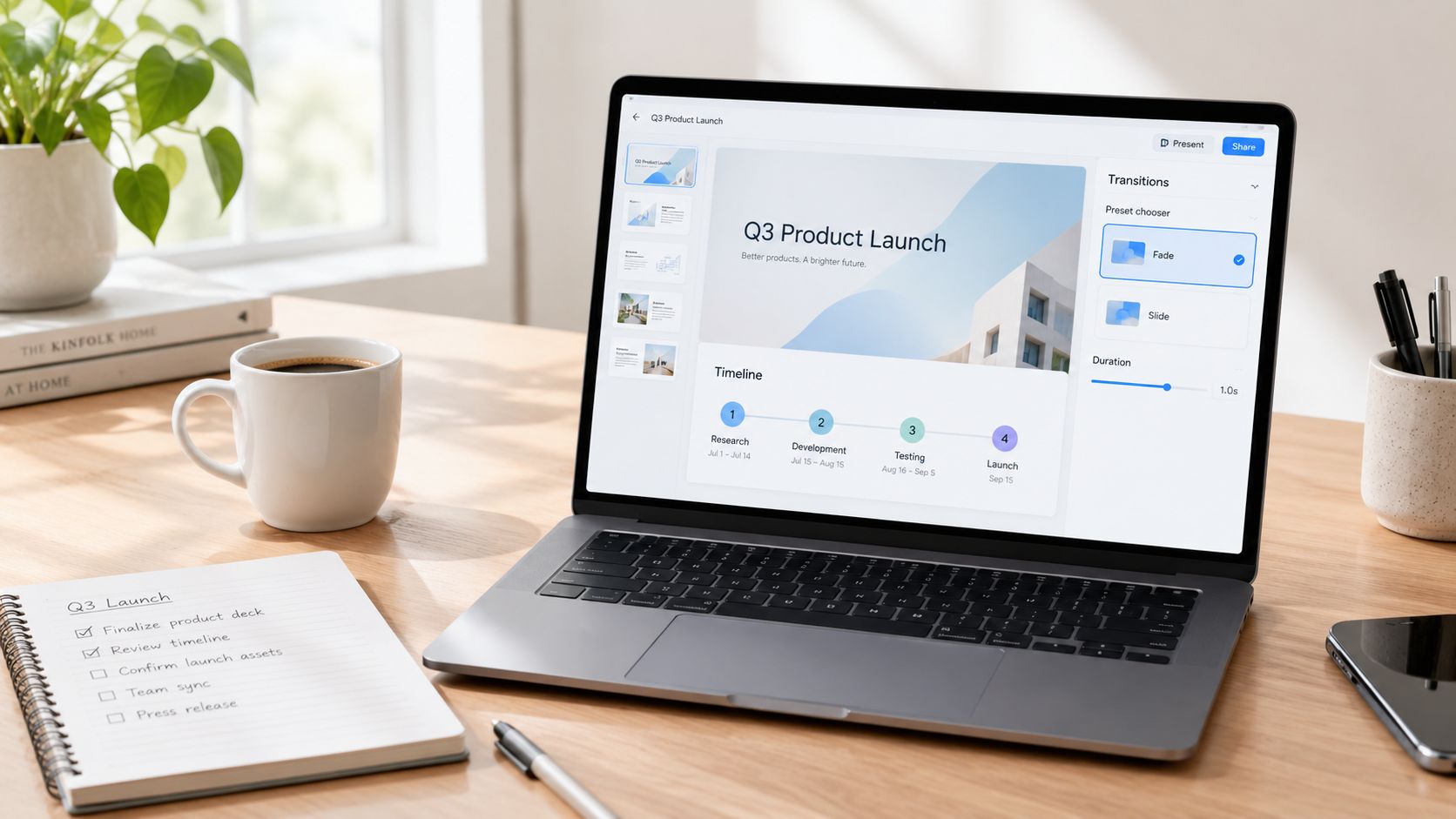
Remove speaker-only prompts, duplicate slides, outdated logos, and decorative stock images that don't support the message. Replace walls of text with a headline, a visual anchor, and narration that supplies the explanation. Viewers can pause a deck, but they can't comfortably absorb every paragraph while a video continues.
If the source material is still being assembled, a presentation generator such as create classroom slideshows in minutes can help create a more consistent starting point. It won't decide what deserves emphasis in the finished video, so review the output as a script and storyboard rather than treating the generated deck as production-ready.
Record slide-level metadata while the structure is still easy to change. Keep the working title, intended audience, learning or conversion objective, narration status, chapter name, and accessibility notes attached to each slide or scene. Those labels become useful later when you create a transcript, build chapters, write metadata, or produce alternate cuts.
Match movement to meaning
Use animation to reveal relationships, not to prove that the software can animate. A simple fade can introduce a new idea. A measured build can show sequence. A highlighted region can direct attention to a chart. Constant zooms, bouncing text, and unrelated transitions make the viewer track the interface instead of the argument.
Timing should follow the narration and visual complexity. A simple statement needs less screen time than a diagram that requires comparison. Don't lock every slide to the same duration. Instead, create a rough voice layer first, then adjust the visual entrance and exit points around the words.
Narration can be recorded by a subject-matter expert, a professional voice artist, or a synthetic voice that has been reviewed carefully. Whichever route you choose, write for speech. Short sentences, explicit transitions, and natural pauses sound better than polished corporate copy read aloud.
Before the first full render, confirm four things:
- The deck is purposeful: Every surviving slide has one job.
- The pacing is visible: Each scene has a planned entrance, pause, and exit.
- The visuals support speech: Narration doesn't describe text viewers are already struggling to read.
- The voice layer is usable: Pronunciation, emphasis, terminology, and tone have been checked.
The LunaBloom AI starter app is one example of a workspace where a team can move from prepared content toward a finished video, but no tool can rescue an unedited deck. Pre-production remains the cheapest place to fix a confusing message.
Structuring Segments for Real Viewers
A continuous narration may be easy to export, but it gives viewers little control and makes a long deck feel longer than it is. Chaptered slide-to-video content lets people pause after a concept, return to a difficult section, or jump directly to the part that answers their question.
Segment by meaning rather than by an arbitrary clock. Start by assigning one learning objective, decision, or audience question to each slide cluster. Then place a natural pause after the explanation, before a recap, example, exercise, or change in subject.
Research supports this approach. A review reported that segmenting improved learning in 71.4% of retention tests and 83.3% of transfer tests. A separate synthesis of 56 studies involving 7,713 participants found positive effects for retention (d = 0.32), transfer (d = 0.36), and cognitive-load reduction (d = 0.23), although segmented content also required substantially more learning time.
Segment lengths by use case
| Use Case | Typical Segment Length | Core Pattern |
|---|---|---|
| Product overview | Short, focused scene | One benefit, one proof point, one next action |
| Training module | Learner-paced chapter | Explain, pause, retrieve, apply |
| Executive update | Compact business section | Context, decision, implication |
| Social clip | Brief standalone cut | Hook, single idea, clear takeaway |
| Tutorial | Task-based chapter | Goal, demonstration, recap |
These are production patterns, not rigid timing rules. A complicated chart may need more time than a simple title and two supporting points. The viewer should feel that each segment reaches a useful stopping point.
Don't fragment every sentence into a new scene. Excessive breaks interrupt the mental model and force viewers to rebuild context. Use a chapter marker when the subject, task, or decision changes, not whenever the timeline reaches a convenient interval.
For training, preserve user controls where the platform allows them. Measure completion, replays, quiz retention, and delayed transfer rather than relying only on view counts. A video that receives fewer starts but helps people perform the task later may be doing better work than a widely opened clip that nobody remembers.
Making the Video Accessible by Default
Accessibility begins in the script and storyboard. If a chart communicates an essential conclusion only through color or shape, the narration should state that conclusion. If a slide uses a diagram, the production should explain the relationship represented by the diagram rather than assuming viewers can inspect it visually.
Build the access layer into production
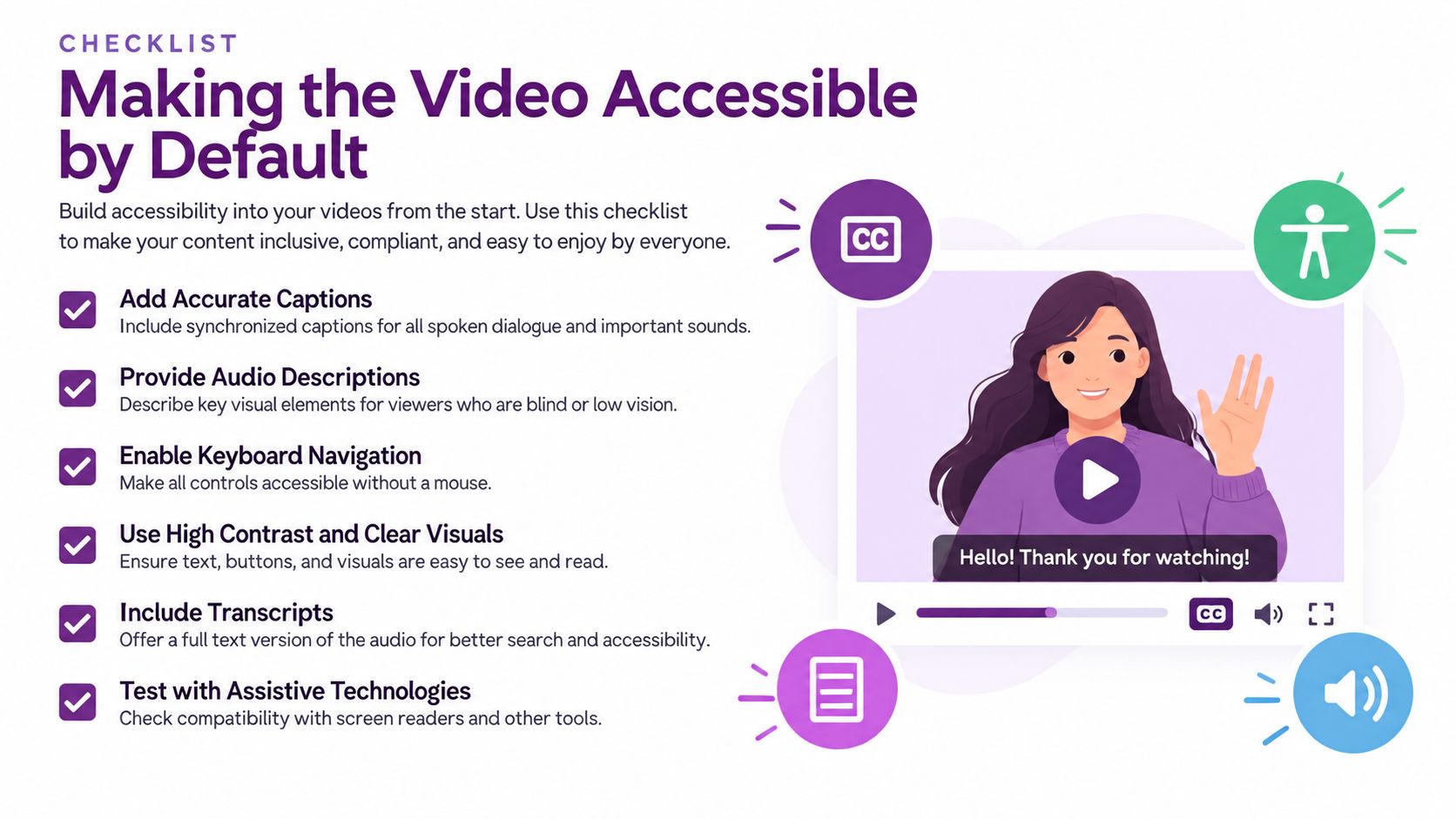
The W3C Web Content Accessibility Guidelines require captions for all prerecorded audio content in synchronized media under Success Criterion 1.2.2, unless the media is clearly presented as an alternative to text. Captions should identify speakers and include meaningful non-speech information conveyed through sound, not merely transcribe spoken words.
Automated captions save time, but they still need a human pass. Review proper names, product terminology, acronyms, punctuation, timing, speaker labels, and omissions. Check the captions against the audio at normal speed, then scan them without sound to confirm that the meaning remains clear.
A practical review should also include:
- Readable text: Use sufficient contrast, sensible type size, and safe placement that survives desktop and mobile crops.
- Speaker identification: Distinguish presenters, interviewees, and other voices whenever more than one person speaks.
- Transcript access: Provide a downloadable or viewable transcript where the publishing environment supports it.
- Visual description: Explain essential charts, diagrams, gestures, and on-screen changes that narration doesn't already cover.
- Motion restraint: Avoid animation that makes text hierarchy harder to follow or creates unnecessary cognitive strain.
- Audio checks: Review volume consistency, pronunciation, pauses, and meaningful sound cues.
A resource such as DesignStack on accessible web design can help teams think beyond captions and consider contrast, structure, and interaction more broadly.
Accessibility isn't a post-production polish pass. It determines what the script says, what the slide displays, and whether the exported video offers an equivalent experience.
Synthetic narration can improve consistency, but it can also remove the explanation that made the original presentation understandable. A beautiful transition doesn't describe a chart. A moving icon doesn't identify a speaker. Treat accessibility as an export validation step, and test the finished asset with the access needs of its intended audience in mind.
Trust, Disclosure, and the Human Layer
Fast AI production isn't automatically a marketing advantage. A polished avatar or natural-sounding synthetic voice can make a factual error appear more authoritative, especially when viewers assume a real expert delivered the message.
A 2025 survey of 2,385 global consumers found that 59.5% preferred an in-video icon or label for AI-generated video, while 77% wanted to know whether content was created by AI and 62% supported visible watermarks or labels. The same research reported that 82.6% of U.S. consumers had seen videos they suspected were AI-generated, and 36% said such videos reduced trust in a brand. These findings come from the 2025 AI Video Report.
Decide what stays human
The right question isn't whether AI can handle the whole conversion. It's which parts require accountable human judgment. Subject-matter review should remain responsible for claims, examples, citations, product details, and regulated language. A reviewer should also approve the final pronunciation and tone for each market.
A credible workflow includes:
- Content approval: A named subject-matter owner checks the script against the source deck.
- Voice consent: Teams document permission for cloned voices, avatars, and likenesses.
- Disclosure choice: Synthetic narration, imagery, or presenters receive a clear label suited to the channel and audience.
- Pronunciation review: Local reviewers check names, technical terms, accents, and regional phrasing.
- Version control: Published files retain the approved script, reviewer comments, and final export relationship.
- Risk escalation: Healthcare, finance, education, executive communication, and onboarding content receive additional review when realism could mislead.
The LunaBloom AI about page describes the type of broader production environment teams may use for AI-generated video, but the platform choice doesn't replace governance. Trust comes from showing viewers that people remain accountable for what the video says and how it represents them.
Don't hide synthetic elements behind a human-looking presentation. Clear disclosure may make the production feel less magical, but it gives viewers a more accurate basis for judging the content. In high-stakes communication, a transparent, slightly imperfect video is often more credible than a flawless performance with unclear authorship.
Exporting for Search and Social Platforms
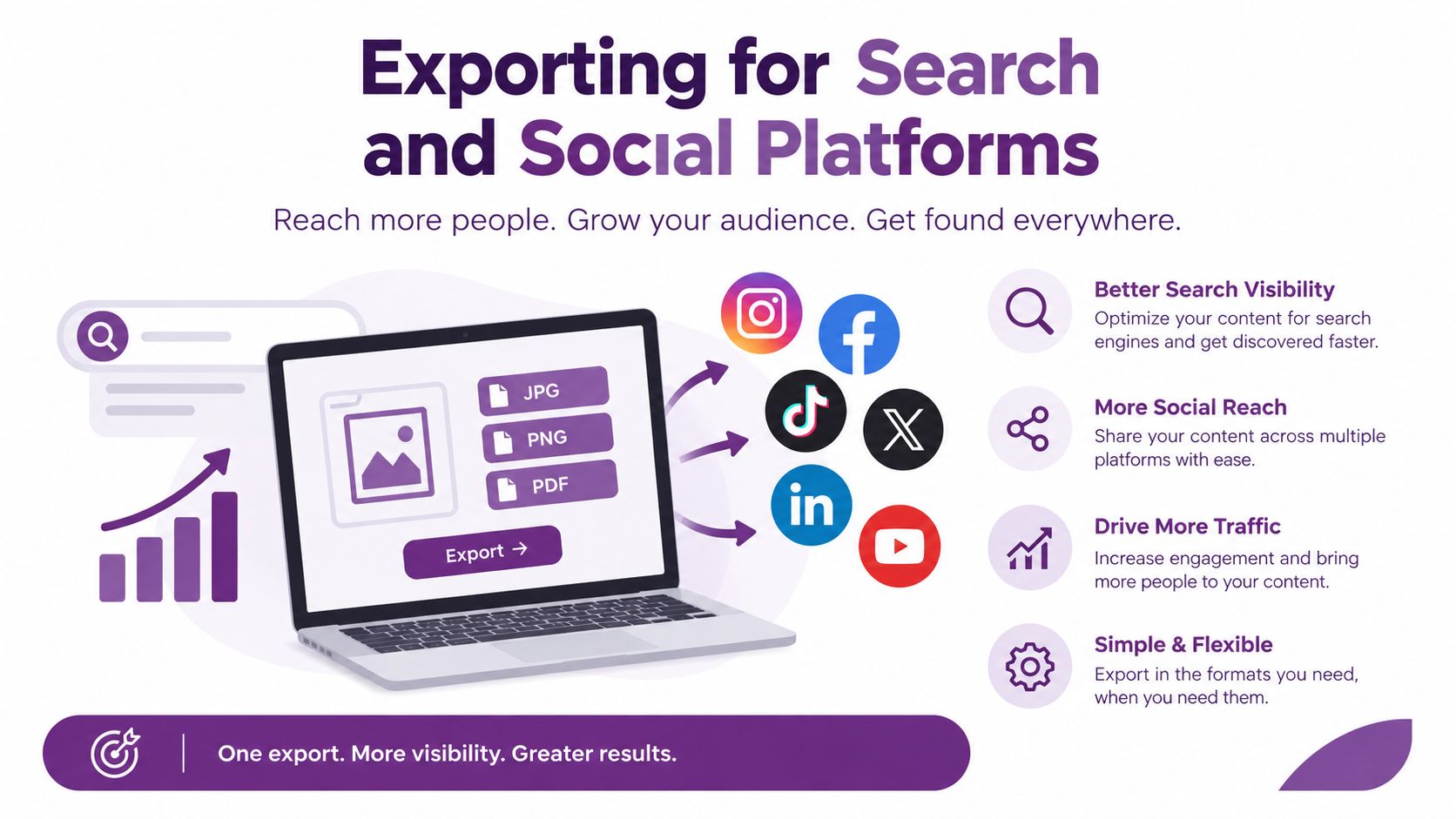
The final render is not the end of the workflow. It creates a source asset that should be adapted for the places where people will discover, watch, and reuse it.
For search, create chapters with meaningful names rather than generic labels such as “Slide 4.” Google's VideoObject documentation explains that Clip structured data can define each segment with an exact start time, end time, and displayed label. SeekToAction structured data can instead describe how timestamps appear in a URL, helping Google identify relevant points automatically. Google may detect segments itself, but its documentation prioritizes key moments supplied by the publisher through structured data or a YouTube description.
Use labels that answer viewer questions:
- Problem: What issue does the presentation address?
- Method: What process or framework does it demonstrate?
- Example: Where does the audience see the idea applied?
- Decision: What should the viewer choose or do next?
Build channel versions from the same source
Social distribution needs a different editorial cut. A HubSpot survey found that 17.13% of marketers planned to increase investment in short-form video in 2025, making it the leading format for planned investment, while 21% considered short-form video the format delivering the highest ROI, ahead of live-streaming video at 15.53%. The figures are reported in HubSpot's video marketing statistics.
That doesn't mean every deck should become a short clip. It means the source project should be designed for reuse. Create one video per core idea, put the main benefit in the opening seconds, and prepare vertical-friendly compositions rather than forcing a wide presentation into a narrow frame.
A practical export checklist looks like this:
- Name chapters around audience intent.
- Add start times, end times, and labels to the search version.
- Create a standalone cut for each major idea.
- Reframe text and visuals for vertical viewing.
- Keep captions readable without sound.
- Export a longer chaptered version and shorter social edits.
- Review titles, descriptions, thumbnails, and metadata before publishing.
Check the LunaBloom AI pricing page when comparing production options, but evaluate any platform by its export control, caption workflow, chapter support, review process, and ability to preserve source quality across channels.
Your Slide to Video Workflow Recap
Keep this checklist beside the production board:
- Prepare the deck: Remove clutter, assign one purpose to each scene, and write narration that sounds natural aloud.
- Segment for the viewer: Group slides by idea, add meaningful pauses, and create chapters people can move through.
- Build accessibility in: Review captions, label speakers, describe essential visuals, preserve readable text, and provide transcript access.
- Govern the human layer: Verify facts, approve voices and likenesses, disclose synthetic elements, and assign accountable reviewers.
- Export by channel: Add search-friendly chapter data, create focused social cuts, and adapt framing for vertical viewing.
The strongest slide-to-video projects aren't the ones with the most elaborate animation. They're the ones that make the message easier to follow, easier to search, easier to access, and easier to trust. A deck becomes a useful video when its structure survives the change in medium and its production choices respect the viewer.
Use LunaBloom AI's app to test this workflow on one existing deck this week. Choose a presentation with a clear audience, create one chaptered master version, then publish a focused cut and review the result for captions, pacing, accessibility, disclosure, and search structure before scaling the process.
LunaBloom AI helps businesses and creators turn scripts, slides, images, and prompts into edited videos with natural voiceovers, captions, avatars, localization, and social-ready exports. Visit LunaBloom AI to convert one presentation into a chaptered, accessible video workflow you can review, adapt, and publish with confidence.