Making a great training video comes down to three key stages: pre-production (planning), production (creating), and post-production (polishing). Getting that first stage right is everything. It’s the single biggest factor in creating content that actually teaches, engages, and empowers your team.
Phase 1: Planning Your Training Video for Success
Jumping into recording without a solid plan is a classic mistake. It leads to confusing videos, wasted time, and frustrated teams. The best training content is always built on a strong foundation long before anyone hits the record button.
Think of it like building a house. You wouldn't start laying bricks without a detailed blueprint. This planning phase is your blueprint. It's where you define what people will learn, who you're teaching, and the best format to deliver the information. Nailing this part makes the entire process smoother and far more effective.
Define Your Training Objectives
First, what is the goal? You need a clear, measurable outcome. What should an employee be able to do after watching your video? Vague goals like "get better at sales" are not specific enough.
Instead, focus on action-oriented objectives:
- "After watching, a new sales rep will be able to demonstrate the three key features of our new software during a mock client call."
- "A warehouse employee will be able to correctly follow the new five-step safety protocol for operating the forklift."
By starting with a precise outcome, you create a North Star that guides every decision, from the script's content to the final edits. It ensures every second of your video serves a distinct purpose.
Understand Your Audience
Who are you talking to? A video for seasoned engineers will look very different from one for new customer service hires. You must tailor your content to their existing knowledge, technical comfort, and learning style.
Don't guess—ask them. A quick survey can reveal what they already know and where they get stuck, ensuring your content hits the mark.
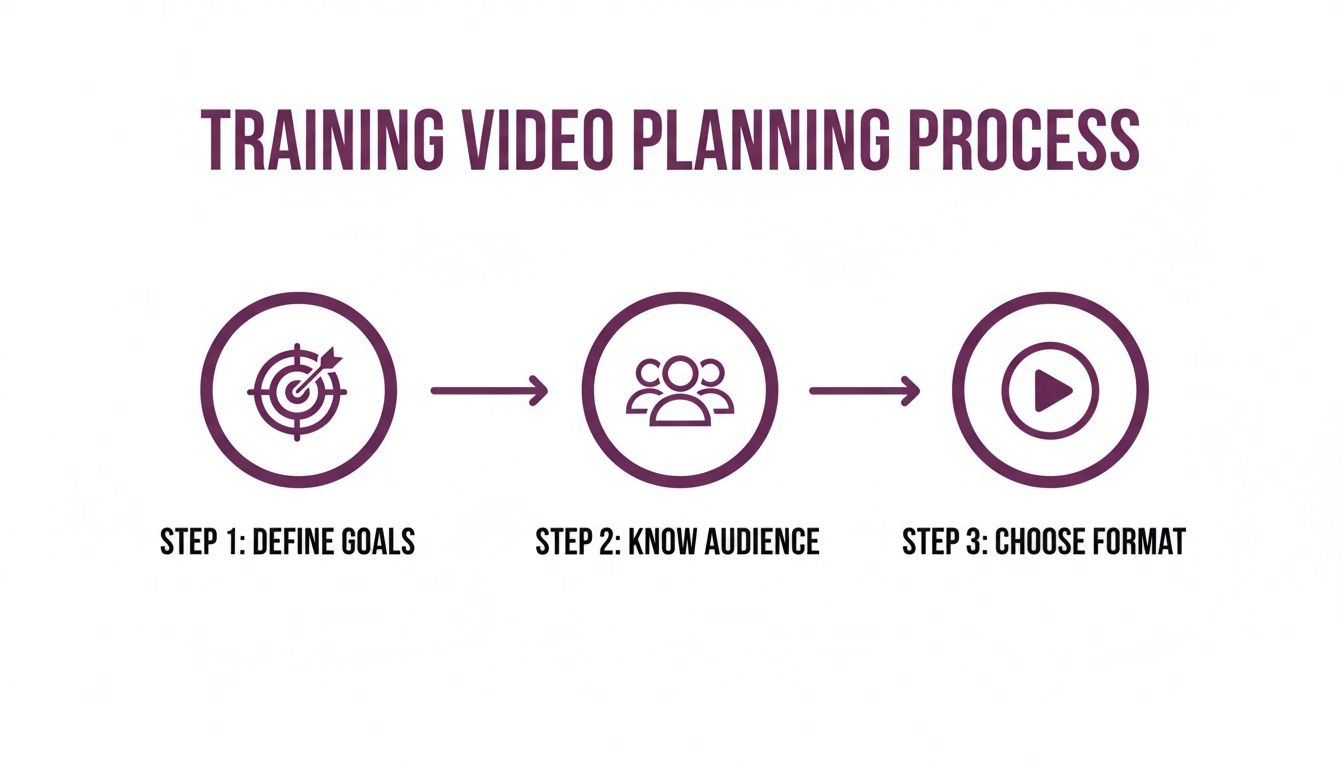
This simple flow—define goals, know the audience, choose a format—is the bedrock of any successful training video. The global market for corporate training videos is booming because this approach works. Read the full research about the training video market to see the data for yourself.
Phase 2: Crafting a Script That Teaches and Engages
A great training video lives and dies by its script. This isn't about writing a stuffy document; it's about creating a clear path that guides learners through a topic, holds their attention, and makes complex ideas feel simple. A good script separates a video that helps from one that gets skipped.
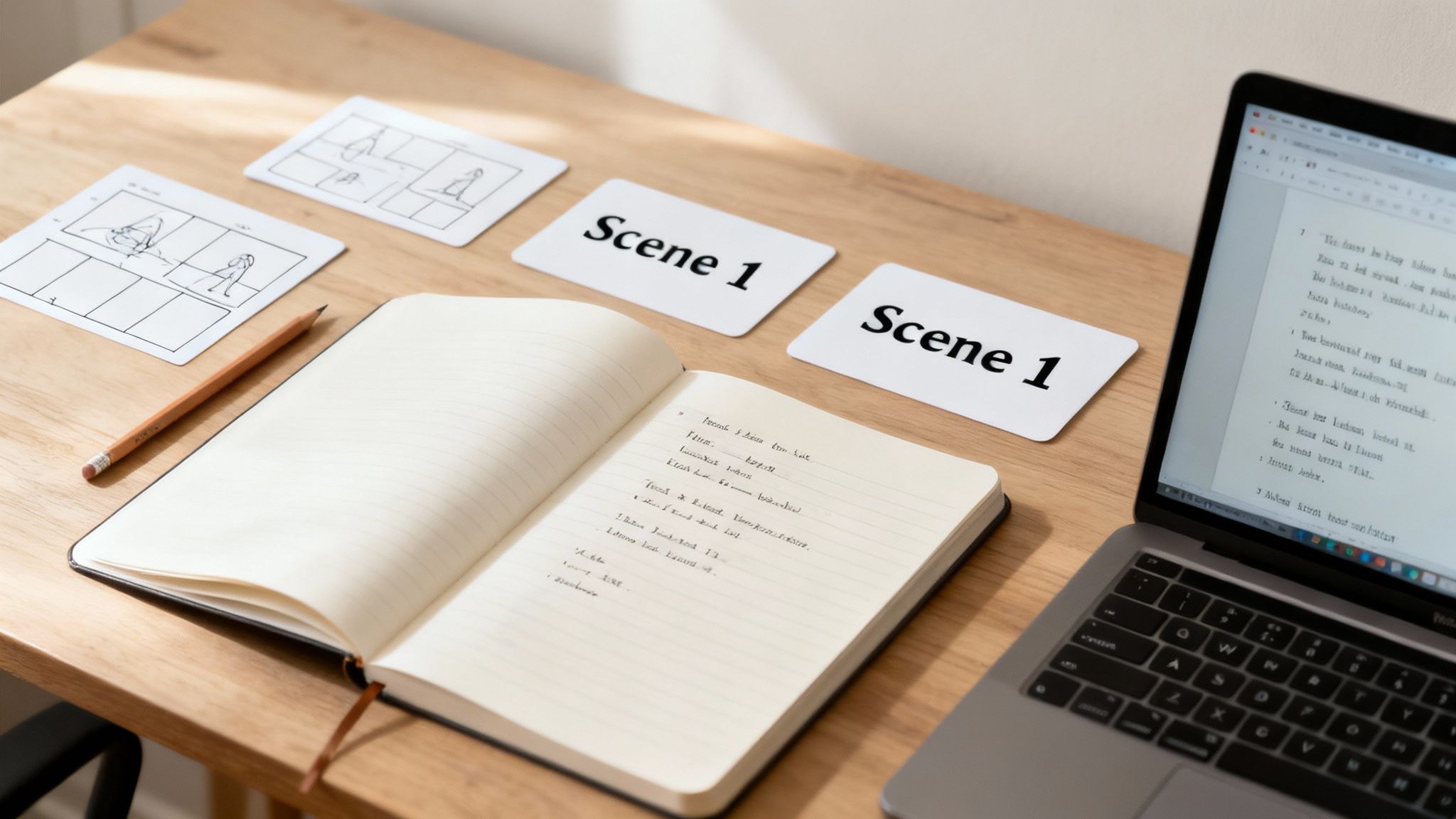
The trick is to write for the ear, not the eye. Use simple, conversational language—the same words you'd use explaining something to a colleague over coffee. This approachable tone makes a huge difference in helping people absorb information.
Write for a Natural Flow
Think about how people actually talk. We use shorter sentences, contractions (like "it's" instead of "it is"), and ask questions. Your script should have that same natural rhythm.
Here’s a practical tip: read your script out loud. If you stumble over words or it sounds robotic, rewrite it. Keep tweaking until it flows effortlessly. This simple check is the fastest way to ensure your narration will connect with your audience.
- Lose the Jargon: Unless you're training specialists, swap industry acronyms for simpler terms. If you must use a technical term, explain it immediately.
- Be Direct: Every sentence should serve a purpose. Get to the point quickly and cut any fluff that doesn't contribute to the learning goal.
- Tell a Mini-Story: Even a technical how-to video is more engaging with a simple story: here’s the problem (beginning), here’s how to solve it (middle), and here’s the result (end).
Visualize Your Script with a Storyboard
Once the script feels right, map it out visually with a storyboard. This is your roadmap for translating words into scenes. It doesn't need to be a work of art; stick figures and basic sketches are fine.
A storyboard forces you to think about how visuals, narration, and on-screen text will work together. You'll decide what the viewer sees at each moment—a screen recording, a graphic, or a live-action shot. Planning this now saves you from headaches and rework during editing.
A storyboard is more than a planning tool; it’s a communication tool. It ensures everyone, from the subject matter expert to the editor, shares the same vision before you start recording.
Break Down Complex Topics
Learner burnout is real. No one wants to sit through a 45-minute video lecture. To keep your audience engaged, break large topics into smaller, bite-sized modules.
Think in terms of microlearning. Each video should focus on one specific skill or concept and ideally be under five minutes long. This strategy has several benefits:
- It Improves Retention: Short, focused bursts of information are easier for our brains to process and remember.
- It's More Accessible: When team members need a quick refresher, they can find the exact two-minute video they need instead of scrubbing through a long recording.
- Updates are Easy: If a process changes, you only need to remake one short video, not reshoot and re-edit an entire epic.
Tools like LunaBloom AI can significantly accelerate this workflow. You can drop your script into the platform and generate a polished video with a realistic AI presenter in minutes. Check out our blog for more tips on making your content creation process more efficient.
Phase 3: Producing Your Video (With or Without a Camera)
With your script and storyboard ready, it's time for production. This is the phase where you capture all the raw material for your training video.
Whether you step in front of a camera or use an AI video generator, the goal is the same: to get clean, professional-looking footage that keeps your audience focused.
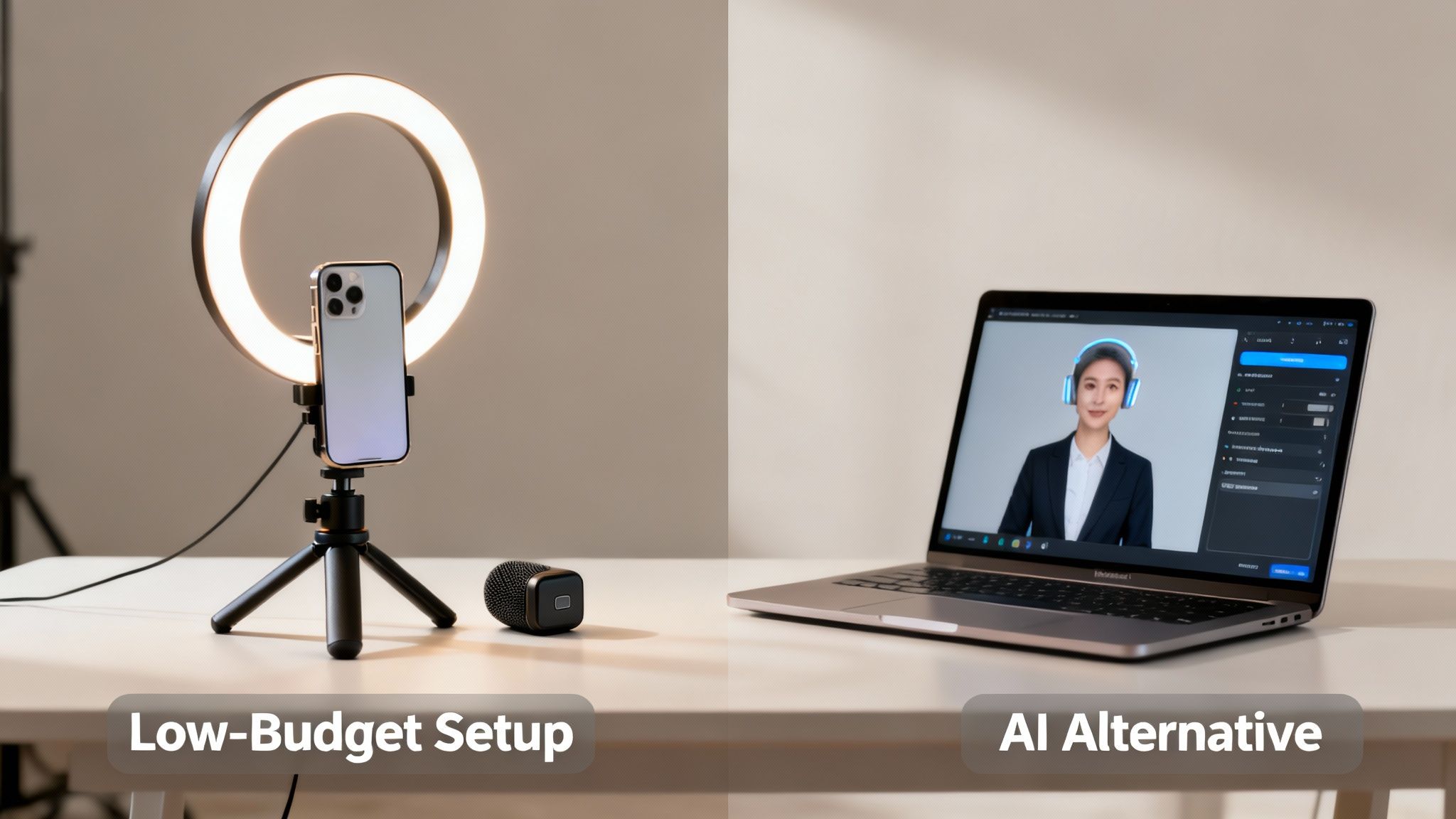
You have two main paths: the traditional, DIY camera setup or a completely digital, AI-driven approach. Both can deliver fantastic results. The best choice depends on your resources, timeline, and comfort level.
Traditional Filming Production Tips
If you're going the camera route, don't worry. You don't need a Hollywood budget to look polished. A few simple tricks can make a world of difference.
Here’s a secret: audio quality is more important than video quality. People will forgive a slightly grainy shot, but they’ll click away instantly if the audio is scratchy, echoey, or hard to understand.
- Get a simple microphone. Even an inexpensive lavalier (lapel) mic or a basic USB mic is a massive upgrade over your phone or laptop's built-in microphone.
- Find a quiet spot. Turn off fans and air conditioners. Shut the door. Rooms with soft surfaces like carpets and curtains are great for absorbing echo.
Next, focus on lighting. Good light makes you look more professional and helps even a basic smartphone camera produce a crisp, clear image.
You don't need a complex three-point lighting setup. Just place your main light source (a ring light or a bright window) in front of you and slightly to one side. This one move eliminates harsh shadows and creates a flattering look.
The Camera-Free AI Alternative
What if you don't have the gear, the right space, or you just don't want to be on camera? This is where modern AI video tools change the game. Platforms like LunaBloom AI let you bypass traditional production headaches, making the process of making a training video accessible to anyone.
Instead of setting up mics and lights, you can create a finished video directly from your script. Here’s how it works:
- Pick an AI Presenter: Choose from a library of lifelike AI avatars to be the face of your training.
- Generate the Voiceover: Paste your script, and the AI will generate a clear, professional voiceover. You can even clone your own voice for a personal touch.
- Produce Instantly: The tool combines the avatar and voiceover, adds automatic captions, and delivers a polished, shareable video in minutes.
This approach is a lifesaver for teams that need to create training content at scale, cutting out the time and cost of filming. You can generate your first AI video with LunaBloom AI's starter tools to see for yourself.
Phase 4: Editing Your Video for Maximum Impact
You've finished recording. Great! But you're not done. The raw footage is just the starting point—the real magic happens in post-production. This is where you shape your clips into a polished, professional training video that holds attention and drives learning.
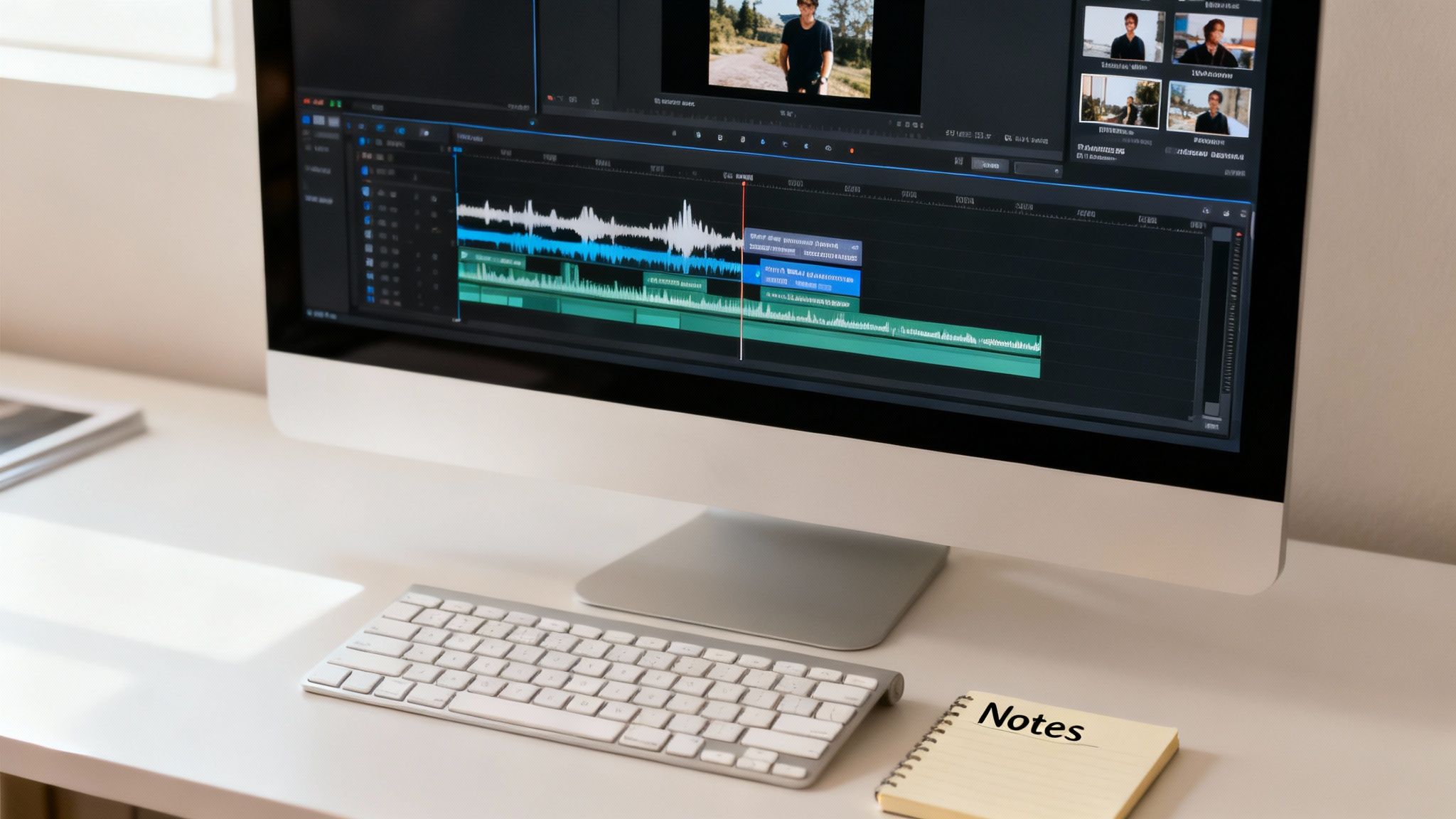
Editing is more than just cutting out mistakes. It's about controlling the pace, adding visual context, and reinforcing key messages to create a clear and engaging learning experience.
The Fundamentals of a Great Edit
Before adding fancy transitions, nail the basics. A clean, well-paced edit is the foundation of any good training video.
Your first pass should focus on structure. Cut out mistakes, awkward pauses, and rambling moments. Be ruthless. Every second that doesn't serve the learning objective is a reason for someone to stop watching.
Next, add visual variety to keep things interesting.
- B-Roll footage: This is supplemental video that adds context. If you're talking about a software feature, show a screen recording of it in action.
- Graphics and text overlays: Use these to highlight key terms, stats, or step-by-step instructions. This visual reinforcement helps information stick.
Choosing Your Editing Tools
Picking the right video editing software is a key decision. Options range from free, simple tools to professional suites. For most training content, an intuitive editor is more than enough to handle trimming clips, adding text, and adjusting audio.
The AI-Powered Editing Revolution
Manually editing video can be a huge time-sink. Thankfully, AI is automating tedious tasks, making the process of making a training video far more efficient.
Modern platforms now use AI to handle jobs that used to take hours of manual work, freeing you to focus on the creative side of storytelling.
AI in post-production doesn't replace the editor; it empowers them. It acts as an efficient assistant, handling the grunt work so you can concentrate on crafting a better learning experience.
With a platform like LunaBloom AI, many of these features are built-in. Instead of manually typing and timing subtitles, the platform does it for you automatically. You can try the LunaBloom AI platform to see how these features can speed up your workflow.
Key AI Editing Features to Look For
Here are some game-changing AI features in video production:
- Automatic Subtitle Generation: AI can listen to your audio and generate accurate, timed captions in minutes, ensuring accessibility and improving comprehension.
- AI Voiceovers and Cloning: Need to fix a mistake or add a sentence? AI can generate new audio in a consistent voice—or even a clone of your own—without a reshoot.
- Smart Background Music: Some tools can analyze your video's mood, suggest fitting music, and automatically adjust the volume during dialogue.
Phase 5: Distributing Your Video for Team Success
You’ve created a fantastic training video, but that’s only half the battle. If your team can’t easily find and watch it, your hard work is wasted. An effective distribution strategy turns a well-made video into a tool that truly helps people.
The final step is deciding where your video will live. This decision impacts security, user experience, and your ability to track what's working.
Choosing the Right Distribution Channel
Where you host your video directly impacts its success. An informal tutorial for a small team has different needs than a mandatory compliance video for a global company.
Here are a few common options:
- Learning Management System (LMS): The standard for formal corporate training. An LMS lets you bundle videos with quizzes, track completions, and manage certifications.
- Company Intranet (e.g., SharePoint): A secure and straightforward option for process guides and software walkthroughs that need to be easily accessible.
- Private Video Platforms (e.g., Vimeo): A great middle ground offering strong security features, detailed analytics, and a user-friendly experience.
For a deeper look at your options, check out this guide on the best software for editing videos.
To help you decide, here’s a quick comparison of the most common distribution channels.
Distribution Channel Comparison
Select the right platform to host your training video. This table compares common distribution channels based on key factors for corporate training.
| Platform | Best For | Key Features | Considerations |
|---|---|---|---|
| Learning Management System (LMS) | Formal, structured training; compliance; onboarding | Tracking, certification, assessments, SCORM compliance | Can be complex and expensive; less flexible for informal content |
| Company Intranet (SharePoint, etc.) | Internal knowledge sharing; process guides | Secure, centralized, integrated with existing workflows | Limited analytics; potential for poor user experience and search |
| Private Video Platforms (Vimeo, Wistia) | A mix of formal and informal training; marketing content | Advanced analytics, security controls, easy embedding | Subscription costs; not a complete learning ecosystem |
| Cloud Storage (Google Drive, Dropbox) | Quick, informal sharing for small teams | Simple to use, low cost, collaborative features | Lacks security, no analytics, not scalable for formal training |
The right choice depends entirely on your specific goals, audience, and content.
Optimize Your Video for Discoverability
No matter which platform you choose, make it easy for people to find your video. What words would they type into a search bar when they’re stuck?
Optimize your video with a clear title, a helpful description, and relevant tags.
- Title: Be specific. "How to Submit an Expense Report in Q3" is much better than "Expense Training."
- Description: Briefly explain what the video covers and what the viewer will learn. Add timestamps for key sections.
- Tags: Use keywords people are likely to search for, like "expense reports," "software tutorial," and "finance process."
Think of your internal video library as a mini search engine. Good metadata (titles, descriptions, tags) is the SEO that ensures your valuable content doesn't get buried.
Create a Feedback Loop for Continuous Improvement
Your work isn’t finished when you hit publish. The final piece is setting up a way to get feedback from your team. This is how you learn what's working and how to make your next video even better.
Add a short survey at the end of the video, enable a comments section, or send a follow-up email. The insights you gain are invaluable for refining your approach and proving the ROI of your training efforts. This cycle of improvement is what separates a good training program from a great one. Tools like the LunaBloom AI platform can help you quickly update videos based on feedback without a full reshoot.
Common Questions About Making Training Videos
Even with a solid plan, you might have some questions. Getting into video production can feel like a huge undertaking, but it doesn't have to be. Let's tackle some of the most common questions about making a training video.
How Much Should a Training Video Cost?
The honest answer: it depends. A simple screen recording you make yourself might only cost your time. On the other end, a high-end video with professional actors and a production crew can cost tens of thousands of dollars.
Here's a quick breakdown:
- DIY Approach: Using your smartphone and a basic editor? Your main cost is time.
- AI Video Generator: This is a game-changer for affordability. Subscriptions to platforms like LunaBloom AI offer a low-cost way to produce polished videos at scale.
- Hiring a Freelancer: Expect to pay $500 to $2,500 for a single, short animated explainer video.
- Hiring a Production Company: For complex projects, an agency can charge from $3,000 to over $10,000 for one high-quality video.
What Are the Essential Tools I Need to Start?
You need less than you think. For most internal training videos, a few key items are all you need to look and sound professional.
A basic starter kit includes:
- A Decent Microphone: Clear audio is essential. A simple USB mic or a clip-on lavalier mic is a great first investment.
- Good Lighting: A simple ring light provides soft, even light that eliminates harsh shadows.
- A Screen Recorder: A must-have for any software or process walkthrough.
- Simple Editing Software: User-friendly editors can handle the cuts, titles, and music you'll need.
Of course, an AI video platform can replace all of that. With a tool like LunaBloom AI, the only thing you need is your script.
How Can I Measure the Effectiveness of My Videos?
Is your video working? Measuring success is about more than view counts. It ties directly back to your initial learning goals. Can your team now do the thing you taught them?
Here are a few ways to measure your video's impact:
- Completion Rates: Are people watching the whole video? If not, it might be too long or not engaging enough.
- Quizzes and Assessments: Test your team's knowledge after they watch to see how well the information stuck.
- Performance Metrics: The ultimate test. Did behavior change? If you made a video on a new sales process, are more deals closing? If it was a safety tutorial, have workplace incidents decreased?
- Direct Feedback: A quick survey can provide priceless feedback on what was helpful and what could be improved.
Hopefully, that clears things up. If you have more questions about how an AI-first workflow could work for your team, get in touch with our team at LunaBloom AI.
Ready to transform your training content without the hassle of cameras and editing? With LunaBloom AI, you can turn any script into a professional video with AI avatars and voiceovers in minutes. Start creating your first video for free at LunaBloom AI