16:9 is the standard HDTV aspect ratio, equivalent to approximately 1.78:1. It became the global standard through ITU-R Recommendation BT.709, approved in 1998 after more than 20 years of international engineering work.
Why does a correctly formatted 16:9 video still lose a subtitle, product detail, or face at the edge of the frame? The answer isn't always the export preset. Aspect ratio controls the shape of your image, but display geometry, overscan, cropping, and platform formatting determine what viewers see.
For creators, that distinction matters. A 16:9 master may be ideal for television and horizontal video, yet need a deliberate reframe for portrait feeds. A technically correct file can still look stretched, surrounded by black bars, or cropped in the wrong place if the frame doesn't match the screen or the composition doesn't allow for alternate crops.
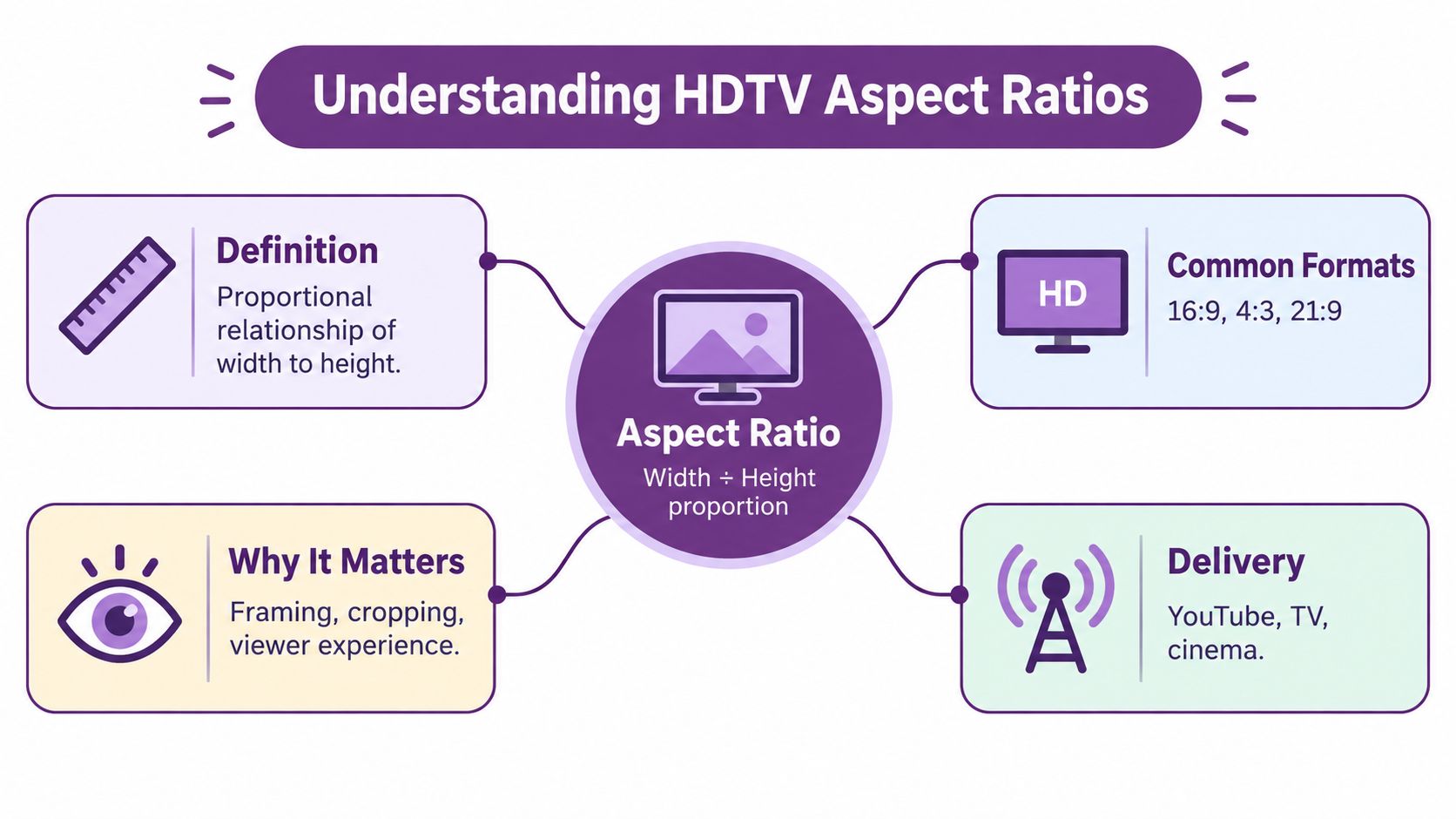
Understanding HDTV Aspect Ratios
An aspect ratio describes the proportional relationship between a video's width and height. The first number represents width, and the second represents height. In a 16:9 frame, every 16 units across correspond to 9 units vertically, regardless of whether the image is displayed on a small monitor or a large television.
That makes aspect ratio different from resolution. Resolution describes the number of pixels in the image, while aspect ratio describes its shape. A 16:9 video can use different pixel dimensions while retaining the same widescreen geometry.
The formats creators encounter most
16:9 is the standard HDTV shape, and it's the safest starting point for horizontal television, broadcast, and general widescreen production. 4:3 is narrower and associated with conventional television, archival material, and deliberately retro compositions. 21:9 is much wider, making it useful for cinematic presentation when the extra horizontal space supports the story.
Those formats affect the viewer's experience in different ways:
- Letterboxing adds horizontal black bars above and below a wider image displayed in a narrower frame.
- Pillarboxing adds vertical black bars at the sides when a narrower image appears in a wider player.
- Cropping removes part of the original image so it fills a target frame.
- Overscan trims a portion of the outer image area on some displays, even when the file itself is correctly formatted.
The history of 16:9 explains why it became the default. The ratio emerged from an international effort to replace the 4:3 format used by conventional television. In 1983, the CCIR, predecessor of today's ITU-R, created a working party to pursue one worldwide HDTV standard. Engineers considered 5:3 early in the process, then selected 16:9, approximately 1.78:1, as a practical compromise between traditional 4:3 television, or 1.33:1, and theatrical formats such as 1.85:1. The decision was made during early meetings at the BBC's Kingswood Warren research facility, with widescreen cinema influencing the final choice. See the HDTV history reference for the documented development of the format.
For teams producing tutorials, advertising, training, or product videos, the useful question is simple: where will the video play, and which parts of the frame must remain visible? A production workflow such as LunaBloom's company overview may generate multiple versions, but the composition still needs to anticipate each destination.
How 16 – 9 Became the Global Standard
Television engineers faced a practical mismatch. Conventional television used a relatively compact 4:3 frame, while cinema increasingly used wider images. A new HDTV format had to support film without making television content feel unnaturally wide or leaving excessive unused space around familiar programming.
The choice wasn't a random screen preference. During the early international HDTV work, engineers assessed several candidate shapes, including 5:3, at meetings held at the BBC's Kingswood Warren research facility. They ultimately chose 16:9, approximately 1.78:1, because it sat between traditional television and common theatrical formats. Engineering analysis later described the ratio as close to both the linear and geometric means of popular theatrical ratios, approximately 1.76:1 and 1.75:1. The historical comparison of television and cinema ratios explains why that middle position helped reduce unused space across different content shapes.
A ratio became a production framework
The important change was that 16:9 didn't remain an aesthetic suggestion. It became part of the technical framework for HDTV production.
ITU-R Recommendation BT.709 defines a 16:9 image with 1,920 samples, or pixels, across each active horizontal line, alongside 1,080-line high-definition pictures. It also supports progressive scanning at 24, 25, and 30 frames per second, plus interlaced and progressive operation at 50 and 60 pictures per second. These details connect the image shape with resolution and motion handling rather than treating aspect ratio as an isolated editor setting. The ITU's HDTV standard history records that more than 20 years of study preceded unanimous approval of the current BT.709 recommendation in 1998.
That history explains a common production default. When an editor opens a 16:9 HDTV sequence, the setting reflects an international production and broadcast standard. It isn't merely a television manufacturer's choice.
Production insight: Choose 16:9 because it suits the delivery environment and composition, not because every project should inherit the same preset.
The standard also clarifies why two videos with identical geometry can feel different. A progressive frame draws all active lines for each picture, while an interlaced workflow divides image information into fields. Frame rate, scanning method, color handling, and resolution all belong in the delivery decision.
For a producer, the practical result is reassuring. A 16:9 master gives television and widescreen platforms a familiar canvas, while leaving you to solve the creative problem that standards can't solve for you: keeping important content safe when the same scene is reframed elsewhere.
The Mathematics Behind Common Ratios
Aspect-ratio math becomes useful as soon as you need a nonstandard export or a controlled crop. To calculate a frame's ratio, divide its width by its height. To calculate a missing dimension, preserve the same proportion.
For 16:9:
- Width ÷ height = 16 ÷ 9
- 16 ÷ 9 = approximately 1.78
- A frame with 1,920 pixels across and 1,080 pixels high remains 16:9 because both dimensions divide by 120, producing 16 and 9.
A 1920 × 1080 HDTV frame contains 2,073,600 addressable pixels, calculated as 1,920 multiplied by 1,080. The ATSC standards reference identifies 1,920 samples per active line and a 16:9 aspect ratio for HDTV parameters.
Aspect ratio quick reference
| Ratio | Decimal | Common Resolution | Use Case |
|---|---|---|---|
| 16:9 | Approximately 1.78:1 | 1920 × 1080 | HDTV, television, landscape video |
| 4:3 | Approximately 1.33:1 | 1024 × 768 | Legacy television, archival and retro work |
| 21:9 | Approximately 2.33:1 | 2560 × 1080 | Ultrawide and cinematic presentation |
The table shows why ratio and resolution shouldn't be treated as synonyms. 1920 × 1080 is a resolution, while 16:9 is the shape those dimensions create. Change the dimensions but preserve the same division, and the ratio remains intact.
Calculating a crop before editing
Suppose you start with a 16:9 frame and need a narrower format. The frame's height may stay constant while the available width decreases. That means objects near the left and right edges become vulnerable first. A centered subject may survive, but a two-person conversation, product demonstration, or wide graphic can lose essential context.
The reverse problem appears when a wide cinematic image is placed inside a 16:9 player. The player can preserve the complete image with letterboxing, or fill the frame by cropping the sides. Neither choice changes the source ratio. It changes how much of the source viewers see.
A simple calculation helps you check a proposed export:
- Write the target width and height.
- Divide width by height.
- Compare the result with the intended ratio.
- Preview the crop, not just the numbers.
Mathematics can confirm that a file is shaped correctly. It can't tell you whether the crop removes a speaker's hands or a call to action. That requires a visual review.
Comparing 16 – 9, 4 – 3, and 21 – 9 Formats
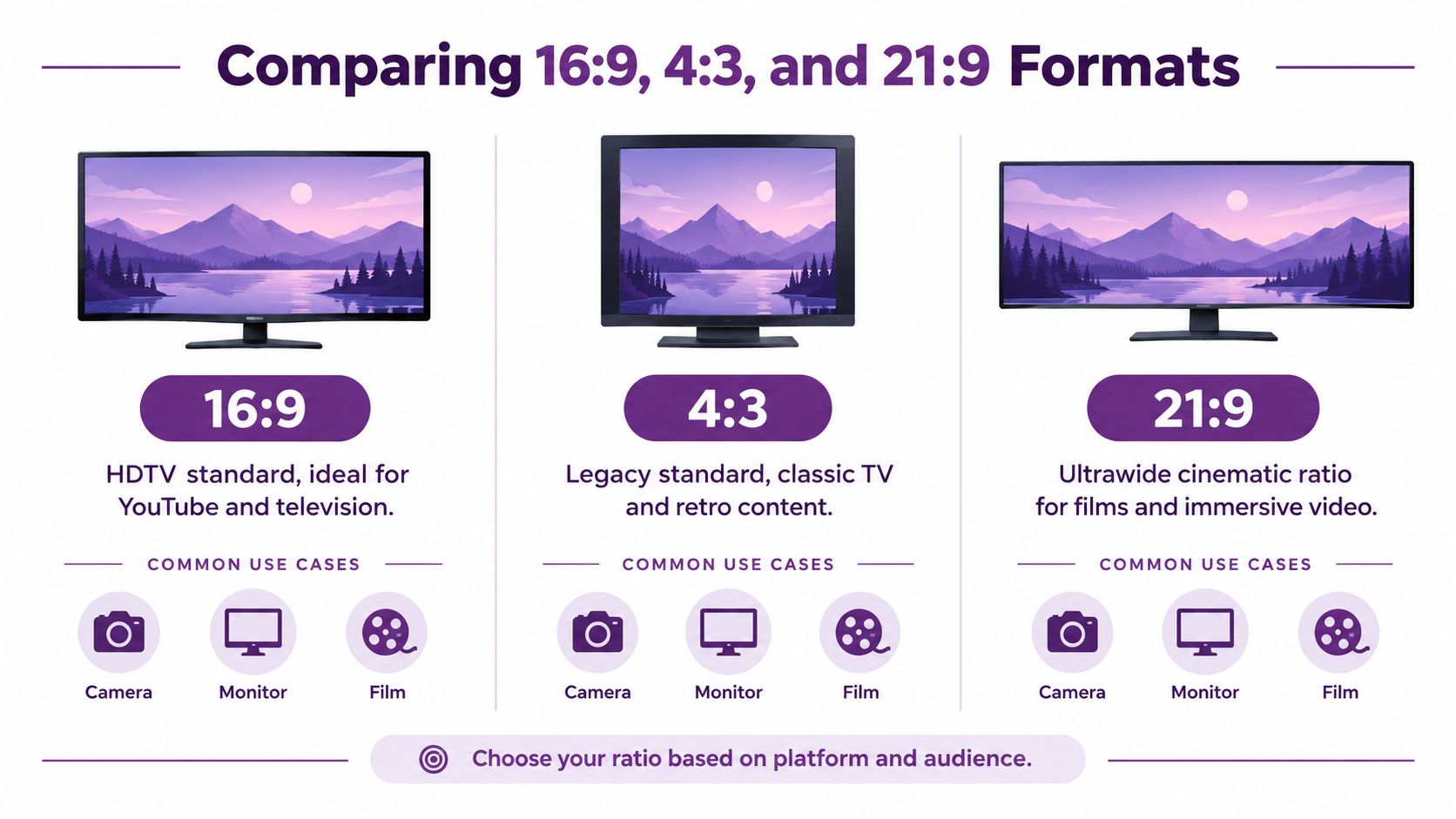
The best ratio depends on the viewing environment and the visual language of the project. 16:9 is the practical default. 4:3 creates a more compact, intimate frame and carries strong archival associations. 21:9 emphasizes horizontal space and can support a cinematic look when the scene has enough visual information to justify its width.
16:9 for broad compatibility
Use 16:9 when the video needs to work naturally on HDTV displays, television players, wide computer screens, or general-purpose video platforms. The frame gives a presenter room to gesture, supports group compositions, and accommodates side-by-side demonstrations without making the image unusually tall.
Its main risk appears during repurposing. A wide scene may look balanced in a horizontal frame but become crowded when the sides are removed for a portrait crop. Keep the primary action reasonably central, but don't flatten the composition by placing every element in the exact middle.
4:3 for character and constraint
A 4:3 frame is narrower and taller relative to its width. That shape can suit archival material, retro design, educational content with a tighter subject, or a project that intentionally references earlier television. It can also make a single speaker feel more prominent because the frame gives less horizontal room around them.
If you place 4:3 footage in a 16:9 player without cropping, pillarboxing will usually appear. That's not automatically a defect. Black side bars can preserve the original composition and communicate that the footage belongs to a different visual era.
21:9 for deliberate cinematic width
A 21:9 frame creates a very wide field of view. It can support scenic vistas, architectural scenes, title design, and compositions that depend on horizontal separation. It can also leave excessive empty space if the subject was framed for a more conventional screen.
Choose it when the width serves the story. If the video will also appear in a standard HDTV player, decide whether letterboxing is part of the intended presentation or whether you'll create a separate crop.
A format is successful when the frame supports the subject. Wider isn't automatically more cinematic, and older isn't automatically more authentic.
Before locking a sequence, preview the same shot in each candidate ratio. Look for faces, hands, text, logos, and products that move toward an edge. Tools and workflows available through LunaBloom AI can be evaluated against that same question: does the exported version preserve the information viewers need?
Handling Overscan and Safe Areas
A correctly formatted 16:9 file can still lose important content near the edges because some displays enlarge the image slightly and trim its boundaries. This practice is called overscan. It originated in display and broadcast workflows where viewers couldn't always see every outer pixel, and it remains relevant when delivery specifications account for inconsistent display geometry.
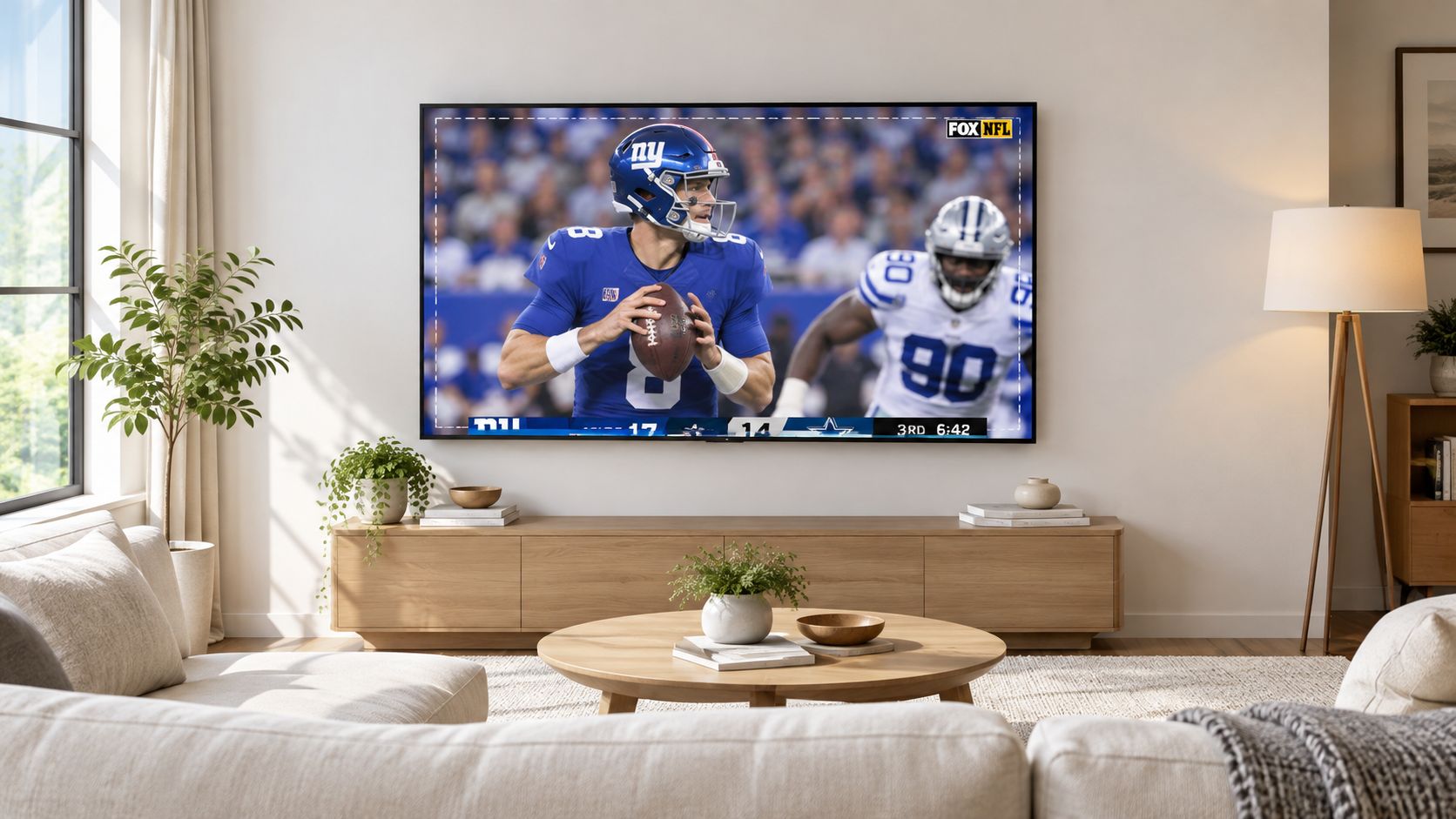
The Free TV Australia quality specification assumes displays may overscan by up to 7% of the total picture dimension, with as much as 4% on one edge. That means a subtitle, face, product feature, or logo can be clipped even when the exported file has the correct 16:9 geometry.
Build a conservative safe area
A safe area is an inset region inside the full frame where critical information is more likely to remain visible. Don't treat it as a decorative guide. Treat it as a production constraint.
Keep these elements away from the outer boundary:
- Titles and subtitles: Give captions enough interior space that a display crop won't remove a word or punctuation.
- Faces and gestures: Avoid placing a speaker's eyes or hands on the extreme edge when those details carry meaning.
- Product details: Leave room around packaging, interfaces, and demonstrations that viewers must inspect.
- Calls to action and logos: Keep brand marks and response instructions inside a conservative title-safe region.
Modern televisions may offer Just Scan, 1:1, or Original display modes that remove overscan. Viewers may also use older zoom or stretch modes, and you can't control which setting every household selects.
Use the following review process before delivery:
- Turn on title-safe and action-safe guides in your editor.
- Place critical text and objects well inside the visible boundary.
- Preview a pixel-perfect version and an overscanned simulation.
- Check captions at their smallest intended display size.
- Review the export on more than one type of screen when broadcast or living-room playback matters.
The visual difference between a perfect frame and an overscanned frame is easiest to understand when you compare them directly. Use the embedded example as a reminder that action can reach the boundaries quickly, especially in sports, demonstrations, and live-event footage.
Safe-area discipline also helps with social repurposing. A caption that survives overscan may still be cut by a portrait crop, so keep essential content away from both the delivery edge and the likely reframing edges.
Composing for Multi-Screen Distribution
A 16:9 master remains the logical foundation for HDTV production, but modern distribution requires more than selecting one sequence preset. 720p and 1080p HDTV formats are defined as 16:9, and major broadcast specifications continue to use that geometry. At the same time, television systems such as ATSC 3.0 use active-format-description and bar-data signaling to describe display formatting and aspect ratio while supporting progressive formats for HDR, wide color gamut, and high-frame-rate capabilities. The technical overview of high-definition television describes that added signaling complexity.
The production decision is therefore increasingly about composition strategy, not resolution alone. A 16:9 master can preserve the complete scene for television, but a center crop for portrait viewing may remove a second speaker, a product demonstration, or on-screen text.
Design the scene for the crop
Start with the full master frame, then identify the action that must survive in narrower versions. Use wider spacing between important subjects, keep captions adaptable, and avoid locking every graphic to one corner.
A practical composition approach looks like this:
- Establish a central action zone: Keep the primary speaker, product interaction, or demonstration within an area that can survive a vertical crop.
- Separate supporting elements: Don't place two essential objects at opposite edges if a portrait version may need to remove one.
- Use adaptable captions: Build captions that can move or reflow rather than embedding them permanently against a single boundary.
- Capture alternate close-ups: A dedicated portrait-friendly shot often looks better than an aggressive crop of a wide master.
- Preview every intended output: Check the television version, web version, square or feed crop, and portrait version before publishing.
This approach is useful for commercial work as well as property marketing. A producer planning top property video types for 2026 should consider whether a room tour, presenter segment, or exterior shot needs different framing for television, web, and mobile viewing.
Treat the master as a source, not a guarantee
A 16:9 master preserves the broad scene, but it doesn't automatically produce a good 9:16 or 4:5 version. Reframing is an editorial decision. You may need to reposition the subject, move a caption, change the shot order, or use a different close-up.
That work is easier when the original shoot avoids edge-dependent storytelling. If a product detail appears only at the far side of the frame, no export setting can preserve it in a narrow crop without changing the composition.
For a repeatable production workflow, LunaBloom's starter app can be considered alongside other tools, but the creative rule stays the same: create a master that offers options, then make intentional versions for each screen.
Export Settings for Video Tools
Export settings should reflect the destination, the source footage, and the way the image was composed. The ratio comes first, because a high-resolution file with the wrong shape can still crop or display poorly.
A practical 16:9 HDTV preset
For a conventional Full HD landscape export, use:
- Frame size: 1920 × 1080
- Aspect ratio: 16:9
- Scan method: 1080p progressive when the workflow and source support it
- Frame rate: 24, 25, or 30 frames per second for common productions
- Higher-motion option: 50 or 60 pictures per second when the delivery specification and action require it
Those frame-rate options align with configurations identified in the ITU's BT.709 HDTV framework. Don't change frame rate casually at export. Match the sequence to the source and delivery requirement where possible, because conversion can affect motion cadence.
For codec and bitrate, use the destination's current delivery guidance rather than relying on a universal preset. A platform may re-encode the upload, while a broadcast or presentation system may impose its own file requirements. Test a short export before processing the entire project.
Choosing 4:3 or 21:9
A 4:3 project can use 1024 × 768 or 800 × 600 when those dimensions match the intended legacy or presentation workflow. Confirm that the receiving system accepts the chosen frame before export. If the source is 16:9, decide whether to pillarbox it or recompose the content for the narrower frame.
For ultrawide work, 2560 × 1080 and 3440 × 1440 are practical examples of 21:9-oriented dimensions. Keep essential information near the central visual field if the video may appear on a standard display, where letterboxing or another adaptation may occur.
Export rule: Never judge a preset only by its dimensions. Open the rendered file and inspect the first frame, a caption-heavy frame, a subject near the edge, and the final call to action.
Audio should be checked separately from the image. Confirm that speech remains clear, music doesn't overpower dialogue, and the exported file preserves the channel and sample settings required by the destination. For presentations that combine video, displays, and sound systems, this practical AV integration guide offers useful context for the handoff between content production and playback.
Before exporting from a platform such as LunaBloom's video app, use a consistent naming system for the master and alternate crops. Label the ratio and resolution clearly so a portrait version doesn't accidentally replace the HDTV master.
Quick Reference and Decision Guide
Use this table as a production shortcut, then validate the composition visually. The ratio tells you the shape, while the resolution tells you the pixel dimensions and the playback detail.
| Format | Common Resolution | Pixel Count or Geometry | Best Fit |
|---|---|---|---|
| 16:9 | 1920 × 1080 | 2,073,600 pixels | HDTV, television, landscape video |
| 4:3 | 1024 × 768 or 800 × 600 | Narrower frame shape | Legacy, archival, retro, focused educational content |
| 21:9 | 2560 × 1080 or 3440 × 1440 | Ultrawide frame shape | Cinematic presentation and immersive landscape work |
The 16:9 pixel count in the first row comes from multiplying 1,920 by 1,080, as documented in the HDTV standards reference. The other rows describe common project dimensions rather than a universal requirement for every platform.
Follow this decision flow
- Is the primary destination HDTV or widescreen playback? Start with 16:9.
- Does the project need a vintage, archival, or compact visual character? Consider 4:3.
- Does extra horizontal width support the story? Consider 21:9, then check how it will appear on standard displays.
- Will the video be repurposed for portrait or mixed-screen distribution? Compose the master with central action zones and adaptable graphics.
- Does the delivery involve broadcast or uncertain television settings? Protect titles, captions, faces, products, and calls to action with conservative safe areas.
- Are you ready to publish? Review the rendered files on the intended device types and inspect every alternate crop.
Don't confuse a technically valid export with a finished delivery. The best HDTV aspect ratios workflow protects both geometry and meaning, so viewers see the intended subject instead of a stretched image, a missing edge, or an unreadable caption.
For teams deciding which creation workflow fits their volume and review process, LunaBloom's pricing options provide a place to compare available plans before production begins.
LunaBloom AI helps creators and teams turn scripts, prompts, and images into edited videos with voiceovers, captions, localization, and HD or Full HD export options. Visit LunaBloom AI to create a reliable 16:9 master, prepare alternate screen crops, and publish content that keeps its message intact across television, web, and mobile.