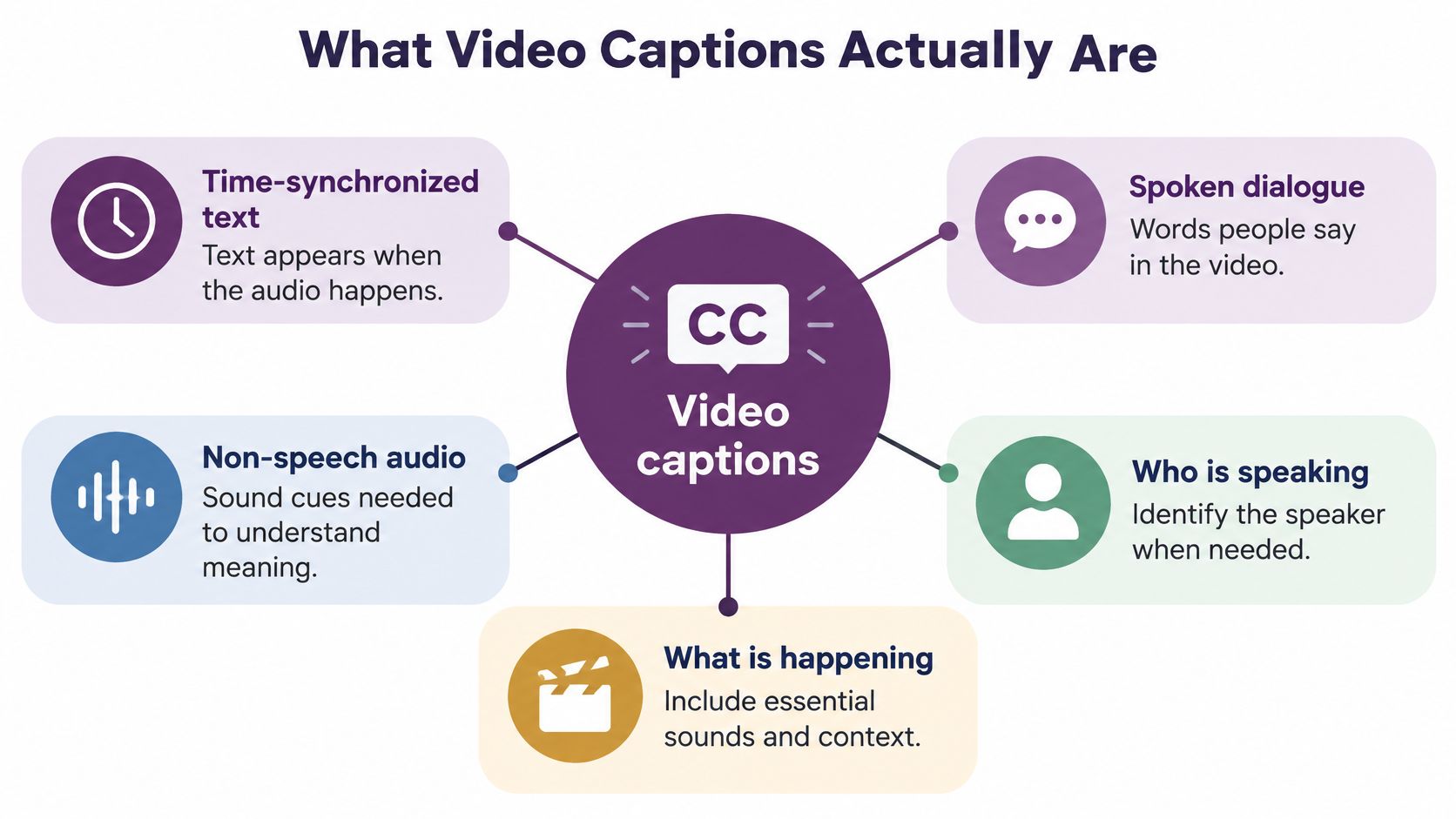
Video captions are time-synced on-screen text that shows spoken dialogue plus meaningful non-speech audio, such as who is speaking, laughter, music, or an alarm. They appear and disappear with the soundtrack so you can follow the video's meaning without relying on sound.
If a tool transcribed every word perfectly, would the video be accessible? Not necessarily. A viewer might still miss who spoke, why everyone laughed, or the alarm that changed the scene, and the text might flash past or cover the product. That's the gap many overlook when they ask what are video captions. Captions aren't a speech-to-text dump. They're a designed audiovisual layer that gives you equivalent access to what the audio means.
What Video Captions Actually Are
Say you're watching a short cooking clip on mute. The host says, "Listen for the sizzle," oil pops in the pan, and a timer dings. If the on-screen text only shows "Listen for the sizzle," you're missing the two sounds that tell you what to do next. Good captions show the words, then [oil sizzling] and [timer dinging], each at the moment it happens.
Think of the soundtrack as a conversation happening off to the side. Captions move that conversation onto the screen, in sync, so your eyes receive what your ears would have caught. That includes spoken dialogue, speaker identification when it's not obvious who's talking, and meaningful non-speech audio that carries information.
More than the words people say
The W3C guide to captions explains that captions are intended primarily for people who are Deaf or hard of hearing, normally appear in the media player when enabled, and are timed to the audio. A complete track may identify speakers and describe meaningful sounds such as music, laughter, alarms, or other sound effects. It doesn't merely reproduce the words spoken.
Captions generally stay in the same language as the audio. Subtitles are commonly translations for viewers who can hear, so they often focus on dialogue alone. If you publish only translated subtitles, a Deaf viewer may get the words but lose speaker labels and sound cues that explain what's happening.
A transcript is different again. It's a block of text you can read top to bottom, like an article. It isn't locked to each second of playback, and it usually doesn't place a sound effect at the exact moment it occurs. Transcripts are useful for reading and search, but they don't replace timed captions during playback.
Captions are a designed layer of the video, not a transcript pasted underneath it.
Here's a simple test. Turn the volume off and watch. If you can tell who said what, notice the sounds that matter, and follow the point without rewinding, the captions are doing their job. If you're guessing, the words may be present but the meaning isn't.
Captions Subtitles and Transcripts Compared
People use these terms as if they're interchangeable, and that's where confusion starts. The labels describe different jobs. Once you can name the job, you can pick the right layer for your video.
Closed captions include dialogue, speaker labels, and meaningful sounds, and viewers can turn them on or off. Open captions carry the same information but stay visible for everyone. Subtitles usually transcribe or translate dialogue for viewers who can hear the audio. A transcript is a readable text version that isn't timed to playback.
The layers side by side
| Layer | Main audience | What it includes | Viewer can hide it |
|---|---|---|---|
| Closed captions | Deaf and hard-of-hearing viewers, plus muted watching | Dialogue, speaker labels, and meaningful sounds | Yes |
| Open captions | Same audience, always on screen | Dialogue, speaker labels, and meaningful sounds | No |
| Subtitles | Hearing viewers who need dialogue as text | Spoken words, sometimes a translation, usually no sound effects | Usually yes |
| Transcript | People reading instead of watching, and search | Full text, not timed to each moment of playback | Separate document |
| Audio description | Blind and low-vision viewers | Spoken account of important visuals, not caption text | Separate audio track |
| Burned-in text | Anyone who plays that exact file | Whatever words were baked into the picture | No |
Audio description solves a different problem. It's spoken narration of important visuals for people who can't see the screen, such as a chart rising or a person pointing to a button. Captions tell you what was heard. Audio description tells you what was shown but never said.
Burned-in text is pixels in the image. You can style it exactly how you like, and it'll survive on platforms that drop caption tracks. But viewers can't turn it off, resize it, or translate it, and you can't fix a typo without re-exporting the video.
Three quick rules for choosing
- Use captions when sound carries meaning your eyes can't see, such as dialogue, a doorbell, or a change in music.
- Use translated subtitles when your audience can hear but doesn't know the spoken language.
- Add audio description when charts, gestures, or on-screen labels are essential and nobody says them aloud.
If you're making short social clips, AI subtitling tools for short videos can speed up the first draft of timed text. Treat that draft as a starting point. You still need to check whether it behaves like captions, with speakers and sounds included, or only like subtitles with dialogue alone.
How Caption Timing and File Formats Work
A caption file is text plus timing. Each chunk, called a cue, has a start time and an end time. The player shows that cue while the matching audio plays, then replaces it with the next one.
Consider one cue in practice. At 0:04 the host, Maya, says, "Now add the garlic." At 0:06 a pan clatters. The cue might read Maya: Now add the garlic. [pan clatters], appearing at 0:04 and leaving at 0:07. Speaker, words, sound, in-time, out-time. That's the whole mechanism, repeated across the video.
Separate track or baked in
YouTube's subtitle and caption file documentation states that these files contain the video's spoken text plus time codes for displaying each line. It also notes that SRT files must be plain UTF-8 on YouTube, while WebVTT files use the .vtt extension and support positioning, although styling remains limited.
A separate track is flexible. You can edit a word, translate the file, toggle it off, restyle it in the player, or reuse it on a shorter cut. Burned-in text can't do any of that. It's permanent, and if you place it badly it'll sit over a face, a price tag, or a button for every viewer.
| Format | File clue | What it can do | Where it shows up |
|---|---|---|---|
| SRT | .srt plain UTF-8 text | Basic timed lines with little or no positioning | YouTube and most editors |
| WebVTT | .vtt | Timed cues plus positioning and limited styling via HTML track | Web video players |
| Broadcast closed captions | Encoded in the signal, historically line 21 | Hidden until a decoder or setting is on | Television |
| Burn-in | No separate caption file | Styled words permanently in the image | Social exports when the player drops tracks |
Positioning matters more than most creators expect. If a lower third names your guest, captions at the bottom will collide with it. If you're showing a product label, captions may need to move up for a few cues. WebVTT's positioning support exists for exactly that reason.
Making captions is an edit, not a paste. Speech recognition might hear "fifteen" as "fifty," misspell a guest's name, or flatten a product term into a common word. A mostly correct transcript can still change the meaning, so names, numbers, and terminology need a human pass before you publish.
Why Captions Help Beyond Hearing Access
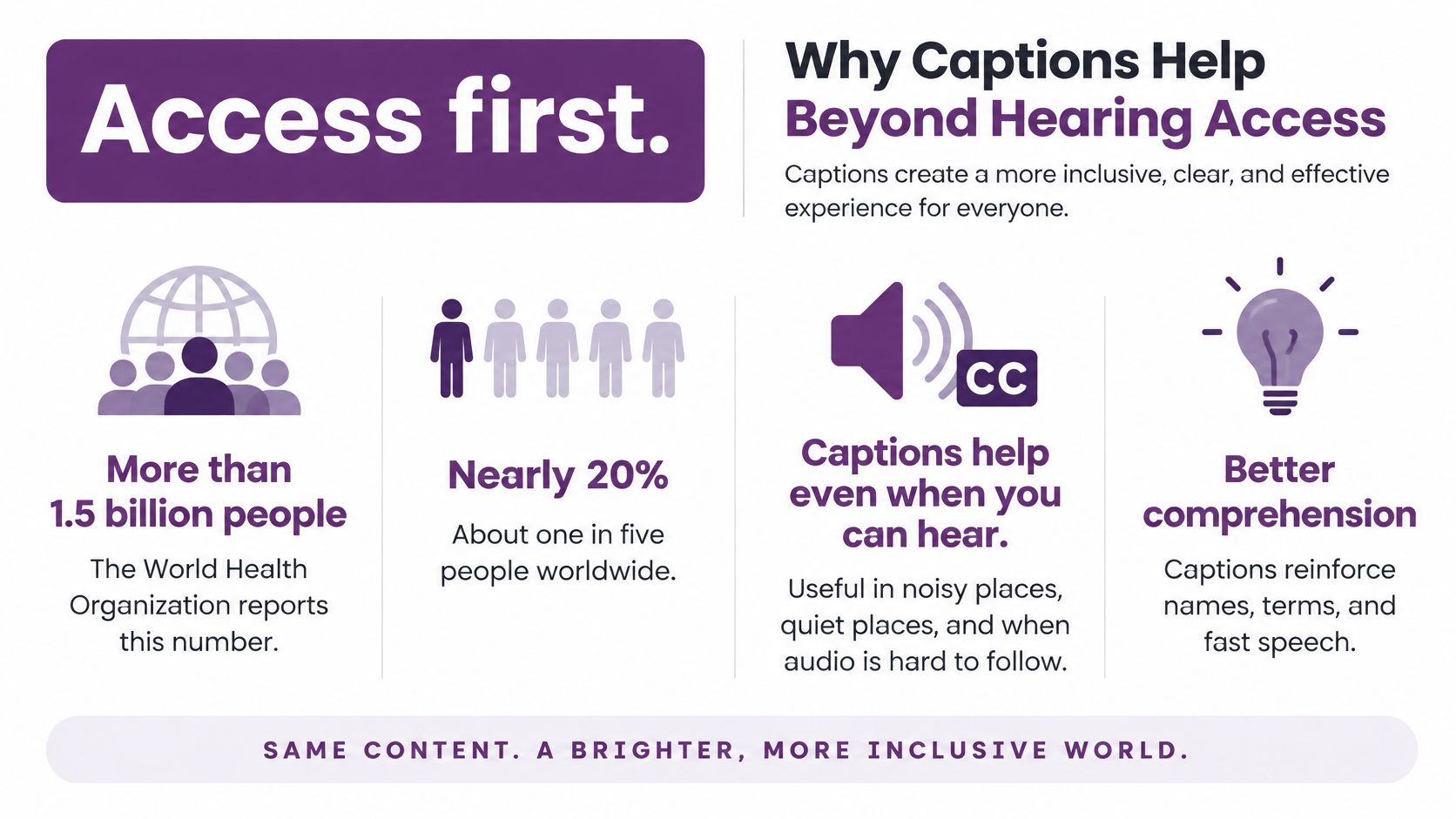
Start with access, because the scale is larger than many assume. The Web Accessibility Initiative page on captions reports the World Health Organization figure that more than 1.5 billion people, nearly 20% of the world's population, currently live with some degree of hearing loss, including approximately 430 million people with disabling hearing loss. WHO projects disabling hearing loss could exceed 700 million by 2050, while hearing loss of some degree could reach 2.5 billion. That's not a niche audience. That's roughly one in five people now.
Muted and noisy viewing
People who are hearing-impaired often use captions. You might be on a train without headphones, in a noisy café, or scrolling in bed while someone sleeps. Sound is either unavailable or unwanted. Captions allow you to follow the clip regardless, which is why so much social video autoplays muted and still holds attention when the words are on screen.
The same logic applies at work. A team update watched in an open office or a shared training video benefits when people can read along, and resources on making internal communication accessible treat captions as part of clear communication for everyone, not a special accommodation. If the message matters, don't make it depend on perfect listening conditions.
Comprehension and discovery
Reading while listening helps many viewers keep up. Captions support people with cognitive or learning disabilities and people who are less fluent in the spoken language, because an unfamiliar name or fast phrase becomes easier to catch when it's spelled out. You hear the word and see it at the same time.
Caption files also give search engines actual words to index. A video file alone doesn't tell a search engine that you explained a pricing step at minute two. A caption track and transcript do. Adoption reflects this shift, since 3Play Media's 2024 captioning report found 90% of 450 organizations surveyed reported captioning at least some of their content.
Practical rule: If people regularly watch your videos where sound is off, unreliable, or hard to follow, captions aren't extra. They're how the message arrives.
None of these gains show up automatically. Late, tiny, or inaccurate captions can make viewers work harder than no captions at all. Quality decides whether the benefit is real.
The Four Tests of a Good Caption Track
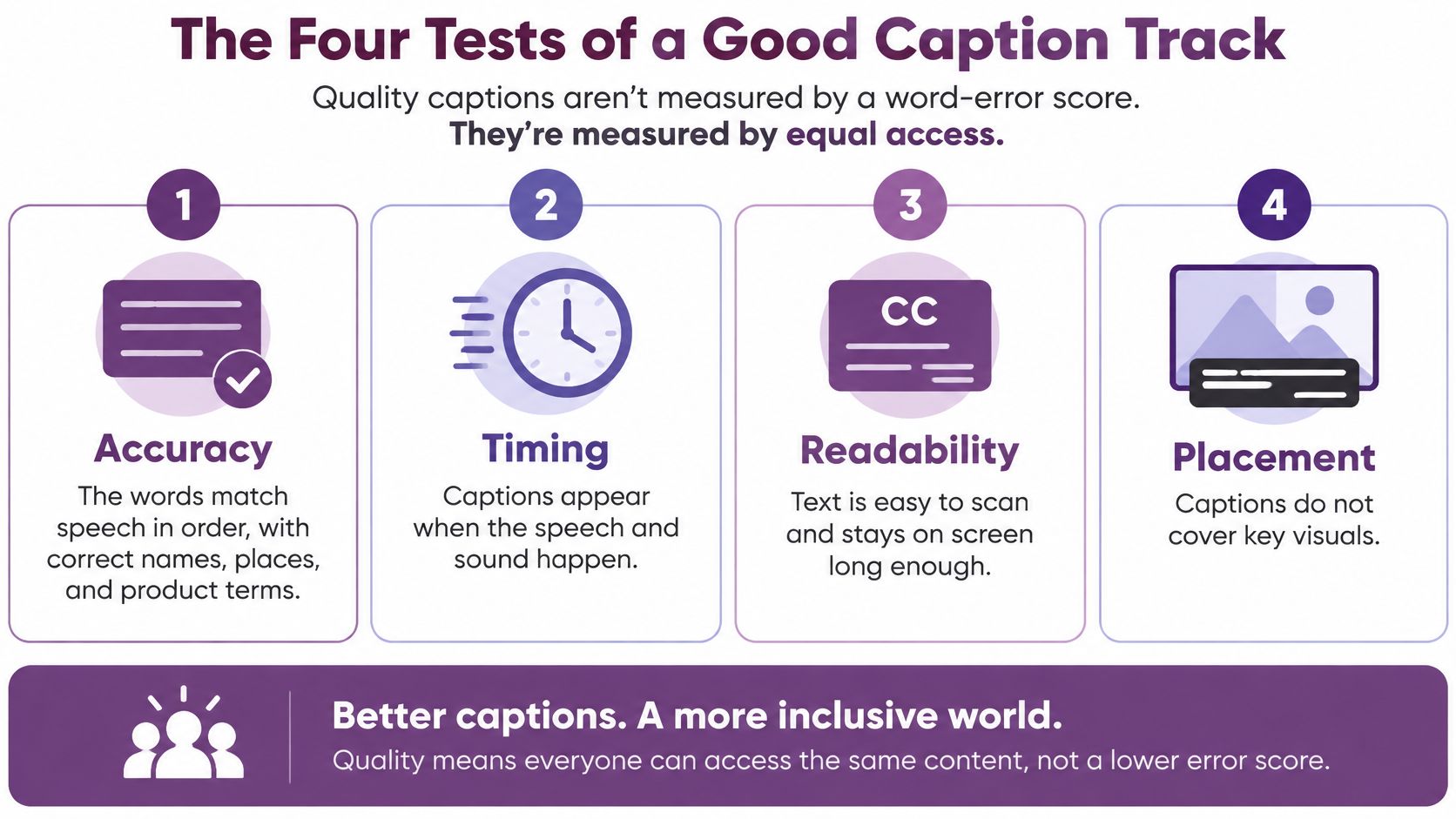
A caption track can contain almost every word and still fail. If cues flash, linger, cover the product, or never say who's talking, the viewer doesn't get equivalent access. Judge captions by whether they deliver the video's meaning, not by a word-error score alone.
The WCAG guidance on captions for prerecorded media requires captions for prerecorded audio in synchronized media and says they should identify speakers and convey meaningful non-speech information. That gives you four practical tests to run.
Accuracy and synchrony
Accuracy means the words match the speech in order, with names, places, and product terms spelled correctly. "Dr. Patel" becoming "Dr. Paddle" isn't a small typo. It's a different person. Check numbers with the same care, since prices, dates, and measurements often carry the point of the sentence.
Synchrony means each cue appears when the sound starts and leaves when it ends. If captions run late, you hold the picture in mind while waiting for the words, then hold the words while the picture moves on. That split attention is tiring. Timing should sit close enough to lip movement and scene events that reading feels connected to watching.
Completeness and placement
Completeness means the whole video is covered, start to finish. That includes meaningful non-speech audio such as music that signals a mood change, an alarm, laughter after a joke, or applause. It also means naming the speaker when voices overlap or someone speaks off camera. Without that label, dialogue turns into a pile of unattributed lines.
Placement means the text doesn't hide what viewers need to see. Keep captions inside safe margins, give them enough contrast, and move them away from faces, charts, buttons, and lower thirds. What looks fine on a desktop monitor can swallow a phone screen, so preview at phone size.
For reading speed, aim for cues of roughly 1.33 to 6 seconds, generally no more than two lines, and avoid tiny gaps between cues that create flicker. Shorter isn't always better. A cue that vanishes before you finish reading forces a rewind.
Translations need their own timing pass. Text expands or contracts between languages, so a cue that was readable in English may overflow in another language even if every word is translated well. Retiming isn't optional polish. It's part of making that version readable.
Before you publish, run this checklist:
- Names and numbers: Every person, place, price, and product term is correct.
- Speakers and sounds: Off-camera voices, laughter, alarms, and meaningful music are labeled.
- Timing and lines: Cues match the audio, stay readable, and don't flicker.
- Collisions: Nothing important sits underneath the text on a phone-sized frame.
Real Videos and When Captions Are Enough
Captions are powerful, but they have a clear boundary. They represent dialogue and meaningful sounds. When important information is only visible, captions alone can't carry it.
University of Washington accessibility guidance draws that line by distinguishing captions from audio description, noting that audio description or an equivalent text alternative is needed when important visual information isn't conveyed through audio. Keep that distinction in mind through three common scenes.
Three scenes and the missing layer
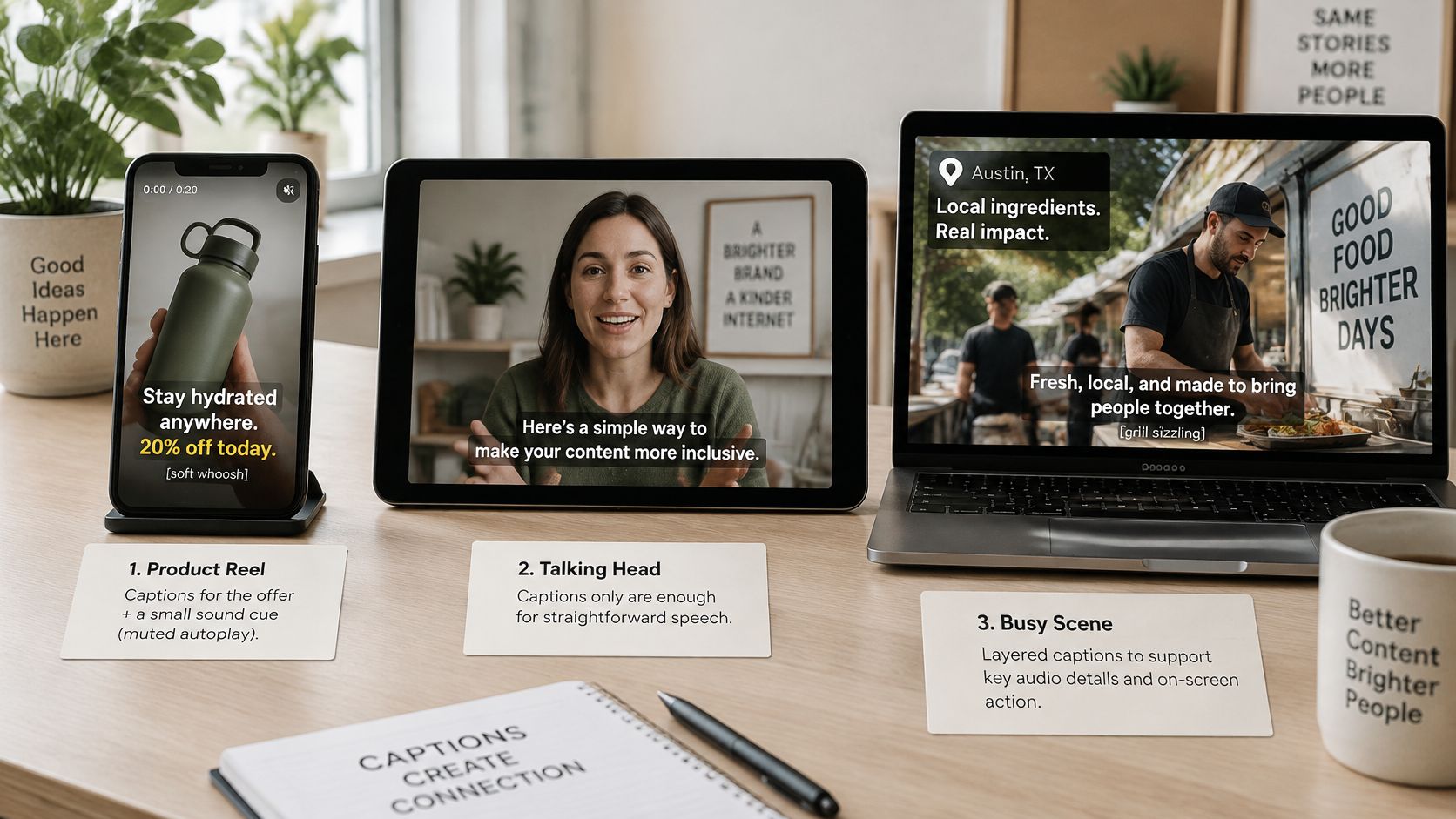
Say you post a 20-second product Reel that autoplays muted. The presenter states the offer, and a chime sounds as the price appears. Captions can carry the offer and label the chime, placed above the product label so nothing is covered. For muted sighted viewers, that solves the problem.
Now say you're recording a tutorial. You say "click here" while your cursor opens a menu that only appears on screen. Captions will faithfully show "click here," but they won't describe the menu. A blind viewer still can't follow the step. That video also needs audio description, or simpler, you narrating the menu name and location as you click.
Third, say you're localizing a training clip. Translated subtitles help hearing viewers in another language, but they may drop speaker identity and sound cues. Deaf viewers in that language still need full captions, and each version needs its own timing check because translated lines change length.
| Scene | Layer that works | Still missing |
|---|---|---|
| 20-second muted product Reel | Captions with the spoken offer and the chime cue, placed above the product label | Nothing for muted sighted viewers |
| Tutorial where the host says click here while a menu is on screen | Captions for the speech | The menu itself, which needs audio description or a spoken walkthrough |
| Training clip localized into another language | Translated subtitles plus same-language captions for Deaf viewers | Speaker identity, sound cues, and a per-language timing check |
Captions solve access to audio, not access to visuals or automatic cultural meaning.
So ask two questions for every video. What does the soundtrack mean that captions must preserve? And what does the picture show that nobody ever says? The first answer shapes your caption track. The second tells you whether you need another layer.
Caption the Next Video Before You Export
What will viewers need to understand when the sound is off? Decide on captions before export, while you can still check how each line fits the picture. Use same-language captions for meaningful audio, add translated subtitles for viewers who speak another language, and use audio description when visuals carry information the audio does not explain.
A five step publish pass
- Generate or write timed cues with a start and end time for each line.
- Check names, numbers, and speaker labels so the words preserve who said what.
- Include meaningful sounds, such as laughter, alarms, or music that carries information.
- Check placement on a phone-sized frame to keep faces, labels, and buttons visible.
- Export a toggleable track and keep a transcript for reading and search.
A correct transcript is only the starting point. Captions also need to fit the image, identify meaningful sounds, and stay readable on a small screen. Check the words and their placement together, because text can be accurate yet still leave viewers without the video's full meaning.
LunaBloom AI's creator workflow moves through Idea, Script, Visuals, Voice, Video, Music and SFX, Captions, and Publish. Automatic Captions are a studio feature for making videos clear, accessible, and ready to watch. Try the process on a muted social video you already plan to post, and check whether its captions preserve both the spoken message and the important sounds.
Take your next video from script to publish without leaving captions until the end. LunaBloom AI lets you generate videos with voice and music, then use Automatic Captions as part of the studio workflow. Visit LunaBloom AI, then caption the video you're already planning. Watch it with the sound off and see whether the captions carry its meaning.