Make Your Announcement Feel Like an Event. You want something more memorable than a static card, but you also need an announcement that's quick to produce and easy to share. A strong video save the date balances a clear date, recognizable visual style, readable text, and the right format for social feeds, email, text messages, or invitation platforms.
The best concept depends on where guests will watch it. A cinematic clip can work beautifully on a wedding website, while a muted vertical version may perform better in a social feed. The options below cover AI-generated films, template-led designs, browser editors, animated invitations, and platforms that combine distribution with RSVP management.
AI tools can accelerate scripting, visuals, narration, captions, resizing, and localization. They still need human review, especially for names, dates, pronunciation, accessibility, consent, and the emotional tone of the announcement. If you're developing a story-led concept, you can also explore creating personal animated stories before choosing your production workflow.
1. LunaBloom AI
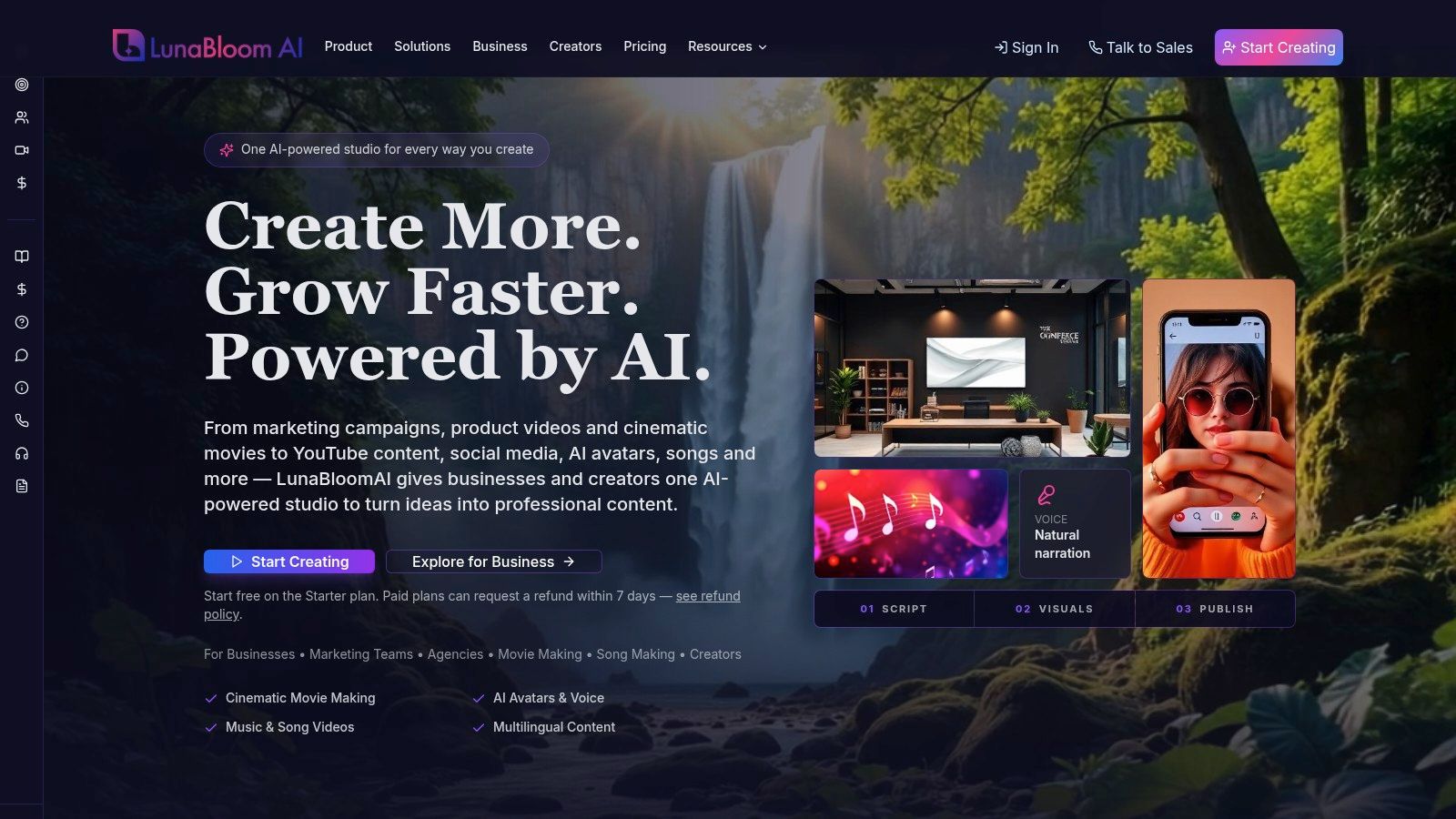
LunaBloom AI is the strongest choice when the announcement should feel like a produced short film rather than a customized card. It turns prompts, scripts, and images into edited videos with narration, captions, music, avatars, and exports sized for different channels.
The format suits a cinematic introduction, a narrated relationship story, or a playful exchange between characters. It also works for agencies and event teams creating several versions for different couples, languages, or guest groups. Available creative options include photo-real, animated, and 3D avatars, voice cloning, AI-generated songs, sing-and-dance music videos, and lip-synced visuals for uploaded tracks.
Best workflow for a video save the date
Begin with a short approved script instead of asking the generator to invent every detail. Put the couple's names, date, city or destination, and event identity in the opening seconds. Use the remaining runtime for the creative concept, such as a travel montage, illustrated love story, avatar conversation, or musical reveal.
A 30 to 60-second master gives you room for personality without making the announcement difficult to finish. One video format benchmark reports that 65% of viewers complete videos shorter than 60 seconds according to this video format benchmark. The finding is not a wedding-specific controlled study, so treat it as a useful editing reference rather than a guarantee.
Create a vertical 9:16 cut for social feeds and messaging apps, then prepare a square version for email previews or invitation platforms. Burned-in captions improve access when guests watch without sound. Narration can also be translated for international guest lists. Collaboration, version control, analytics, API integrations, and managed content services give production teams more control than a basic editing app.
Practical rule: Let the AI create options, but approve the final wording, pronunciation, faces, voices, and visual details yourself.
The free pay-as-you-go Starter trial includes 2 free videos up to 30 seconds. Paid plans range from $29.99 per month, with 720p export and 250 seconds of total AI video per month, to $99.99 per month for Growth with 667 seconds and one custom voice clone, and $149.99 per month for Advanced with 1,000 seconds and up to five custom voices. Yearly billing saves approximately 17%. Paid plans include commercial use rights and a 7-day refund window. Check the LunaBloom AI production workspace for current availability and plan details.
The trade-off is control. Voice cloning and realistic likenesses require clear consent and usage rights, while complex cinematic scenes may need manual refinement. Starter limits can restrict heavier production. For couples who want a memorable announcement adapted across social, email, and text, LunaBloom offers the broadest creative range in this list.
2. Canva
Canva's save-the-date video templates are a practical fit for couples who already have photos, a color palette, and a clear visual identity. Choose a template, replace the sample media, update the date and names, add music, and export without learning a professional editing timeline.
The browser-based workflow works well when several people need to review the announcement. One person can assemble the first draft, another can correct the wording, and a planner or family member can check the final details. Canva's stock assets, animations, brand kit support, and one-click resizing make it easy to adapt the same design for a social post, an email attachment, and a square message preview.
What works best in Canva
Use Canva for a photo-led video save the date rather than forcing it to behave like a cinematic film. A sequence of engagement photographs, a moving date card, and a restrained music track can feel polished without requiring complex production. Keep the text large enough to read on a phone, and don't place the date over a busy image.
Its main advantage is speed. A user can begin with a finished visual system instead of designing every transition. The limitation is equally clear: audio mixing, detailed timing, and advanced effects are simpler than in a professional non-linear editor. Some premium templates and assets also require a paid plan.
For a smooth handoff, export one clean master and use LunaBloom's starter workflow if you decide the static template needs AI narration, translated captions, or additional versions. Don't add too many effects just because the editor makes them available. A save-the-date should make the date memorable, not make guests work to find it.
3. Adobe Express
Adobe Express suits couples and teams who want polished typography and Adobe's visual ecosystem without opening Premiere or After Effects. Its save-the-date templates support animated text, motion graphics, photographs, brand controls, and quick exports for social feeds or email.
The strongest format is a design-forward announcement built around type, color, and a few carefully chosen images. An elegant destination wedding might open with the location, reveal the date through animated typography, and close with a website address. This approach creates a refined video without the production demands of a cinematic film. Keep the main version concise, then adapt its framing and text placement for vertical social posts, square messaging previews, and email.
A good choice for brand-conscious teams
Adobe Express becomes more useful when the wedding or event already has a visual identity. Adobe Fonts, stock resources, and other Adobe integrations help keep the save-the-date, invitation, signage, and social graphics consistent. Brand kits also reduce small differences in color and typeface between versions.
The editor offers less granular control than Adobe's professional applications. Users who need precise audio edits, layered compositing, or elaborate scene direction may outgrow it. Some premium templates and features require a paid plan, so review the current LunaBloom pricing comparison and ClipCreator.ai's top AI video picks before adding AI-generated scenes or narration to the workflow.
Export one clean master, then create the social and messaging variants from that file. If the announcement includes spoken information, add captions and a text alternative rather than assuming guests will hear the soundtrack. Adobe Express is best when the creative direction is already clear and the team wants a refined result with minimal setup. Open-ended, prompt-led storytelling calls for a different type of tool.
4. Kapwing
Kapwing's save-the-date templates are built for fast browser editing. The platform offers 2,000+ wedding-related and save-the-date video templates, along with subtitle, resize, brand, cloud storage, and collaboration tools. The large selection covers elegant, modern, playful, and photo-montage styles.
Kapwing is a sensible middle ground between a design template platform and a full editing application. You can replace media, set brand colors and fonts, add subtitles, trim clips, and export without installing software. That makes it useful for a planner working with a couple remotely or a team collecting feedback in one shared project.
The quickest way to improve a template is usually to remove an element, not add another one.
Where Kapwing earns its place
Choose Kapwing when the announcement needs several practical adaptations. Create a concise master, then resize it for a vertical social post, a square message, and an email-friendly version. Built-in subtitles are helpful for muted playback, but review them manually. Names, venues, and place names are exactly where automatic transcription can fail.
The free plan has limits such as file size restrictions and a watermark. Paid plans provide a clearer path to watermark removal, but fewer advanced effects are available than in professional editors. That's rarely a serious problem for a save-the-date. The communication needs a readable date and a coherent mood, not a complicated visual-effects sequence.
Kapwing's collaborative workflow is its most useful feature for teams. Leave comments beside a scene, request a wording change, and keep the approved version in cloud storage. If you want to understand the publisher behind the featured AI workflow, learn more about LunaBloom AI before comparing its automation and localization tools with Kapwing's hands-on editing approach.
5. VEED.io
VEED.io's save-the-date video maker is a straightforward option for users who want online editing, automatic subtitles, quick resizing, and collaboration. It works particularly well when the raw ingredients already exist and the main task is turning them into a shareable announcement.
Start with a wedding-invite template, upload photographs or short clips, add the date and destination, then use the brand kit to keep the colors and fonts consistent. VEED.io's automation can speed up subtitles and formatting, while its export options make it easier to prepare versions for SMS, social, and email.
The practical trade-off
VEED.io is better for editing and packaging than for inventing a highly original visual world. A photo montage with captions, animated text, and music is within its comfort zone. A detailed fantasy scene with several characters, custom narration, and tightly choreographed action may require a more specialized AI video studio or a professional editor.
Free exports include a watermark. Upgrading can remove it and enable 4K export, but the extra resolution isn't automatically useful if most guests watch on phones. Prioritize legibility, file compatibility, and a reliable landing page before choosing the highest export setting.
Captions should match the spoken words and the visible information. Also place the wedding date and website link as ordinary text outside the player when possible, so guests don't have to start the video to find the basic details. For questions about a larger production workflow, contact LunaBloom AI and compare its end-to-end generation with VEED.io's browser-first editing model.
6. Renderforest
Renderforest's wedding invitation video templates are designed for people who want animated motifs, cinematic openings, and typography-led scenes without manual keyframing. Its template library includes wedding invitation and save-the-date styles, with filters that help match a script to compatible designs.
This is the right choice when the concept is template-led animation. Select an elegant reveal, a modern geometric sequence, or a playful illustrated style, then replace the wording and media. The platform handles much of the movement, timing, and scene structure, which can save time for users who don't want to manage individual animation layers.
Choose the visual language before the template
A common mistake is choosing a beautiful template that doesn't match the event. A romantic floral animation may conflict with a minimalist city wedding, while a playful design may undermine a formal black-tie celebration. Write the essential message first, then choose the template that supports the tone.
Renderforest offers exports in multiple resolutions through its web editor, but it relies more heavily on predefined scenes than freeform editors such as Kapwing or VEED.io. Some exports and features are locked to paid tiers. That trade-off is worthwhile when speed and consistency matter more than complete creative control.
Keep the announcement short and let the motion introduce the event identity. Don't bury the date in a final frame that guests may miss. Add a separate text summary to the message or landing page, especially if the video uses music without narration. Renderforest is a strong fit for animated invitations, but it isn't the best option for highly personalized avatar dialogue, voice cloning, or multilingual versions.
7. Paperless Post Flyer and Cards
Paperless Post's upload-your-own invitation tools are best when distribution matters as much as production. The US-based platform lets users add a short video or GIF to Flyers, send the invitation by email or text, share a link, collect addresses, manage guests, track RSVPs, and send reminders. Cards support still images rather than the same video treatment.
This changes the decision. You are not just making a video and finding a place to host it. You are pairing a lightweight announcement with guest-list management and rich content blocks for maps, travel, and accommodations. For a destination wedding, that combination can be more useful than a more advanced video editor with no sending tools.
Keep the video format simple
Paperless Post's Flyer video is soundless and short, with a GIF or 5-second cap according to the platform's product description. Build for visible text, not spoken narration. Use one strong image or a simple animated reveal, then place the date, location, and link in the surrounding invitation content.
The platform's distribution is its main advantage. The first 50 recipients are free on many Flyers and Cards, while costs can scale per recipient unless you use a flat subscription. Check the current terms before uploading a large guest list.
A video view, reaction, link click, or casual message isn't a confirmed attendance response. One event-platform benchmark analyzed 70,624 events, 5,543,430 invitations, and 4,276,873 responses across 23 event types in this RSVP benchmark, showing that response behavior can be measured at scale. A separate report based on 6,191 verified invitees found that 47.1% submitted an RSVP through that platform. These figures aren't universal wedding standards, but they support a simple rule: send the formal invitation or RSVP form later, give guests a deadline, and label the response method clearly.
Video Save-the-Date: Top 7 Tools Comparison
| Item | Implementation complexity 🔄 | Resource requirements ⚡ | Expected outcomes ⭐📊 | Ideal use cases 💡 | Key advantages ⭐ |
|---|---|---|---|---|---|
| LunaBloom AI | High, multi-step studio workflow, team features and API | Moderate–High, paid tiers for longer/HD renders; managed infra | Studio-quality, localized, platform-ready videos with analytics | Marketers, agencies, educators, teams producing at scale | End-to-end pipeline, hyper‑realistic avatars, voice cloning, localization, collaboration |
| Canva | Low, drag‑and‑drop, template-driven | Low, browser-based; some premium assets paid | Polished DIY videos quickly (social-ready) | Couples, small teams, non‑designers needing fast results | Large template library, easy collaboration, one‑click resizing |
| Adobe Express | Low–Medium, streamlined Adobe tools | Low–Medium, web/mobile; some premium features paid | Professional-looking templates with refined typography | Users wanting Adobe polish without pro apps | High-quality templates, Adobe integrations, quick motion/text tools |
| Kapwing | Low, simple editor, template-first | Low, browser-based; free tier limits and watermark | Fast polished announcements; good subtitle support | Quick customization and fast exports for social | Vast template selection, subtitle/brand tools, team collaboration |
| VEED.io | Low, guided flows and automation | Low, free plan limitations; watermark removal on paid | Share-ready videos with automated captions and resizing | Users prioritizing simplicity and speed | Auto-subtitles, easy export formats, helpful automation |
| Renderforest | Low–Medium, template and script-to-video driven | Low, web editor; some features behind paywall | Cinematic/animated invites without manual keyframing | Those who want stylized intros and animated motifs | Large themed template library, script-to-template matching |
| Paperless Post (Flyer + Cards) | Low, upload + distribution flow | Low–Medium, per-recipient costs may apply | Short/silent video/GIF paired with RSVP and delivery analytics 📊 | Hosts needing invitation distribution and guest management | Built-in RSVP, send via email/text, analytics and reminders |
Choose the Format Your Guests Will Actually Watch
The best video save the date isn't the one with the most effects. It's the one guests can open, understand, remember, and act on without asking for the missing date or link.
Choose LunaBloom AI for prompt-led cinematic production, avatars, voice, music, multi-character dialogue, or localized versions. It offers the widest creative range and the strongest fit for teams producing repeatable assets. Choose Canva or Adobe Express when you already have the images and want fast template customization with polished typography. Canva is especially approachable for collaborative DIY work, while Adobe Express suits users who value Adobe's fonts, stock resources, and brand controls.
Use Kapwing or VEED.io for browser editing, subtitles, resizing, and collaboration. They work well when the creative material is ready and the team needs a practical way to assemble, review, and export versions. Pick Renderforest when animated templates are more important than freeform editing. Choose Paperless Post when sending, guest management, reminders, and RSVP tracking matter most.
A workflow that avoids rework
- Write the essential details first: Confirm the names, date, city or destination, wedding website, and the fact that formal details will follow. Save-the-dates aren't formal invitations, so don't overload them with venue, meal, dress-code, or RSVP information that may change.
- Create one clear visual concept: Decide whether the announcement is a photo montage, narrated story, animated typography piece, avatar conversation, destination reveal, or musical message. A focused idea will outperform a collection of unrelated effects.
- Put the date where guests can find it: Show it in the opening seconds and repeat it in the visible message around the video. Don't make people wait through an intro to discover the one fact the announcement exists to share.
- Produce a concise master: A short-form version is easier to watch, send, caption, and adapt. Keep the main message compact, then create channel-specific exports rather than squeezing every possible detail into one file.
- Adapt each channel deliberately: Use vertical 9:16 for social feeds, square framing for messaging previews, and a lightweight version for email or a wedding website. Add burned-in captions, a transcript, and a text-only alternative.
- Build for accessibility: The W3C-aligned accessible video guidance treats synchronized captions for prerecorded video with audio as a Level A requirement. Provide accurate captions, a readable transcript or text summary, and descriptions of essential visual details. Use high contrast, readable typography, restrained motion, and a plain landing page containing the same information.
- Don't rely on autoplay: Accessible video-player guidance explains that audio playing automatically for more than three seconds needs a pause, stop, or independent volume control. A click-to-play thumbnail, muted autoplay, and obvious play, pause, and sound controls are safer choices.
- Check consent and rights: Get permission before cloning a voice or using a person's likeness. Review uploaded music, photographs, stock media, and AI-generated elements before publication.
- Test the final delivery: Open the link on a phone, check playback with sound muted, confirm captions, inspect the thumbnail, and verify that every URL works. Ask someone unfamiliar with the project to find the date and website without help.
For a connected workflow, you can pair a creative studio with batch export presets for professionals, especially when the same concept needs several dimensions, captions, or language versions. The technical handoff matters as much as the design. A beautiful video that loads slowly, crops the date, or hides the link won't do the job.
Save-the-dates became a mainstream wedding-planning practice in the mid-2000s, evolving from phone calls, word of mouth, and personal messages into an early-warning communication that gives guests time to reserve the date, arrange travel, and plan accommodations as explained in this save-the-date guide. Stationery guidance commonly places local announcements around 6 to 8 months before the ceremony, while destination weddings generally call for 9 to 12 months because guests may need flights and hotels. That makes video especially useful for large, international, and geographically dispersed guest lists.
Digital distribution already fits how many couples plan. The Knot's 2024 Real Weddings Study, based on nearly 17,000 US couples who married in 2024, reported that 90% of wedding planning took place online, with desktop use at 47% and mobile use at 45% in the study's findings. The same report found that 49% of couples used QR codes on save-the-dates or wedding invitations, a 42% increase since 2021. A QR code can connect a printed card or social post to the video, wedding website, travel page, venue map, calendar-save action, or later RSVP form.
Choose the production tool based on the guest experience, not the feature list. Write the message, select the format, make the date unmistakable, and publish the version your guests will watch.
LunaBloom AI turns scripts, prompts, and images into studio-quality video save-the-dates with natural narration, captions, music, avatars, translations, and one-click social-ready exports. Create a cinematic announcement and adapt it for social, email, text, and international guests in one workflow by visiting LunaBloom AI.