You've just wrapped a shoot. The edit is approved, the thumbnail is ready, and the only thing between you and publish is a caption track. Manual transcription can turn that final step into a tedious afternoon, especially when the video includes several speakers, technical terms, or multiple languages.
Auto subtitles for video remove much of that friction. They turn speech into time-synced text quickly, but they don't turn unfinished transcription into a publish-ready accessibility asset. The practical workflow is simple: generate a machine draft, inspect the risky passages, edit timing and presentation, then choose the delivery format and languages that fit the audience.
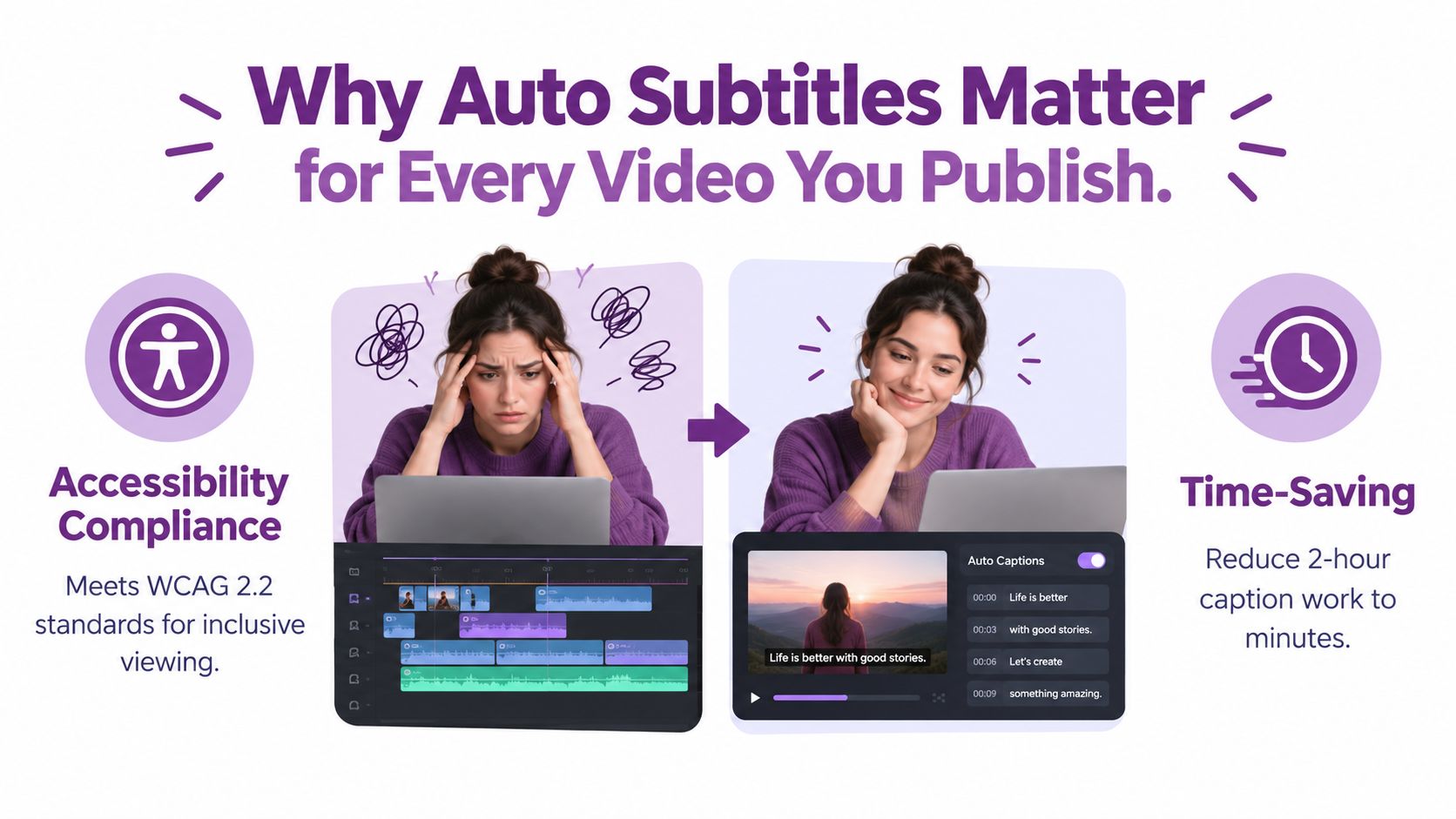
Why Auto Subtitles Matter for Every Video You Publish
Silent viewing is normal on social feeds, in offices, on public transport, and at home when other people are nearby. A major accessibility study summarized by Accessing Higher Ground's video accessibility guidance reports that 92% of consumers watch videos with the sound off, while 50% rely on captions. The same material says 80% of people who use captions aren't Deaf or Hard of Hearing, so captions serve a much wider audience than compliance checklists suggest.
That creates two separate publishing responsibilities. Captions support viewers who can't hear the audio, and they also give silent autoplay viewers a way to understand the opening seconds before deciding whether to continue. A captioned video can communicate its premise in a muted feed where an otherwise strong piece of footage looks like an unexplained montage.
Production reality: Automation saves the transcription effort. It doesn't remove editorial responsibility.
Accessibility guidance distinguishes between captions and subtitles. Captions identify speech, speakers, and meaningful sounds such as [applause] or [error tone]; subtitles generally translate dialogue for people who can hear but don't understand the language. That difference matters for training, education, interviews, and any content where non-speech audio carries meaning.
The search and distribution benefit
A transcript also gives the video a text layer that can support discovery. YouTube, TikTok, LinkedIn, and Instagram provide caption workflows because viewers expect text in short-form content, while video hosts and learning platforms can use caption files for navigation and search. A burned-in caption visible in an MP4 isn't automatically a crawlable transcript, so a separate text asset remains valuable.
The safest approach is to treat auto subtitles as a first draft. Use them to create the initial transcript, then correct names, numbers, timing, speaker changes, and meaningful sounds before publishing. Tools such as LunaBloom AI can fit into that workflow by generating captions and supporting video production, but the final quality still depends on review.
Generating Your First Caption Track Step by Step
Start with the cleanest source file you have. Speech recognition performs better when the voice is clear, the music bed is controlled, and speakers aren't talking over one another. If the tool accepts a hosted video URL, use that when the original file is already stored online. Otherwise, upload the edited video directly.
Set the transcription context
Choose the spoken language before starting the job. If the tool offers regional or accent hints, use them. “Spanish” can cover different vocabulary and pronunciation patterns, and the right language profile gives the recognizer a better starting point. For language teams, a resource such as LenguaZen's real-world conjugation drills can also help reviewers check verb forms and regional phrasing during a Spanish-language edit.
Turn on speaker diarization when the video has interviews, panels, or dialogue. The feature attempts to separate voices and label speaker changes. It won't identify every person correctly by itself, so use generic labels during the first pass and replace them with names once you've checked the footage.
Choose the output you need:
- SRT works well for straightforward subtitle exchange and broad platform compatibility.
- VTT is useful for web players and richer caption metadata.
- Burned-in captions become part of the rendered image and display even when a platform doesn't accept a sidecar file.
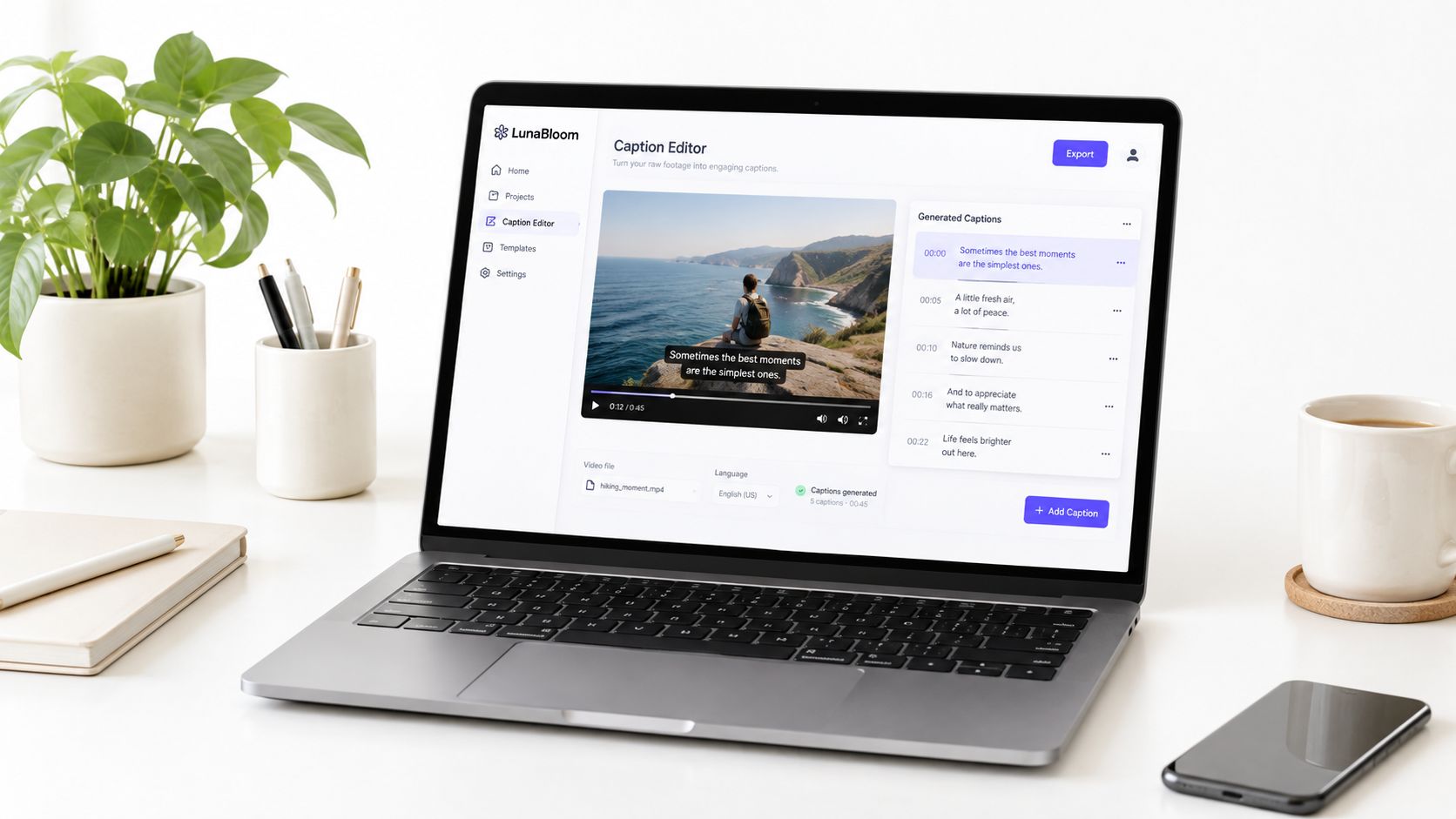
Generate, inspect, and save the draft
Trigger transcription and wait for the rough track to populate. A useful first draft should include time ranges, punctuation, readable paragraph breaks, and confidence indicators or another way to flag uncertain segments. Treat low-confidence regions as review priorities, not as proof that every other line is correct.
Open the draft in LunaBloom's app, save it to the project, and keep the original version before making corrections. That gives you a reference if an edit accidentally shifts timing or removes a line. Don't style or translate before the source transcript is clean, because errors multiply when later stages inherit them.
How Accurate Are Auto Subtitles Really
Accuracy depends on the recording, the speaker, the language, and the subject. A clean studio voice in a common language can produce a strong draft, while café noise, cross-talk, music, accents, and specialist vocabulary expose weaknesses quickly. Independent accessibility guidance reports that YouTube's automatic captions are typically 50% to 80% accurate, depending on audio quality, which is far below the 99% threshold often treated as acceptable for accessibility. See AbilityNet's accessible video captioning guidance for that distinction.
The more useful measure is Word Error Rate, or WER. It counts the proportion of words that require correction, insertion, or deletion. A lower WER is better, but a single wrong word can matter more than several harmless spelling errors. A misheard product name, dosage, price, address, or negation can change the meaning of an otherwise readable sentence.
Typical error patterns
| Audio Condition | Typical WER | Real-World Accuracy |
|---|---|---|
| Clear speech in common languages | Low | Roughly 90% to 98% |
| Clean audio with accents or specialist vocabulary | Variable | Can require substantial review |
| Music, noise, or overlapping speakers | High | May become unreliable |
| Difficult or low-resource language conditions | Materially higher | Some reported results range from 80% to 88% |
The clean-audio range above comes from industry guidance on adding subtitles to video, which also emphasizes audio cleanup, speaker separation, and review of names and jargon. It isn't a guarantee for a particular recording.
Why broadcast standards change the answer
Academic evaluation of ASR-generated subtitles for specialized video content uses WER as its main measure and found that generated subtitles consistently fell short of the 98% accuracy threshold often expected for broadcast-grade subtitling. The study on ASR subtitle quality supports a practical conclusion: professional captioning requires post-editing.
Even a track that looks accurate at a glance can contain a wrong name, dropped number, bad question mark, or invented phrase during silence. Accuracy isn't binary. It includes wording, meaning, synchronization, completeness, and readability, so every automated track needs a human pass before high-stakes publication.
Editing Auto Subtitles Until They Are Publish Ready
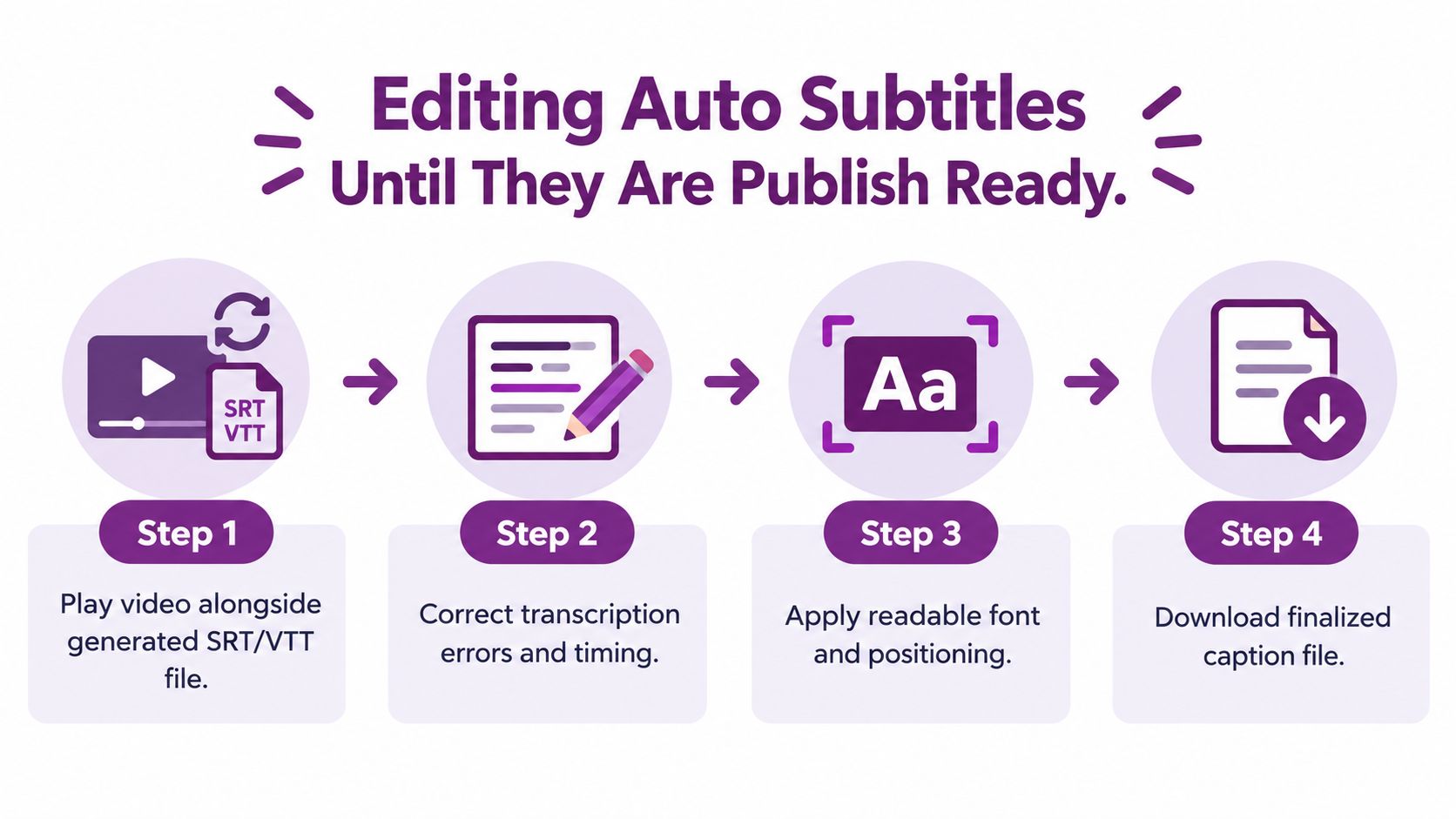
Put the video and the generated SRT or VTT on screen together. Read the caption, listen to the corresponding audio, and watch the frame where it appears. Editing only the transcript misses timing faults, speaker changes, covered faces, and captions that collide with lower-third graphics.
Use a fixed review order
Start with meaning, then readability, then timing:
- Correct proper nouns: Check people, companies, products, locations, and technical terms against the script or approved brand list.
- Verify numbers: Replay every date, measurement, percentage, price, and reference number. Speech recognition often drops or reshapes digits.
- Repair punctuation: Questions, pauses, sentence boundaries, and capitalization should reflect what the speaker means, not just where the recognizer inserted a break.
- Separate speakers: Use consistent labels for interviews and panels. A caption assigned to the wrong speaker can make an accurate sentence misleading.
- Add meaningful sounds: Include relevant non-speech audio when the viewer needs it, such as a warning tone, laughter, or applause.
- Check line breaks: Keep captions easy to scan on a phone. Avoid splitting a name, phrase, or grammatical unit across lines.
- Review placement: Make sure text doesn't cover faces, product demonstrations, charts, or platform interface elements.
- Match policy: Confirm that profanity filtering and editorial choices fit the destination platform and the audience.
Timing deserves its own pass. Captions should enter with the speech, remain visible long enough to read, and leave before the next idea begins. Don't rely on a waveform alone. Watch the finished sequence at normal speed, then scan quickly for flashes, overlaps, and captions that linger after the speaker has moved on.
Editor's rule: Review every word that could change the viewer's interpretation, not just every word the software flags.
Export the cleaned sidecar file, then create a burned-in version only when the destination needs text permanently visible. LunaBloom's starter app can be part of a workflow that moves from generation to correction and export. The tool accelerates the draft stage, while the editor remains accountable for the final track.
Burned In Captions vs Closed Captions and Sidecar Files
The format determines who controls the reading experience. Burned-in captions are rendered into the image, so they remain visible in a social feed, a downloaded file, or a player that ignores external caption tracks. That reliability comes at a cost: viewers can't switch them off, select another language, change their appearance, or correct them without rendering the video again.
Closed captions usually travel as a separate track. A player can display them on demand, while a sidecar SRT or VTT file can support multiple language versions without creating a new video for every translation. The player must support the file and expose the relevant controls, so testing matters before distribution.
| Format | Best For | Tradeoffs |
|---|---|---|
| Burned-in captions | Social clips, ads, and feeds where sidecar files may disappear | Always visible, but can't be toggled, translated, or restyled without re-rendering |
| Closed captions | Long-form video, courses, and accessible players | Flexible for viewers, but depends on player support |
| SRT or VTT sidecar files | Websites, video hosts, LMS platforms, and localization workflows | Searchable and reusable, but require correct upload and synchronization |
Choose by distribution plan
For a short vertical clip designed for silent scrolling, burned-in captions are often the safer delivery choice. They guarantee that the message survives export and appears in the frame even when the platform strips attached tracks.
For a course, interview, product demonstration, or internal training library, keep a sidecar track. Viewers may want to turn captions off, increase their size, choose a language, or use a screen-reader-compatible player. Long-form teams should usually retain the clean master video, the reviewed source SRT or VTT, and each localized track.
A combined delivery is often practical. Publish the burned-in social cut, then upload the sidecar files to the web or learning player. If your player or workflow needs help selecting a format, LunaBloom's contact page provides a route to discuss the production setup.
Translating and Localizing Subtitles Across Languages
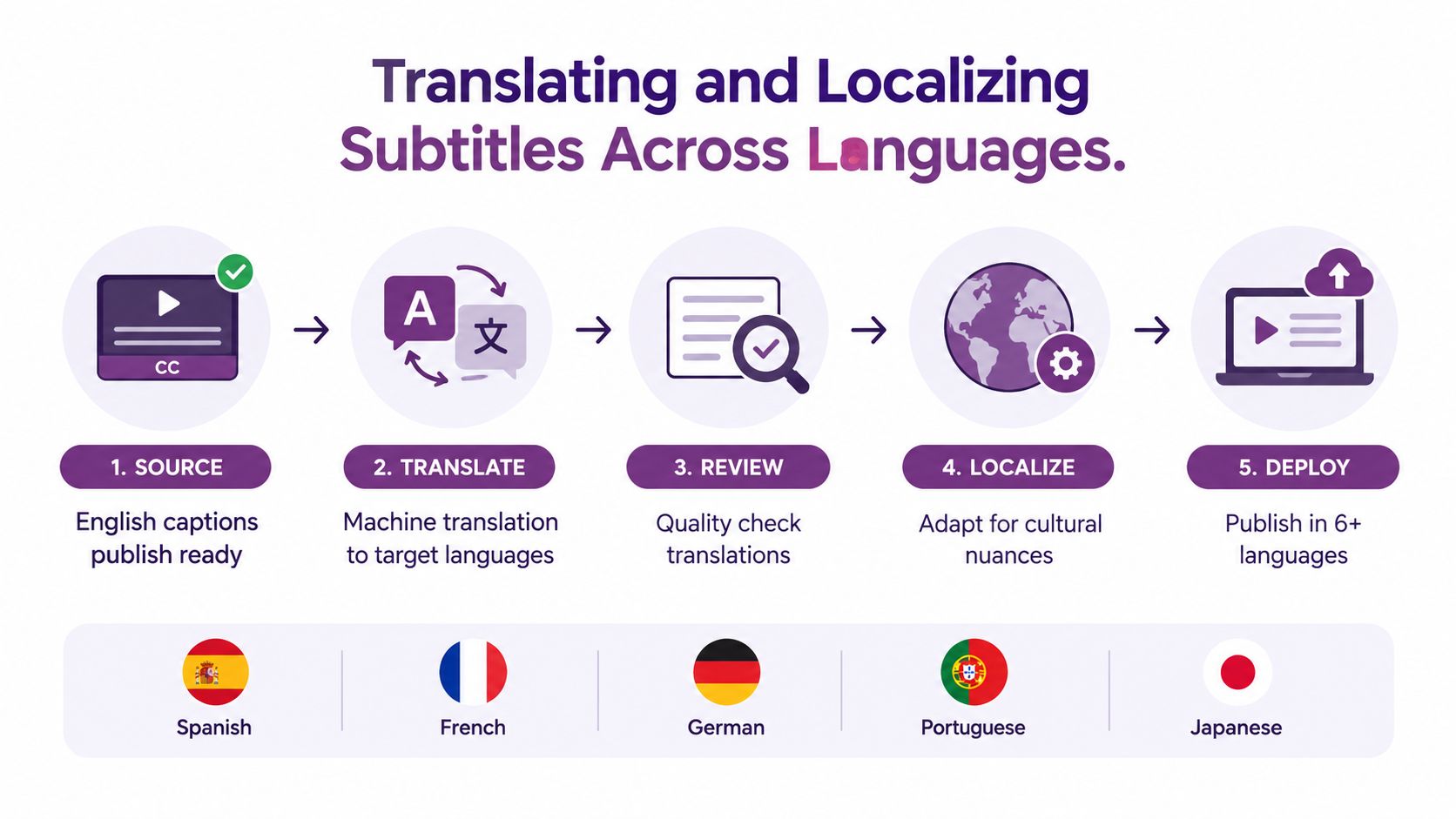
Translation should begin with a clean source caption file, not an unedited machine transcript. Upload the reviewed SRT, confirm the source language, select the target language pair, and generate a draft for each market. Machine translation can extend a finished video into Spanish, French, German, Portuguese, Japanese, and other languages quickly, but speed doesn't make cultural adaptation optional.
Separate translation from localization
Literal translation often produces technically recognizable text that sounds wrong to the audience. Idioms, humor, product references, forms of address, and units of measure need local judgment. A line about a gallon of milk may need to become liters for a European audience, while a Japanese version may require a different cultural reference rather than a word-for-word conversion.
Low-resource languages and unfamiliar accents deserve extra caution. The recent ASR research on subtitle quality and multilingual use cases describes reported accuracy of 94.3% on real-world video for leading systems, compared with 80% to 88% for lower-resource languages. Those figures aren't a universal benchmark for every tool, but they show why English performance shouldn't determine the review policy for every market.
Build a language-priority queue
Review the languages that carry the most audience, revenue, or reputational risk first. If budget is limited, use human review for the top markets and machine-only review for lower-priority versions, but label those tracks internally so nobody assumes identical quality across languages.
Ask a native reviewer to check:
- Meaning: Does the translation preserve the intended claim, warning, joke, or call to action?
- Tone: Does it sound like the brand and the speaker?
- Length: Does the new wording fit the original timing without rushed reading?
- Typography: Are accents, punctuation, scripts, and speaker labels correct?
- Cultural fit: Do examples, units, currencies, and references make sense locally?
Export localized sidecar files for players that support language menus. For global social campaigns, render versions with suitable right-to-left or CJK fonts and check every line in context. A final audio spot check catches timing problems that a text-only reviewer may miss, especially when translation expands or compresses a sentence.
Using Subtitles to Boost SEO and Discoverability
Captions become more useful for search when they sit inside a broader text system. Use the reviewed transcript to align the video's title, description, chapter labels, on-page copy, and metadata around the language real viewers use. Don't stuff keywords into dialogue or captions. Preserve the speaker's meaning and make the surrounding page do the optimization work.
Build the text layer beside the video
Upload an SRT or VTT file when the host supports it, then publish a readable transcript on the same page as the video. The sidecar track helps a supported player display synchronized text, while the HTML transcript gives search systems and users a durable text version they can scan, quote, and search.
A burned-in caption inside an MP4 isn't crawlable text by itself. Pair the visual version with a sidecar file and a posted transcript, especially for tutorials, product explainers, interviews, and training content where the spoken detail carries search intent.
Use the transcript as a production dataset:
- Chapter planning: Match caption timecodes to topic changes and shotlist markers.
- Page structure: Turn major sections of the transcript into headings and supporting copy.
- Content reuse: Adapt answers, definitions, and examples into a companion blog post.
- Metadata alignment: Reflect the video's genuine topics in the title and description.
- Quality control: Search the transcript for product names, numbers, and recurring terms before export.
The second research angle matters too. Experimental work on automatic subtitles reports that captions can improve comprehension and immersion, while transcription errors may increase viewer effort and make speakers appear less fluent or competent than they are. The PLOS ONE research on subtitle comprehension and speaker fairness is a useful reminder that discoverability can't be separated from credibility.
Use the cleaned caption track as the source for the transcript, translations, chapters, and social versions. LunaBloom AI supports automated subtitles, translations, and SEO-oriented video metadata within its creation workflow, so teams can use its platform overview to evaluate whether that hand-off fits their production process.
LunaBloom AI helps creators and teams generate videos with voiceovers, captions, translations, and social-ready exports, while keeping the caption track available for editing and reuse. Visit LunaBloom AI to create a captioned video workflow that starts with a machine draft and ends with accessible, publish-ready content.