A 2026 Wyzowl study found that 96% of people have watched an explainer video to learn about a product or service, while 85% said a video convinced them to buy. The same research found that 93% of video marketers say video improves understanding of a product or service. Wyzowl data summarized in this customer education video guide makes the strategic shift clear: customer education videos aren't merely marketing assets. They're a mainstream learning channel that can help customers adopt features, complete important tasks, and become less dependent on support.
The problem is that many teams still measure these videos like campaign creative. They celebrate views, average watch time, and completion while overlooking the question that matters most: what did the learner do differently afterward? A useful tutorial isn't successful because it looks polished in a board presentation. It succeeds because a customer completes setup, activates a feature, avoids a predictable mistake, or reaches value without opening another support ticket.
Why Customer Education Videos Matter Now
Customer education videos sit at the point where customer intent becomes customer behavior. A prospect may watch an explainer to understand a category, but a customer watches a tutorial because something needs to happen next. They need to invite a teammate, connect an integration, configure permissions, or use a feature that just became relevant to their workflow.
That distinction changes how teams should design and evaluate video. A 90-second tutorial placed inside a dashboard, showing how to invite a teammate, may be more valuable than a polished launch trailer if it helps prevent setup friction during the second week of onboarding. The trailer creates interest. The tutorial helps the customer act.
Industry reporting summarizing TSIA and related customer education research found that 68% of trained users said they use the product more, 56% reported using more product features, and 87% said they can work more independently after training. The same reporting cites a 38.3% lift in product adoption and an approximately 15.5% reduction in support costs for formal customer education programs. These figures are available in customer education statistics and trends. They don't mean every video will produce the same result. They do show why education deserves a place in adoption and retention planning.
Teams often begin with an easier metric, views. Views are useful for distribution checks, but they don't prove comprehension or application. Someone can play a tutorial while multitasking and still fail the task afterward. A behavior-change dashboard asks a different set of questions.
| Metric Category | Example KPI | What It Measures | Why It Can Mislead |
|---|---|---|---|
| Exposure | Plays or impressions | Whether learners encountered the video | Exposure doesn't prove attention or understanding |
| Engagement | Completion or watch time | How far learners moved through the asset | Learners may finish without acting |
| Learning | Knowledge-check accuracy | Whether learners understood the concept | A poorly written question can produce false confidence |
| Adoption | Feature use after viewing | Whether the target behavior occurred | Attribution can be unclear without event tracking |
| Independence | Related ticket volume | Whether learners solve the task without support | Ticket trends can be affected by many other factors |
A customer education program also gives support and success teams a scalable way to answer recurring questions. Instead of repeating the same walkthrough in live calls, they can place a focused lesson at the moment of need and reserve human time for complex decisions.
For teams building this system, LunaBloom's company background provides useful context on the kind of video production environment that can support repeatable educational content. The central principle remains simple: make every video responsible for one customer outcome, then measure that outcome instead of treating views as proof of value.
Defining Learning Objectives Before You Script
The strongest customer education videos begin before the script. They begin with a precise statement of what the learner needs to do and how the team will recognize success.
Use this sentence:
After watching, the learner will be able to ________, and we'll know it because ________.
The first blank defines the job. The second defines the observable evidence. If either blank stays vague, the production team will fill the gap with extra explanation, feature tours, and unnecessary scenes.
Find the job in customer signals
Don't guess what customers need to learn. Pull the objective from evidence inside the customer journey:
- Support tickets: Group tickets by recurring task, product area, and role. A large cluster around one action may justify a tutorial.
- Onboarding friction: Examine where new accounts stall, abandon setup, or require repeated assistance.
- Product analytics: Look for workflows that users start but don't complete, or features that activated accounts rarely reach.
- Customer success notes: Ask CSMs which explanations they repeat and which misconceptions appear across accounts.
- Search behavior: Review help-center searches that return weak results or no relevant answer.
Consider a B2B SaaS product with role-based permissions. A broad objective such as “understand permissions” is too abstract. A stronger version is: “After watching, project admins will be able to configure role-based permissions for a new project, and we'll know it because permission-related support tickets fall by 40 percent over 30 days.” The 40 percent target comes from the scenario, not from a general industry benchmark, so the team should treat it as an internal success criterion and validate it against its own baseline.
Build the script around one behavior
A practical script structure looks like this:
- State the objective on screen. Tell project admins exactly what they'll complete.
- Open with a familiar scenario. Explain why the task matters, such as preventing the wrong people from editing project data.
- Demonstrate one path. Show the permission workflow from the actual interface, with deliberate pacing and no unrelated feature tour.
- Recap the decision. Reinforce which role should receive which access and why.
- Hand off to the next action. Send the learner directly into the product or to the next lesson.
That structure keeps the production team accountable. Every scene must either clarify the task, show the action, or help the learner apply it. A scene that only makes the video feel more cinematic doesn't earn its place if it doesn't support the objective.
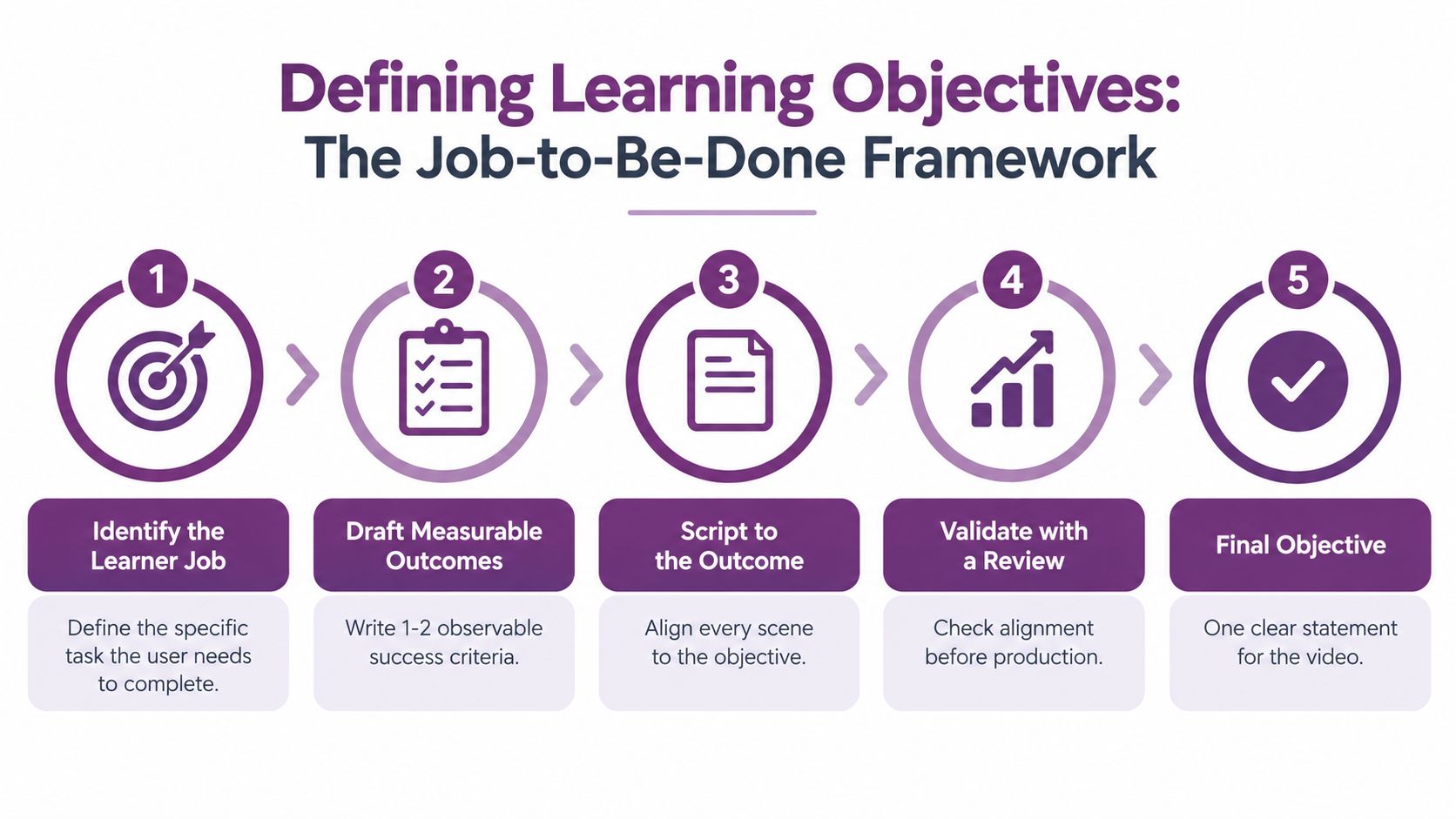
Before production, ask a product specialist to verify the workflow and ask someone unfamiliar with the feature to explain what they think the video promises. That review catches a common failure: a script that describes the product accurately but doesn't teach the learner how to complete the job.
Choosing the Right Format and Length
Format should follow the learner's task, not the producer's preference. A short clip is useful when the learner needs a quick answer. A longer walkthrough earns its length when the learner must understand context, make several connected decisions, or complete a workflow from a blank starting point.
Research-based learning guidance emphasizes small chunks, noting that several five-minute videos can outperform one 20-minute video. A 2026 education study reported an average viewing time per session of 15.06 minutes, which supports designing learning experiences around manageable modules rather than assuming sustained attention. See the research-based education study for the underlying discussion.
Match the format to the moment
Use three questions to choose a format:
| Decision Axis | Short Linear Clip | Longer Walkthrough | Interactive Lesson |
|---|---|---|---|
| Learner goal | Complete one procedural task | Understand a connected workflow | Practice decisions while learning |
| Moment of need | Urgent, in-product, searchable | Planned onboarding or enablement | A sequence that requires action |
| Rewatch likelihood | High, because the answer is specific | Moderate, often for reference | Variable, depending on branching |
| Suitable example | Reset a password or connect an integration | Configure a workflow from scratch | Choose permissions across scenarios |
A short video can explain how to connect an integration, but it shouldn't also cover account architecture, reporting, and advanced automation. Keep the answer discoverable and let related lessons handle the surrounding topics.
A longer walkthrough works when the learner needs to understand a system, not just click a button. Even then, organize it into chapters and visible stages. A five-minute lesson with clear sections is easier to follow than a dense recording that forces learners to scrub through the timeline.
Interactive video is appropriate when learners should pause and act. Branching paths, click-to-explore overlays, and embedded checklists can turn onboarding from passive watching into guided practice. They also create more production and maintenance work, so reserve them for decisions that benefit from interaction.
Practical rule: If the objective contains one verb and one product action, start with a focused tutorial. If it contains several dependent decisions, use modules or interaction rather than adding narration to one oversized video.
Don't rely on unsupported length formulas. Guidance for customer education commonly recommends a very short opening hook, with the first 15 seconds used to establish the problem or promise. Other onboarding guidance recommends focusing each video on one task, often in the 2–5 minute range or under three minutes for most tutorials. These recommendations are summarized in Intellum's customer education video guide and ScreenDesk's training video guidance.
If a topic takes 12 minutes to explain, don't automatically publish one 12-minute lesson. Test whether it can become three four-minute modules, each with its own objective and next action. For teams developing repeatable video assets, LunaBloom's starter app can fit into a workflow where format decisions are made from the learning objective first.
Producing the Video With AI Workflows
AI can accelerate production, but it can't decide whether the lesson teaches the correct behavior. The learning objective remains the source of truth. A disciplined workflow uses AI to move faster through scripting, visual development, voiceover, editing, and localization while keeping product accuracy under human review.
Start with a production brief
Feed the objective into a prompt or creative brief that specifies:
- Audience: Identify the role, experience level, and context.
- Job to be done: State the exact task the learner must complete.
- Prior knowledge: Clarify what the learner already understands.
- Behavior change: Describe the one action that should happen after viewing.
- Product truth: Name the current interface, terminology, restrictions, and approved claims.
The system can then generate a script outline, storyboard, and scene prompts. At this stage, don't approve the output because it sounds natural. Compare every scene against the actual product UI, current documentation, and subject-matter expert guidance.
Review each artifact, not just the final render
A reliable production sequence is:
- Input the learning objective and script. Keep the objective attached to the project record.
- Generate visuals and voiceover. Create scenes that demonstrate the task without adding unrelated claims.
- Review and edit scene by scene. Check the interface, narration, timing, labels, and transitions.
- Add learning elements. Include captions, chapter markers, key-term labels, and a transcript.
- Render and export. Prepare versions for the product, help center, email, and other distribution surfaces.
- Run QA. Have a subject-matter expert verify claims, a cold learner attempt to follow the lesson, and an accessibility reviewer check captions, contrast, and transcript.
- Localize. Translate scripts, regenerate voiceover or subtitles, and produce regional cuts where terminology or examples require adaptation.
For background music, educators can review LesFM music for educators for tracks intended for learning content. Keep music subordinate to narration and task comprehension. A soundtrack that competes with instructions may make an otherwise accurate tutorial harder to follow.
Here's a short visual reference for thinking about an AI-assisted educational video workflow:
The advantage of an AI workflow is consistency. Once the objective, script, assets, voice, captions, and review notes remain connected, a team can produce and revise lessons without rebuilding every artifact from scratch. LunaBloom AI is one option for turning text prompts, scripts, and images into edited videos with voiceovers, captions, avatars, localization, and multiple export formats. Teams can review its video creation app as part of a broader production stack.
Designing Assessments and Knowledge Checks
A completion event tells you that a learner reached the end of a video. It doesn't tell you whether the learner can perform the task. Knowledge checks provide a more honest signal, especially when they appear at the point where the learner must make a decision.
Place a check after each important concept and immediately before the learner acts in the product. The question should test the target behavior, not whether the learner remembers an incidental phrase from the narration.
Four useful check types
Multiple choice works well for definitions and distinctions. After explaining permission roles, ask which role should receive edit access for a specific project scenario.
Scenario prompts test judgment. Present a short situation, then ask, “What would you do next?” This is more useful than asking learners to repeat a menu label because it reflects the decisions they'll make in practice.
Short free response encourages self-reflection. Ask the learner to name the workflow they'll configure or describe the risk they're trying to prevent. Free responses may require qualitative review, but they reveal confusion that automatic scores can miss.
Interactive hotspots help learners identify the correct interface element. Show the relevant screen and ask them to select where they would configure the setting. This is particularly useful for new or frequently changed UI layouts.
| Assessment Type | Best Used For | Example Prompt | Scoring Method |
|---|---|---|---|
| Multiple choice | Key definitions and distinctions | Which role should receive edit access? | Automatic answer matching |
| Scenario-based | Workflow judgment | What should the admin do next? | Rule-based answer or rubric |
| Free response | Reflection and planned application | Which project will you configure first? | Keyword review or human rubric |
| Interactive hotspot | UI recognition | Select the permission control | Location-based validation |
Capture wrong answers instead of treating them as noise. If many learners choose the same incorrect option, the problem may be the explanation, the interface, or the question itself. Rewrite the scene, add a clearer example, or split the concept into smaller units.
Assessment data can also help customer success teams identify accounts that need targeted help. A learner who repeatedly misses the same concept may benefit from a follow-up lesson or human outreach. That signal is more actionable than a high completion rate with no evidence of application.
Distributing Videos Where Learners Need Them
A useful video can still fail if customers can't find it. Distribution should follow the workflow that creates the learning need, not the internal folder where the education team stores the asset.
A short tutorial belongs close to the action. A conceptual walkthrough may belong in a structured onboarding path. A feature refresher might work best in an email triggered by product behavior. The same source video can serve multiple surfaces, but each placement needs its own title, description, and next step.
Four practical distribution surfaces
In-product placement gives learners help without forcing them to leave their work. Use short clips in tooltips, empty states, side panels, setup checklists, and contextual prompts triggered by user behavior. A video about inviting teammates should appear near the invitation workflow, not in a general academy catalog.
The help center supports deliberate search. Anchor longer tutorials to searchable articles, match titles to the customer's likely wording, and place timestamps beside distinct answers. “Configure role-based permissions” is more useful than an internal title such as “Permissions enablement module.”
Lifecycle email works when the message arrives at a meaningful step. Send an integration tutorial after a customer has activated the core product but hasn't connected a key system. Link directly to the relevant chapter or timestamp so the learner doesn't have to search through a general video.
Community and customer success channels extend the lesson into existing relationships. Add videos to onboarding paths, webinar follow-ups, customer success playbooks, and responses to recurring questions. CSMs can use the same asset consistently while adding account-specific guidance around it.
Make retrieval part of the design
Use descriptive titles that mirror search intent. Write descriptions that state the learner, task, and expected result. Add transcripts for accessibility and search, and keep product terminology consistent across the video, article, and interface.
Teams managing many versions also need a dependable publishing process. Resources on how to streamline video delivery workflows can help teams think through channel handoffs, approvals, and repeatable distribution operations.
Before embedding videos in customer-facing surfaces, review privacy, permissions, and data handling. The LunaBloom privacy information is one example of the policy material teams should examine when evaluating a production platform for customer education content.
Measuring Impact and Starting This Week
A customer education video library earns its budget when it changes customer behavior. Views and completion are useful diagnostic signals, but they should sit below outcome metrics in the reporting hierarchy.
Use three measurement layers.
Adoption lift
Track whether viewers complete the target action after watching. Depending on the lesson, that might mean activation, feature use, workflow completion, or another product event within a defined observation window. Tie the event to the viewer's account or user ID so the team can distinguish people who watched from people who acted.
Learner independence
Measure whether customers can make progress without human intervention. Useful signals include ticket deflection associated with a specific tutorial, time to first value, repeated help-center searches, and escalation patterns. A video that receives modest traffic but prevents a recurring support issue may be more valuable than a widely viewed introductory asset.
Business impact
Compare retention and expansion patterns by learning cohort, while treating correlation carefully. Customers who engage with education may already be more motivated, so avoid claiming that a video caused a commercial outcome unless the measurement design supports that conclusion.
A practical instrumentation setup can include:
- Unique UTM links: Give campaign and lifecycle placements distinct tracking parameters.
- Viewer identity: Connect authenticated viewers to account and user records.
- In-app events: Record the target product action after viewing.
- Knowledge checks: Store pre- and post-check responses where the lesson includes assessment.
- Support tags: Link relevant tickets to the educational asset that addressed the task.
- Content versioning: Record which video version the learner watched before comparing results.
Review metrics on a consistent cadence. A weekly operating review can catch broken links, UI changes, and immediate comprehension problems. A monthly program review can examine adoption, independence, support patterns, and content gaps. Product launches should trigger an additional accuracy check whenever the relevant interface changes.
A practical 30-day plan
Days 1–5, audit the library. List every existing video, its audience, the job it teaches, its current location, and the product event that should follow. Mark assets that explain features without specifying a learner outcome.
Days 6–12, rewrite two objectives. Choose two adoption moments with visible friction. Turn each into the job-to-be-done sentence, define the success criterion, and convert the objective into an AI-ready script brief.
Days 13–20, produce and pilot. Create the videos, review them with a subject-matter expert, test them with cold learners, and publish them to the in-product or help-center surface where the need occurs. Don't wait for a complete academy redesign.
Days 21–30, connect measurement. Add UTM parameters, viewer IDs, product events, knowledge checks, and support tags. Review the first dashboard with product, support, customer success, and education stakeholders, then choose the next lesson based on the largest unresolved behavior gap.
The most useful question in that review isn't “Which video got the most views?” Ask, “Which customer action improved, and what evidence supports that conclusion?” For help selecting a production approach or discussing an education video workflow, teams can contact LunaBloom AI.
LunaBloom AI helps businesses create customer education, product demos, tutorials, training, and onboarding videos from scripts, prompts, and images, with voiceovers, captions, localization, and export options for different channels. Visit LunaBloom AI to explore a production workflow that keeps each learning video connected to a clear customer outcome.