Software training videos are dynamic, visual guides designed to show people how to use a piece of software effectively. They replace dense, text-heavy manuals with engaging, step-by-step demonstrations that make even the most complex features easy to understand.
Why Your Team Ignores Traditional Software Manuals
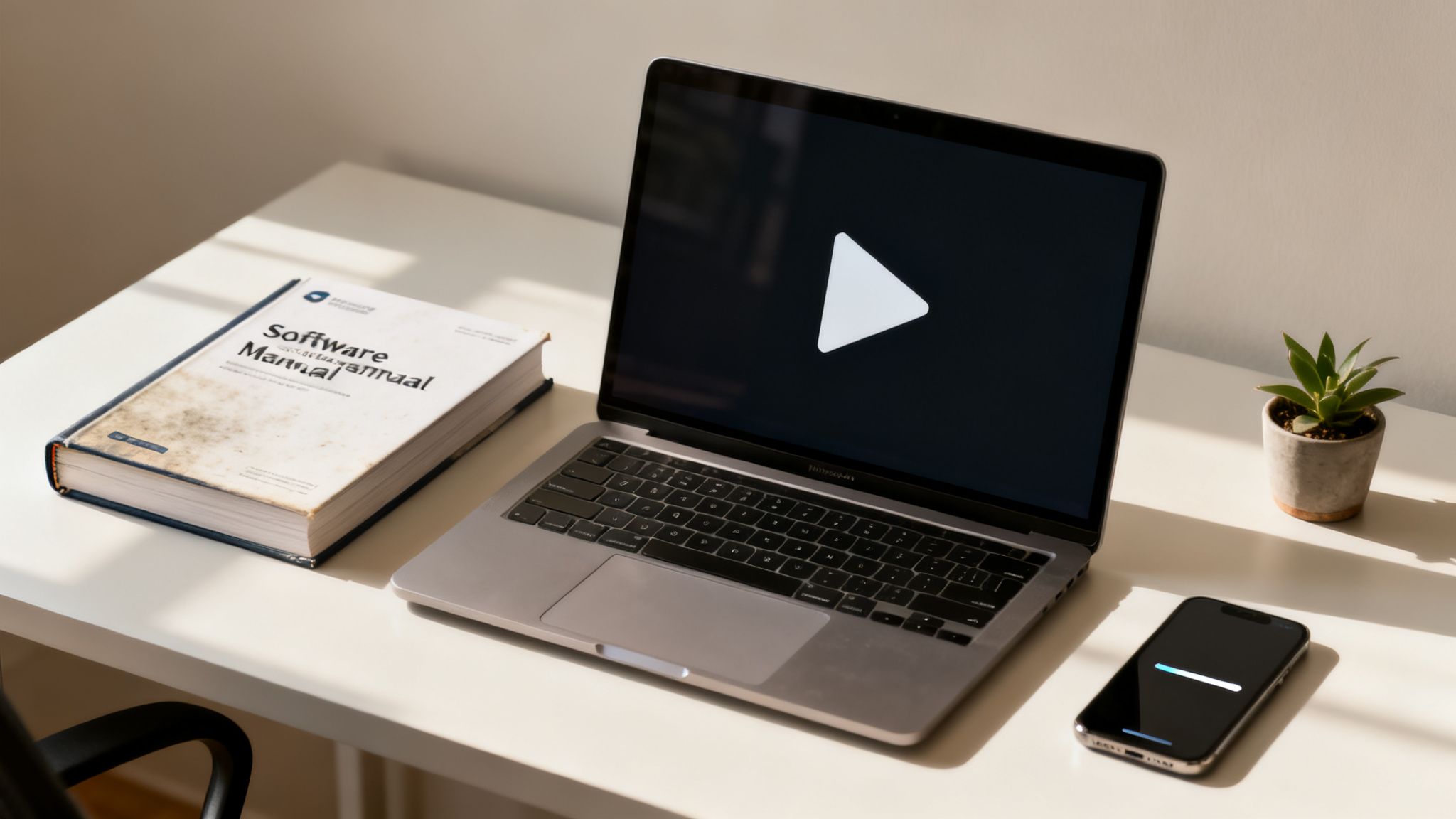
Let's be honest: no one is reading that hundred-page software manual gathering digital dust on a shared drive. In today's fast-paced environment with remote teams and complex tools, static documents are where knowledge goes to die. Team members need answers now, not after spending 20 minutes hunting through a massive PDF.
This is precisely why video has become the undisputed champion for effective software training.
Dynamic, visual learning is simply better at grabbing and holding our attention. Instead of deciphering abstract instructions, viewers can see the software in action, follow a cursor on the screen, and hear a clear explanation simultaneously. This multi-sensory approach dramatically improves user adoption and makes onboarding new team members a faster, less painful process.
The Shift to Visual-First Learning
The move toward video isn't just a fleeting trend; it's a fundamental shift in how people prefer to learn and retain information. The market confirms this loud and clear. The global Video Training Software market was valued at an impressive USD 16.14 billion in 2024 and is projected to skyrocket to USD 50.63 billion by 2033. This surge, tracked by sources like datainsightsmarket.com, directly reflects the needs of modern workplaces for training that scales and actually works.
This shift delivers tangible benefits that static manuals can't match:
- Improved Knowledge Retention: People remember what they see and do. Studies show that video-based learning can increase knowledge retention by up to 75% compared to reading alone.
- Reduced Support Tickets: When users can find answers themselves through a quick video, they don't flood the support queue with common questions. This frees up your technical teams to tackle more complex issues.
- On-Demand Accessibility: Employees can access a training video the moment they need it, whether they're stuck on a specific task or just need a quick refresher. This self-service model empowers users and boosts their confidence.
The core problem with manuals is friction. A user has to stop their work, locate the right document, search for the correct section, and then translate dry text into a real-world action. A well-made video removes nearly all of that friction.
The Rise of AI in Video Creation
Historically, the biggest obstacle to creating a comprehensive library of training videos was the sheer amount of work involved. It meant hours of recording, editing, and narrating—a significant time investment. However, modern AI video tools are completely changing this landscape.
Platforms like LunaBloom AI now enable any department—from HR to customer support—to produce polished, effective training content without needing a professional video crew or a large budget. As we'll explore, these tools can transform a simple script into a professional video with AI presenters and voiceovers in just minutes. You can learn more about how LunaBloom AI makes video creation accessible by checking out our story.
Crafting Your Pre-Production Blueprint
Jumping straight into recording without a plan is a recipe for rambling takes, confusing content, and hours of wasted editing time. Just like building a house, your software training videos need a solid foundation. That foundation is your pre-production blueprint.
Think of this planning phase as your secret weapon. It separates polished, professional videos from sloppy, ineffective ones. A little strategic work upfront prevents endless re-recordings and ensures your final product is clear, concise, and effective.
Define Sharp Learning Objectives
Before hitting record, ask yourself one crucial question: What, exactly, will the viewer be able to do after watching this video? Your answer is the learning objective. A vague goal like "teach them about the dashboard" is not enough.
Be specific and action-oriented. A much stronger objective is: "After watching this video, the user can create a new project, assign it to a team member, and set a due date." This clarity achieves two critical things:
- It keeps your content laser-focused on solving a tangible problem.
- It gives the viewer a clear purpose and a sense of accomplishment.
Analyze Your Target Audience
Who are you making this video for? The answer fundamentally shapes your approach. You wouldn't explain a feature the same way to a seasoned power user as you would to a total beginner.
Take a moment to define your audience. Are they:
- Complete Novices? Avoid jargon, slow down your pace, and explain every single click. Assume they have no prior knowledge.
- Intermediate Users? They likely understand the basics. You can jump into more advanced workflows or efficiency tips without starting from square one.
- Expert Power Users? These users are looking for advanced features, API integrations, or hidden shortcuts. Don't waste their time with the obvious.
Knowing your audience helps you tailor the tone, complexity, and pacing, making the content feel personalized. If you're building a full training curriculum, you can explore how our starter app helps map content for different skill levels.
A common mistake is creating one-size-fits-all videos. By trying to speak to everyone, you often connect with no one. Segmenting your audience allows you to create content that feels tailor-made.
Master the Script and Storyboard
With your goal and audience defined, it's time to write the script. The key is to sound conversational, not like you're reading a technical manual. A great trick is to read your script aloud. If it sounds stiff or robotic, rewrite it until it flows naturally.
A solid script is the backbone of your video. It ensures you cover all key points in a logical order and prevents you from going off on tangents during recording.
Next is the storyboard. You don't need to be an artist. A storyboard is a simple visual plan that maps out what will appear on screen for each part of your script. It helps you pre-visualize shots, on-screen text, and graphics, which is invaluable for creating a polished, professional video.
Your Essential Pre-Production Checklist
Before you hit record, run through this quick checklist. It’s a simple way to ensure your software training video starts on the right foot and delivers immediate value.
| Phase | Key Action | Why It Matters |
|---|---|---|
| Objective | Define one clear, actionable task the viewer will learn. | Prevents unfocused content and ensures the video has a clear purpose. |
| Audience | Identify the viewer's skill level (e.g., beginner, expert). | Allows you to tailor the tone, pacing, and complexity for maximum impact. |
| Scripting | Write a conversational script and read it aloud to check flow. | Creates a natural, engaging narration and prevents rambling during recording. |
| Storyboarding | Map out visuals for each part of the script. | Helps visualize the final product and ensures a smooth, polished edit. |
Nailing these four steps is the difference between a video that works and one that just adds to the noise. With this foundation in place, you’re ready for production.
Recording and Producing Your Training Content
You've done the prep work, and your script is ready. Now it's time to bring your training video to life. This is where your planning pays off as we get into the practical aspects of recording.
You don't need a Hollywood budget or a film degree. The goal is to master a few simple techniques for screen recording and audio that will make your videos look and sound fantastic. A little preparation before you hit record goes a long way.
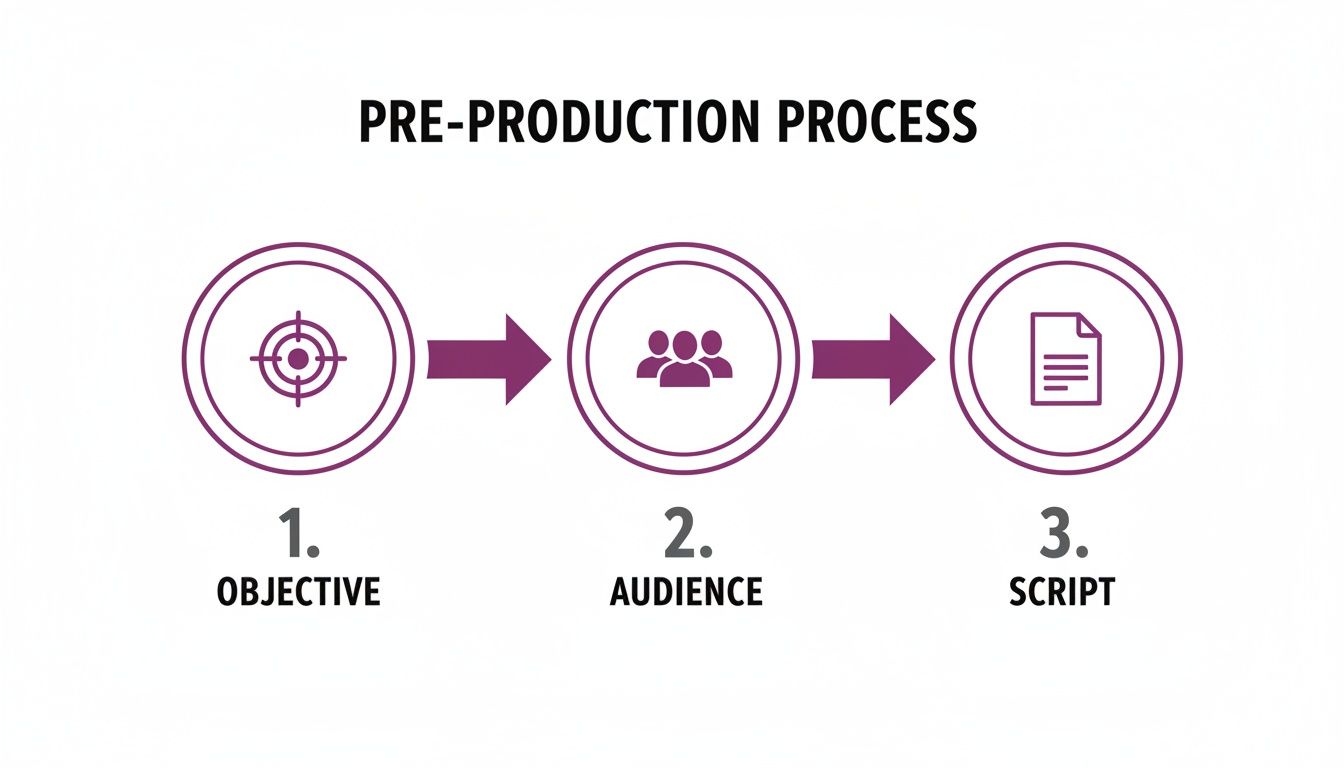
This is why nailing the pre-production stage—your objective, audience, and script—is so critical. It gives you a clear roadmap, making the recording process much smoother.
Best Practices for Clean Screen Recording
The clarity of your screen recording can make or break your training video. If viewers are squinting to see what's happening or are distracted by a messy desktop, they're not learning. Before you record, take five minutes to set your digital stage.
- Declutter Your Desktop: Hide your icons and close any applications not part of the tutorial. A clean, branded wallpaper is a nice touch.
- Silence All Notifications: Nothing ruins a perfect take like a Slack message or email alert. Turn on "Do Not Disturb" mode.
- Set the Right Resolution: Aim for 1920×1080 (1080p). This provides a crisp, clear video that looks great on almost any screen without creating a massive file.
- Highlight Your Cursor: Use a tool that puts a highlight around your cursor or shows a visual indicator on clicks. This is a huge help for guiding the viewer's attention.
These small steps are the difference between a video that looks thrown together and one that feels polished and professional.
Capturing Crisp and Clear Audio
Let’s be direct: people will tolerate mediocre video quality, but they will not tolerate bad audio. If your audience can't understand you, the video is useless. You don't need a fancy studio, but a few small adjustments can make a world of difference.
Here's the golden rule: an audience will forgive so-so video, but they will never forgive bad audio. Your voice is the primary teaching tool.
Here are a few quick tips for crisp, clear voiceovers:
- Use an External Mic: Your laptop's built-in microphone won't cut it. Even a basic USB mic is a massive improvement and will eliminate that tinny, echoey sound.
- Find a Quiet Spot: Record in a room with soft surfaces—carpets, curtains, or even a closet full of clothes—to absorb sound and reduce echo.
- Pace Yourself: It's not a race. Speak clearly at a natural, conversational pace. Enunciate your words so every instruction is understood.
Creating Videos Instantly with AI
Want to skip the recording and editing grind altogether? AI video generators like LunaBloom AI are transforming training content creation. You can input your script directly into the platform and receive a finished video—complete with a professional presenter and voiceover—in minutes.
This approach is perfect for creating high-quality training at scale without getting bogged down in technical production.
This isn't just about speed; it's about consistency and reach. The market for Computer-Based Training Software is booming, valued at USD 18.4 billion in 2024 and projected to hit USD 56.24 billion by 2033. This growth is driven by tools that make training stick; for example, interactive video training can boost completion rates by 52% compared to text alone.
With a tool like LunaBloom AI, you can generate videos with custom AI avatars, clone your own voice for brand consistency, and instantly translate content into over 50 languages. To learn more, you can read the full research about computer-based training software.
Here’s a real-world scenario:
- The Goal: A company needs to train its global sales team on a new expense reporting feature.
- The AI Solution: The L&D manager uploads the script to LunaBloom AI, selects a professional AI avatar, and uses voice cloning to match their company's main spokesperson.
- Going Global: With a few clicks, they generate versions in Spanish, German, and Japanese, complete with accurate subtitles. The entire global team receives the same high-quality training simultaneously.
This AI workflow frees you from the tedious parts of video production, letting you focus on what really matters: crafting clear, engaging, and effective training.
Polishing Your Video in Post-Production
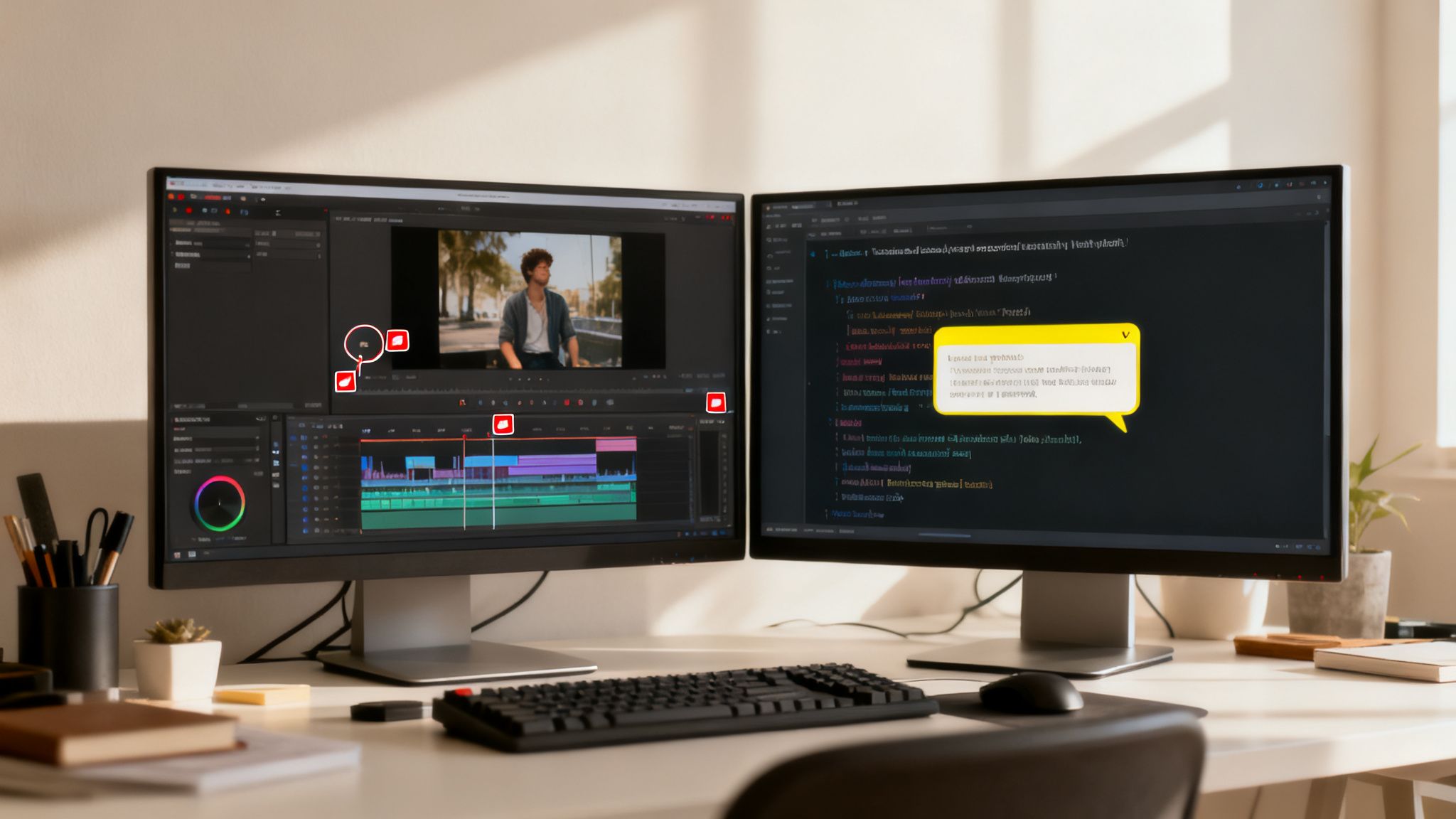
A raw recording is just the starting point. The real magic happens in post-production, where you shape that rough footage into a learning tool that’s polished, professional, and easy to follow. This is your chance to add the finishing touches that make your software training videos truly effective.
Think of it this way: the recording is the raw material, but editing is where the craftsmanship comes in. It’s about cutting away the noise to let the core message shine, ensuring every second serves the learning goals you defined from the start.
Essential Editing Techniques for Clarity
Your number one goal in editing is clarity. Every cut, zoom, or graphic you add should help the viewer better understand the software. Start by trimming out all the awkward pauses, coughs, and "ums" that make a video feel amateurish and distracting.
Once your timeline is clean, you can start directing the viewer's attention. Simple visual cues are your best friend here.
- Strategic Zooms: Use slow, deliberate zooms to focus on specific buttons, menus, or input fields. This simple move prevents viewers from getting lost on a busy screen.
- Highlighting and Callouts: Add simple shapes like circles or arrows to pinpoint exactly where someone needs to click. A quick text callout can also reinforce a key instruction.
- Smooth Transitions: Stick to simple cuts or subtle fades when moving between steps. Flashy, distracting transitions pull focus away from the lesson.
These small techniques guide the viewer’s eye and make even complex interfaces feel approachable.
The best editing is invisible. The viewer shouldn't notice the clever zooms or perfectly timed cuts; they should just feel that the video is incredibly easy to follow and understand.
Making Your Videos Accessible to Everyone
Accessibility isn't just a nice-to-have; it's a necessity. Building content that everyone can use, regardless of their abilities, is the right thing to do and makes your training far more effective. For video, that journey begins with captions and subtitles.
Accurate captions are crucial for viewers who are deaf or hard of hearing, but their benefits extend much further. A study by Verizon Media found that 80% of consumers are more likely to watch an entire video if captions are available. People watch videos in noisy offices, on public transit, or simply with the sound off, making captions a critical tool for engagement.
What used to be a tedious manual process has been completely transformed by modern AI tools.
Automating Accessibility and Localization with AI
Platforms like LunaBloom AI can generate highly accurate captions for your videos in minutes, saving you hours of work. After the AI completes its pass, you can quickly review and tweak them for perfection. You can see these features in action on the LunaBloom AI platform.
But AI doesn't stop at captions. It also opens the door to localizing your content for a global audience—without re-recording a single thing.
Imagine your software is launching in Germany and Japan. Instead of starting from scratch for each market, you can use AI to:
- Translate Subtitles: Instantly generate subtitles in German and Japanese from your original English captions.
- Clone Your Voice: Use AI voice cloning to create a new audio track where the narration is spoken fluently in the target language, all while maintaining a consistent vocal tone.
This approach lets you scale your training efforts globally for a fraction of the time and cost, ensuring every user gets a top-notch, localized experience. For longer videos, learning how to add chapters to YouTube video content is a game-changer. It helps users jump straight to the section they need, which they will definitely appreciate.
Distributing and Measuring Your Video's Success
You’ve created a fantastic software training video. That's a huge win, but hitting "export" isn't the finish line. A brilliant video is useless if nobody sees it or if you can't prove it’s actually helping.
This is where the real work begins. Smart distribution and measurement turn your video from a file into a genuine asset for your organization. These final steps are arguably the most important, determining whether your videos become a go-to resource or just more content lost in the digital ether.
Choosing the Right Home for Your Content
Where you host your videos has a massive impact on who sees them and how they're used. You have a few solid options, and the best choice depends on your audience.
- Internal Learning Management System (LMS): If you're training employees, this is your best bet. An LMS allows you to track completions, assign required viewing, and build out entire learning paths.
- Public Platforms (YouTube, Vimeo): For broad customer education, you can't beat the reach of these giants. They are universally familiar, and their built-in analytics are powerful.
- Your Knowledge Base or Help Center: This is a game-changer. Embedding videos directly within support articles creates a powerhouse self-service hub, giving users answers right when they need them.
The golden rule is to go where your audience already is. The less friction you create, the more likely they are to watch. For more ideas on weaving video into your strategy, check out the LunaBloom AI blog.
Tracking the Metrics That Actually Matter
Forget vanity metrics. A high view count is nice, but it doesn't tell you if the video actually worked. To prove the value of your training, you need to dig into data that reveals how users are truly engaging.
Here are the KPIs that matter most:
- Audience Retention: This graph shows exactly when people are dropping off. A significant dip might indicate a confusing or boring section.
- Completion Rate: What percentage of viewers watch to the very end? A high completion rate on a tutorial for an advanced feature signals you've created something valuable.
- Click-Through Rate (CTR) on CTAs: If you link to other resources, are people clicking? This shows if your video successfully guides users on their journey.
- User Feedback and Comments: This qualitative data is pure gold. Pay close attention to what people are saying to uncover pain points and get ideas for future videos.
The market for video streaming software—the tech that delivers these insights—is set to hit USD 34.67 billion by 2030. This growth is supercharged by the rise of AI video generators, a market projected to reach $2,562.9 million by 2032. With 50% of small businesses already using these tools, it's clear that accessible, professional-grade video creation and analytics are here to stay.
Proving ROI is about connecting the dots between video performance and business goals. Did you release a video explaining a tricky feature and see a corresponding drop in support tickets about it? That’s a home run.
Ultimately, you want to create a feedback loop. Use data to improve current videos and plan what to create next. The goal isn't just to make videos; it's to make videos that solve real problems. Understanding how to create video training that actually sells or drives adoption comes from this cycle of creating, measuring, and refining. When you nail this process, your software training videos become an indispensable part of your success.
Common Questions About Creating Training Videos
Even with a solid plan, questions are bound to arise when you start creating software training videos. This is completely normal. This section tackles the most common questions we hear, providing straight, practical answers.
Think of this as your go-to reference for those "what if" and "how do I…" moments.
How Long Should a Software Training Video Be?
The ideal length for most software training videos is between 2 to 7 minutes. This aligns with the modern preference for short, focused "microlearning" content. A video in this range can teach a single feature or solve one specific problem without overwhelming the viewer's attention span.
If you need to explain a complex workflow, don't cram it into one long video. Instead, break it down into a playlist of shorter, bite-sized videos. This approach keeps viewers engaged and allows them to learn at a manageable pace.
What Are the Biggest Mistakes to Avoid?
A few common mistakes can undermine an otherwise great training video. Knowing them upfront is half the battle.
Here are the top five mistakes to avoid:
- Terrible Audio Quality: If your audience can't hear you clearly, they will leave. A decent external microphone is a must-have.
- No Clear Learning Goal: Every video needs a single, clear purpose. Content that meanders without a point will only confuse viewers.
- Covering Too Much Information: Resist the urge to explain everything at once. The best training focuses on one task per video. Keep it simple.
- Ignoring Basic Accessibility: Skipping captions and subtitles makes your content inaccessible to a portion of your audience and less helpful for everyone else.
- A Distracting On-Screen Environment: A cluttered desktop, random files, and pop-up notifications look unprofessional and make your video hard to follow.
The most successful training videos are simple, focused, and respectful of the viewer's time. Avoiding these common mistakes puts you on the right path to creating content that truly helps.
Can AI Tools Really Replace a Video Team?
For creating a large library of scalable software training videos, the answer is a resounding yes. Modern AI video platforms are designed for this exact purpose: to produce professional-quality content without requiring technical video skills. You can generate a polished video directly from a text script.
This includes a realistic AI presenter, a high-quality voiceover, and even automatic subtitles in multiple languages.
While a human production team is still the best choice for a big-budget brand film or a highly creative marketing campaign, AI is often the smarter, more consistent, and more cost-effective option for software tutorials. It ensures a consistent look and feel across hundreds of videos and makes updates effortless when your software changes.
This technology empowers subject matter experts—the people who know the software best—to create training directly. It cuts out production bottlenecks and delivers critical information to your users much faster.
By following these guidelines—from clear planning and clean production to accessible editing and smart distribution—you can create software training videos that not only get watched but also deliver real, measurable results. You'll empower your users, reduce support load, and build a more confident, proficient team.
Ready to create professional training videos in minutes, not days? LunaBloom AI lets you transform simple text into engaging videos with AI avatars and voiceovers in over 50 languages. Start creating for free today at https://lunabloomai.com and see how easy it can be.