So, you want to create a video from a PPT. The easy way is using PowerPoint’s built-in "Export as Video" feature. It’s quick, simple, and gets the job done. But let's be honest, that’s just scratching the surface.
If you want to create videos that truly connect with your audience, you need to go beyond the basics. This guide will show you how.
Why Turn Your PowerPoint Into a Video?
Before we dive into the how, let's talk about the why. In today's fast-paced digital world, a standard slide deck struggles to capture—and hold—attention. Transforming that presentation into a video is about making your message more dynamic, memorable, and shareable.
This isn't just a fleeting trend. The global market for video presentation software, valued at USD 884 million in 2025, is projected to soar to USD 1,298 million by 2034. That’s a clear signal that businesses and creators are embracing the power of video.
The Strategic Advantages of Video
Converting your slides into a video unlocks a whole new level of engagement and reach. Videos are perfect for breaking down complex ideas, making them ideal for training modules, product demos, and marketing campaigns.
Plus, video is the native language of social media. Sharing a slide deck on LinkedIn is fine, but sharing a polished, professional video can stop the scroll and get people talking.
Here’s a quick breakdown of the benefits:
| Benefit | Impact |
|---|---|
| Boosted Audience Engagement | Video combines visuals, sound, and motion to create an immersive experience that keeps viewers hooked. |
| Improved Information Retention | People remember information better from a video than from text alone. It’s a game-changer for educational content. |
| Greater Accessibility | Your audience can watch your video on any device, anytime. It puts your content on their terms. |
| Enhanced Social Sharing | Videos are shared more on social media than text and images combined, giving your message a chance to go viral. |
This is about making your content work smarter, not just look prettier.
When you convert a presentation, you're not just making a video. You're creating a self-contained, shareable asset that works for you long after the live presentation is over.
Suddenly, that one-time webinar becomes an evergreen resource for your marketing, sales, or training library. You can learn more about how our approach at LunaBloom AI helps creators achieve this. It’s about building a stronger, more effective connection with your audience through a simple change in format.
Using PowerPoint's Built-In Video Export
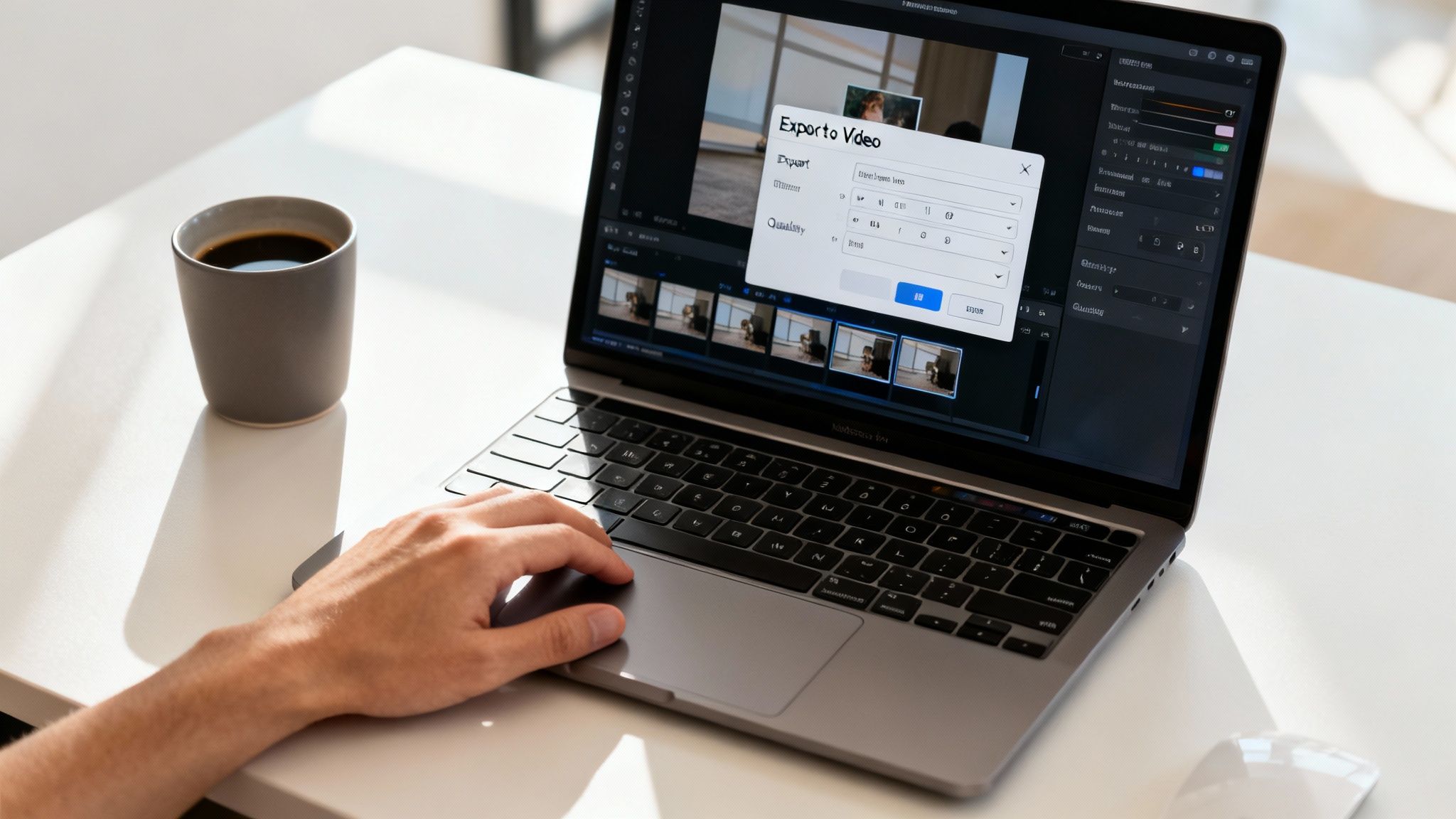
Sometimes, the simplest solution is the best. The fastest way to create a video from a PPT is by using the tool you already have open. PowerPoint's built-in export feature is a surprisingly good option for creating a solid video foundation without any extra software.
It’s the perfect choice when you need a quick, reliable conversion of your slides into a shareable format. But before you hit that export button, a little prep work can make a huge difference.
Preparing Your Slides for Video Export
First, you need to nail your slide timings. This gives your video a natural pace and keeps it from feeling like a rushed, robotic slideshow. The best way to do this is to go to the "Slide Show" tab and select "Rehearse Timings." As you click through your presentation as if you were presenting live, PowerPoint records how long you spend on each slide.
Next, add a human touch with narration. Recording your voice directly onto the slides adds a layer of personality and context that text alone can't provide. In the same "Slide Show" tab, you’ll find the "Record Slide Show" option. This lets you record audio slide-by-slide, which is a lifesaver—if you mess up, you only have to re-record that one slide, not the whole presentation.
Pro Tip: When recording, speak clearly and maintain a consistent volume. A decent microphone makes a world of difference; even a basic headset mic is a huge step up from your laptop’s built-in one. And trust us, find a quiet room.
Choosing the Right Export Settings
Once your timings and narrations are set, you're ready to export. Go to File > Export > Create a Video. Here, you'll make a few key decisions that affect your video's quality and file size.
- Video Quality: You’ll see options from Standard (480p) to Ultra HD (4K). For most professional uses, like uploading to YouTube or embedding in a webinar, Full HD (1080p) is the sweet spot. It looks crisp without creating a massive file.
- Timings and Narrations: This is crucial. Make sure "Use Recorded Timings and Narrations" is selected. Otherwise, all your prep work will be ignored, and each slide will have a generic, default duration.
Finally, review your transitions. Simple, clean transitions like "Fade" or "Push" always look professional. Avoid the overly flashy ones like "Origami" or "Checkerboard"—they can feel dated and distract from your message.
After dialing in your settings, click "Create Video," choose where to save it, and let PowerPoint work its magic. While this built-in method is great for quick turnarounds, you might eventually want more advanced features. For a more integrated experience, see how you can get started with LunaBloom AI.
Elevating Your Video With AI Enhancements
You've exported a basic video from PowerPoint. That's a great start, but if you want to create something that looks and feels truly professional, AI is your next step. It's the secret ingredient that turns a simple slideshow into a polished, engaging video.
And this isn't just about cool effects. It's about using smart tools to get better results in less time. The trend is clear: 51% of video marketers already use AI for video creation, and 41% of businesses are now creating videos with AI. That’s a 128% jump from just 18% in 2023. You can explore more video marketing statistics on sellerscommerce.com.
Adding Crystal-Clear AI Voiceovers
Let's be real: recording high-quality audio is tough. Background noise, uneven volume, or just not liking the sound of your own voice can be major roadblocks. This is where AI voiceover tools come in.
Instead of booking a studio or spending hours on re-takes, you can simply paste your script and generate a flawless narration in minutes. It's a game-changer.
- Find Your Voice: Choose from hundreds of natural-sounding male and female voices.
- Select an Accent: Need a British, Australian, or American accent? You can easily connect with a global audience.
- Set the Tone: Adjust the pitch, speed, and emotion to get the exact delivery you want.
With AI, your audio is always crisp, clear, and professional, instantly making your video feel more high-end.
Using AI Presenters for a Human Touch
What if you want someone to present your video, but you don't want to be on camera? Enter AI avatars.
These digital presenters are surprisingly realistic. They can narrate your slides, use natural gestures, and make eye contact with the viewer, adding a personal connection without the stress of filming.
Imagine creating a corporate training series where every video features the same consistent, professional presenter. AI makes that level of polish and branding accessible to everyone, not just large corporations.
You can customize everything from their appearance and clothing to their speaking style, ensuring the avatar perfectly aligns with your brand. It’s an incredibly powerful way to scale your video production. To explore more advanced capabilities, check out the best AI tools for content creation.
Generating Automatic Subtitles for Accessibility
Don't skip the subtitles. Many people watch videos with the sound off, especially on social media. Accurate subtitles are no longer a "nice-to-have"—they're essential.
Manually transcribing and timing subtitles is incredibly tedious. AI-powered tools, however, can auto-transcribe your audio and generate perfectly synced subtitles in a fraction of the time.
This one simple step makes your video inclusive for viewers who are deaf or hard of hearing, helps non-native speakers follow along, and even boosts your SEO by making your video's content searchable.
The All-In-One AI Video Creation Workflow
Exporting from PowerPoint and then juggling multiple AI tools for voiceovers and avatars works, but it's clunky. You’re constantly exporting, importing, and trying to sync everything up.
For a smoother, faster path from idea to finished video, an all-in-one AI platform is the modern solution.
This approach changes the game. Instead of being a slide designer, you become a storyteller. With a platform like LunaBloom AI, you simply provide your script or key ideas, and the AI handles the heavy lifting, building a complete, polished video from scratch.
From Text to Video in Minutes
The magic of an integrated tool is how it removes technical barriers. Forget about complex video editing timelines, audio mixing, or keyframing animations. Your job is to focus on the message, and the AI handles the execution.
Here’s how simple the process becomes:
- Start with your script: Paste your presentation notes or talking points directly into the editor.
- Choose an AI presenter: Select from a library of digital avatars to be the face of your video.
- Select an AI voice: Find the perfect tone, accent, and language to match your brand.
- Click generate: The platform automatically builds scenes, adds slick animations, and creates perfectly timed subtitles.
This decision tree shows how you can layer these elements together in a single, unified workflow.
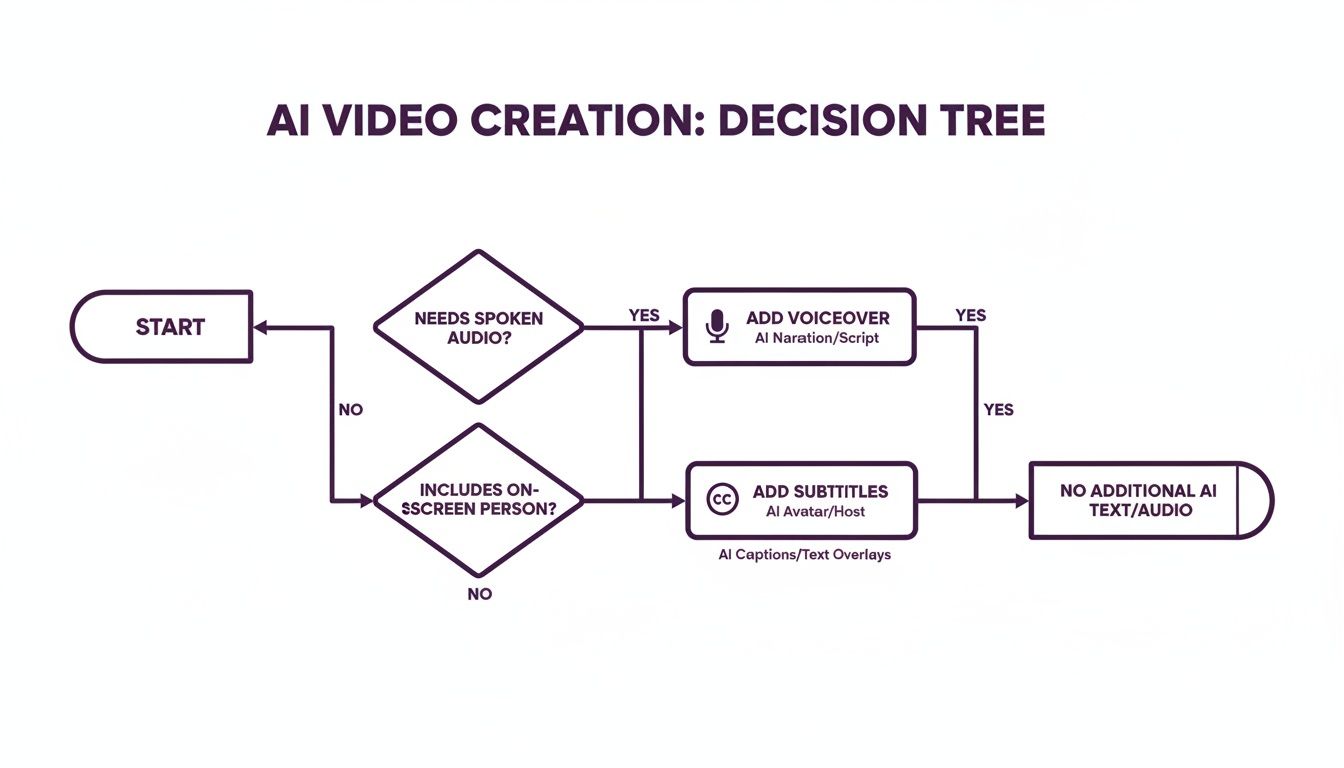
As you can see, adding a professional voiceover, a presenter, and subtitles isn't a complicated, multi-step process—it's just a series of simple choices within one platform.
Why an Integrated Workflow Wins
Using an all-in-one platform is more than just a time-saver; it’s a smarter way to work. When everything is in one place, maintaining brand consistency is effortless.
You can set up your brand kit—colors, fonts, logo—just once, and every video you create will automatically follow those guidelines. This is a game-changer for marketing teams and trainers who need to produce professional, on-brand content at scale.
This isn't just about convenience. It's about empowering anyone—regardless of technical skill—to create videos that look like they were made by a professional studio.
This streamlined approach takes what used to be a complex production cycle and simplifies it to a few clicks. There’s no more downloading, uploading, or switching between apps.
Comparing PowerPoint to Video Creation Methods
To make the choice even clearer, here’s a side-by-side look at the three approaches we’ve covered. This will help you decide which workflow is the best fit for your needs.
| Feature | PowerPoint Export | PPT + Separate AI Tools | LunaBloom AI |
|---|---|---|---|
| Speed | Fast for basic export | Slow, multiple steps | Very fast, minutes |
| Ease of Use | Very easy | Moderately complex | Extremely easy |
| Voiceover | Manual recording only | Requires separate AI tool | Built-in, 150+ voices |
| AI Avatar | Not available | Requires separate AI tool | Built-in, 100+ avatars |
| Subtitles | Manual creation | Requires separate tool | Auto-generated |
| Consistency | Depends on template | Difficult to maintain | Effortless brand kits |
| Cost | Free (with Office) | Multiple subscriptions | Single subscription |
| Best For | Quick, simple exports | Users comfortable with multiple tools | Speed, quality, and ease of use |
Ultimately, any of these methods can get you a finished video. But if your goal is to turn ideas into engaging, share-ready videos as efficiently as possible, a streamlined platform like the one you can test on the LunaBloom AI app is the clear winner.
Optimizing Your Video for Real-World Results
You’ve turned your PowerPoint into a slick video. Great! But the work isn't done yet. A fantastic video that no one sees is just a file taking up space. What you do after you export is what truly determines your success.
The key is to make sure your video feels native to the platform where you're posting it. Every social channel has its own unwritten rules, and ignoring them is a recipe for low engagement.
Tailoring Your Video for Each Platform
The first thing to consider is the aspect ratio, which is just the shape of your video. It dramatically changes how people experience your content.
- Landscape (16:9): This classic widescreen format is perfect for YouTube, Vimeo, and embedding on your website. It’s ideal for detailed product demos or in-depth tutorials.
- Vertical (9:16): This is the king of mobile. It dominates TikTok, Instagram Reels, and YouTube Shorts because it fills the entire phone screen, creating an immersive experience.
- Square (1:1): A versatile option for feeds on LinkedIn, Instagram, and Facebook. It takes up more vertical space than a landscape video, making it pop as users scroll.
Beyond the shape, think about length. A ten-minute deep dive might be perfect for YouTube, but that same content needs to be cut into a punchy, 60-second clip to perform well on TikTok. Always adapt your content to the platform.
A powerful thumbnail is your video's first impression. It should be clear, compelling, and create enough curiosity to make people want to click and learn more.
Connecting Video to Business Outcomes
Optimization isn't just about chasing views; it's about driving real-world results. The financial impact is significant: companies that use video marketing grow their revenue 49% faster year-over-year. For AI-powered product demos, we're seeing conversion rates jump by as much as 40%.
Think about the business goals you want to achieve. A clear training video can slash employee onboarding time, while a well-crafted product demo can answer customer questions and shorten the sales cycle.
To get the most out of every video, it’s worth exploring a modern guide to video to text conversion to make your content both accessible and searchable. When you link optimization to clear business goals, your video becomes a strategic asset that delivers a measurable return. For more deep dives into content strategy, feel free to explore other articles on the LunaBloom AI blog.
Common Questions About Creating Videos From PPT
Even with the best tools, you might run into a few questions along the way. Getting the details right can make a huge difference, so let's tackle some of the most common challenges. Think of this as your quick troubleshooting guide.
How Can I Reduce the Final Video File Size?
We've all been there: you export a video, and the file size is massive. It's a pain to upload or email. If your file is too big, here are a few simple ways to shrink it:
- Lower the Resolution: While 1080p looks great, exporting at 720p creates a much smaller file that still looks sharp on most screens.
- Compress Media in PowerPoint: Before you export, go to File > Info and use the built-in "Compress Media" feature. This reduces the size of any audio or video clips embedded in your slides.
- Use an Online Video Compressor: If the file is still too large, a free online tool can compress it further. Just be cautious if your content is confidential.
What Is the Best Video Format to Choose?
When you export from PowerPoint, you'll usually see two main options: MP4 and WMV. Always choose MP4.
MP4 is the universal standard for video. It offers the perfect balance of high quality and manageable file size, and it’s compatible with virtually every device, platform, and video editor.
WMV (Windows Media Video) is a more niche format. It works fine within the Windows ecosystem but can cause compatibility headaches on macOS or when uploading to certain websites. Sticking with MP4 will save you a lot of trouble.
Can I Edit the Video After Exporting It?
Yes, absolutely! Once you export your presentation as a video file, you can edit it just like any other video. You can import it into any standard video editing software, from simple tools like Clipchamp to professional programs like Adobe Premiere Pro or DaVinci Resolve.
This opens up a world of possibilities. You can:
- Trim awkward pauses at the beginning or end.
- Add background music and sound effects.
- Combine it with other video clips.
- Add advanced text overlays and graphics.
Treating your exported PPT video as a starting point gives you much more creative freedom. If you get stuck or want a second opinion, our team is always here to help. Don't hesitate to contact us at LunaBloom AI for guidance.
Ready to skip the manual steps and create stunning, professional videos directly from your text? LunaBloom AI transforms your script into a polished video with AI avatars, voiceovers, and automatic subtitles in just minutes. Start creating for free today at lunabloomai.com and see how easy professional video creation can be.