Yes, you can absolutely turn a PPT into a video. You can do it directly within PowerPoint, or you can use specialized AI tools to get the job done even faster. This simple conversion transforms your static slides into dynamic, shareable content that anyone can watch on any device.
Why Turning Your Slides Into a Video Is a Smart Move
Let's face it: in a world overflowing with video, a standard slide deck can feel a little flat. When you send someone a .pptx file, you’re asking them to have the right software and the motivation to click through your slides. That's a big ask.
Converting your presentation to a video format solves these problems instantly. It makes your message more portable, more persuasive, and a whole lot more engaging.
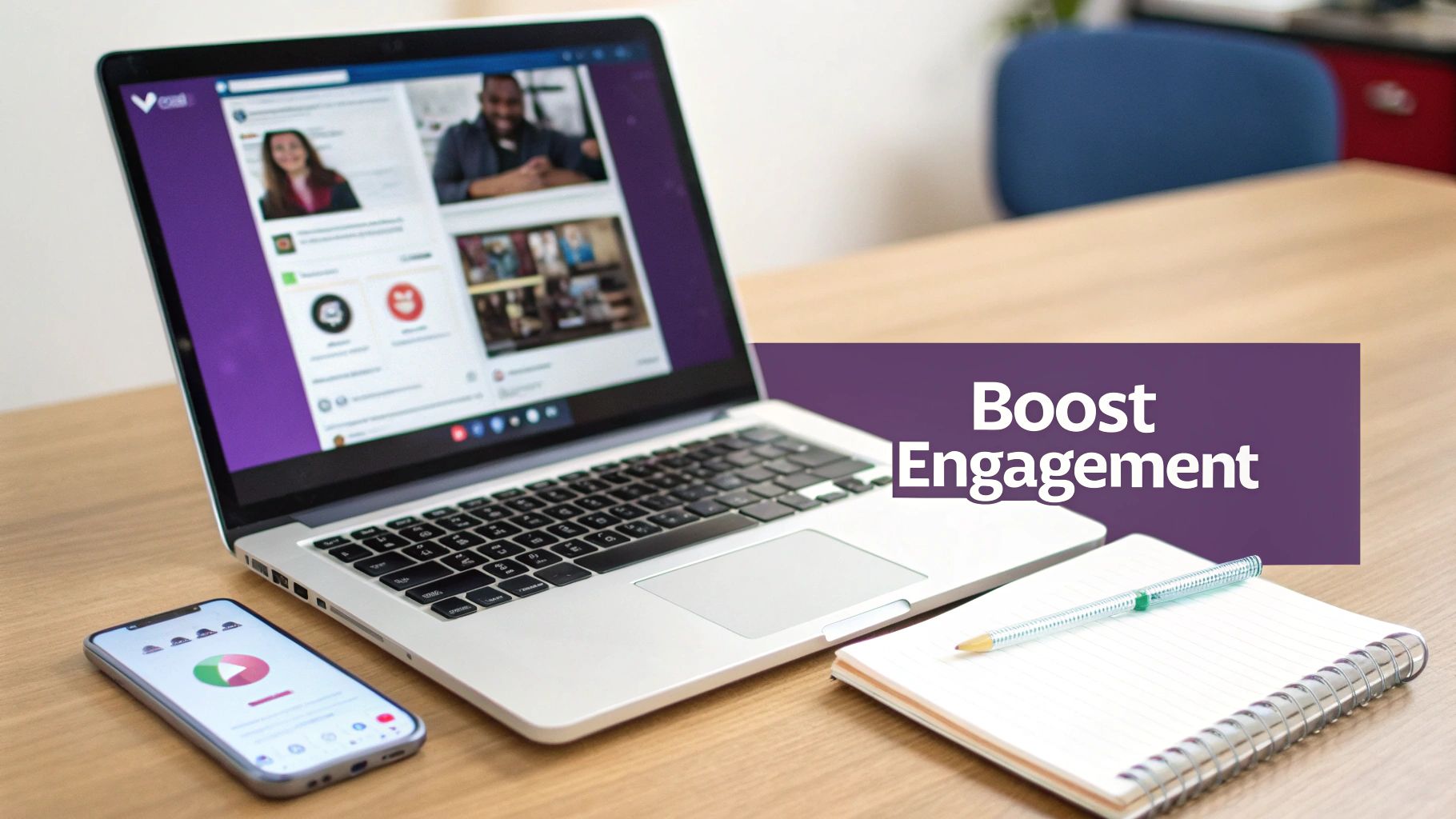
With this simple switch, a one-and-done presentation becomes a lasting asset you can use anywhere. A sales deck becomes a killer marketing video for social media. A dry training module can be broken into bite-sized micro-learning clips that people will actually watch.
Boost Engagement and Retention
Video just works better for our brains. It combines visuals, audio, and motion to create a multi-sensory experience that grabs and holds attention far more effectively than static text ever could.
This is critical for any educational content, employee training, or client pitch. People simply remember information better when it's presented in a video.
When you turn a slide deck into a video, you stop just delivering information and start telling a story. That fundamental shift is what keeps viewers hooked and makes your message stick.
Expand Your Reach and Accessibility
A video file, like an MP4, is the universal language of the internet. You can upload it to YouTube, share it on LinkedIn, embed it on your website, or drop it into an email without ever worrying about compatibility.
This massively increases the reach and lifespan of the presentation you worked so hard on, giving you a much better return on your effort.
The market for AI video generators—the tech behind tools like LunaBloom AI—is exploding. It's projected to jump from $534.4 million in 2024 to an incredible $2,562.9 million by 2032. This isn't just a niche trend; 50% of small businesses are already using these tools. You can read more of these video marketing statistics to see just how significant this shift is.
Using PowerPoint's Built-In Video Export Tools
Sometimes, the simplest tool for the job is the one you already have. Before you search for third-party software, remember that you can turn a PPT into a video using the features baked right into PowerPoint.
This built-in process is surprisingly solid for creating clean, narrated videos straight from your slides. It's the perfect choice for a straightforward conversion without extra bells and whistles. If your deck relies on basic animations, transitions, and a voiceover, exporting it directly can save you a ton of time and hassle.
Mastering Your Timings and Narration
The secret to a good native video export is nailing the pacing. You want it to feel natural, not like a robotic slideshow. PowerPoint's Record Slide Show feature gives you precise control over this.
This tool does more than just record your voice; it captures the timing of every click, animation, and slide change. Think of it as a dress rehearsal. As you speak, you'll advance through the slides exactly as you would during a live presentation. PowerPoint locks in those timings, ensuring the video playback syncs perfectly with your narration.
Pro Tip: Whatever you do, don't just read your slides word-for-word. Use your narration to add extra context, tell a story, and guide your audience. A conversational, human tone will make the final video infinitely more engaging.
Navigating the Video Export Settings
Once your timings and narration are recorded, the final step is exporting the file. This is where you'll make key decisions about video quality and file size. You'll find this option under File > Export > Create a Video.
You’ll see a few important settings to configure:
- Video Quality: This determines the resolution. For most business purposes, like sharing on YouTube or a company intranet, Full HD (1080p) is the sweet spot. It offers a great balance of sharp clarity and manageable file size. Only use Ultra HD (4K) if you're sure your video will be shown on massive, high-resolution screens.
- Recorded Timings and Narrations: This is the most crucial setting. Be sure to select Use Recorded Timings and Narrations. This tells PowerPoint to use the custom pacing and voiceover you just recorded. If you miss this, the video will apply a generic, default duration to each slide.
- Seconds spent on each slide: This is just a fallback. It only applies to slides where you didn't record specific timings, letting you set a uniform duration for them.
Quick Troubleshooting for Common Issues
Even with a straightforward process, you can hit a few snags. If your exported video isn't quite right, here are some common culprits and how to fix them:
- Audio Didn't Record: First, check your computer's privacy settings to ensure PowerPoint has permission to access your microphone. Also, double-check that the correct mic was selected in the Slide Show menu before you started recording.
- Clunky Animations: Complex or overlapping animations can sometimes get messy during video conversion. Stick to simpler effects like 'Fade' or 'Appear' for the smoothest results. Always preview your slideshow in presentation mode one last time before you export.
- File Size Is Too Large: The resolution is almost always the issue here. If a 4K export is too massive to email or upload, just export it again at 1080p or even 720p. This significantly shrinks the file size, often without a noticeable drop in quality for most viewing.
Upgrading Your Presentation With AI Video Generators
While PowerPoint’s built-in export is useful, it can be a clunky, manual process. If you need a polished, professional video now—not after hours of tweaking—it’s time to look at AI video generators. These tools are designed to do more than just convert your file; they transform your static slides into a dynamic video with features PowerPoint just can’t match.
Tools like LunaBloom AI are built for this exact purpose. Instead of recording your own voiceover and hoping the timing is right, you just import your content. The AI handles the heavy lifting, freeing you to focus on your message instead of the tedious mechanics of video editing.
From Slide Text To AI Presenter
One of the most powerful features of modern AI tools is the ability to add a realistic AI avatar. Imagine a professional presenter narrating your slides with perfect timing, all without you ever stepping in front of a camera. You can even choose from a huge library of avatars to match your brand’s voice and style.
The process is incredibly simple:
- Import your content: Upload your PowerPoint file or just copy-paste the text from your slides.
- Choose your presenter: Select an AI avatar that fits your audience and message.
- Generate the narration: The AI creates a natural-sounding voiceover from your script. You can even use voice cloning to make the avatar speak with your own voice for a more personal touch.
The flowchart below shows the old-school way of doing things in PowerPoint.
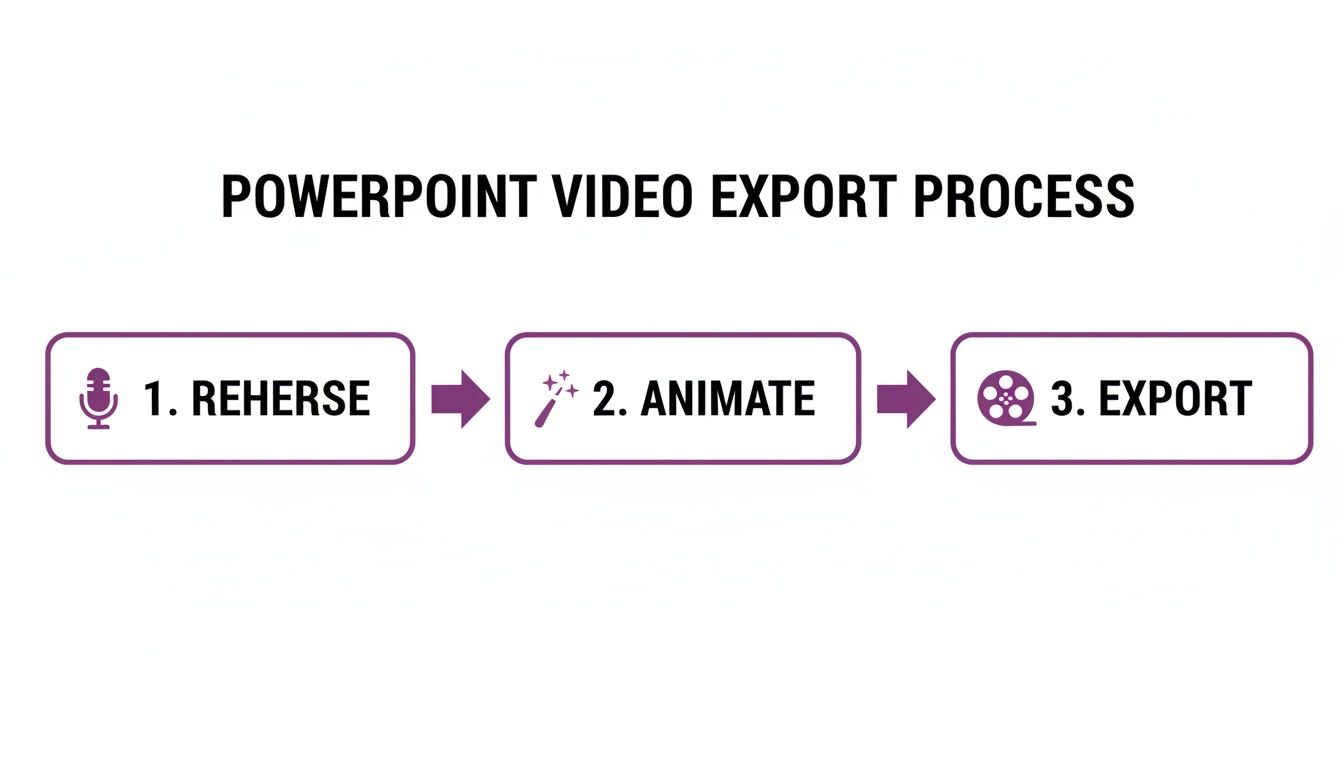
This workflow—rehearsing, animating, exporting—is precisely what AI platforms automate, turning a multi-step headache into a single, swift action.
Features That Go Way Beyond PowerPoint
The real magic of an AI generator isn't just about adding a presenter. These platforms are packed with tools designed to make your video more engaging, accessible, and ready for a global audience.
Auto-generated captions, for example, are a standard feature. This instantly makes your video accessible for people with hearing impairments or anyone watching with the sound off—a huge advantage on social media, where most videos are viewed on mute.
Another game-changer is multi-language dubbing. With a click, you can translate and dub your video into dozens of languages, opening your content to international markets instantly. This is a task that used to require hiring expensive voice actors and production studios. For even more options, exploring the best AI video generators can take your presentation’s impact to a whole new level.
PowerPoint Export vs LunaBloom AI Video Creation
So, how do the two methods really compare? Here’s a quick breakdown of what you get with PowerPoint’s native export versus a dedicated AI platform like LunaBloom AI.
| Feature | Native PowerPoint Export | LunaBloom AI |
|---|---|---|
| Narration | Manual recording required; timing is tricky. | AI-generated voiceover, voice cloning, and professional narration. |
| Presenter | None, unless you record yourself separately. | Library of realistic AI avatars to choose from. |
| Accessibility | No built-in captioning; requires third-party tools. | Automatic, editable captions and subtitles generated instantly. |
| Localization | Requires manual re-recording for each language. | One-click translation and dubbing into 50+ languages. |
| Production Time | Can take hours, depending on complexity and narration. | Minutes from start to finish. |
| Consistency | Varies with each recording and edit. | Consistent brand voice, tone, and quality every time. |
The difference is clear. While PowerPoint gives you a basic video file, LunaBloom AI delivers a full-fledged, professional video asset ready for any audience.
When you use an AI video generator, you’re not just changing a file format. You’re completely upgrading your content’s potential, making it more professional, accessible, and impactful with a fraction of the effort.
Actionable Tips for a Polished Final Video
You’ve exported the file. That's a big step, but you're not at the finish line yet. A raw video, whether from PowerPoint or an AI generator, almost always needs a final layer of polish to truly stand out. These next steps are what separate a good video from a great one that holds your audience's attention.
This is where you stop thinking about content and start focusing on delivery. How does the video feel? Is the flow natural? Is it formatted for the platform you're posting on? Getting these details right makes a massive difference.
Perfect Your Pacing and Storytelling
The number one giveaway of a video made from slides is awkward pacing. If a slide lingers for too long, viewers get bored and click away. If it flashes by too quickly, they get confused. Your goal is a rhythm that feels deliberate and respects your audience's time.
Think of each slide as a scene in a larger story. Does the narration smoothly connect one idea to the next? If you used PowerPoint’s built-in export, you might need a simple video editor to snip out dead air or shorten long pauses. With an AI tool like LunaBloom, you can usually just tweak the timing for each scene right inside the platform.
Choose Visuals That Pop on Screen
What looks good on a static slide doesn't always work in a video. High-contrast colors, big and bold fonts, and clean graphics are your best friends. Steer clear of busy backgrounds or tiny text that becomes a blurry mess on a phone screen.
Run through this quick visual checklist:
- Font Readability: Is the text large enough to be easily read, even on a small smartphone? Test it to be sure.
- Image Quality: Are your images high-resolution? Nothing screams "amateur" faster than pixelated or blurry visuals.
- Animation Subtlety: Keep animations clean and purposeful. Over-the-top effects are usually just distracting.
The core principle is clarity over complexity. A simple, well-designed visual that reinforces your point is far more effective than a cluttered slide that tries to do too much.
To ensure your conversions are effective communication tools, it's worth checking out guides on creating effective video guides.
Format Your Video for the Right Platform
Finally, where will this video live? The one-size-fits-all approach to video is dead. Every platform has its own preferred aspect ratios, and tailoring your video for each one can dramatically boost its performance.
Consider these common formats:
- Widescreen (16:9): This is your standard for YouTube, Vimeo, and most website embeds.
- Square (1:1): Perfect for grabbing attention in the Instagram and LinkedIn feeds, as it takes up more screen real estate.
- Vertical (9:16): This is essential for TikTok, Instagram Reels, and YouTube Shorts. It’s built for a full-screen mobile experience.
Most modern AI video generators and editing tools let you switch the aspect ratio with a click. Taking a few moments to export your video in the correct format for each platform is a small step that signals professionalism and boosts engagement.
Common Questions About PPT to Video Conversion
When you decide to turn a PowerPoint into a video, a few practical questions always come up. Answering them from the start can save you a lot of headaches later on.
Let's walk through some of the most frequent ones. Nailing these details often makes the difference between a video that lands perfectly and one that falls flat.
How Long Should My Converted Video Be?
There’s no magic number—the ideal length depends on where the video will live and who it's for. The real question is, what are you trying to accomplish with your audience's attention span in mind?
Here are a few rules of thumb:
- Social Media Posts: Keep it short and punchy. On platforms like LinkedIn or Instagram, you have seconds to stop the scroll. Aim for under 2 minutes.
- Training and Educational Content: You have more room here. A detailed training video can run longer, but breaking it into digestible 5-10 minute chunks is a smart strategy to maintain engagement.
- Sales and Marketing Demos: Respect your viewer's time. A product demo should be just long enough to highlight key benefits and leave them wanting more. The sweet spot is usually between 3-5 minutes.
Can I Still Edit the Video After Exporting?
Yes, absolutely. Once exported, your presentation is a standard video file (usually an MP4). You can drop it into any video editing software—from simple tools like Clipchamp to professional programs like Adobe Premiere Pro—to make advanced edits.
This is your chance to add background music, trim awkward pauses, or splice in other footage. That said, a major benefit of using an AI tool like LunaBloom AI is that many of these editing features are already built-in, so you don't have to jump between different programs.
Keep in mind that once the video is created, you can't edit the original slide content within the video file itself. Any text or image changes need to be made back in PowerPoint before you re-export.
Will My Animations and Transitions Work?
For the most part, yes. Simple PowerPoint animations ('Fade,' 'Appear,' 'Wipe') and standard transitions usually convert without a hitch, as they are designed to be fairly universal.
Things can get tricky with more complex or layered custom animations. These can sometimes become jerky or glitchy in the final video. My advice is to always test a small section of your presentation first before exporting the entire thing. For guaranteed smoothness, stick to classic effects or use the video-optimized transitions offered by dedicated AI tools.
The Final Verdict: Choosing the Right Tool for the Job
So, which method is best for you? The answer depends entirely on your goals.
If you need a quick, no-frills way to package your slides and narration for internal use, PowerPoint's native export is a perfectly good choice. It's simple, it's free, and it gets the job done.
However, if your video is meant for marketing, sales, or any external audience, the clear winner is an AI video generator. The professional polish from AI avatars, crisp narration, and automated features like captions and translations provides a far greater return on your time and effort. It transforms a simple presentation into a powerful business asset that can drive engagement and growth.
Ultimately, turning a PPT into a video isn't just a technical task—it's a strategic decision. By choosing the right tool, you can ensure your message not only reaches your audience but also makes a lasting impact.
Ready to transform your presentations into professional, engaging videos in minutes? With LunaBloom AI, you can add AI avatars, clone your voice, and generate automatic subtitles effortlessly. Start creating for free today at lunabloomai.com.