Getting your LinkedIn video specs right is the first step to capturing your audience’s attention on the world’s top professional network. Before you upload, just remember the two most important numbers: organic videos can be up to 15 minutes long with a huge 5GB file size, while video ads can run up to 30 minutes but are capped at a much smaller 200MB file size. Nailing these specs ensures your content uploads smoothly and looks professional in the feed.
This guide provides everything you need to know, from the core technical details to ad-specific requirements, so you can post with confidence every time.
Quick Reference Guide to LinkedIn Video Specs
Trying to figure out the correct technical details for a LinkedIn video can be frustrating. The rules are different for organic posts and paid ads, and getting them wrong can lead to failed uploads or poorly displayed content. It’s a common headache: your video looks perfect on your computer, but LinkedIn rejects it.
I created this guide for marketers and content creators who need accurate information, fast. It’s your go-to cheat sheet for checking video files or planning your next production. Understanding these specs from the beginning helps you avoid annoying errors and ensures your content performs at its best.
LinkedIn Video Specs At a Glance
To make things easy, I’ve put together a summary table that shows the key differences between organic feed videos and paid ads. The most important thing to note is that ads have much stricter file size limits, even though they can be longer in duration. It’s a small detail that can easily trip you up.
Here’s a helpful visual that breaks down the main requirements for organic posts, video ads, and the general technical guidelines you should always follow.
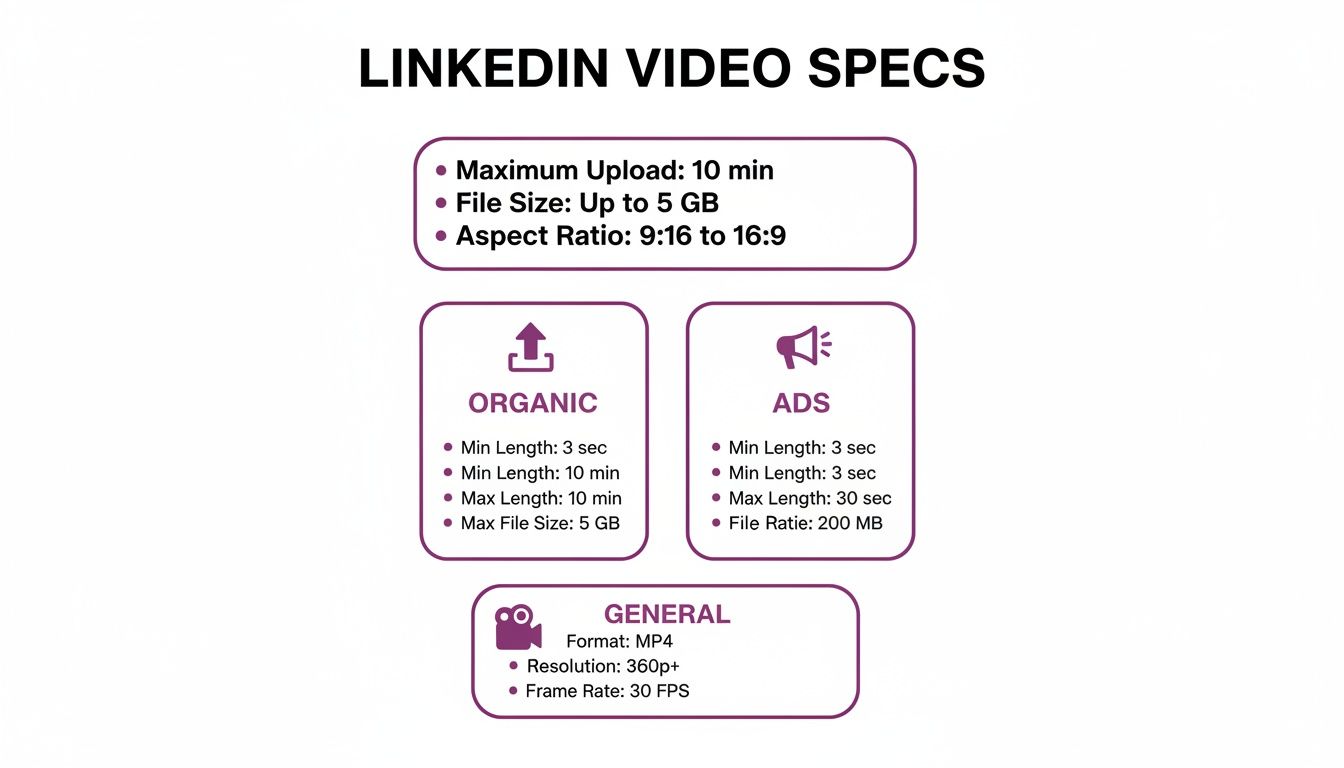
The main takeaway is that while both formats share many technical similarities, the constraints on file size and duration are the biggest differentiators. Keep these in mind during production.
For a more detailed breakdown, here’s a comparison of the essential LinkedIn video specs for both placements.
| Specification | Organic Feed Video | Video Ad |
|---|---|---|
| Max File Size | 5GB | 200MB |
| Min Duration | 3 seconds | 3 seconds |
| Max Duration | 15 minutes (from desktop) | 30 minutes |
| Recommended Format | MP4 | MP4 |
| Frame Rate | Up to 60 FPS | Up to 30 FPS |
| Aspect Ratio | 1:2.4 to 2.4:1 | 9:16 (Vertical), 4:5 (Vertical), 1:1 (Square), 16:9 (Landscape) |
| Resolution Range | 256×144 to 4096×2304 | 360×360 to 1920×1920 |
Ultimately, whether you’re posting a company update or running a targeted ad campaign, following these specs ensures your video looks its best. Think of them less as restrictions and more as a blueprint for success on the platform.
Understanding Core Technical Requirements
To create professional videos that perform well on LinkedIn, you need to look beyond the basic numbers on a spec sheet. Understanding the foundational technical details is what ensures your content uploads smoothly and provides a flawless viewing experience for your audience. Think of these core requirements as the universal language spoken between your video file and LinkedIn’s platform.
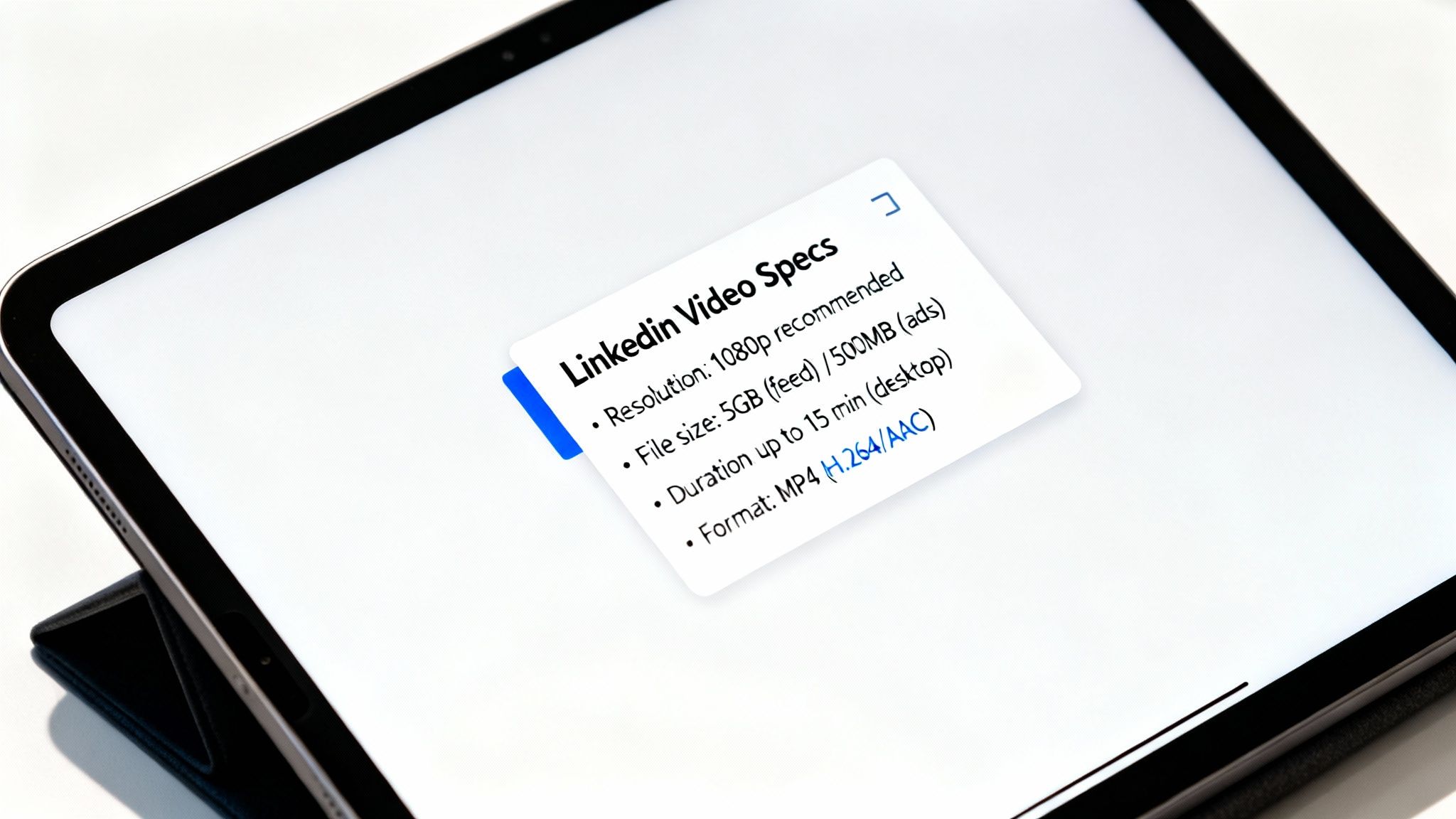
The most critical spec is the file format. LinkedIn strongly prefers the MP4 format for all video uploads. While you might get away with other formats like AVI or MOV for an organic post, sticking to MP4 is the safest and most reliable choice, especially since it’s a mandatory requirement for all video ads. It’s the perfect container—universally accepted and designed to protect the valuable content inside.
That content—your video and audio—is compressed using codecs. For video, the industry standard is H.264 (also known as AVC). This codec strikes the perfect balance between high-quality visuals and manageable file sizes, which is exactly what you want for quick loading times in the feed.
Key Technical Pillars for LinkedIn Video
Now, let’s talk about audio. LinkedIn recommends the AAC (Advanced Audio Coding) codec. This keeps your sound crisp and clear without making your file unnecessarily large. To recap: pairing H.264 video with AAC audio inside an MP4 container is the trifecta for perfect platform compatibility.
Another key factor is the frame rate, measured in frames per second (FPS), which determines how smooth the motion in your video appears. While LinkedIn accepts up to 60 FPS for organic videos, a standard 30 FPS is more than enough for most content and is the maximum allowed for video ads. Higher frame rates mean bigger files, so 30 FPS offers a great balance of quality and performance.
Pro Tip: Always export your video using the recommended codecs (H.264/AAC) and frame rate (30 FPS) directly from your editing software. This one simple step will prevent the vast majority of common upload errors.
Finally, let’s talk about resolution. This is the number of pixels that make up your video’s image, and it directly impacts how sharp it looks.
- Minimum Resolution: LinkedIn technically accepts resolutions as low as 360p, but I strongly advise against it. Your video will look blurry and unprofessional.
- Recommended Resolution: You should always aim for 1080p (1920×1080 pixels) for the best results. This resolution delivers a sharp, high-definition viewing experience that looks great on both desktop and mobile without taking forever to load.
Getting these core technical requirements right—the MP4 format, H.264/AAC codecs, a 30 FPS frame rate, and 1080p resolution—is the foundation of any successful LinkedIn video strategy. Nail these from the start, and you’ll ensure your message is delivered with the professional polish it deserves.
Detailed Specs for LinkedIn Feed Videos
When you’re posting organic video content directly to the LinkedIn feed, you have a surprising amount of flexibility. However, there are still some hard limits you need to know to ensure your videos upload correctly and look as professional as you intend.
The two most important numbers to remember are file size and duration. LinkedIn gives you a generous 5GB for your file size, which is more than enough for almost any high-quality video. This means you don’t have to over-compress your video, allowing you to maintain its crisp, clear quality.
As for length, you can post a video up to 15 minutes long when uploading from a desktop. But if you’re posting from the LinkedIn mobile app, that limit drops to 10 minutes. This is a key distinction, especially for those managing content on the go.
Choosing the Right Video Length
Just because you can post a 15-minute video doesn’t always mean you should. Longer videos need to earn that runtime, so save them for content that provides deep, substantial value.
- In-depth Tutorials: Walking someone through a complex process or software? A longer format makes sense.
- Webinar Replays: If you hosted a great webinar or panel discussion, repurposing it for the feed is a smart move.
- Company Announcements: Big news, like a major product launch or company update, might need more than a few minutes to cover properly.
For most of your everyday posts, however, shorter is almost always better. Videos under two minutes consistently achieve higher completion rates. People scroll through their feeds quickly, so you need to hook their attention right away.
These technical specs have a real impact on what kind of content succeeds. For example, it’s no surprise that 73% of businesses are making text-based videos, according to the latest LinkedIn video research. They’re easy to consume and fit neatly within the platform’s limits. Talking head (31%) and animated videos (22%) are also popular, usually exported as MP4s at 30 fps. To stay under that 5GB cap without sacrificing quality, 76% of companies are creating content in-house with tools like Storykit or Premiere Pro.
Optimizing Aspect Ratios for the Feed
The shape of your video—its aspect ratio—can make or break its performance by directly affecting how much screen space it commands. While LinkedIn supports a wide range from a tall 1:2.4 to a wide 2.4:1, a few formats consistently deliver the best results.
Key Insight: Vertical and square videos work best. Why? They take up more visual real estate on a phone, which is where most users browse. That extra space is often all it takes to stop someone mid-scroll.
Here are the formats I recommend focusing on:
- Square (1:1): This is the workhorse of LinkedIn video. It looks fantastic on both desktop and mobile and provides a balanced frame that’s perfect for interviews, announcements, or videos with on-screen text.
- Vertical (4:5): This is your mobile-first champion. It’s slightly taller than a square, filling even more of the vertical screen and making it incredibly hard to ignore.
- Landscape (16:9): The classic widescreen format still has its place, particularly for repurposing content from YouTube or showcasing more cinematic, professionally shot footage.
Mastering LinkedIn Video Ad Specifications
When you move from organic posts to paid advertising, the rules for your LinkedIn video specs become much stricter. Video ads on LinkedIn operate under a tighter set of guidelines designed to ensure a smooth user experience and maximize your campaign budget. If you’re running ads through LinkedIn Campaign Manager, knowing these requirements is essential.
The first major difference you’ll notice is the file size. While organic posts give you a generous 5GB, video ads are capped at a lean 200MB. This is to ensure your ads load instantly and play smoothly, even for users on slower connections. This is crucial for maintaining high view-through rates and making sure you don’t waste ad spend on videos that fail to load.
This strict approach applies to nearly every technical detail. Your ad can be as short as 3 seconds or as long as 30 minutes, but in reality, most experts recommend keeping awareness campaign videos between 15-30 seconds to effectively capture and hold attention. The platform is also more selective about file formats, restricting you to MP4 (highly recommended). For audio, stick with AAC or MPEG4, and always export at 30 FPS to guarantee smooth playback. Anything else is likely to result in your ad being rejected. For more pro tips, check out these expert insights on LinkedIn video ad benchmarks.
Strategic Aspect Ratios for Ad Creatives
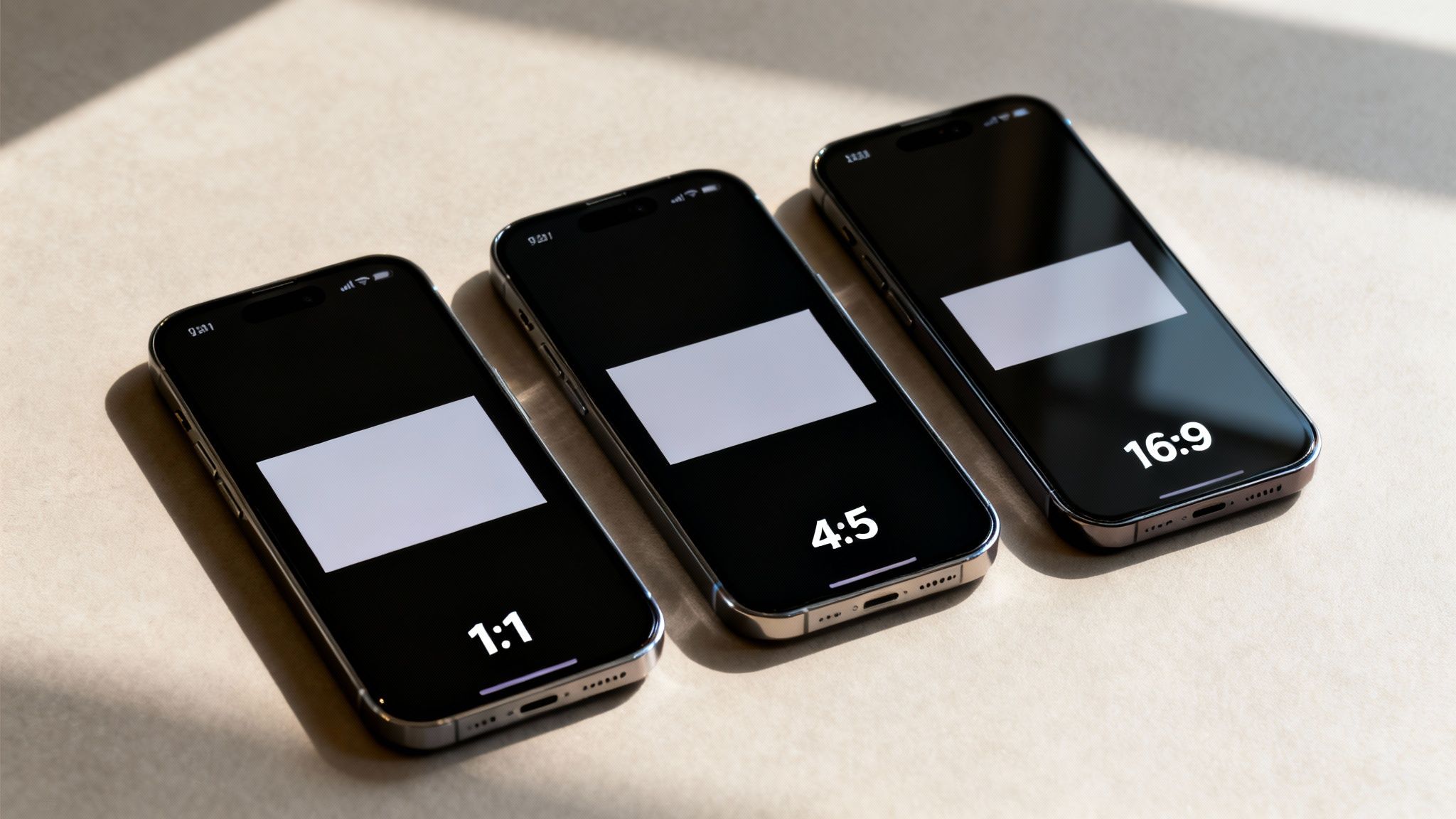
While organic posts offer flexibility with aspect ratios, video ads are more prescriptive to ensure they look polished in every placement. Choosing the right one is your first step to stopping the scroll.
Here are the key aspect ratios you need to know for LinkedIn video ads:
- Vertical (4:5): This is your mobile-first champion. It dominates the screen on a smartphone, making your ad nearly impossible to scroll past.
- Square (1:1): A solid, versatile choice. The square format looks great on both desktop and mobile, giving your message a balanced and professional feel.
- Landscape (16:9): The classic widescreen format is best suited for desktop viewing. It still works on mobile, but it doesn’t command the same screen real estate as the other two formats.
Key Takeaway: For most of your ad campaigns, lead with a 4:5 aspect ratio. The majority of users browse LinkedIn on their phones, so designing for a mobile-first experience will almost always deliver better engagement and higher click-through rates.
Ad Compliance and Best Practices
To ensure your ad gets approved and performs well, always follow these core rules. Keep your video files well under the 200MB limit by using effective compression that doesn’t sacrifice visual quality. Critically, deliver your main message within the first 10 seconds to hook viewers before they have a chance to skip.
Before you export, always double-check your settings. Confirm you’re using the required MP4 format, H.264 video codec, and AAC audio codec. Nailing these specific LinkedIn video specs for ads is the foundation of any successful campaign, giving your investment the best possible chance to pay off.
Don’t Forget Thumbnails and Subtitles—They Make or Break Engagement
Getting the technical LinkedIn video specs right is a great start, but it’s only half the battle. If you want people to stop scrolling and actually watch your video, you need a compelling thumbnail and easy-to-read subtitles. These two elements are crucial for grabbing attention and ensuring your message lands effectively.
Think of your thumbnail as the cover of your book; it’s the very first thing people see. If you let LinkedIn choose a random frame, you’ll likely end up with a blurry or awkward shot that fails to draw viewers in. A custom thumbnail puts you in control of that first impression.
How to Create a Thumbnail That Stops the Scroll
Your thumbnail should be clear, relevant, and visually compelling. The goal is to make people curious enough to press “play.”
Here are the specs and a few tips to get it right:
- File Format: Stick with JPG or PNG. They are the standard for a reason—good quality without a massive file size.
- File Size: Keep it under 2MB. Larger files can slow down loading times, which you want to avoid.
- Aspect Ratio: This is critical. Your thumbnail’s aspect ratio must match your video’s. If you have a 16:9 video, your thumbnail needs to be 16:9, too, or you’ll get ugly black bars or awkward cropping.
Pro Tip: Add bold text overlays that communicate the video’s main takeaway. A clean, high-contrast image with a clear focal point will always outperform a cluttered, busy design.
Why Subtitles Are Absolutely Critical
Here’s a hard truth: a significant portion of your LinkedIn audience watches videos with the sound off, especially on their phones. Without subtitles, your message is completely lost on them. Good captions make your content accessible and have been proven to boost comprehension and watch time.
LinkedIn makes it easy to add captions by allowing you to upload a separate file, which is the best approach.
- File Format: LinkedIn only accepts one format for captions: SRT (SubRip Subtitle).
- Best Practice: Always upload a separate SRT file rather than burning captions directly into the video. This not only helps viewers using screen readers but also gives LinkedIn’s algorithm more text to analyze, which can improve your video’s visibility.
Taking a few extra minutes to design a custom thumbnail and upload an accurate SRT file isn’t just about checking off boxes. It’s about setting your video up for maximum reach and engagement from the very beginning.
How to Troubleshoot Common Upload Errors
There’s nothing more frustrating than perfecting a video, hitting upload, and getting a “Processing failed” or “Invalid media file” error. This roadblock can derail your content schedule, but don’t worry—most of these errors are simple fixes related to a mismatch between your file and the official LinkedIn video specs.
Nine times out of ten, the problem is an incorrect video or audio codec. Your video might be in an MP4 container, but if the data inside was encoded with something LinkedIn can’t read, like H.265 (HEVC), it will be rejected. Other common issues include files that are too large or videos that exceed the duration limit for where you’re posting (e.g., an ad vs. an organic feed post).

A Quick Diagnostic Checklist
Before you get frustrated, run through this quick checklist. It will help you identify the problem in minutes, as most upload failures trace back to one of these four things.
- File Format & Codecs: Is your video a true MP4 file? More importantly, was it encoded with the H.264 video codec and AAC audio codec? Anything else is asking for trouble.
- File Size: Did you exceed the limit? Organic feed posts can be up to 5GB, but video ads have a much tighter cap at 200MB.
- Video Duration: Is it too long for the placement? From a desktop, you can post a video up to 15 minutes long, but this drops to 10 minutes if you’re uploading from the mobile app.
- Frame Rate: Is the frame rate too high? While LinkedIn allows up to 60 FPS for organic posts, video ads must be 30 FPS or less. Sticking to 30 FPS for all content is your safest bet.
Key Insight: If you see the “Invalid Media File” error, it’s almost certainly a codec issue. Your video might play perfectly on your computer, but if it’s not encoded with H.264 and AAC, LinkedIn’s system won’t know how to process it.
Common LinkedIn Video Upload Errors and Solutions
We’ve all been there. To make things even easier, here’s a quick-reference table to help you diagnose and fix the most common upload headaches on LinkedIn.
| Error Message | Likely Cause | How to Fix |
|---|---|---|
| “Invalid Media File” | Incorrect video or audio codec (e.g., H.265 instead of H.264). | Re-encode your video to MP4 with H.264 and AAC codecs using a tool like HandBrake. |
| “Processing failed” | The file is too large for the specific placement (e.g., a 300MB file for an ad). | Compress the video file to get under the 200MB limit for ads or the 5GB limit for organic posts. |
| “Upload timed out” | An unstable or slow internet connection interrupted the upload process. | Check your internet connection. Try connecting via an Ethernet cable or move closer to your router before uploading again. |
| “Video is too long” | The video duration exceeds the maximum limit for the upload method (e.g., a 12-minute video from mobile). | Trim the video to fit the limits: 15 minutes for desktop, 10 minutes for mobile, or 30 minutes for ads. |
Most of these issues can be resolved quickly by double-checking the specs and making a few adjustments. It’s all about providing LinkedIn’s servers with a file they can easily understand and process.
How to Fix a Problematic Video File
Once you’ve identified the problem, fixing it is usually straightforward. The go-to solution for most errors is to re-encode the video with the correct settings. You don’t need expensive software for this; free tools are more than capable.
One of the best is HandBrake, a free and open-source video transcoder that works on any platform. Simply open your video in HandBrake, choose a preset like “Fast 1080p30,” and ensure the format is set to MP4. This will create a fresh, clean version of your video that meets all of LinkedIn’s technical requirements. Uploading this new file will resolve over 90% of common upload errors.
Frequently Asked Questions About LinkedIn Video
Even after you’ve checked all the boxes, a few specific questions always seem to pop up right as you’re about to hit “export.” This section tackles the most common ones we hear, giving you clear, straightforward answers to get your video published without a hitch. Let’s iron out those final wrinkles.
Do Video Specs Differ for Personal vs Company Pages
I get this question all the time, and thankfully, the answer is simple: no, they do not. The technical requirements for organic videos—we’re talking file size, duration, aspect ratio, and codecs—are exactly the same whether you’re posting from your personal profile or your company’s official page.
That 5GB file size limit and 15-minute maximum duration (when uploading from a desktop) is the standard for all organic video content. This consistency is great because it means your team can create a single master file that anyone can share without worrying about different rule sets.
What Are the Best Export Settings for Premiere Pro and Final Cut Pro
When you’re working with professional editing software, a few wrong clicks in the export window can lead to frustrating upload errors. While both Premiere Pro and Final Cut Pro have a dizzying number of options, you can create a simple preset that nails the LinkedIn video specs every single time.
Here are the only settings you really need to worry about:
- Format: Always choose H.264. This is the big one, as it ensures your video uses the most compatible codec.
- Resolution: Stick to 1920 x 1080 for landscape videos or 1080 x 1080 for square.
- Frame Rate: Set it to 29.97 or 30 fps.
- Audio Codec: Select AAC with a sample rate of 48000 Hz.
Pro Tip: In Adobe Premiere Pro’s export window, the “Match Source – High Bitrate” preset is a solid starting point. Just make sure the format is H.264 and tweak the frame rate to 30 fps if needed.
Can I Optimize One Video for Both Desktop and Mobile
Absolutely. The trick is picking an aspect ratio that doesn’t feel out of place on either screen. A classic 16:9 landscape video looks fantastic on a big desktop monitor, but it shrinks down to a tiny sliver on a mobile phone.
For the best of both worlds, a square (1:1) aspect ratio is your safest bet. It takes up a ton of valuable screen real estate on mobile feeds but still looks perfectly natural on a desktop. Vertical formats like 4:5 are amazing for mobile, but they’ll get stuck with black bars (pillarboxing) on desktop. So, if you’re only making one version, 1:1 is the most versatile choice you can make.
Conclusion: Mastering the Specs for Maximum Impact
Navigating LinkedIn’s video specifications doesn’t have to be complicated. By focusing on the fundamentals—like using the MP4 format, the H.264/AAC codecs, and choosing mobile-friendly aspect ratios like 1:1 or 4:5—you can ensure your content always looks professional and performs its best. Whether you’re posting an organic update or launching a paid campaign, getting these technical details right is the first step toward capturing attention and making a real impact on the platform.
Ready to skip the technical headaches altogether? LunaBloom AI turns your text into polished, professional videos in minutes, automatically optimized with the right specs for LinkedIn and every other platform. Check out how our AI tools at LunaBloom AI can help you create more high-quality content, way faster.