Getting your video on LinkedIn is easy, but making it look professional requires playing by the rules. The most critical LinkedIn video specifications are straightforward: use the MP4 format, keep your file under 5 GB (for organic posts), and ensure the length is between 3 seconds and 10 minutes. Master these, and you’re set for a smooth upload and a sharp-looking video.
Your Quick Guide to LinkedIn Video Specs
Trying to remember all the technical details for video can be a headache. But it’s the first step to ensuring your content performs well. Whether you’re posting an organic update or running a paid ad campaign, following the platform’s guidelines is essential. It helps you avoid upload errors, guarantees high-quality playback, and even gives your content a boost with the LinkedIn algorithm.
Think of these specifications as the blueprint for your video’s success. Something as simple as the right aspect ratio can make your video fill the screen on a mobile device, grabbing attention instantly.
This visual breaks down the most important specs—duration, file size, and format—for regular, organic LinkedIn videos.
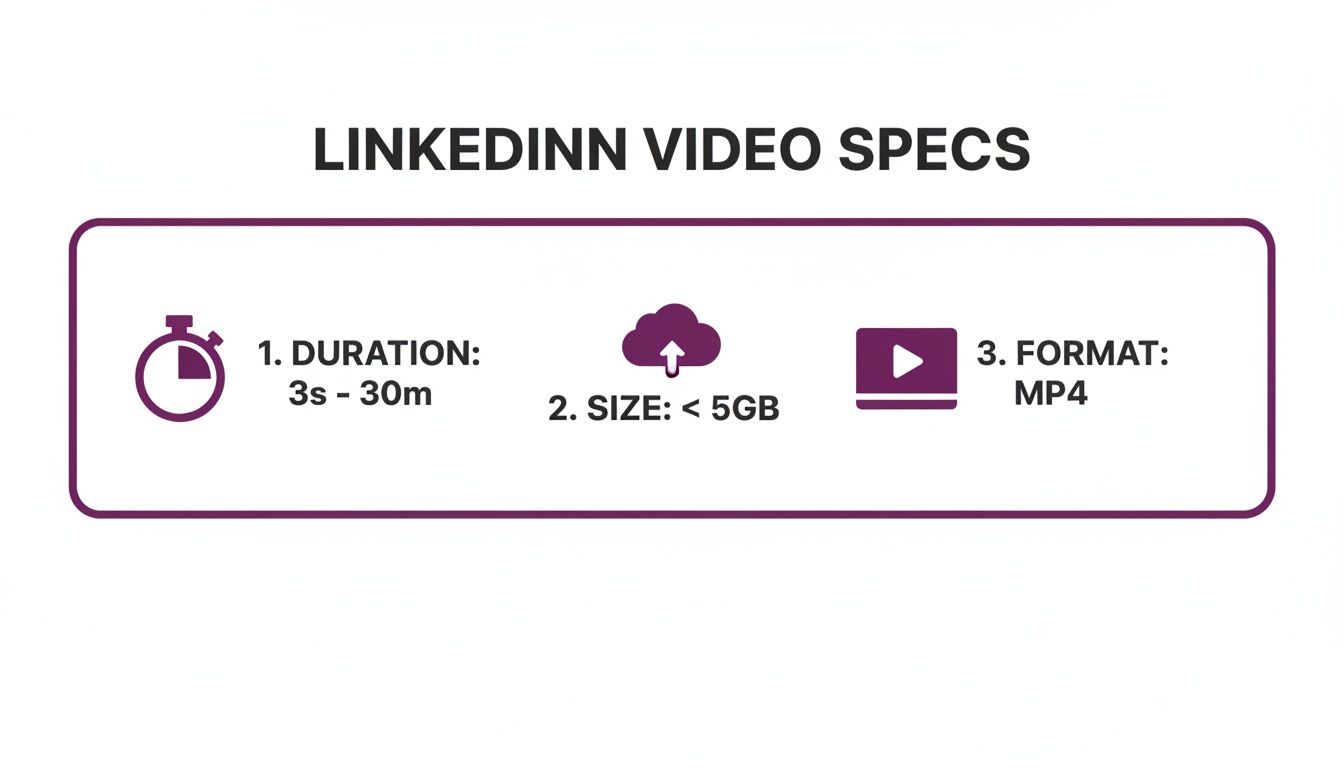
As you can see, LinkedIn offers a lot of flexibility. You can post short clips or longer content up to 10 minutes for organic posts (and 30 minutes for ads). The generous 5GB file size limit and universal MP4 format make it easy to get started.
For those running paid campaigns, the details matter even more. As of 2025, LinkedIn video ads must be MP4 files with AAC or MPEG-4 audio. While you can upload a 30-minute ad, the sweet spot for performance is typically between 15 and 30 seconds. To maximize mobile impact, LinkedIn strongly recommends using 1:1 (square) and 4:5 (vertical) aspect ratios at a crisp 1080p resolution. You can learn more about the latest LinkedIn video ad benchmarks and strategies to fine-tune your approach.
Key Takeaway: When in doubt, always export your video as an MP4. It’s the gold standard for both organic posts and paid ads on LinkedIn, ensuring compatibility and a smooth playback experience for your audience.
Why Following Video Specs is Crucial for Success
Have you ever wondered why some videos look flawless in your LinkedIn feed while others are blurry, awkwardly cropped, or refuse to upload? The problem almost always comes down to a mismatch in technical specs. Adhering to the correct LinkedIn video specifications isn’t just about avoiding error messages—it’s about protecting your brand’s professional image and ensuring your content performs its best.
A poorly formatted video can suggest a lack of attention to detail, which might undermine your message. Technical glitches, like a stretched video or a file that won’t play, are a surefire way to make people scroll right past your content. This leads to lower engagement and a missed opportunity to connect.

User Experience and Algorithm Impact
Beyond just looking professional, getting the specs right creates a seamless experience for your viewers. An optimized file size means your video loads quickly, even on a weak connection. Choosing the right aspect ratio, like the mobile-friendly 4:5 vertical format, takes up more screen space and is far more likely to grab and hold attention.
These details are also important signals for the LinkedIn algorithm. The platform favors content that provides a positive user experience because it keeps people engaged longer. A video that is easy to watch is a video that LinkedIn is more likely to show to a wider audience.
Key Takeaway: Getting your video specs right is the first step to success on LinkedIn. It prevents technical headaches, improves the viewer experience, and helps the algorithm work in your favor, resulting in more engagement and a stronger professional image.
Decoding Core File and Technical Requirements
Before your video can make an impact, it has to meet LinkedIn’s core technical standards. These requirements—file format, size, and duration—determine whether your video uploads correctly and plays smoothly for your audience.
Think of your video file as a package. The container format is the box, the video codec is how the visuals are packed, and the audio codec is how the sound is stored. LinkedIn has specific preferences for each to ensure a consistent, high-quality experience across the platform.
File Format: The Universal Standard
LinkedIn’s preferred container format is MP4. It’s the most common format on the web for a good reason—it offers an excellent balance between quality and file size. While LinkedIn might accept other formats like ASF or FLV for organic posts, sticking with MP4 is your safest bet.
For video ads, MP4 isn’t just a recommendation; it’s a requirement. Using this format guarantees your video will be compatible across all placements without any upload errors.
Inside that MP4 container, you’ll need the right compression standards, or codecs:
- Video Codec: H.264 (also known as AVC) is the industry standard. It delivers fantastic video quality without creating massive files, making it ideal for online streaming.
- Audio Codec: AAC (Advanced Audio Coding) is the best choice for your audio. It produces clear, crisp sound at a low bitrate, which helps keep your overall file size down.
Duration and File Size Limits
LinkedIn provides generous limits for video length and file size, but remember that bigger isn’t always better. Understanding these limits helps you plan your content more effectively.
- Video Duration: For a standard organic video, the length must be between 3 seconds and 10 minutes. For video ads, this range extends up to 30 minutes.
- File Size: You can upload an organic video up to 5 GB. For video ads, the cap is much lower at 200 MB.
While you can upload a 5 GB file, it’s not always a good idea. Large files can lead to long processing times and buffering issues for viewers on slower internet connections. A good rule of thumb is to aim for a file size between 50 MB and 200 MB for most videos.
Mastering Aspect Ratios and Resolutions
How your video looks on screen is the first thing people notice. Getting the aspect ratio and resolution right—two of the most important LinkedIn video specifications—is key to making your video look sharp, professional, and impactful.
Aspect ratio is simply the relationship between your video’s width and its height. LinkedIn supports several options, and each one creates a different viewing experience.
Choosing the Right Aspect Ratio
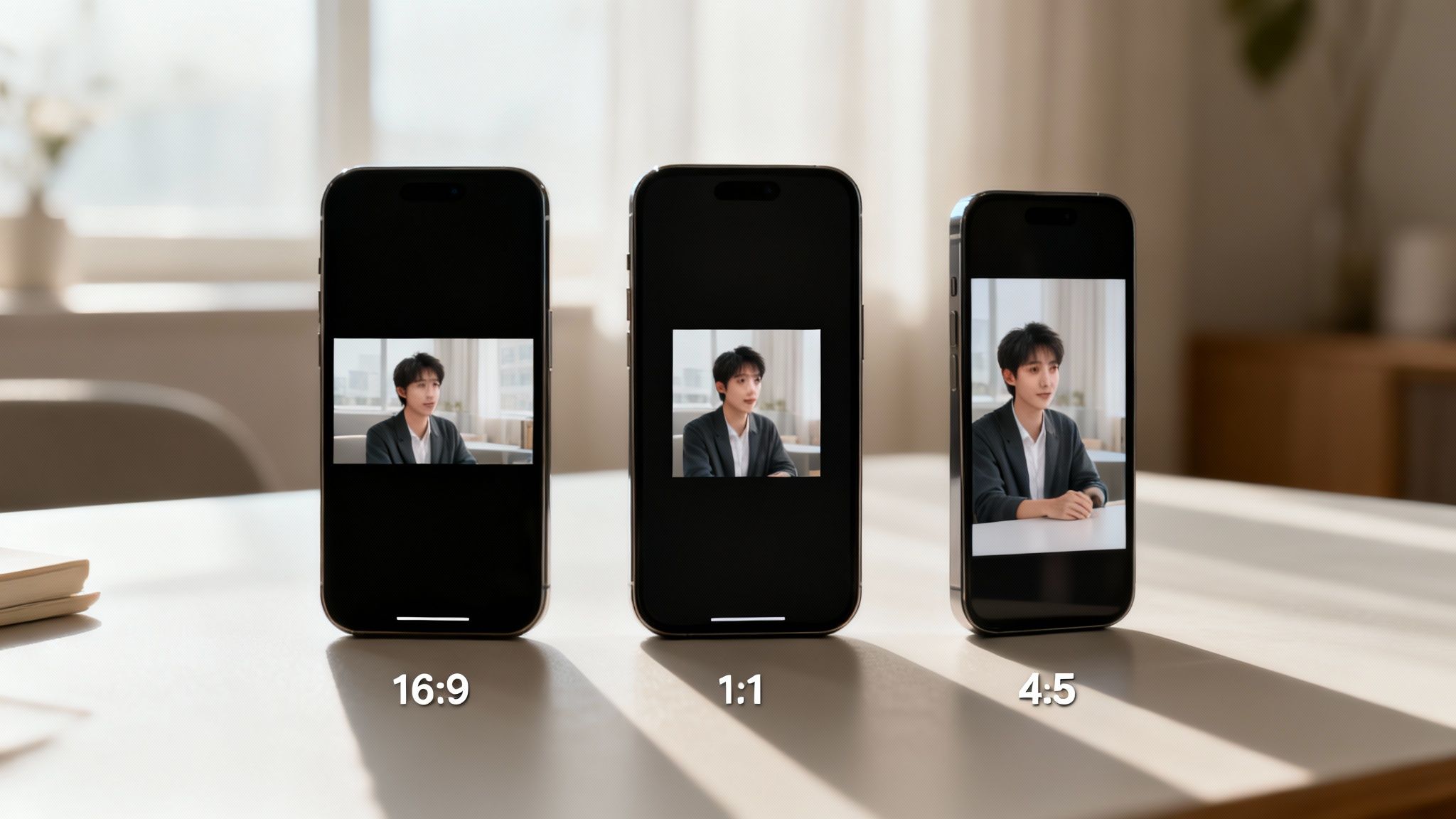
You will mainly work with horizontal, square, and vertical formats. While LinkedIn supports a wide range from 1:2.4 (tall) to 2.4:1 (widescreen), it’s best to stick to the standards for a clean, predictable look.
- 16:9 (Horizontal): This is the classic widescreen format (e.g., 1920×1080 pixels). It’s ideal for content repurposed from YouTube or webinars and looks great on desktop.
- 1:1 (Square): A square video (e.g., 1080×1080 pixels) is a great all-rounder. It takes up more vertical space in the mobile feed than a 16:9 video, helping it grab attention while still looking good on desktop.
- 4:5 (Vertical): This taller format (e.g., 1080×1350 pixels) is perfect for a mobile-first strategy. It dominates the screen on smartphones—where most users are—making your content hard to ignore.
- 9:16 (Full Vertical): You can also use the standard vertical smartphone format (1080×1920 pixels). Just know that video ads in this aspect ratio are delivered only to mobile devices, which could limit your reach.
Finding the Resolution Sweet Spot
Resolution refers to the number of pixels in your video, which determines its clarity. LinkedIn accepts a wide range, from 256×144 pixels up to 4096×2304 pixels (4K).
It’s tempting to upload in 4K for the highest quality, but 1080p (1920×1080 pixels) is usually the best choice. It delivers excellent sharpness without creating a massive file that might struggle to play on slower connections. This balance makes it our top recommendation for most LinkedIn videos.
Getting Your Audio and Captions Right
Great video is more than just stunning visuals. Clear audio and easy accessibility are what truly engage viewers. While it’s easy to focus on picture quality, getting the sound right ensures your message connects. For the best results on LinkedIn, use the AAC (Advanced Audio Coding) audio codec.
This format provides excellent sound quality without inflating your file size. Aiming for a bitrate between 128 kbps and 192 kbps is the sweet spot for clean, professional audio. This helps build credibility and keeps people engaged when they decide to turn the sound on.
Why You Can’t Afford to Skip Captions
Always assume people are watching with the sound off. LinkedIn videos autoplay on mute, and many users are scrolling in places where they can’t listen to audio, like an office or public transit. This is where captions become your most powerful tool.
By adding captions, you make your video instantly understandable without sound. Data shows that videos with captions see a 32% increase in watch time and a 29% jump in engagement. That’s a massive lift, highlighting how many people consume content silently. You can find more insights like this in Social Insider’s report on LinkedIn video performance.
How to Add Captions to Your Video
Adding captions is a simple step that can significantly improve your video’s reach and accessibility. LinkedIn requires captions to be in the SubRip Subtitle (.SRT) file format.
Here’s how to do it:
- Generate your .SRT file: Use a transcription service or your video editing software to create an .SRT file. Tools like LunaBloom AI can even generate them for you automatically.
- Upload your video: When uploading your video to LinkedIn, click on “Video settings” or the “Edit” option before posting.
- Attach the caption file: Look for the “Select file” button next to the video captions option and upload your .SRT file.
This small step ensures your message reaches everyone, no matter how or where they’re watching.
Actionable Export Settings for Top Video Editors
The final export is where your hard work pays off—or falls flat. Getting your export settings right is the difference between a crisp, professional video and a pixelated one that fails to upload. To ensure your content meets all the key LinkedIn video specifications, you need a reliable preset that just works.
These settings are designed to produce a high-quality MP4 that looks great on LinkedIn, balancing visual clarity with a manageable file size. Whether you’re using professional desktop software or an online tool, these core settings will deliver a flawless export.
Premiere Pro and DaVinci Resolve Settings
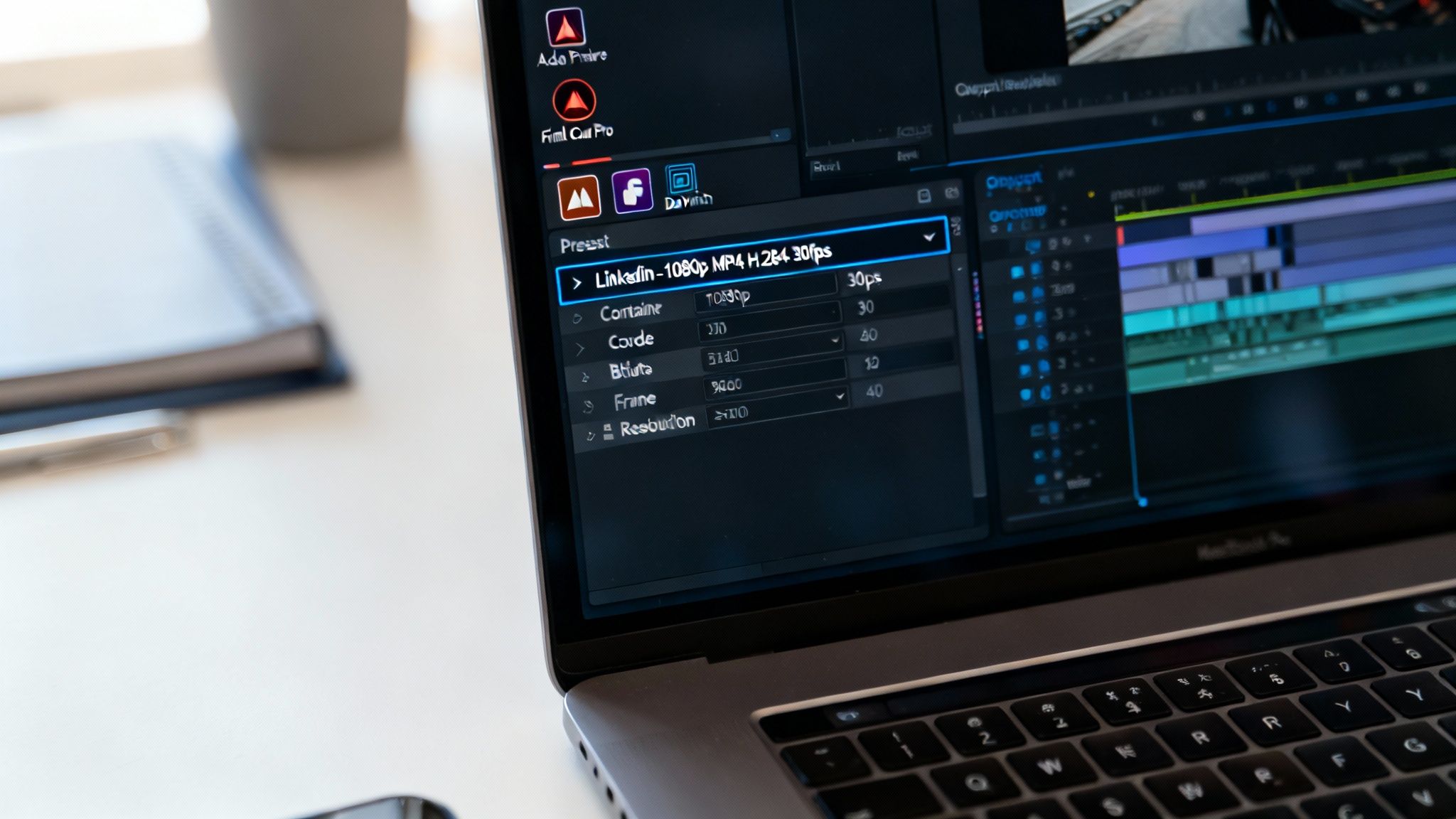
If you’re using Adobe Premiere Pro or DaVinci Resolve, you have a lot of control over the final output. The goal is to create a universally compatible H.264 file that LinkedIn processes smoothly.
To make it easy, here’s a table with the ideal settings to use in Premiere’s export window or Resolve’s deliver page.
Recommended LinkedIn Export Settings
This table provides the exact settings to create a LinkedIn-ready video file directly from Adobe Premiere Pro or similar editors.
| Setting | Recommended Value |
|---|---|
| Format | H.264 |
| Preset | Match Source – High Bitrate |
| Resolution | 1920×1080 (16:9) or 1080×1080 (1:1) |
| Frame Rate | 30 fps (Use Constant Frame Rate) |
| Bitrate Encoding | VBR, 1 Pass |
| Target Bitrate | 8-12 Mbps |
| Audio Codec | AAC |
| Audio Bitrate | 192 kbps |
Using these settings ensures your video will not only upload correctly but also maintain its quality after LinkedIn applies its own compression.
Final Cut Pro and AI Video Tools
For those on Final Cut Pro, you can achieve the same results by choosing a “Computer” or “Web Hosting” destination preset. Just double-check that the final output is an H.264 file with AAC audio.
Pro Tip: If you’re using an AI video generator like LunaBloom AI, the platform typically handles optimization for you. When you download your video, just select the highest quality option available—usually labeled “1080p MP4.” This file will already be optimized for social platforms like LinkedIn, saving you time and guesswork.
Troubleshooting Common Video Upload Problems
Nothing is more frustrating than a video that gets stuck processing or fails to upload. When this happens, the fix is usually simple and related to a minor mismatch in the LinkedIn video specifications, like an incorrect codec or frame rate.
This section provides a quick guide to solving the most common upload issues so you can get your content published without delay.
Solving Video Processing Errors
One of the most common problems is the “your video is processing” message that never goes away. This often happens when your video has elements that LinkedIn’s system struggles to handle, such as a Variable Frame Rate (VFR). This is common in screen recordings or footage from a smartphone. LinkedIn prefers a Constant Frame Rate (CFR), like 30 fps, for smooth processing.
If you hit a processing wall, try this checklist:
- Re-export with CFR: Go back to your video editor and export the file again, making sure the frame rate is set to a constant value like 30 fps.
- Confirm the Codec: Double-check that your video uses the H.264 codec and the audio is set to AAC.
- Simplify the Filename: Remove any special characters (like &, #, or @) from your video’s filename before uploading.
Addressing Quality and Sync Issues
What if your video uploads but looks blurry, or the audio is out of sync? This quality drop usually happens during LinkedIn’s compression process.
To keep your video looking sharp, export it with a bitrate of around 8-12 Mbps for 1080p footage. If you’re experiencing audio sync problems, the issue is almost always a mismatched audio sample rate. Always use a standard rate like 48 kHz to ensure your sound stays perfectly aligned.
LinkedIn Video FAQs
Even with all the technical details covered, a few questions always pop up. Here are quick, direct answers to the most common queries about LinkedIn video.
What’s the Best Video Length for High Engagement?
On LinkedIn, shorter is almost always better. While you can post a 10-minute organic video, aim for under 60 seconds for the best engagement.
Data shows that videos under 30 seconds have completion rates between 35-50%. Once you go past one minute, that number often drops below 20%. For more on this, you can check out the latest LinkedIn video ad stats.
Can I Upload a 4K Video to LinkedIn?
Yes, you can. LinkedIn supports resolutions up to 4096×2304, so 4K is technically possible. However, it’s usually overkill.
LinkedIn will compress your file anyway, and most viewers on mobile devices or laptops won’t notice the difference between 4K and a sharp 1080p video. Sticking with 1080p offers a great balance of quality and manageable file size.
Why Does My Video Look Blurry After I Upload It?
Blurriness is almost always a result of LinkedIn’s compression algorithm. To minimize this, you need to start with a high-quality source file.
When you export your video, use a target bitrate between 8-12 Mbps for 1080p footage. This gives LinkedIn’s system more data to work with during compression, helping to keep your video looking clear.
How Do I Choose the Best Thumbnail for My Video?
Never let LinkedIn pick a random frame for your thumbnail. Instead, upload a custom image that grabs attention and encourages clicks.
- Add bold text: A short, compelling title on the thumbnail works wonders.
- Show a human face: We naturally connect with people, so thumbnails with faces tend to perform better.
- Stay on brand: Use your brand’s fonts and colors to build recognition and trust.
Ready to create stunning videos that meet every LinkedIn specification perfectly? LunaBloom AI lets you generate professional, high-quality content from a simple text prompt, complete with automatic subtitles and AI avatars. Create your first video with LunaBloom AI today!