You’ve poured hours into creating a detailed report or insightful whitepaper, only for it to sit unread in a downloads folder. Sound familiar? Your PDF is packed with value, but as a static document, it’s fighting an uphill battle for attention.
This is where turning your PDF to video becomes a game-changer. It’s not just about changing the format; it’s about breathing life into your hard work, making your message more engaging, and reaching a much wider audience.
Why Turn a PDF Into a Video?
Let’s be honest: in a world of endless scrolling, a dense PDF can be intimidating. Video, on the other hand, is the undisputed king of engagement. It turns passive reading into an active, multisensory experience that makes complex ideas easier to grasp and remember.
This strategy is a perfect example of smart content repurposing. You’re not starting from scratch; you’re unlocking the hidden potential of content you already own.
The differences between these two formats are stark, highlighting why making the switch can dramatically boost your content's performance.
PDF vs Video: A Quick Comparison
| Attribute | PDF (Static Document) | Video (Dynamic Content) |
|---|---|---|
| Engagement | Passive reading; requires high focus. | Active viewing; captures attention with sound and motion. |
| Information Retention | Low. Readers retain about 10% of text. | High. Viewers retain up to 95% of a message. |
| Emotional Impact | Limited. Relies on text and static images. | High. Uses music, tone of voice, and visuals to build connection. |
| Accessibility | Can be challenging on mobile and for visually impaired users. | Highly accessible with captions, subtitles, and audio descriptions. |
| Shareability | Shared via direct links or email attachments. | Easily shared across social media, websites, and video platforms. |
| Reach | Confined to a specific audience or download page. | Potential for viral reach across multiple platforms like YouTube, LinkedIn, and TikTok. |
As you can see, video doesn't just present information—it creates an experience that sticks with your audience long after they've clicked away.
Boost Engagement and Retention
The numbers don't lie. People remember 95% of a message they see in a video, compared to just 10% from reading text. That's a massive difference that directly impacts how effective your communication is.
Here’s why video works so well:
- It Grabs Attention: Dynamic visuals, a compelling voiceover, and the right background music are far more captivating than a wall of text.
- It Makes Information Stick: Combining audio and visual cues helps cement ideas in the viewer's memory.
- It Builds a Connection: Video allows you to convey tone and personality, forging an emotional link that a formal document simply can't.
Expand Your Content’s Reach
Think about how a PDF is typically shared—usually through an email or a direct download link. It has a limited, often predictable, journey.
A video, however, is built for distribution. It can thrive on dozens of platforms, each with its own massive, built-in audience. Imagine turning that dense technical whitepaper into a snappy two-minute explainer for LinkedIn, or transforming a product manual into a step-by-step tutorial for YouTube. You're not just changing the format; you're opening up entirely new avenues for people to discover your content and your brand.
The demand for tools that can pull this off is exploding. The global AI video generator market is projected to skyrocket from $847 million in 2026 to an incredible $3,350 million by 2034. This growth is driven by marketers and business owners who need to quickly and affordably turn static assets into engaging videos, making platforms like LunaBloom AI more essential than ever.
How to Prepare Your PDF for Video Conversion
A great video starts long before you click "generate." Think of it as a chef prepping ingredients before cooking. If you just upload a dense, 100-page report and hope for the best, you'll likely end up with a confusing video nobody wants to watch.
This is your pre-production phase. It's where you take all that static text and find the story hidden inside. Putting in the work here saves you editing headaches later and ensures your final video is sharp, engaging, and actually delivers its message.
Distill Your Core Message
First, you need to figure out the "why" behind your video. A single PDF can be packed with dozens of ideas, but a short video demands a laser focus. Ask yourself: what is the one key takeaway I want my audience to walk away with? For instance, a detailed sales report shouldn't become a line-by-line video summary; it should become a short, punchy video about the quarter's biggest win.
Once you’ve nailed your central theme, it's time to find the content that backs it up.
- Pinpoint Key Data: Scan for the most surprising stats or compelling numbers that drive your main point home.
- Extract Powerful Quotes: Pull out short, memorable quotes from experts, customers, or key players.
- Identify Crucial Visuals: Make a note of any charts, graphs, or images that are essential for telling the story visually.
This isn't just about trimming down your PDF. It's about curating its best parts. You're creating a highlight reel of your document's most valuable content.
Think of it as mining for gold. Your PDF is the mountain, and your job is to extract only the most precious nuggets of information—the facts, figures, and quotes that will truly shine on screen.
Structure Your Content for Video
With your core message and key assets in hand, the next step is to arrange them into a format that works for video. Videos need a narrative arc—a clear beginning, middle, and end. The chapter structure of your PDF probably won't cut it, so it's time to sketch out a simple script or storyboard.
Organize your distilled points into a logical flow. A great way to do this is by breaking the content into "scenes" or slides. Each scene should focus on a single, clear idea. For example, if you're adapting a whitepaper on market trends, your structure might look like this:
- Scene 1 (The Hook): Kick things off with a startling statistic about the market.
- Scene 2 (The Problem): Quickly outline the challenge businesses are facing.
- Scene 3 (The Solution): Introduce your key finding or proposed solution.
- Scene 4 (The Proof): Back it up with a compelling chart or a strong quote.
- Scene 5 (The Call to Action): Tell your viewers what you want them to do next.
This simple outline becomes the blueprint for your pdf to video conversion. It guarantees the final product makes sense and guides your viewer seamlessly from start to finish.
The AI-Powered Workflow for PDF to Video
Alright, you’ve pulled the best bits from your PDF and have your core message ready. Now for the fun part: bringing it to life. This is where AI video platforms like LunaBloom AI completely change the game, taking your text and turning it into a dynamic video. Gone are the days of needing a production crew; this process is simple enough for anyone to do.
Getting started is as easy as it sounds. Just copy the script you distilled from your PDF and paste it directly into the platform. This text is the skeleton of your video—it sets the narration, the timing, and the entire flow.
Think of the prep work in three simple stages. You distill, structure, and then polish.
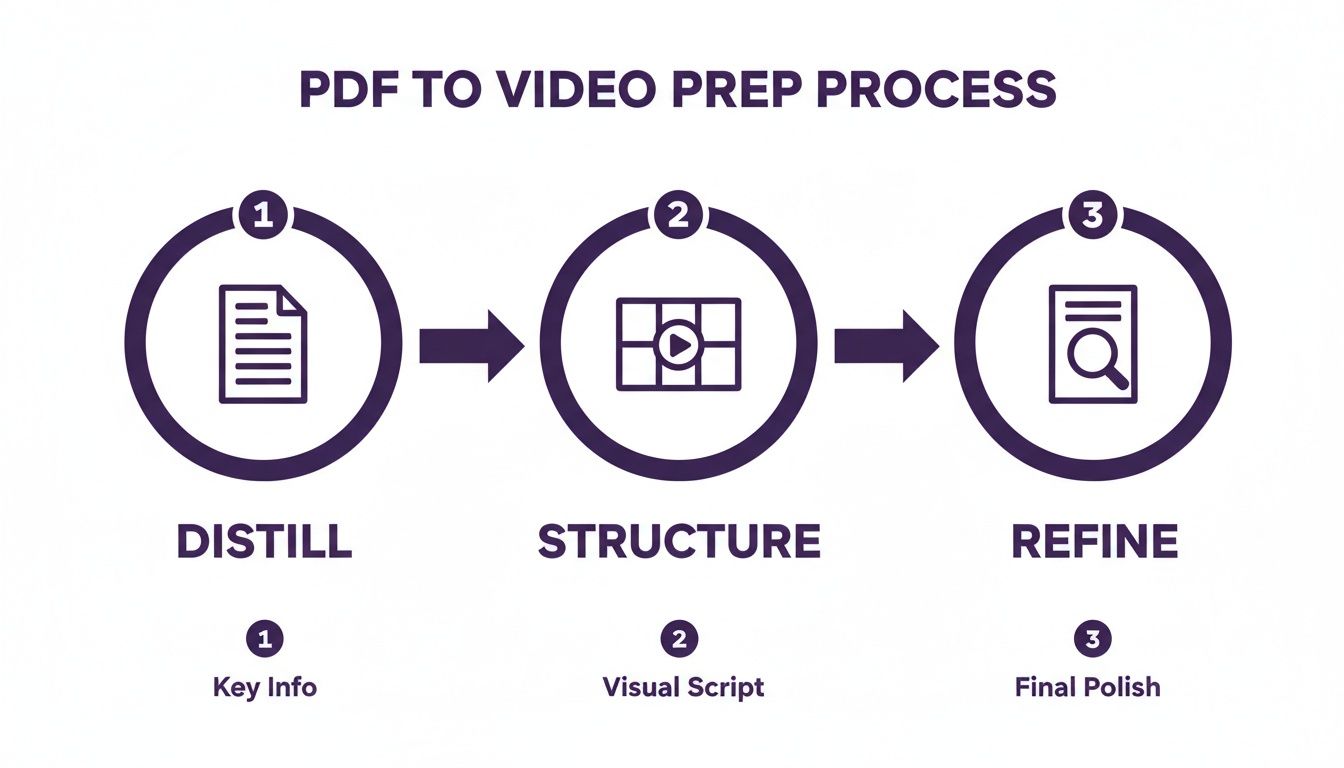
This just goes to show that a great final video really hinges on the effort you put in upfront. Nail the prep, and the AI can work its magic.
Choosing Your Visual and Audio Identity
With your script loaded, it’s time to decide on the face and voice of your video. You get to select an AI avatar to be your presenter, which is like casting an actor who perfectly fits your brand. LunaBloom AI has a library of diverse avatars, so you can pick one that clicks with your company’s vibe and the video's message.
Next up is the voice. You can browse through a ton of AI-generated voices and filter them by language, gender, or tone. Need something energetic for a marketing video? Or a calm, trustworthy voice for a training module? You have complete control to make sure the audio perfectly matches the visuals.
Automating the Technical Details
This is where the real power of AI kicks in, taking over all the tedious tasks that used to eat up so much time and budget.
- Automatic Subtitle Generation: The platform instantly whips up accurate subtitles from your script. This is a huge win for accessibility and for grabbing the attention of people watching with the sound off.
- Multi-Language Support: Want to go global? You can translate your script and generate voiceovers in dozens of languages, making it incredibly simple to localize your content.
- Scene and Media Selection: Many tools are smart enough to suggest relevant stock footage, images, and background music based on your script, giving you a fantastic visual starting point.
Modern platforms, like Colossyan's AI-powered PPT and PDF to Videos feature, are built to handle this entire workflow, showing just how much the industry is leaning into this kind of smart automation.
For a real-world example, say you have a three-page marketing brief you need to turn into a 60-second promo video. With a tool like LunaBloom AI, you'd paste in the key selling points, pick an upbeat avatar and voice, and let the AI generate a full draft—complete with subtitles and suggested visuals. From there, it’s just a matter of a quick review before you export a polished video, ready to share.
Exploring Manual Conversion Methods
While AI tools like LunaBloom AI deliver incredible speed, they aren't the only way to get from a PDF to a video. Sometimes a project calls for a more hands-on approach, or maybe you just want to stick with the tools you already know.
Manual methods put you in the driver's seat, giving you total command over every frame. Sure, these workflows take more time and effort, but they can be a fantastic choice for creators who want to fine-tune every detail or who are working with a tight budget.
Let's walk through a few common manual strategies.
Using Presentation Software
Believe it or not, one of the easiest ways to do this involves software you probably use every day, like PowerPoint or Google Slides. The trick is to think of your video as a slide deck, where each slide is a new scene.
You can copy and paste key text, images, and charts straight from your PDF onto individual slides. This lets you arrange everything, add animations to make data pop, and time when each element appears. Once you're happy with the presentation, you just export it as an MP4 video file.
- Best for: Structured content like reports, data summaries, and training materials where one slide can neatly represent one main idea.
- Pro Tip: Use the "Record Slide Show" feature to add your own voiceover. You can sync your narration with the on-screen animations for a really polished, professional feel.
The Screen Recording Method
Another go-to technique is to use screen recording software. Tools like OBS Studio, Camtasia, or even QuickTime on a Mac can capture your screen as you scroll through the PDF yourself.
This method is perfect for creating tutorial-style videos where you’re walking the viewer through a document. You can provide a live voiceover as you go, explaining different sections and pointing out important details with your cursor. It creates a raw, authentic feel that’s less produced and more like a personal walkthrough.
This technique is perfect for adding a human touch. Your audience hears your voice and follows your cursor, creating a direct connection that’s hard to replicate with automated tools. It’s an excellent choice for internal training or client presentations.
The downside? It can look less polished. Any hesitations in your voice or jerky scrolling will be captured, so you'll likely need to spend some time editing to clean things up.
Traditional Video Editing
For the ultimate level of creative control, you can turn to a traditional video editor like Adobe Premiere Pro or DaVinci Resolve. This is easily the most labor-intensive workflow, but the creative possibilities are endless.
First, you'd export pages or specific elements from your PDF as image files (JPEGs or PNGs). Then, you import those assets into your video editor and start building your scenes. You can layer text over stock footage, animate charts, add slick transitions, and sync everything precisely to a music track or a professional voiceover. This is how you get that broadcast-quality look, but it demands technical skill and a significant time investment.
Workflow Comparison AI vs Manual Conversion
Deciding between an AI-powered workflow and a manual one often comes down to balancing your resources—time, money, and skill. Each path has its own distinct advantages.
| Factor | AI Tools (e.g., LunaBloom AI) | Manual Methods (e.g., PowerPoint + Screen Recorder) |
|---|---|---|
| Speed | Extremely fast. Generates videos in minutes. | Slow. Can take hours or days depending on complexity. |
| Cost | Typically subscription-based. Cost-effective for volume. | Can be free using existing software, but professional tools are expensive. |
| Flexibility | Highly customizable within the platform's features. | Complete creative freedom. The only limit is your skill. |
| Skill Level | Beginner-friendly. No technical expertise required. | Varies from low (PowerPoint) to very high (Premiere Pro). |
Ultimately, there’s no single "best" method. AI tools are built for speed and efficiency, making them ideal for anyone who needs to produce a lot of content quickly. Manual methods, on the other hand, offer unparalleled control for those who need a bespoke final product and have the time to create it.
How to Optimize and Distribute Your New Video
Alright, you’ve created your video. That’s a huge step, but the work isn't over. The real magic happens when you get that video in front of the right people. Strategic distribution is what turns your freshly converted PDF into a lead-generating, brand-building machine.
Without a solid plan for sharing, even the most polished video will just sit collecting digital dust. Now it’s time to switch from production to promotion and make sure your new asset gets the attention it deserves.
Tailor Your Video for Each Platform
One-size-fits-all is a myth in video marketing. Every social media platform is its own universe with a unique audience and specific format preferences. To get the best engagement, you have to play by their rules and adapt your video to fit the environment.
This doesn't mean you need to remake the entire video. Just focus on creating different cuts and aspect ratios from your primary video file.
- Widescreen (16:9) for YouTube: This is the classic format for long-form content, deep-dive tutorials, and detailed walkthroughs. It’s also perfect for embedding on your website or blog.
- Vertical (9:16) for TikTok and Reels: These platforms are all about short, snappy, vertical videos. Chop up your main video into a 30-60 second highlight reel, focusing only on the most punchy points.
- Square (1:1) for LinkedIn and Instagram Feeds: Square videos dominate screen real estate on feeds, making them almost impossible to scroll past. This format is brilliant for professional updates and quick explainers.
Optimize for Search and Discovery
Just like a blog post, your video needs some SEO love to get found. This is about more than just hitting "upload." You need to give platforms clear signals so they understand what your video is about and who should see it.
A compelling thumbnail is your video's first impression—make it count. It should be high-quality, eye-catching, and give a clear hint about the video's content. Ditch the blurry screenshots and design a simple graphic with a bold, readable title.
Your video's title and description are prime real estate for keywords. Think about what your audience would actually search for and write a title that's both descriptive and intriguing. Use the description to add more context, drop in relevant links, and include a few key hashtags.
Getting this right is becoming more important than ever. The AI video generator market, which powers these pdf to video conversions, is expected to explode from $788.5 million in 2025 to $3,441.6 million by 2033. This incredible growth, tracked by Grand View Research, shows just how critical it is for businesses to not only create video content efficiently but also to get distribution right.
By optimizing your video for each platform, you ensure that the valuable information once trapped in your PDF finally gets the reach it was meant for.
Answering Your Top PDF to Video Questions
Turning a static PDF into a dynamic video can feel like a big project, and it’s smart to have a few questions before diving in. Getting a handle on key details can make the entire pdf to video process smoother and help you create something you're proud of.
We've pulled together the most common questions people ask to give you quick, no-fluff answers. Think of this as your quick-reference guide.
What Is the Best Length for My Video?
This is a common question, and the answer is: it depends on where you're posting it and what you want to achieve. There's no magic number, but there are proven guidelines.
- For Social Media (LinkedIn, Instagram, TikTok): Think short, sharp, and to the point. Aim for 30-90 seconds. The goal is to stop the scroll, land one key message, and make an instant impact.
- For Your Website or YouTube: Here, you have more breathing room. A length of 2-5 minutes works well for tutorials, in-depth explainers, or any content where your audience is ready to learn more.
The key is to be ruthless with your editing. Your goal is to distill the core message of your PDF into the tightest, most engaging package for that specific platform.
Can I Use a PDF with Lots of Charts and Graphs?
Absolutely! In fact, PDFs packed with data are some of the best candidates for becoming videos. A dense chart on a page can make someone's eyes glaze over, but a video can make that data interesting.
When you're prepping your PDF, pull out those key charts and graphs. You can treat each one as its own scene in the video. Use a clear voiceover to explain what the numbers mean, or add simple animations to call out important trends. This turns a wall of data into something people can actually understand.
Think of it this way: a chart in a PDF shows the data, but a chart in a video tells the story behind the data. This shift from showing to telling is what makes the conversion so powerful.
What Video File Format Should I Use?
When it's time to export your final video, there’s really only one choice you need to worry about: MP4. It's the undisputed king of online video formats.
MP4 gives you the perfect sweet spot between great visual quality and a file size that won’t take forever to load. This means your videos play smoothly without looking blurry. Nearly every social platform, website builder, and video host is built to work seamlessly with MP4s, making it the most reliable and headache-free option. Most tools, including LunaBloom AI, will give you an MP4 by default.
Ready to stop letting your valuable content sit unread in a static PDF? Transform your documents into engaging, dynamic videos that capture attention and deliver results. With LunaBloom AI, you can create professional-quality videos from your text in minutes, not days. Explore the possibilities and start your first project today at https://lunabloomai.com.