Want to get more out of your PowerPoint presentations? Turning them into videos is one of the most effective ways to boost their impact. The process is simple: you package your slides, timings, and narration into a standard video file, like an MP4. Just like that, your static presentation becomes a dynamic, shareable asset that can capture and hold an audience's attention.
This guide will walk you through exactly how to do it, from using PowerPoint's built-in tools to leveraging advanced AI for a professional finish.
Why Turning PowerPoint Into Video Unlocks Engagement
Let's face it: in a world of constant digital noise, a standard slide deck rarely stands out. Audiences expect more engaging content, and static slides often cause people to tune out or click away. Converting your PowerPoint to video isn't just a technical task—it's a smart strategic move.
You're transforming a flat, one-dimensional experience into something multi-sensory. Video combines visuals, motion, and audio to tell a story that is not only easier to follow but also far more memorable.
Static Slides vs. Dynamic Video At a Glance
The difference between a static presentation and a dynamic video is night and day. This quick comparison shows just how much you gain by making the switch.
| Feature | PowerPoint Slides | Video Content |
|---|---|---|
| Engagement | Passive; often needs a live presenter | Active; self-contained and holds attention |
| Accessibility | Requires software to view; less mobile-friendly | Plays on any device; easily shareable |
| Retention | Lower recall rates for static information | Higher recall due to multi-sensory input |
| Distribution | Shared via email or download links | Uploaded to social media, websites, YouTube |
| Pacing | Viewer-controlled, can be rushed or skipped | Presenter-controlled, ensuring a consistent message |
As you can see, video offers a richer, more controlled, and ultimately more impactful way to deliver your message.
This shift pays off in countless real-world situations:
- For Marketers: Video is the language of social media and email campaigns. A video version of your sales deck will get watched and shared far more than a PDF ever will.
- For Educators: Students can replay complex lessons on their own time, which is a massive boost for comprehension and actually remembering the material.
- For Corporate Trainers: Onboarding and training modules become consistent, scalable, and genuinely effective for remote teams who can't be in the same room.
The data backs this up. Recent studies show that a whopping 93% of marketers report a positive return on investment from video. Even more telling, companies using video in their strategy see 49% faster revenue growth year-over-year compared to those that don't.
The core idea is to move from simply presenting information to telling a story. A video has a clear beginning, middle, and end, guiding your audience through your message in a compelling, controlled narrative.
To get the most out of your video presentations, you need to think beyond just the technical conversion and understand the basics of how to create engaging content. The good news is, you don't have to do it all by hand. Modern tools can automate this entire workflow. For instance, platforms like LunaBloom AI can take your basic slides and instantly turn them into professional-looking videos, complete with AI presenters and voiceovers.
Mastering PowerPoint’s Built-In Video Export
Before you explore third-party software, it’s worth mastering the powerful video tool already built into PowerPoint. Many users only scratch the surface of the "Export to Video" feature, but a little know-how can dramatically improve your final product. This is the most direct method for turning PowerPoint into video.
What's great about this approach is its simplicity. All your carefully crafted animations, slide transitions, and embedded media are preserved exactly as you intended. This means your video maintains its original flow and visual story without you having to fuss with complex import settings or file conversions.
This is the evolution of your content in a nutshell—transforming static slides into a dynamic video that grabs attention and helps people actually remember what you've shared.
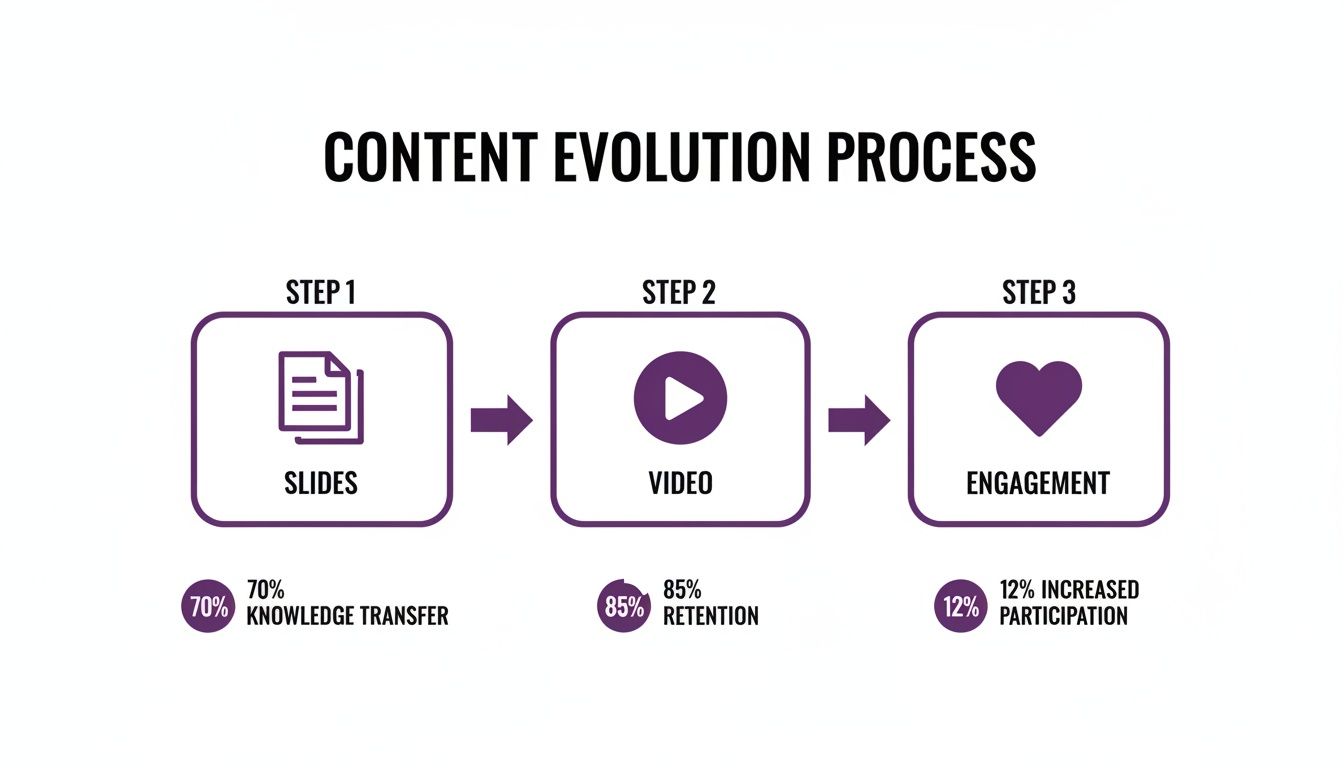
It’s a simple shift, but it’s one that dramatically improves how viewers connect with and retain your information.
Choosing The Right Video Quality
The first choice you'll face is video quality, and it's a critical one. This setting directly impacts your file size and how smoothly the video plays for your audience.
- Ultra HD (4K): Only choose this for massive displays or high-end professional projects where every pixel counts. The file sizes are gigantic and usually overkill for web use.
- Full HD (1080p): This is the sweet spot for most situations. It delivers fantastic clarity for platforms like YouTube, Vimeo, and corporate websites without creating an unmanageable file.
- HD (720p): A solid option for internal communications or email attachments where you need to balance good quality with a smaller file size for faster loading.
- Standard (480p): Best reserved for cases where bandwidth is extremely limited. The quality will look dated on most modern screens.
Always consider where your audience will be watching. For a sales deck viewed on a laptop, 1080p is perfect. For a quick training update sent via email, 720p will do the job and won't clog up your colleagues' inboxes.
Setting Timings And Narration
The pacing of your video is everything. It's controlled by your timings and narration, and PowerPoint gives you two main ways to handle this, each suited for a different type of video.
First, you can use Rehearsed Timings and Narrations. This is your go-to for creating a polished, presenter-led video. You run through the presentation as if for a live audience, and PowerPoint records how long you spend on each slide along with your voiceover.
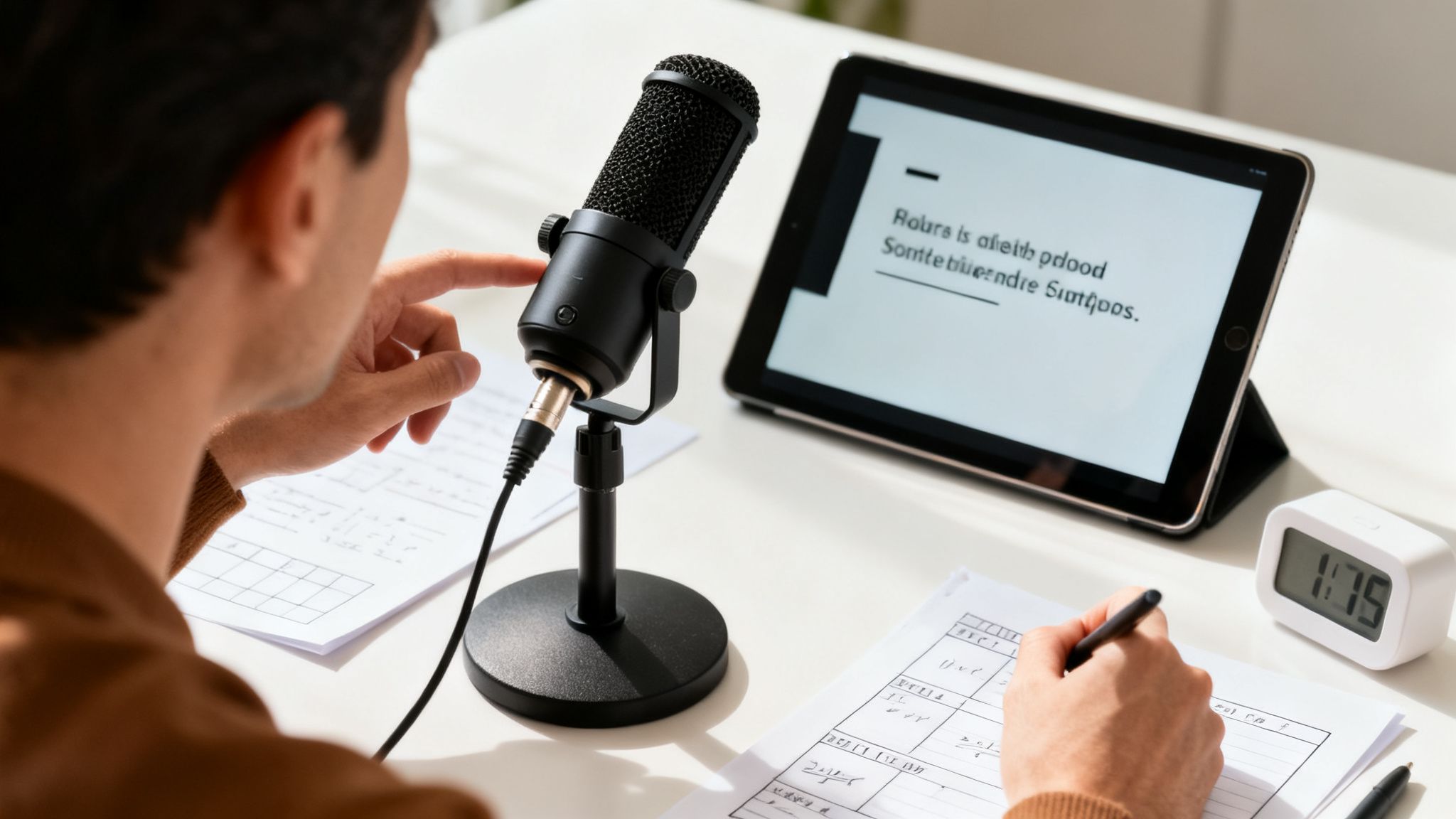
Pro Tip: Invest in an external USB microphone. The jump in audio quality compared to your laptop’s built-in mic is massive and instantly makes your video sound far more professional.
The other option is to manually set the "Seconds spent on each slide." This applies a simple, fixed duration to every slide. It’s a great fit for automated, kiosk-style presentations or silent videos with a background music track where you just need consistent timing. A looping video at a trade show booth is a perfect example.
By getting comfortable with these built-in controls, you can create a clean, professional video directly inside PowerPoint, making it the perfect starting point for any straightforward conversion project.
Giving Your Slides a Voice With AI Video Generation
When a standard PowerPoint export isn’t enough, AI video generation changes the game entirely. Forget simple conversions; this is about transforming your static slides into a dynamic, broadcast-quality video—all without needing a camera crew or complex editing software. It’s the perfect solution for anyone needing to produce high-impact videos without the typical hassle.
Platforms like LunaBloom AI are designed to bridge the gap between a basic slide recording and a polished, professional production. The workflow is refreshingly simple: you upload your PowerPoint file, and the AI immediately gets to work, creating a structured video project from your slides. This is the new frontier for turning your presentations into something much bigger.
From Static Slides To a Full Production
The real magic happens once your slides are in the system. Instead of just showing flat images, these tools let you add an AI presenter—an avatar that delivers your script with surprisingly lifelike expressions and gestures. This single feature adds a human element that is crucial for holding a viewer's attention.
Here you can see how an AI presenter can be dropped right into your video, giving it that professional, engaging finish.
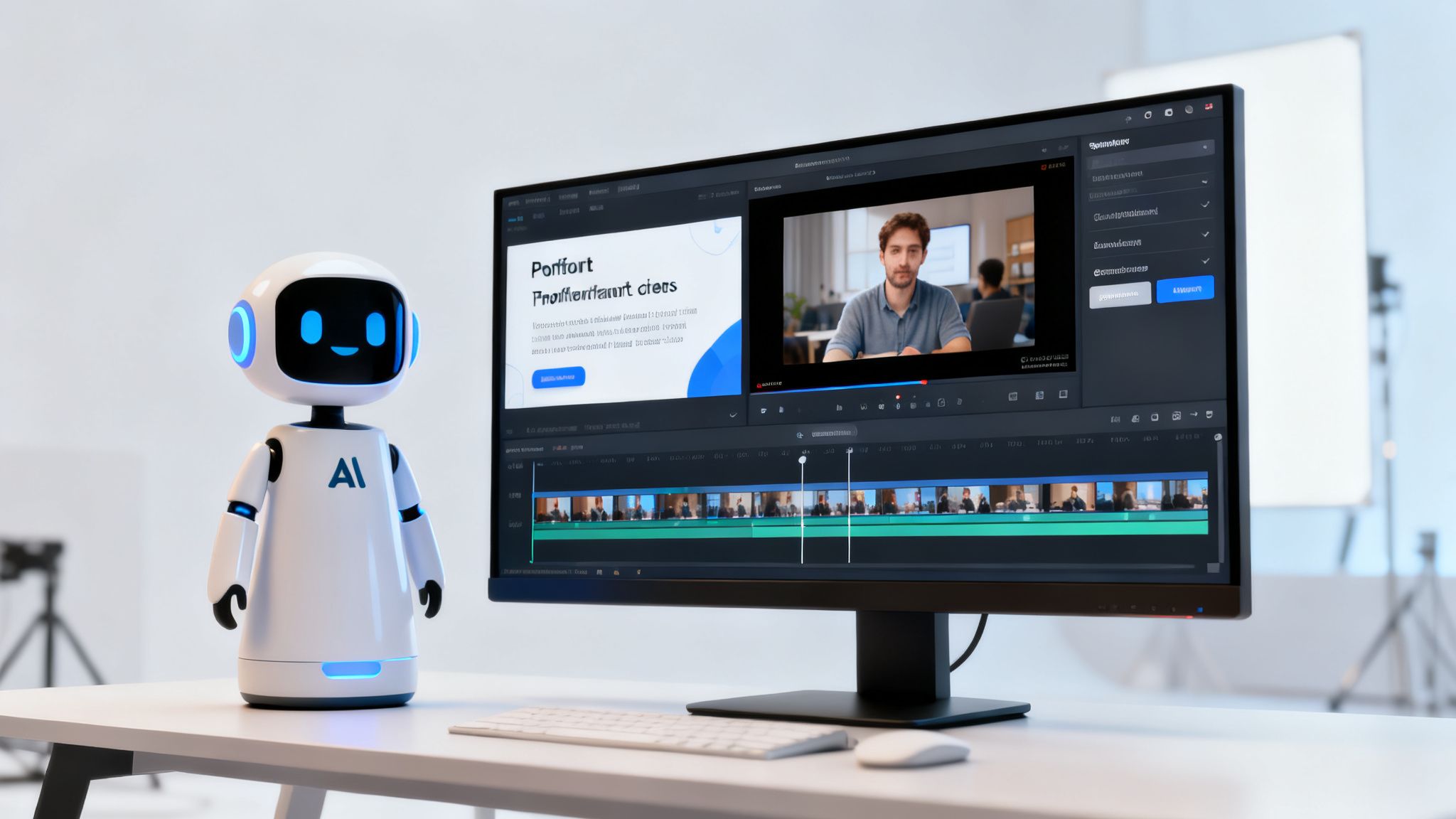
This ability to add a digital presenter instantly elevates your presentation from a passive slideshow to an active, engaging tool for learning or marketing.
From there, you can pair your avatar with a high-quality AI voice and choose from dozens of languages to reach a global audience. For an even more personal touch, many platforms offer voice cloning. This lets you use a digital replica of your own voice to narrate the presentation—a powerful way to maintain brand consistency and a personal connection with your audience.
Feature Comparison: PowerPoint Export vs. LunaBloom AI
To understand the difference, let's compare the standard PowerPoint export with what a dedicated AI tool like LunaBloom offers. The native features are fine for quick, internal videos, but when you need to make an impact, the AI-powered features really shine.
| Feature | Native PowerPoint Export | LunaBloom AI |
|---|---|---|
| Presenter | None (requires screen recording) | 100+ realistic AI avatars |
| Voiceover | Manual recording only | High-quality AI voices in 50+ languages |
| Personalization | Limited to your own voice recording | AI voice cloning for brand consistency |
| Subtitles | Manual creation required | Automatic generation & sync |
| Production Time | Can be time-consuming | Minutes from upload to final video |
| Ease of Use | Requires technical setup | Simple drag-and-drop interface |
The difference is huge. PowerPoint gives you the bare bones, while LunaBloom provides a complete production studio right in your browser.
Boosting Accessibility and Engagement
One of the biggest wins of using AI is the ability to automatically generate and embed subtitles. This feature is no longer a "nice-to-have"; it’s essential for modern video content. Why?
- Accessibility: It opens up your content to viewers who are deaf or hard of hearing.
- Silent Viewing: A massive number of people watch videos on social media with the sound off. Subtitles ensure your message still lands.
- Comprehension: Captions can improve focus and information retention, even for viewers without hearing impairments.
This level of automation saves countless hours of manual transcription and timing. You can jump right in and see how LunaBloom AI's features can work for you.
By combining AI avatars, multilingual voiceovers, and auto-subtitles, you are essentially creating a full video production studio that operates right from your browser. The time and cost savings are immense compared to traditional video creation methods.
The Proven Impact of AI in Video Creation
The industry is embracing these tools for a simple reason: they deliver real results. According to recent data, 63% of video marketers are already using AI for content creation. This trend is backed by strong performance, as businesses using AI to generate videos from presentations report seeing an 82% increase in ROI compared to old-school methods.
To seriously level up your slides and bring them to life, exploring the best AI video generators can open up a world of new creative solutions. These tools aren't a futuristic concept anymore—they're a practical and powerful way for marketers, educators, and creators to produce exceptional video content at scale.
Exploring Alternative Conversion Methods
While PowerPoint’s built-in exporter and AI platforms are great for quick conversions, sometimes you need a different approach to turn your PowerPoint into a video. Perhaps you want a more personal touch or need absolute creative control. That’s where these alternative methods come in handy.
These techniques are perfect when you're creating direct-to-camera tutorials, detailed walkthroughs, or highly polished marketing videos that need to stand out.
Screen Recording for a Personal Touch
One of the most straightforward and effective alternatives is using a screen recording tool. This approach is ideal when you want to capture more than just your slides—it lets you include your own narration and a webcam feed for a much more personal and engaging presentation.
Tools like Loom or the free and powerful OBS Studio let you record your screen while you run through your slide deck in full-screen mode. This works especially well for:
- Creating personal tutorials: You can guide viewers through complex slides and use your cursor to point out key details.
- Delivering direct-to-camera messages: Having your webcam feed adds a human connection that a disembodied voiceover can't match.
- Recording live webinars: This is a great way to capture the entire session, including any spontaneous Q&A, for those who couldn't attend live.
The real advantage here is authenticity. It feels less like a sterile, automated video and more like a one-on-one conversation, which can make a huge difference in keeping your viewers tuned in.
Unlocking Full Control With Video Editors
For high-stakes projects that demand the absolute best, bring your slides into a dedicated video editing program. This method gives you complete creative freedom, letting you transform a basic presentation into a genuinely cinematic production.
The workflow is simple: export your PowerPoint slides as high-resolution images (like PNGs or JPEGs) and then import them into software like Adobe Premiere Pro or Camtasia. Once your slides are on the timeline, you’re no longer bound by PowerPoint’s limitations. You can:
- Add B-roll footage: Weave in relevant video clips over your slides to illustrate key points and keep things visually interesting.
- Incorporate advanced effects: Use professional transitions, text animations, and color grading to create a high-end look and feel.
- Craft a custom soundtrack: Layer background music, sound effects, and professionally mixed narration to build a powerful auditory experience.
This approach is the go-to for cornerstone marketing videos, investor pitches, or premium online course modules where production value is non-negotiable. It requires more technical skill, but the final product is worlds apart from a standard slide export.
Both screen recording and video editing are powerful ways to adapt your presentation for specific needs. If you're new to this and want a middle ground—something simpler yet powerful—you might explore an AI-driven tool that bridges the gap, like the LunaBloom AI starter app.
Practical Tips for an Engaging Video Presentation
Knowing the technical steps for turning PowerPoint into video is one thing, but making something people want to watch is another. A perfectly exported but boring video won't achieve your goals. Let's cover the details that make a video genuinely compelling.
Treat your video like a story. The best ones have a clear beginning to hook the viewer, a middle that delivers the core message, and an ending that feels satisfying. When you structure your slides this way, you guide your audience through the content without them even realizing it.
Design for the Screen, Not the Boardroom
What looks great on a giant projector screen in a conference room often feels cluttered and hard to read on a phone or laptop. You have to adapt your design for a different medium.
- Prioritize High Contrast: Your visuals need to pop. Stick with bold, high-contrast colors so your text and graphics are easy to see, even on a small mobile screen.
- Minimize On-Screen Text: A video isn’t a document. Keep text to a minimum, focusing only on keywords and critical data. Your voiceover should do most of the talking.
- Embrace Visuals Over Words: Use high-quality images, icons, and simple charts to get your point across. A single, powerful image will always beat a dense paragraph of text.
Keeping your slides clean and visually focused makes the whole experience feel more professional and effortless for your viewers.
Perfect Your Audio and Pacing
I can't stress this enough: bad audio will kill an otherwise great video. Viewers will forgive a slightly blurry visual, but they won't stick around for scratchy, muffled sound.
Investing in an inexpensive external USB microphone is the single biggest upgrade you can make to your video's quality.
Pacing is just as critical. If you rush through your slides, people will get lost. Speak too slowly, and you'll put them to sleep. Rehearse your narration a few times to find a natural, conversational rhythm. Don't be afraid to pause for a second after a key point—it gives the audience a moment to let the information sink in.
The data supports this. A staggering 96% of people have watched an explainer video to learn about a product, and 85% were convinced to buy after watching one. Marketers have also found that videos between 30 seconds and two minutes perform best, highlighting the need for concise, well-paced content. You can discover more insights about video marketing statistics on wyzowl.com.
A great video is a blend of clear visuals, crisp audio, and deliberate pacing. When all three elements work together, you create a seamless and memorable viewing experience that respects your audience's time and attention.
For more ideas on crafting content that connects with your audience, head over to the LunaBloom AI blog. By applying these simple tips, you can transform any standard presentation into a video that gets results.
Frequently Asked Questions
Even with a clear process, a few questions always pop up when turning a PowerPoint into a video. Let's tackle the most common ones to help you sidestep any headaches and get your video ready to share.
What is the best video format for my PowerPoint export?
For nearly any situation, MP4 is the way to go. It strikes the perfect balance between high-quality video and a reasonable file size. More importantly, it’s universally compatible, meaning it will play smoothly everywhere from YouTube to your company’s internal training portal.
While you might see other options like WMV, it's an older Microsoft format that often causes playback issues on Macs or mobile devices. Stick with MP4 to save yourself trouble down the road.
How can I make my exported video file smaller?
The biggest factor affecting file size is the resolution you choose before you export. For almost any online video, 1080p (Full HD) is the perfect sweet spot.
Exporting at 4K resolution sounds impressive, but it creates a massive file that’s overkill for most web viewing and just slows everything down. If your video is still too large after exporting at 1080p, you can run it through a video compression tool. Many AI video tools also handle this optimization for you automatically.
Will my PowerPoint animations and transitions appear in the video?
Yes, they will. When you use PowerPoint’s built-in export feature, it faithfully captures all your animations, slide transitions, and rehearsed timings in the final video. This is one of the main reasons it's a solid choice for a quick and simple conversion.
That said, simpler transitions like a clean fade often look more modern and professional. You can always keep the PowerPoint effects minimal and let a dedicated video tool add more dynamic, eye-catching effects for a more engaging final product.
Why does the audio in my video sound poor?
Bad audio almost always comes down to a bad microphone. The tiny built-in mic on your laptop is notorious for picking up background noise and making your voice sound thin and echoey.
The single best investment you can make is an external USB microphone. Even an affordable one will make a world of difference in clarity. Recording in a quiet space without hard, reflective surfaces (like a room with carpet and curtains) also helps immensely. Of course, AI voice generators deliver perfectly crisp audio every time, no equipment needed. If you’re still running into issues, you can always reach out to our support team for help.
From Slides to Videos: The Next Step
Turning your PowerPoint into a video is more than just a file conversion; it's about transforming how you communicate. Whether you use PowerPoint's built-in tools, screen recording software, or a powerful AI platform, the goal is the same: to create dynamic, engaging content that captures attention and delivers your message effectively.
By following the methods and tips in this guide, you have everything you need to move beyond static slides and start producing videos that inform, persuade, and entertain.
Ready to transform your presentations into captivating videos effortlessly? With LunaBloom AI, you can turn your static slides into professional-quality videos with AI avatars, voice cloning, and automatic subtitles in minutes. Start creating for free at lunabloomai.com.