Nothing tanks a video faster than out-of-sync audio. It’s more than a minor glitch—it’s a credibility killer that instantly makes your content look amateur. Getting the audio sync with video right isn't just a detail; it's the foundation of a polished, professional final product.
Why Flawless Audio Sync Is a Game Changer
Let's be honest: when a speaker's lips don't match their words, our brains revolt. This disconnect shatters the viewing experience and can make even the most compelling message feel off. It yanks the audience out of your story and forces them to focus on a technical error instead.
This problem isn't just for big-budget film sets. It happens constantly with everyday content creation, including:
- Mobile Phone Recordings: Phones often use variable frame rates, which can easily confuse professional editing software.
- Webinar and Interview Recordings: Using separate mics and cameras is standard practice, but it introduces an immediate sync challenge.
- Multi-Camera Shoots: Juggling multiple video and audio streams requires surgical precision to keep everything perfectly aligned.
The True Cost of Bad Sync
The impact of bad audio sync is huge. Today's viewers have high expectations, and a jarring technical flaw can cause viewer drop-off rates to spike by up to 40%. For any creator, that's a massive audience loss.
With the video streaming market projected to soar to USD 787 billion by 2035, maintaining high production quality is no longer optional—it's essential for standing out. Perfect lip-sync is a direct investment in keeping your audience engaged and watching.
The real challenge isn't just fixing sync issues—it's preventing them from happening in the first place. A proactive approach saves countless hours in post-production and protects your brand's reputation.
This is why understanding the fundamentals is so critical. Modern tools, especially AI-driven platforms, are designed to solve this problem from the ground up. For example, AI-native platforms like LunaBloom AI generate video and audio together, ensuring they're perfectly timed from the start, minus the headaches of manual alignment. This technology is making professional-grade video accessible to everyone.
Diagnosing the Root Causes of Sync Drift
Before you can fix a sync issue, you have to play detective. When your audio and video drift apart, it’s almost never a random glitch. There's a specific technical reason behind it, and identifying the culprit is the first step toward a clean, professional finish and nailing your audio sync with video.
Most of the time, the problem lies in mismatched settings across your recording devices. Imagine you're shooting an interview with two cameras and a separate audio recorder. If one camera is set to 24 frames per second (fps) and the other is at 23.976 fps, you've introduced a tiny conflict that will grow into a major sync headache during the edit.
Mismatched Frame and Sample Rates
This subtle difference is the most common cause of sync drift. The video and audio files are essentially running in slightly different time zones. For the first few minutes, everything might seem fine. But over a longer recording, the gap widens until your speaker’s lips are moving completely out of step with their words.
A similar issue occurs with audio sample rates. Professional video production uses a standard 48 kHz sample rate. However, many audio-only devices default to 44.1 kHz. If your external microphone records at 44.1 kHz while your camera's internal audio is at 48 kHz, the two files will play back at slightly different speeds.
- Frame Rate Mismatch: Happens when video sources have different frames-per-second settings (e.g., 23.976 fps vs. 24 fps).
- Sample Rate Mismatch: Occurs when audio devices use conflicting sample rates (e.g., 44.1 kHz vs. 48 kHz).
- The Snowball Effect: These small technical mismatches compound over time, leading to noticeable drift in longer videos.
The Problem with Variable Frame Rates
Another frequent offender is Variable Frame Rate (VFR) footage. This is common in videos from smartphones, webcams, and screen recording software. VFR is a clever resource-saving feature that adjusts the frame rate on the fly—lowering it for static scenes and raising it for action—to reduce file size and processing load.
The real issue with VFR is that professional editing software is built to handle a Constant Frame Rate (CFR). An editor expects every second of video to contain a predictable number of frames. When it encounters a VFR file, it gets confused and struggles to align the audio track correctly.
This is why a video that looks perfect on your phone can become a synchronization nightmare in your editing timeline. The problem is so widespread that the Video Sync Separator market is projected to reach USD 722 million by 2033, highlighting how critical precise timing is. You can explore more data on the video sync separator market from this report. For more production tips, check out other articles on the LunaBloom AI blog.
Network issues can also cause sync problems, especially during live streams. Understanding concepts like What Is Packet Loss and How Do You Fix It can help you troubleshoot why your audio and video drift apart during a live broadcast.
To help you quickly diagnose what might be going wrong, here is a quick-reference table.
Common Causes of Audio Sync Drift
| Problem Area | Common Cause | How to Prevent It |
|---|---|---|
| Recording Setup | Mismatched frame rates (e.g., 24 vs. 23.976 fps) between cameras. | Before recording, double-check that all cameras are set to the exact same frame rate and resolution. |
| Audio Gear | Mismatched sample rates (e.g., 44.1 kHz vs. 48 kHz) between audio recorder and camera. | Standardize all audio devices to 48 kHz, the industry standard for video production. |
| File Types | Using Variable Frame Rate (VFR) footage from phones or screen recorders. | Convert all VFR footage to a Constant Frame Rate (CFR) using a tool like HandBrake before importing it into your editor. |
| Live Streaming | Poor internet connection causing packet loss or latency. | Use a stable, wired internet connection and check your network health before going live. |
| Post-Production | Incorrect sequence settings in your editing software. | Ensure your project/timeline settings match the frame rate and sample rate of your primary source media. |
By being mindful of these common pitfalls before you record, you can save yourself hours of frustration during the edit.
How to Manually Align Your Audio and Video
When automated tools fail, knowing how to manually sync your audio and video is an essential skill for any creator. It might sound tedious, but with a few simple tricks, you can achieve perfect sync in editors like Premiere Pro or DaVinci Resolve.
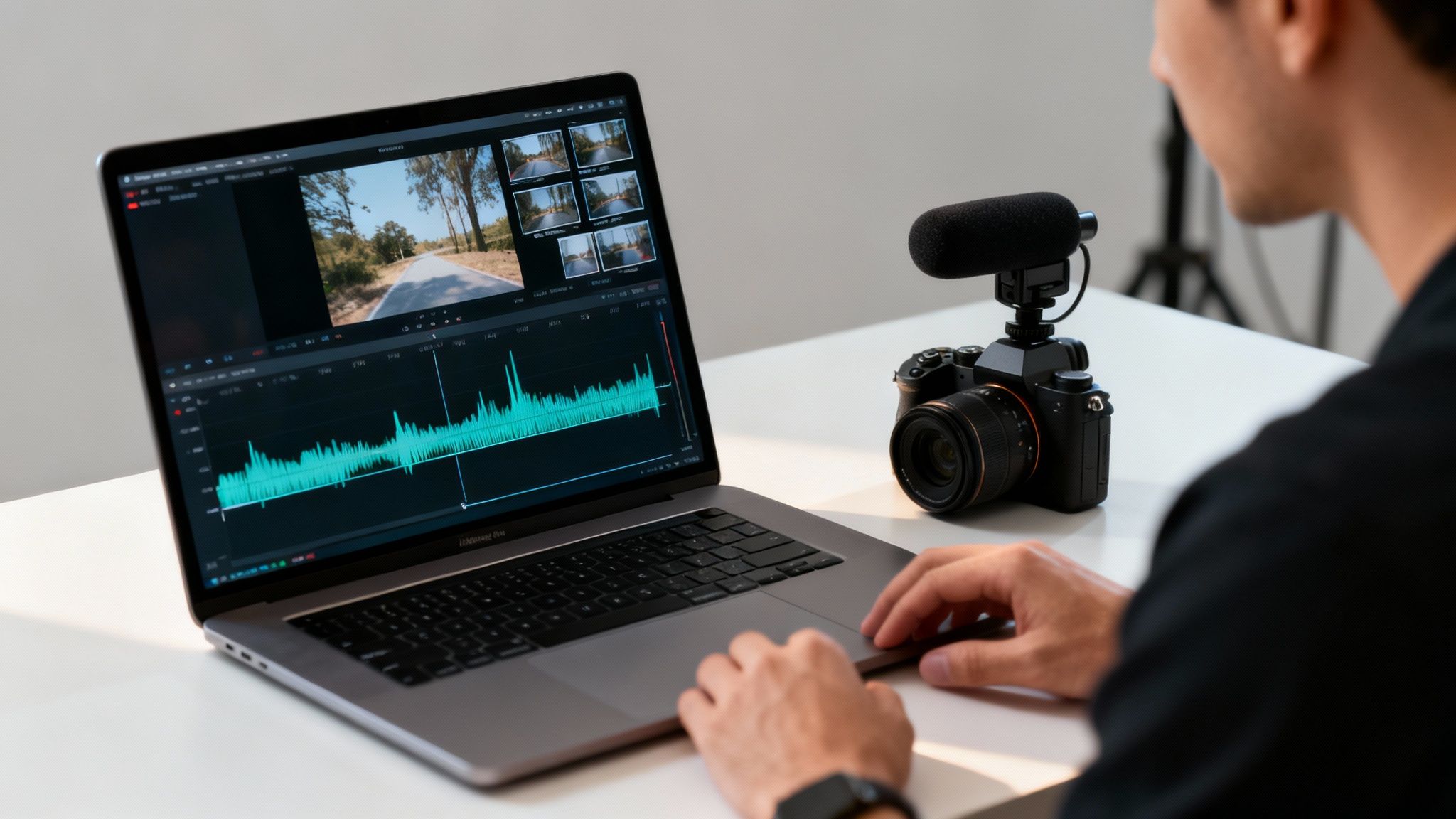
The most reliable method involves creating a sharp, distinct sound at the start of your recording. A clapperboard on a movie set does exactly this, creating a clear visual and audio spike for easy alignment. No slate? A single loud clap on camera works just as well. This gives you a clear reference point to line everything up.
Using a Clap or Slate for Alignment
When you import your clips, you'll see at least two audio tracks: the "scratch audio" from your camera and the clean audio from your external recorder. The scratch audio may sound terrible, but it's your secret weapon for syncing.
- First, place both the video clip (with its attached audio) and your external audio file onto the timeline.
- Next, look at the audio waveforms. You should see a large, sharp peak on both tracks right where you clapped.
- Simply drag your external audio clip until its peak aligns perfectly with the peak from the camera's audio.
Once they match, you can mute or delete the scratch audio track, leaving you with crystal-clear sound from your primary microphone, perfectly timed with your video.
This diagram illustrates some of the common technical culprits behind sync issues, from mismatched frame rates to VFR footage.
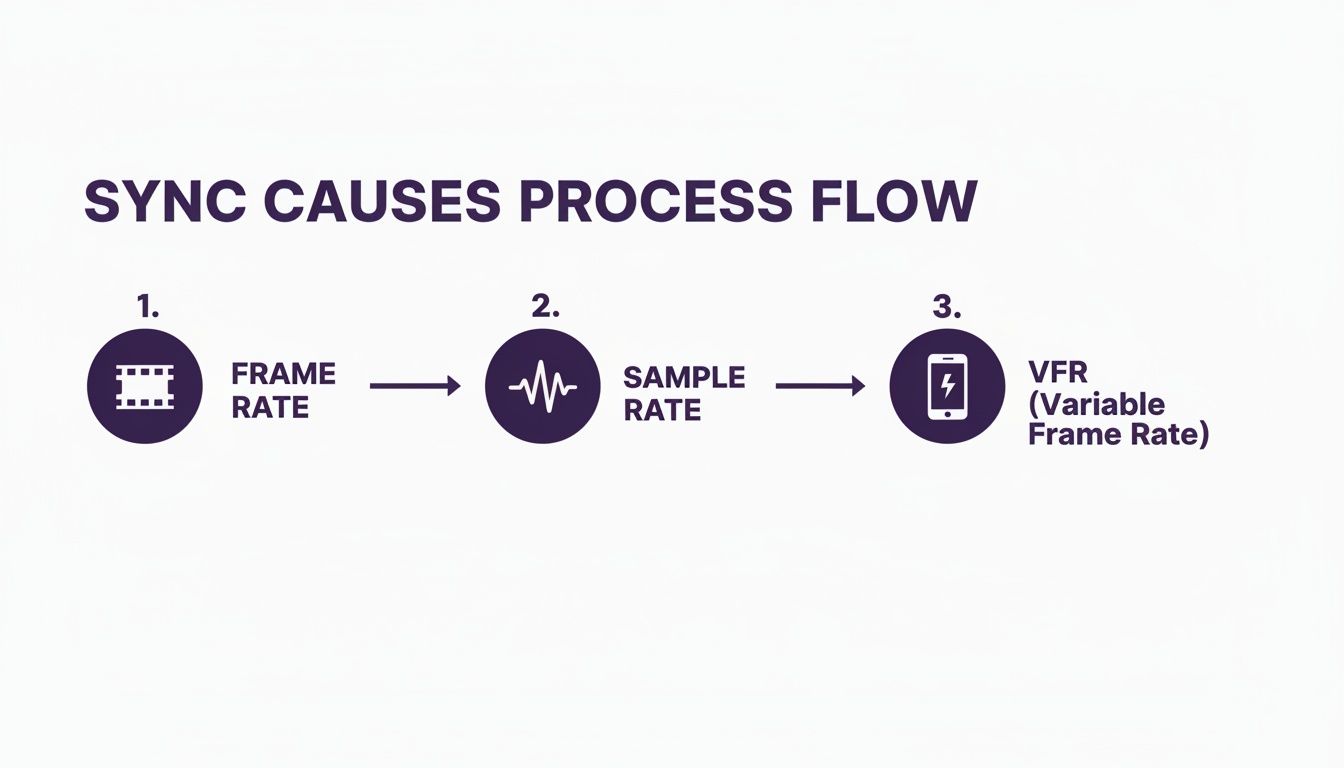
It shows how one incorrect setting can cascade into a larger problem, which is why a consistent, disciplined workflow is so important.
Mastering Waveform Syncing
Forgot to clap? It happens. You can still get a perfect sync by visually matching the waveforms of spoken words. This requires more patience but is just as effective.
Zoom way in on your timeline until you can see the individual shapes of the audio waves. Then, slide the external audio track back and forth until the patterns on both waveforms are an exact match.
Pro Tip: Once your clips are perfectly aligned, drop a marker on both the video and audio tracks at the same spot. Then, link the clips together. This locks them in place, so you don't accidentally knock them out of sync while editing.
While manual syncing is a valuable skill, AI-driven video tools offer a way to skip this process entirely. The LunaBloom AI Starter App, for example, generates video with perfectly synced audio from the start, eliminating this post-production headache.
Exploring Automated and AI-Powered Sync Solutions
Manual syncing is a great skill, but it's a major time sink. In a world of tight deadlines, efficiency is key. This is where automated tools transform a tedious chore into a simple one-click task.
Most modern video editors like Premiere Pro and DaVinci Resolve have excellent built-in features for audio sync with video. These tools analyze the audio waveforms from your camera and external recorder, find matching patterns, and align them with impressive accuracy. For most creators, this feature alone is a game-changer.
The Rise of Generative Video Platforms
While auto-sync in traditional editors is a huge help, a new class of AI-native tools is changing the game entirely. Instead of fixing sync problems in post-production, they are designed to prevent them from ever happening. These platforms don't treat audio and video as separate elements to be combined later; they generate them simultaneously as one cohesive, perfectly timed asset.
This integrated approach is a big deal. The demand for flawless audio and video has pushed the AV System Integration market into overdrive, with projections showing it could hit $30,301.2 million by 2032. Viewers have zero patience for bad sync—even a one-second delay can cause engagement to plummet by 20%.
How AI Designs Sync Problems Out of Existence
Platforms like LunaBloom AI are built on a fundamentally different principle. You provide a script, and the AI generates the avatar's speech and the corresponding visuals at the same time. The lip movements, vocal timing, and delivery are all created together from the very beginning.
Because the system creates audio and video as a single, unified package, you never have to worry about mismatched frame rates or sample rates. The frustrating problem of audio drift simply disappears.
The real magic of AI-native video generation is that it stops treating sync as a problem to be fixed. It sees audio and video as two sides of the same coin, not as separate things you have to force into alignment.
By building in features like voice cloning and text-to-video, these tools represent a new workflow where the time-consuming process of manual syncing becomes a thing of the past.
If you want to see this technology in action, you can try the LunaBloom AI app and generate a video for yourself. It’s a workflow where perfect lip-sync is the default, not a post-production challenge.
Building a Sync-Proof Production Workflow
The best way to fix an audio sync problem is to prevent it from happening in the first place. A little discipline before you hit record can save you hours of frustration later. A sync-proof workflow is less about expensive gear and more about smart, consistent habits.
It all begins with getting your equipment on the same page. Think of your gear like a band—if the drummer and guitarist are playing at different tempos, the music falls apart. The same principle applies to your cameras and audio recorders.
Standardize Your Settings
Before any shoot, your first step should be a settings audit on all devices. This simple check is the foundation of good audio sync with video.
- Identical Frame Rate: Every camera must be set to the exact same frame rate. If your main camera is at 23.976 fps, your second camera cannot be at 24 fps. That tiny difference will cause noticeable drift over just a few minutes.
- Consistent Sample Rate: The same rule applies to your audio gear. The industry standard for video is 48 kHz. Ensure your external recorder and any on-camera mics are locked to this standard to prevent audio drift.
Getting this right is a huge part of mastering your podcast production workflow. When you establish these technical checks as habits, they become second nature.
This simple routine eliminates the most common cause of sync issues right from the start.
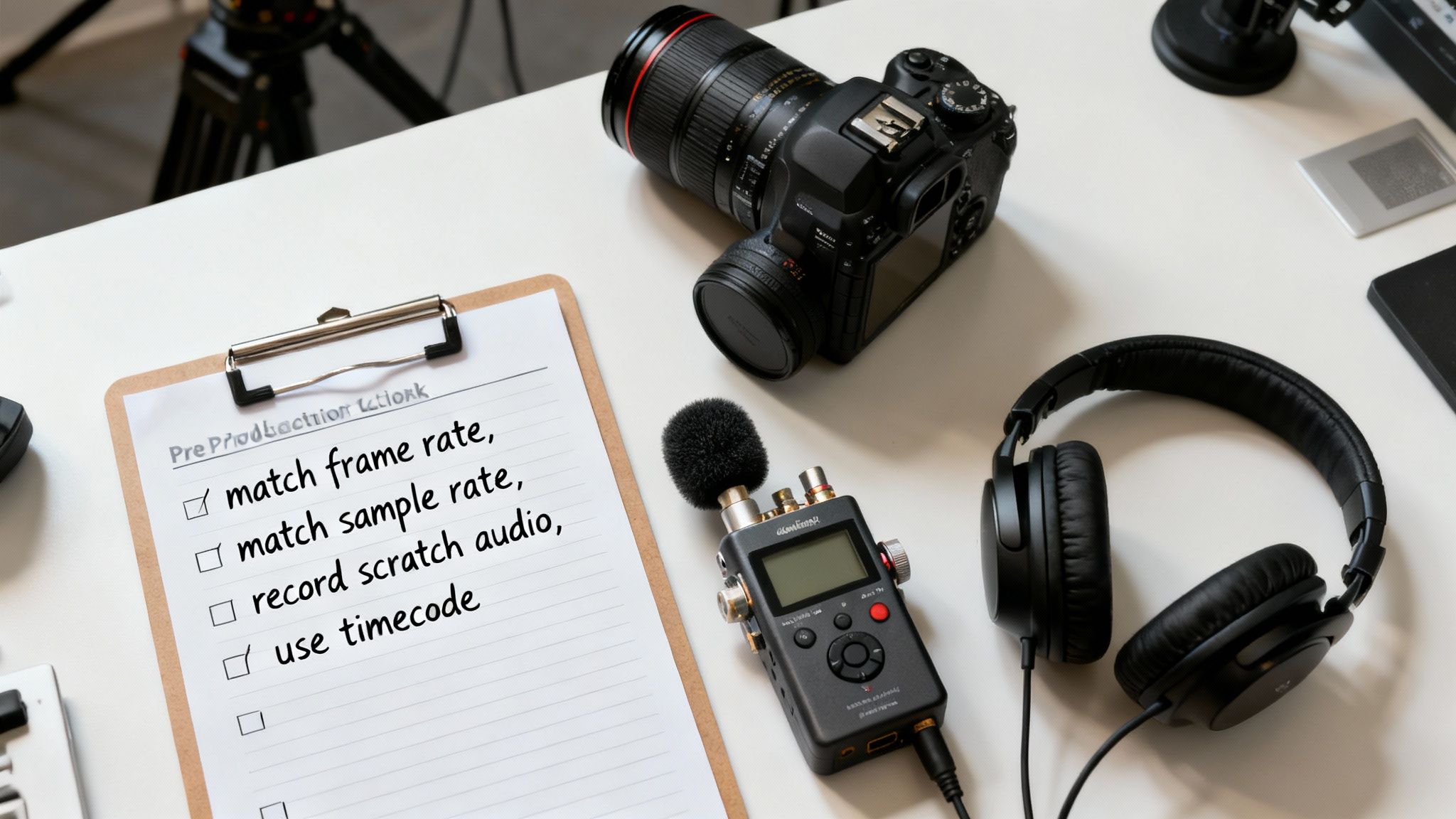
Pre-Production Sync Checklist
Use this checklist before every recording session. Catching one of these issues before you start rolling can save you a massive headache.
| Checklist Item | Why It's Important | Recommended Setting |
|---|---|---|
| Frame Rate Match | Prevents video tracks from drifting apart over time. | 23.976, 29.97, or 59.94 fps (consistent across all cameras) |
| Sample Rate Match | Stops audio from drifting away from the video. | 48 kHz (consistent across all audio devices) |
| Record Scratch Audio | Provides a reference waveform in-camera for easy syncing. | Enabled on all cameras |
| Check for VFR | Variable Frame Rate footage causes havoc in editing software. | Convert to Constant Frame Rate (CFR) before import. |
| Timecode Sync | For multi-cam shoots, it ensures perfect, frame-accurate sync. | Set to "Free Run" or "Time of Day" and jam sync all devices. |
Following this list makes your post-production life infinitely easier by solving problems before they begin.
Essential Pre-Production Habits
Beyond settings, a few key habits will streamline your editing process. Always record "scratch" audio directly into your camera, even when using a high-quality external recorder. This in-camera audio gives you an invaluable reference waveform that makes syncing your good audio a simple drag-and-drop task.
Also, be cautious with footage from smartphones or screen recordings. These sources often use a Variable Frame Rate (VFR), which is poison for professional editing software. Before importing this footage, run it through a free tool like HandBrake to convert it to a Constant Frame Rate (CFR). This one step can save you from a world of sync nightmares.
For more complex multi-camera setups, timecode is the gold standard. A timecode generator sends a precise timing signal to all devices, stamping each frame with identical data for instant synchronization. If you're interested in the philosophies behind this kind of production efficiency, you can learn more about the minds behind LunaBloom AI and our approach to simplifying creative tasks.
Answering Your Toughest Audio Sync Questions
Even with careful planning, audio sync issues can still pop up. Here are straightforward answers to some of the most common questions and roadblocks creators face.
Why Does My Audio Slowly Drift Out of Sync in a Long Video?
This is the most common frustration for creators of long-form content. The video starts perfectly synced, but by the end of a 30-minute recording, the audio is noticeably ahead or behind.
This classic audio drift is almost always caused by a tiny mismatch in recording settings. If your camera is recording at 23.976 fps while your audio recorder is set to a true 24 fps, that fractional difference will compound over time, causing the audio to play back at a slightly different speed than the video.
The only reliable fix is preventative. Before you record, triple-check that every camera and audio recorder is set to the exact same frame rate and sample rate. Make this a non-negotiable part of your pre-shoot checklist.
Can I Fix Audio Sync on a Video I Already Uploaded to YouTube?
Unfortunately, no. Once a video is uploaded to a platform like YouTube, the audio and video tracks are permanently merged into a single file. You can't go back and adjust the audio timing after the fact.
Your only option is to return to your original editing project, fix the sync issue, re-export the entire video, and upload it as a new file. This is why getting the sync right before you publish is so critical—it saves you from having to delete and re-upload a video that may already have views and engagement.
How Do AI Tools Like LunaBloom AI Avoid Sync Issues Entirely?
This is where generative video platforms have a massive advantage. They don't have sync problems because the audio and video are never separate to begin with—they're created simultaneously as a single, unified asset.
When you provide a script to the AI, it generates the visuals (like an avatar speaking) and the audio at the exact same time. The timing of the words is intrinsically linked to the avatar's lip movements from the very first frame. There are no separate files with conflicting frame rates to fix in post-production. The problem is literally designed out of the workflow.
What’s the Difference Between Waveform Syncing and Timecode?
Both methods achieve the same goal—perfect sync—but they work differently and are suited for different types of projects.
- Waveform Syncing: This is a software-based solution. Your editing program analyzes the audio patterns from your camera's scratch audio and your external recorder's high-quality audio, then automatically aligns the matching waveforms. It's highly effective for shoots with one or two cameras.
- Timecode: This is a hardware-based, professional solution for complex multi-camera shoots. A dedicated timecode generator sends a precise timing signal to all cameras and audio recorders, stamping each frame with identical code. This allows for instant, frame-perfect sync.
In short, waveform syncing is a smart software trick perfect for most creators, while timecode is a rock-solid hardware standard for large, professional productions.
At LunaBloom AI, we believe creating video shouldn't be a technical nightmare. Our platform generates perfectly synced, professional-quality videos right from your script, taking headaches like audio drift completely off the table so you can focus on your story. Start creating with LunaBloom AI today.